
Documentation Index
Fetch the complete documentation index at: https://docs.heymilo.ai/llms.txt
Use this file to discover all available pages before exploring further.
Phone Numbers
Managing them here keeps trust high (familiar area codes) and makes sure SMS blasts and phone steps have a valid line to send from.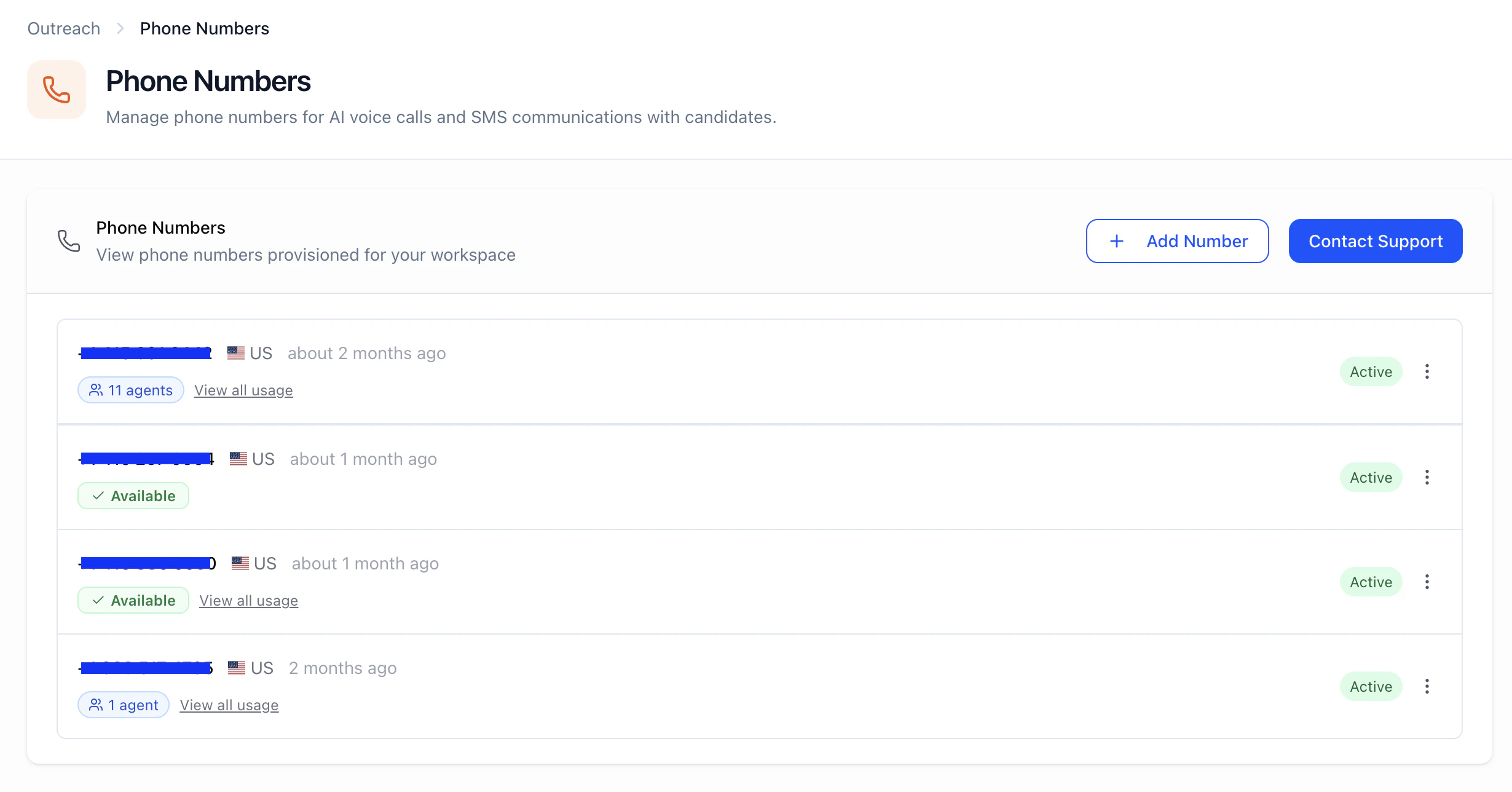
Why it matters
- Answer rates — Local or recognizable numbers get more pickups than random long-distance codes.
- SMS delivery — You need a workspace number (and compliance setup) before high-volume text works reliably.
- Visibility — You can see which interviewers or qualifiers use each number so you don’t double-book or delete something still in use.
How it works
- Provision a number through HeyMilo / support (the product expects you to get a valid number from the team first - usually your dedicated CS Manager).
- Register it in the app in E.164 format (e.g.
+12062088075). - Attach numbers when you configure SMS or phone interview steps (and related flows)—exact pickers live on the interviewer / posting side.
- Monitor usage badges on this page; deactivate or delete when safe.
Add / register a number
- Open Outreach → Phone Numbers.
- Add Number.
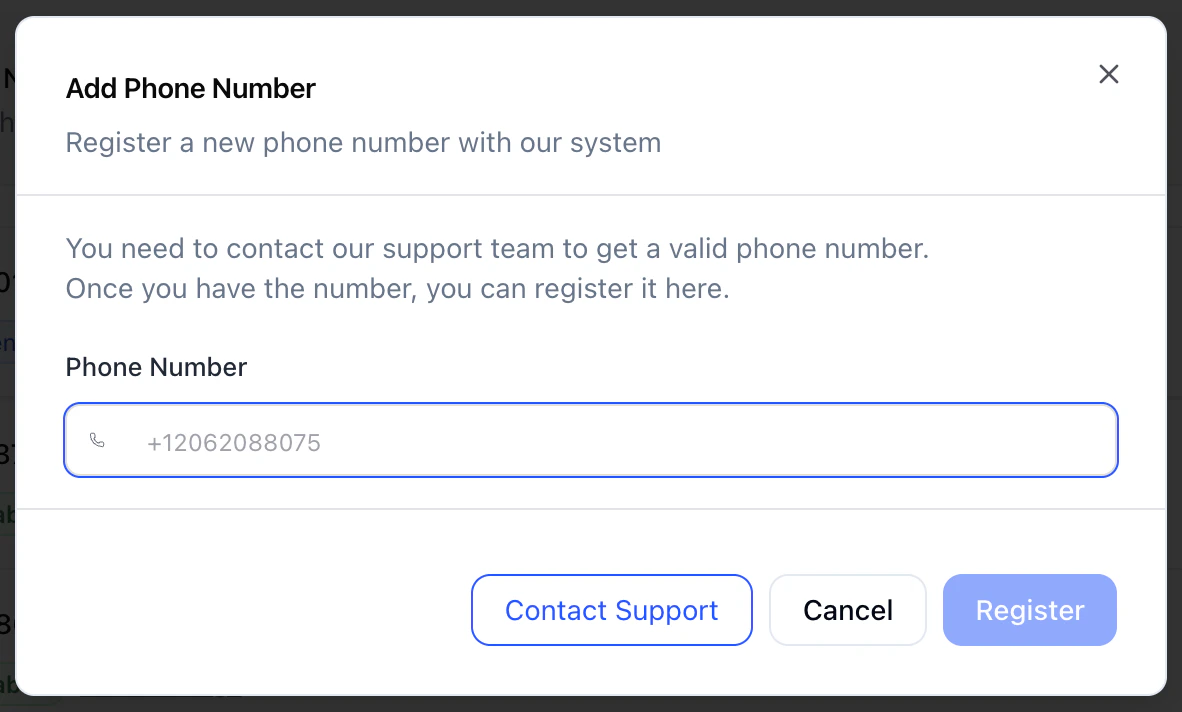
- Read the prompt: you typically contact support to obtain a provisioned number, then register it here.
- Enter the number in E.164: leading
+, country code, then digits (no spaces or dashes in the stored value unless the UI strips them—use the format the field validates). - Register.
What you see on the list
For each number you’ll typically see:- Formatted display (easier to read than raw E.164)
- Country (when available)
- Created / provisioned timing
- Status — Active or Inactive
- Usage — For example:
- Available — Not tied to active consumers (or no usage recorded)
- Agents — In use by one or more interviewers/postings (count shown; click through for detail)
- Reserved / Qualifier — Held for an inbound qualifier (or similar) so it’s not free for other use
Manage a number (⋮ menu)
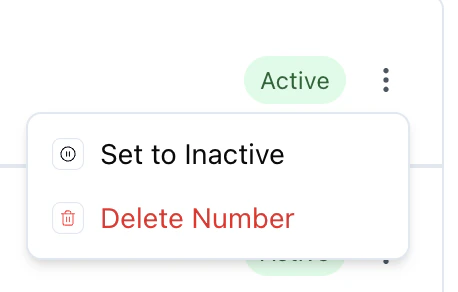
- Set to Inactive — Stops using it as an active line while keeping the record (confirm what this does for in-flight campaigns in your workspace).
- Activate — Turn an inactive number back on.
- Delete — Remove the number from the workspace. You usually cannot delete a number that still has active usage on postings or qualifiers; reassign or deactivate those first.
Best practices
- Ask support for the right region when you care about local presence for your candidate pool.
- One number per high-volume brand if you white-label or run multiple clients—avoids cross-client confusion.
- Before deleting — Open usage and clear or reassign every agent and qualifier reference.
Troubleshooting
| Issue | What to check |
|---|---|
| Can’t register | E.164 only (+ and digits); number actually provisioned for your workspace. |
| Delete disabled / error | Number still in use—open usage, remove from postings/qualifier. |
| No numbers at all | Empty state tells you to contact support to provision the first line. |
| SMS blast problems | Contact Blasts, candidate opt-in/history, and this page’s active status. |
Next steps
- Contact Blasts — Bulk SMS (and related limits)
- Email Templates — Parallel track for automated email
- Outreach — Sender domains, custom domains, branding
- Interview types — Voice vs SMS in the workflow (adjust path if your GitBook structure differs)