
Documentation Index
Fetch the complete documentation index at: https://docs.heymilo.ai/llms.txt
Use this file to discover all available pages before exploring further.
Team & Roles
HeyMilo lets you invite your whole hiring team and control what each person can see and do. This way, recruiters, hiring managers, and admins all have the right level of access.How to Add a Teammate
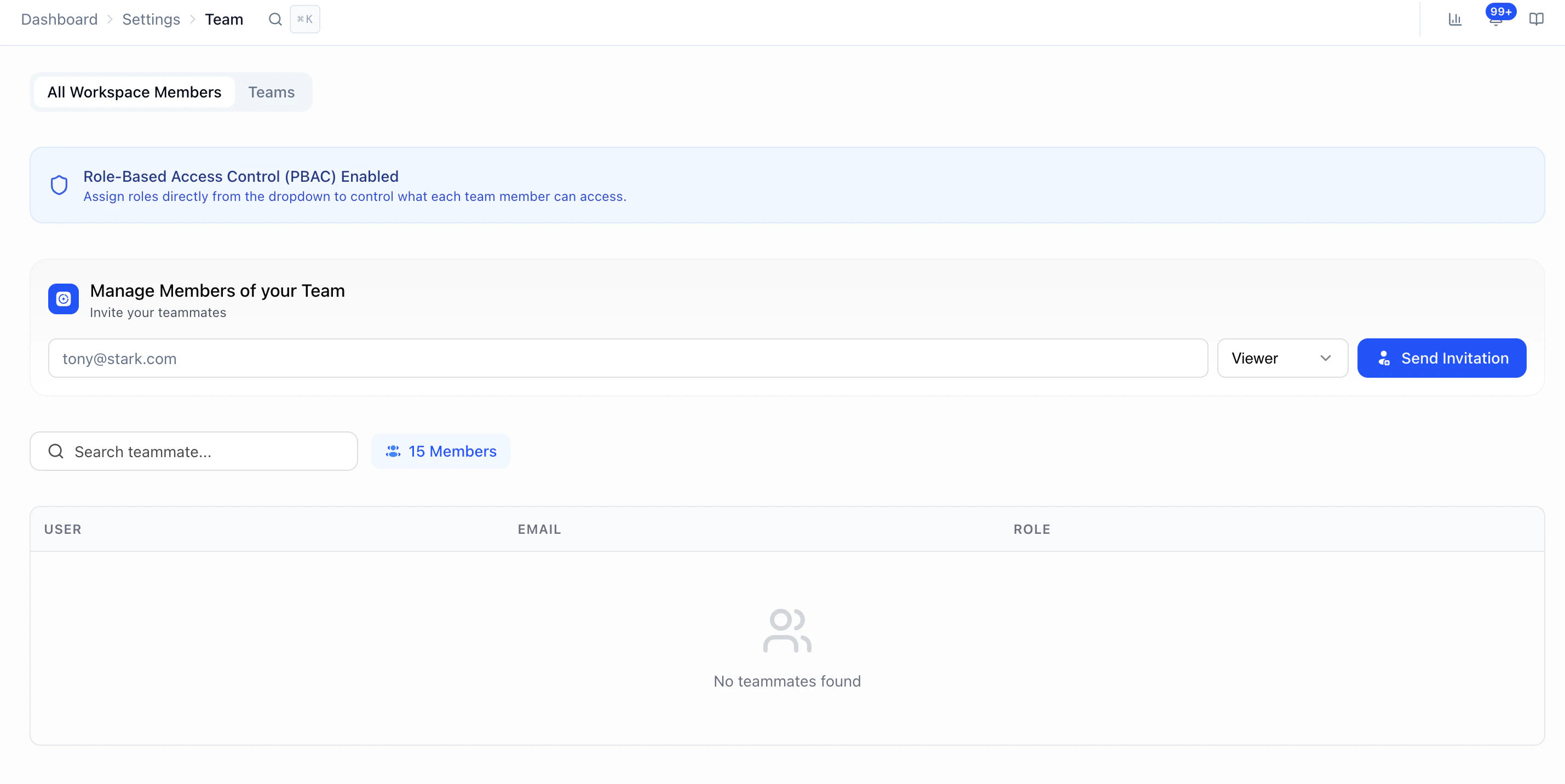
Roles & Permissions
HeyMilo offers three system roles, plus the ability to create custom roles. System Roles| Role | Read | Write/Edit | Delete |
|---|---|---|---|
| Admin | ✅ | ✅ | ✅ |
| Recruiter | ✅ | ✅ | ❌ |
| Viewer | ✅ | ❌ | ❌ |
How to Set Up Custom Roles
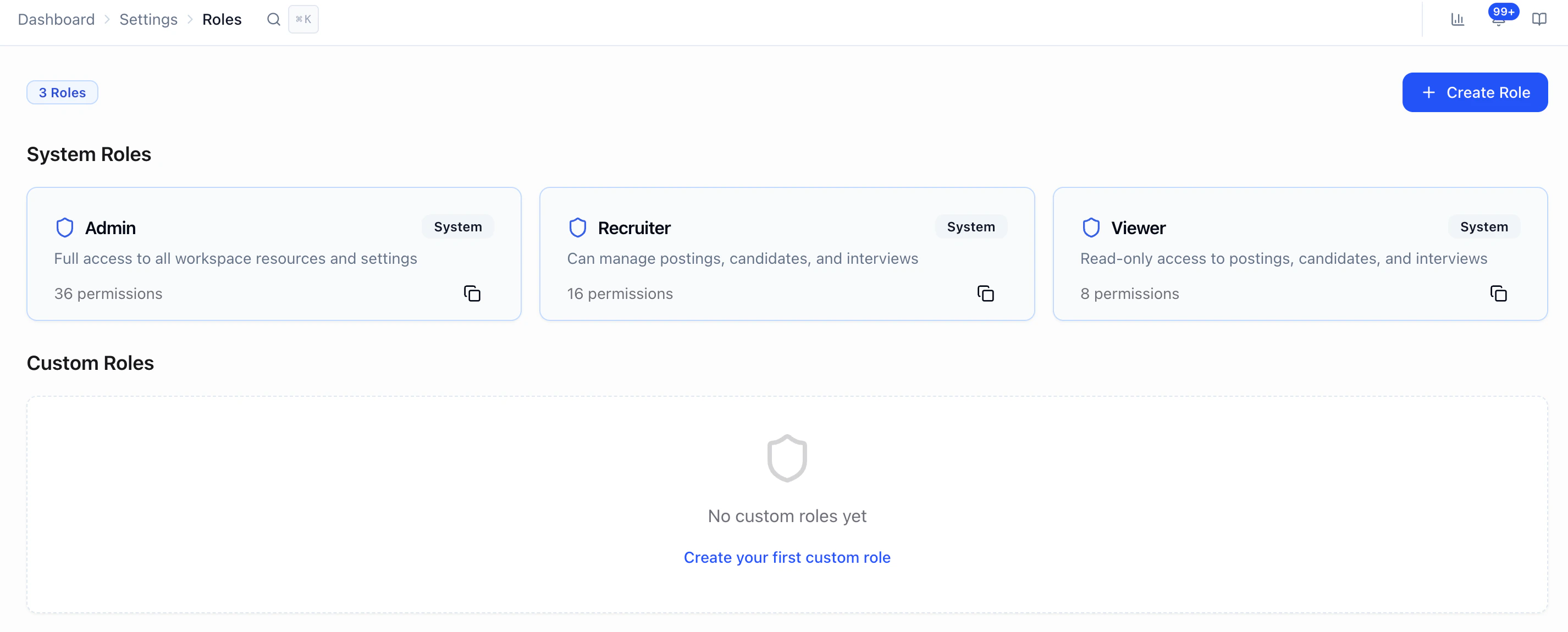
Managing Teammates
Enabling PBAC for Your Workspace
Permissions-Based Access Control (PBAC) must be enabled for your workspace by HeyMilo. Contact your CSM or support to turn on this feature.
Teams in Your Workspace
You can create teams within your workspace to organize postings by department, location, or brand.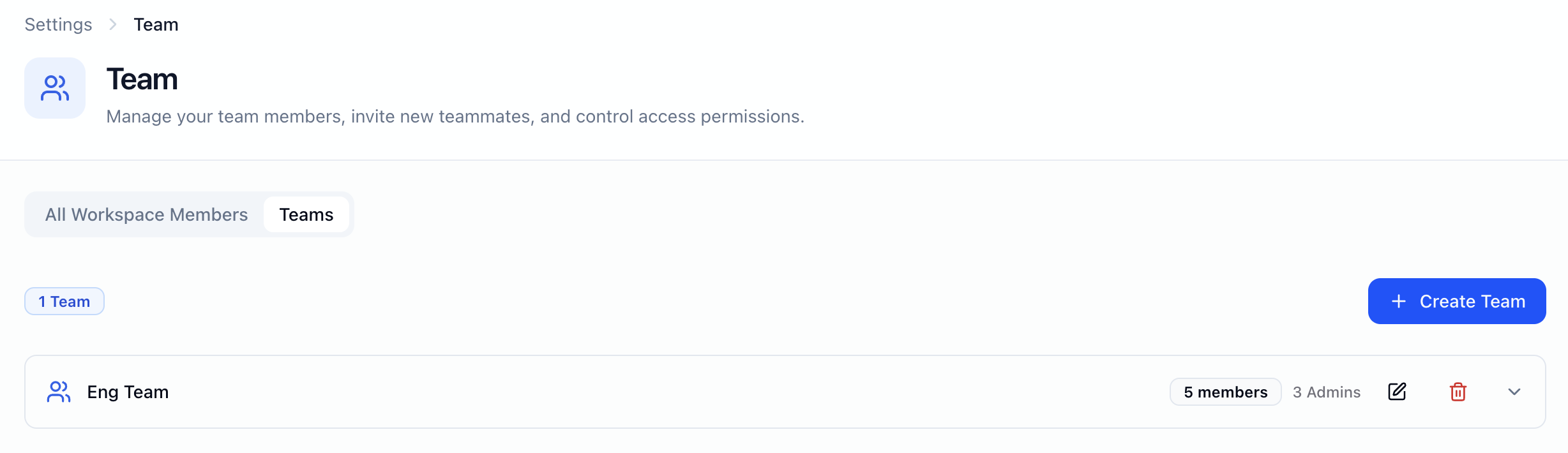
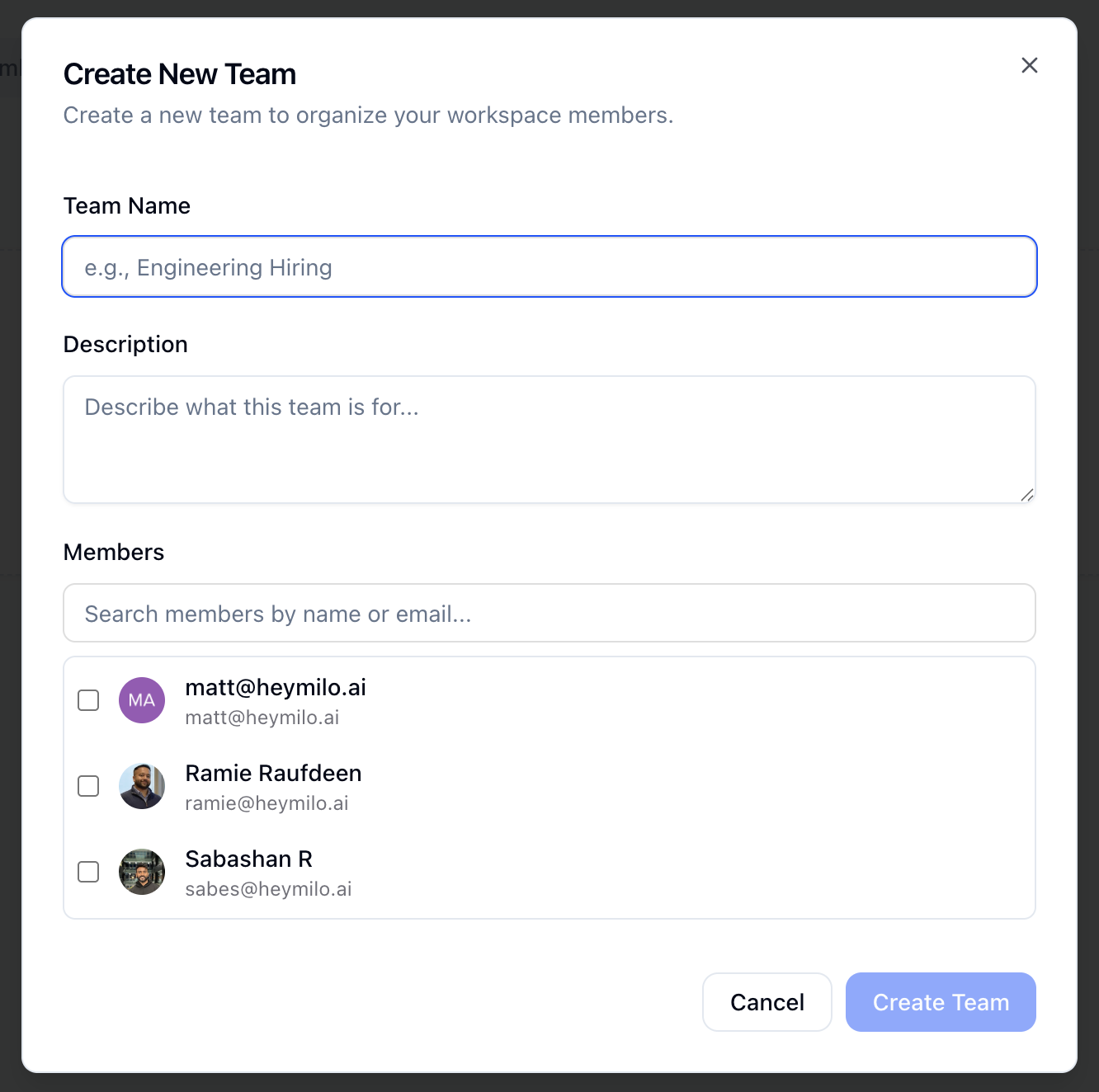
Step 2 — Name each team (e.g. “Sales Recruiting,” “West Region”) and add members as needed.
- Optionally add a quick description so members know what the team is for

- When you create an agent, it is created in the team space you’re currently in (or the team you have selected). That agent then “lives” in that team and is visible to others based on team membership and permissions.
- Agents are scoped to one team at a time.