
Documentation Index
Fetch the complete documentation index at: https://docs.heymilo.ai/llms.txt
Use this file to discover all available pages before exploring further.
Cheat Detection
HeyMilo’s Cheat Detection helps recruiters identify potential cheating behaviors during candidate interviews. This guide explains how to configure the system and interpret the results.
System Requirements
Before enabling cheat detection, ensure:- Cheat detection is enabled for your workspace
- Candidates use a supported browser for web interviews
- Camera and microphone permissions are granted
Supported Browsers
Recommended (best experience) — Use one of these, kept up to date:- Google Chrome: Latest stable version. Best tested; recommended for the most reliable experience.
- Microsoft Edge: Latest stable version. Full support and regularly tested.
- Mozilla Firefox: Latest stable version. Full support.
- Safari: Latest version on macOS and iOS. Use the latest Safari your device supports.
- Opera, Opera GX, Brave, Samsung Internet (Android), Vivaldi, Arc (Chromium-based).
- Internet Explorer (all versions). Use Edge or another modern browser.
- Very old or unpatched browsers.
Where Cheat Detection Is Configured
Cheat detection can be configured in two places, depending on your workflow.Option 1: Workspace-Level Settings (Recommended Default)
Use this if you want consistent integrity settings across all interviews.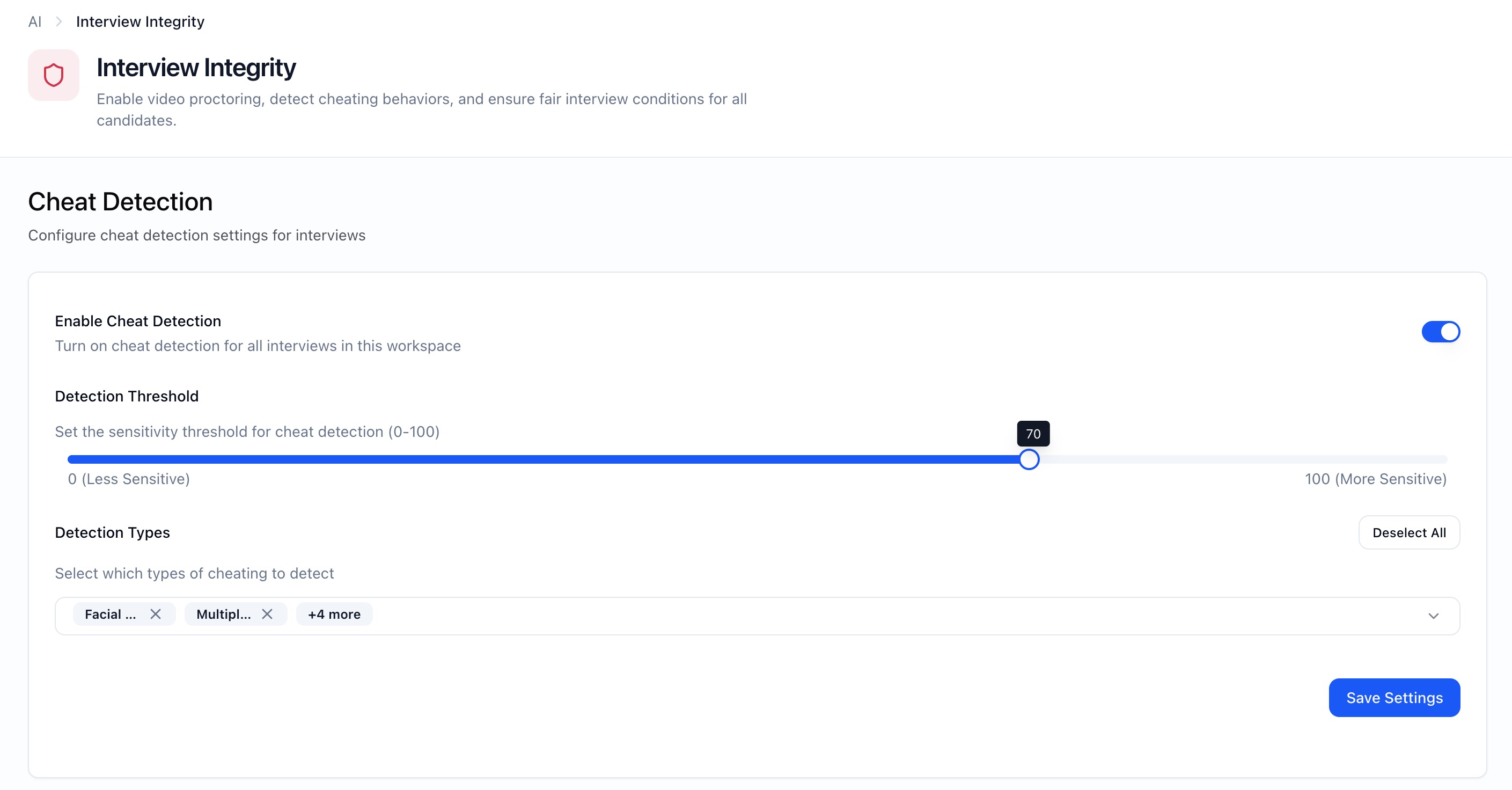
Settings Available
- Enable Cheat Detection — Turns integrity monitoring on for all new interviews in the workspace.
- Detection Threshold (0–100) — Controls how strict the system is when flagging events.
- Lower values = less sensitive (fewer flags)
- Higher values = more sensitive (flags more signals)
- Recommended starting point: 70
- Detection Types — Select which signals to monitor:
- Facial Behaviour
- Multiple People
- Phone Detection
- AI / Scripted Answer
- Unusual Delays
- Tab Switching
Option 2: Interview-Level Settings (Per Agent)
Use this if you need role-specific control.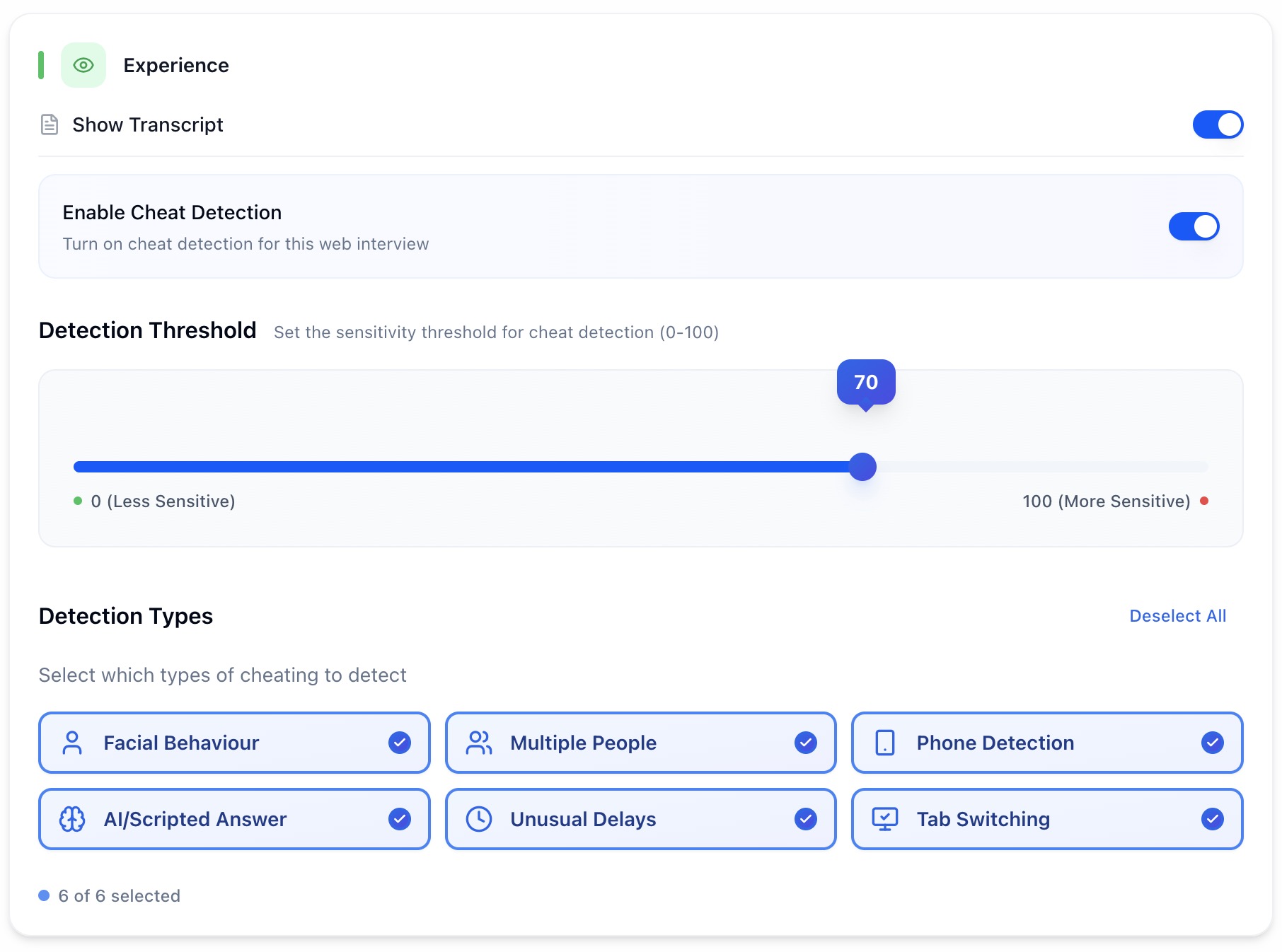
- Enable Cheat Detection
- Detection Threshold
- Detection Types
What Each Detection Type Means
These signals are observational, not judgments.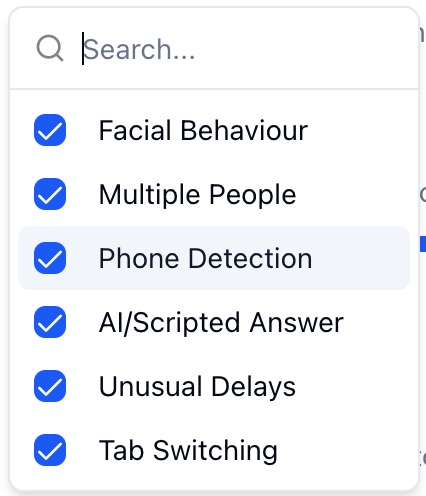
- Facial Behaviour — Flags repeated or sustained face movement away from the screen that may indicate reading notes or external prompts.
- Multiple People — Detects the presence of more than one person in frame during the interview.
- Phone Detection — Flags when a mobile device appears in view during the interview.
- AI / Scripted Answer — Identifies response patterns that strongly resemble pre-written or AI-generated text, based on structure and delivery timing.
- Unusual Delays — Flags long or inconsistent response delays that may suggest off-screen assistance.
- Tab Switching — Detects when the candidate navigates away from the interview window during a response.
Viewing Cheat Detection Results
Path: Interviewers → Candidate → Diagnostics & Analysis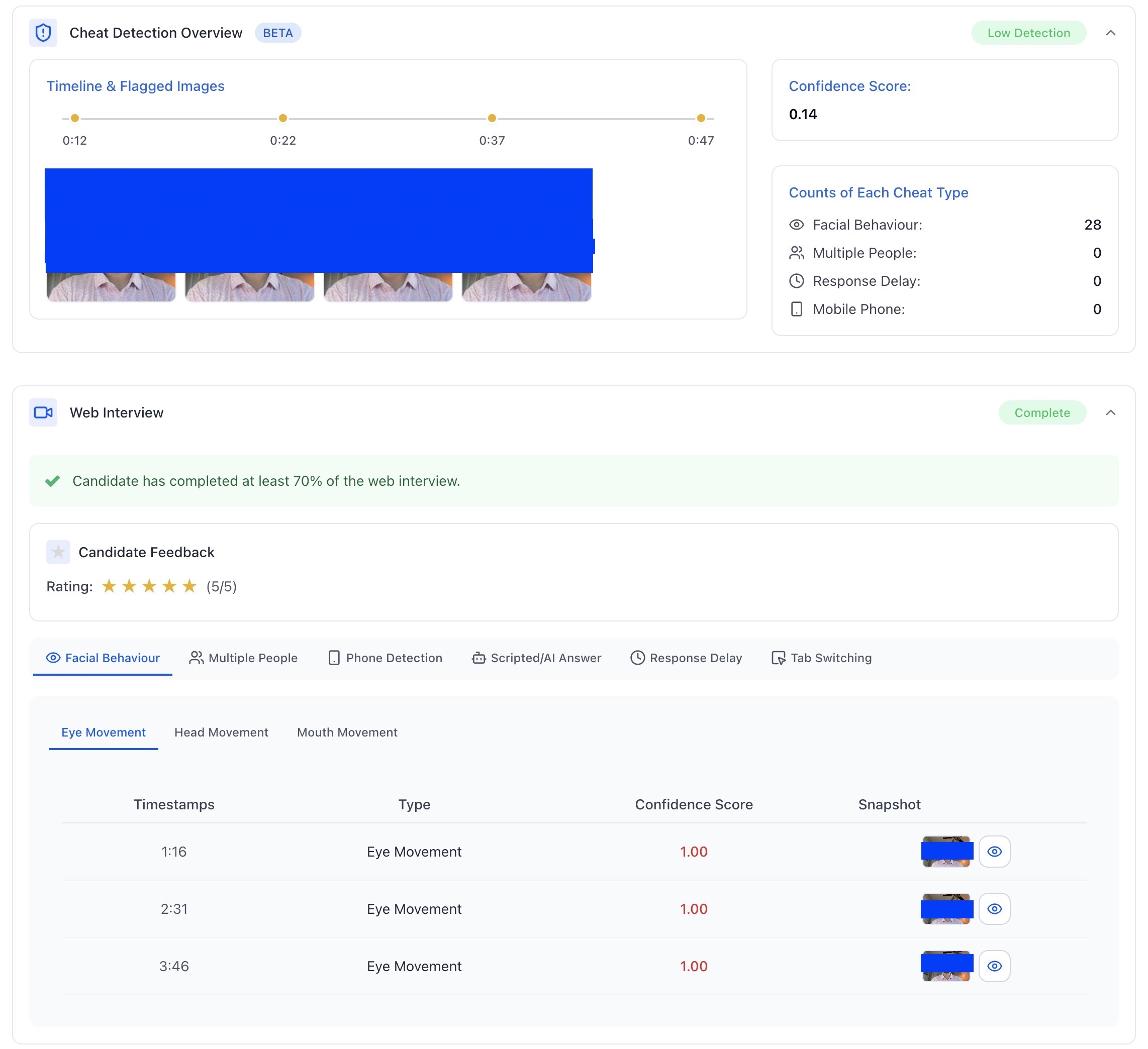
- Events grouped by detection type
- Timestamps for each flagged moment
- Confidence scores per event
- A synced player to jump directly to flagged points
Understanding Confidence Scores
Confidence scores indicate how strongly a signal was detected, not intent.- 80–100: Strong signal, review recommended
- 60–79: Moderate signal, check context
- Below 60: Likely environmental or accidental
Patterns Matter More Than Single Events
More weight should be given to:- Repeated signals across the interview
- Multiple detection types occurring together
- Signals aligned with complex or high-stakes questions
What Cheat Detection Does Not Do
- It does not automatically fail or reject candidates
- It does not score candidates higher or lower
- It does not analyze facial features, expressions, accent, or appearance
- It does not make hiring decisions
Best Practices
- Start with a threshold around 70
- Enable only the detection types you actually plan to review
- Always pair integrity signals with interview content
- Document how your team interprets signals
- Revisit settings as roles or hiring volume change
Troubleshooting
No cheat detection data- Feature may be disabled
- Interview may have been too short
- Camera permissions may not have been granted
- Decrease detection threshold
- Review candidate setup instructions
- Check browser compatibility
- Review lighting and camera placement
Red Flags vs. False Positives
- High risk — Multiple detection types, repeated high-confidence incidents, aligned with tough questions.
- Possible false positives — Single low-score events, poor lighting, setup/connection issues.