
Documentation Index
Fetch the complete documentation index at: https://docs.heymilo.ai/llms.txt
Use this file to discover all available pages before exploring further.
Collaboration & Team Features

HeyMilo’s collaboration tools enable seamless teamwork throughout the hiring process, ensuring everyone stays aligned and candidates receive a consistent, professional experience at every touch point.
Team Collaboration Overview
Follow these simple steps to share agents, manage team access, give feedback, & work together efficiently
Step 1 — Share Interview Agents
From any agent card, click Share to access the interview link.This opens a panel where you can:
- copy the live interview link
- print a QR code poster for in-person or onsite hiring
Step 2 — Add Candidates to an Interview
From any agent card, click Add Candidates to bring candidates into that workflow.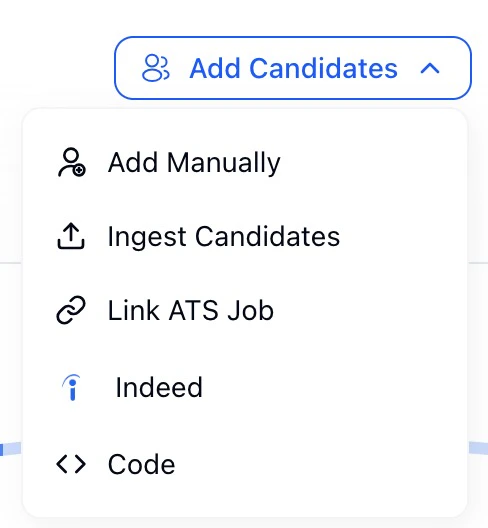
Step 3 — Review Candidates Before Ingestion
Candidate ingestion is how you add candidates into an interview experience by uploading files such as resumes or candidate lists.When you ingest candidates, they are not added automatically to interviews. First, HeyMilo follows a review-first process.The ingestion flow includes:
- Upload PDF, CSV, or ZIP files
- Wait for HeyMilo to extract candidate profiles
- Review the extracted candidate information
- Choose which candidates to ingest or discard
Step 4 — Invite Your Teammates
HeyMilo supports unlimited teammates per workspace.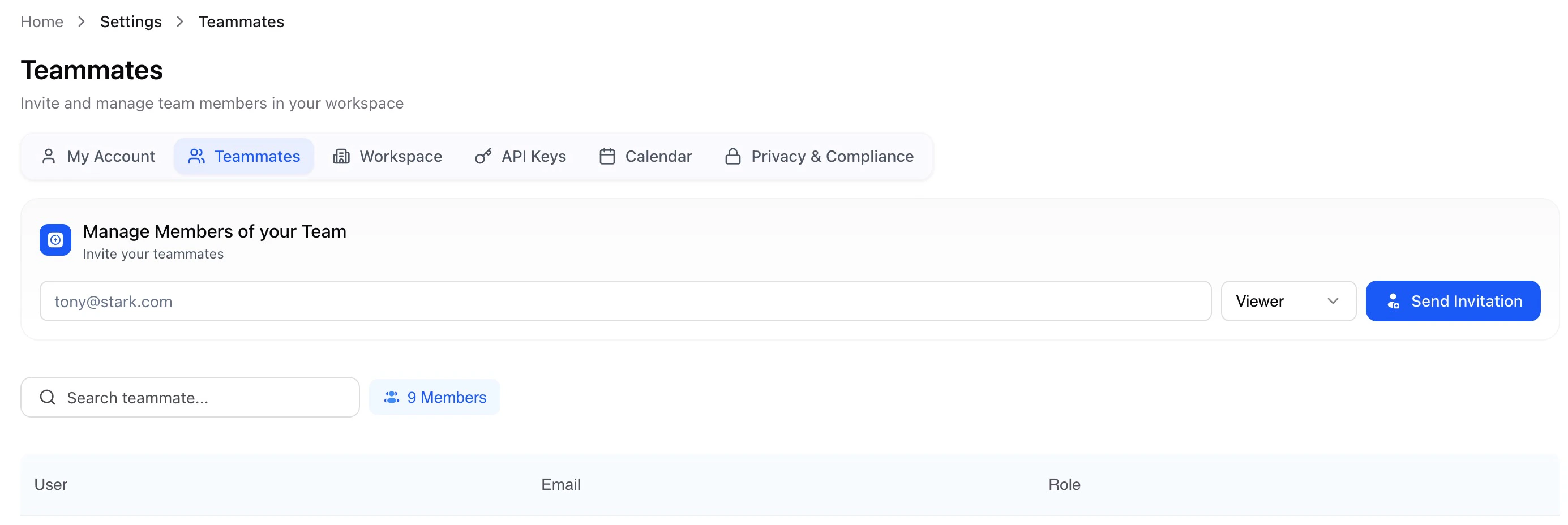
- Go to Settings → Team
- Click Invite and assign a role
- Admin: can create, edit, and manage interview experiences
- Viewer: can review candidates and results but cannot edit workflows
Step 5 — Organize and Review Your Candidate List
Before taking action on candidates, you can customize how the candidate list is displayed so you’re focused on the right information.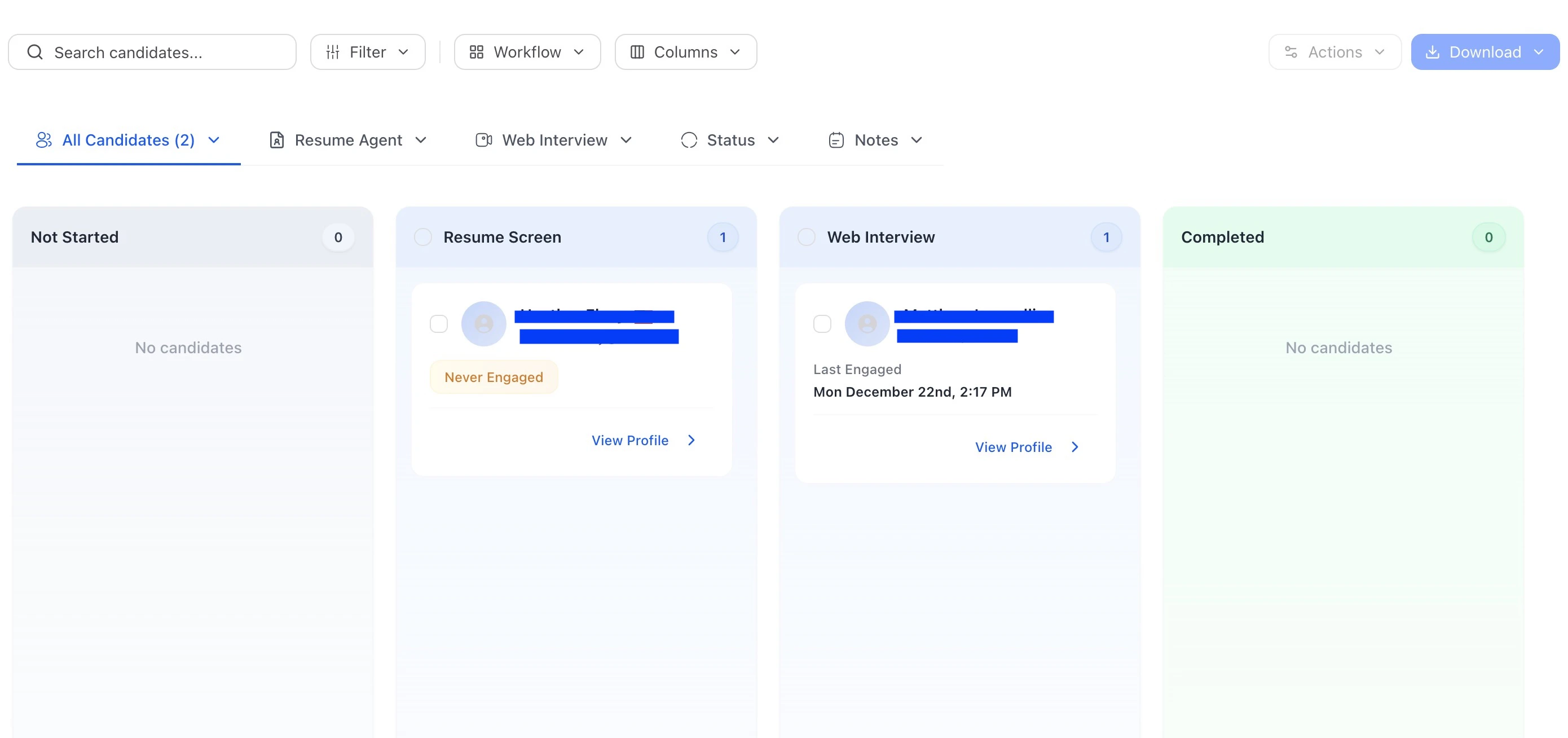
Step 6 — Review, Rate, and Leave Feedback on Candidates
Open any candidate profile to review interview details and collaborate with your team.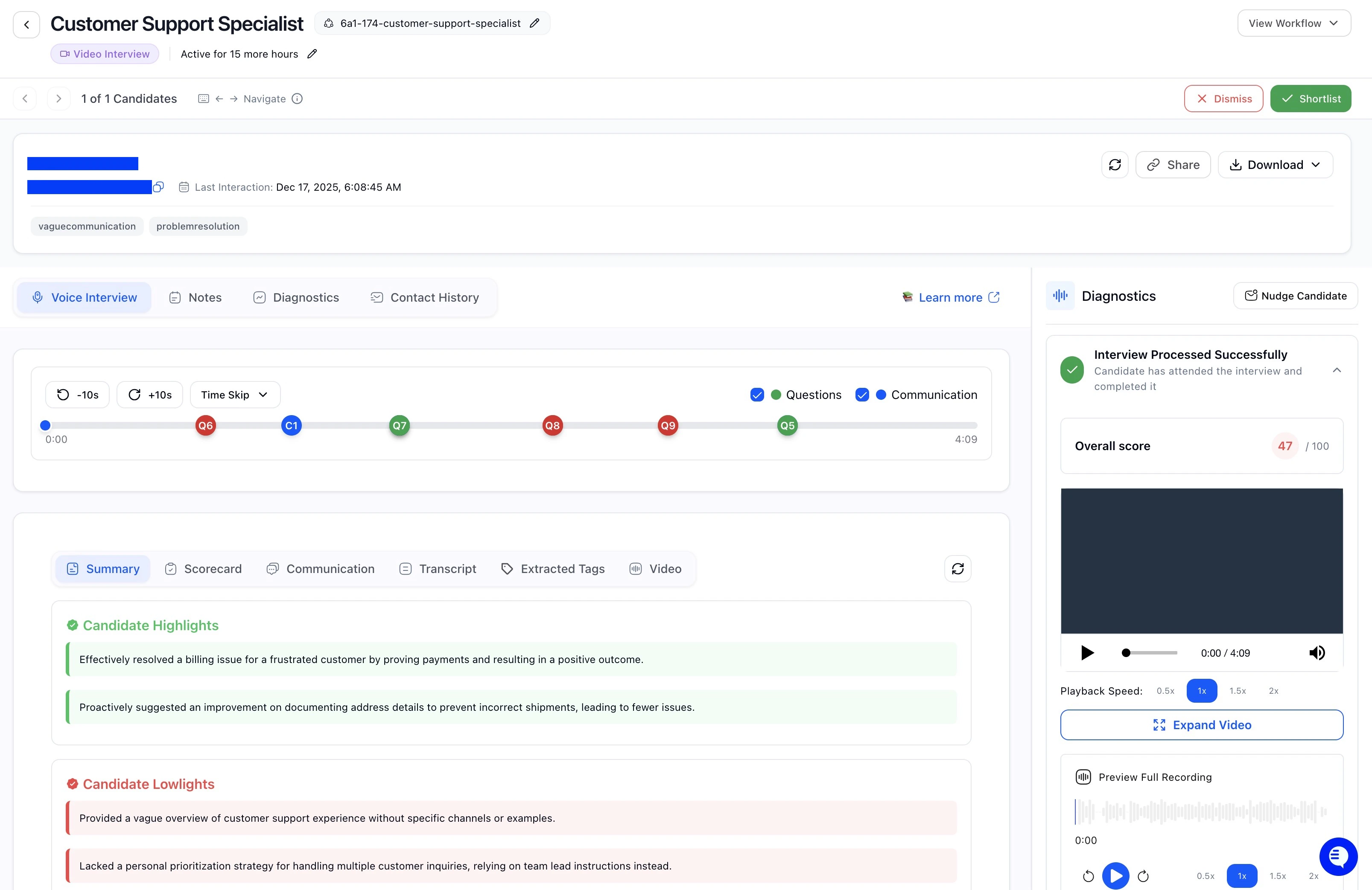
- review transcripts, scores, and recordings
- leave internal notes visible only to your team
- rate candidates using stars or thumbs up/down
- shortlist or dismiss candidates
Step 7 — Download and Share Candidate Reports
From the candidate list or profile, click Download to access: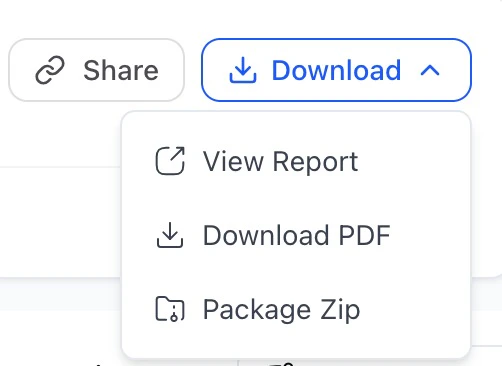
- View Report (web-based summary)
- Download PDF (shareable candidate report)
- Package ZIP Choose which files to include (PDF report, resume, video, audio) in the Download Candidate Files Zip dialog
- interview transcripts
- scores and evaluations
- audio or video recordings
- diagnostics and integrity signals
Step 8 — Nudge or Dismiss Candidates
From the candidate list or profile, you can:

- Nudge candidates who haven’t completed interviews
- Dismiss candidates who are no longer moving forward
Step 9 — Edit, Duplicate, or Archive Interview Experiences
Use the Actions menu on an interview experience to: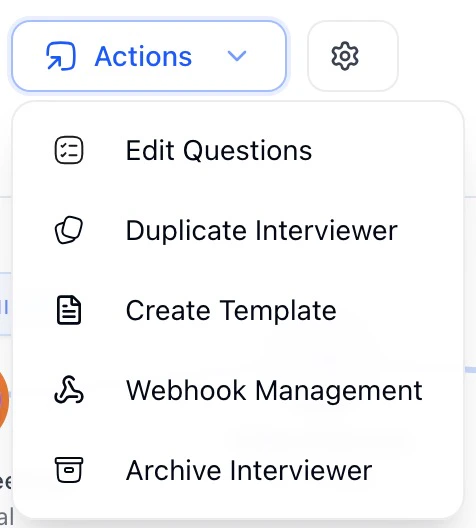
- Edit Questions to refine screening criteria
- Duplicate Interviewer for similar roles or locations
- Create Template for future reuse
- Manage Webhooks for automation
- Archive Interviewer when hiring is complete
Step 10 — View Results in Your ATS
When ATS integrations are enabled, interview results sync automatically.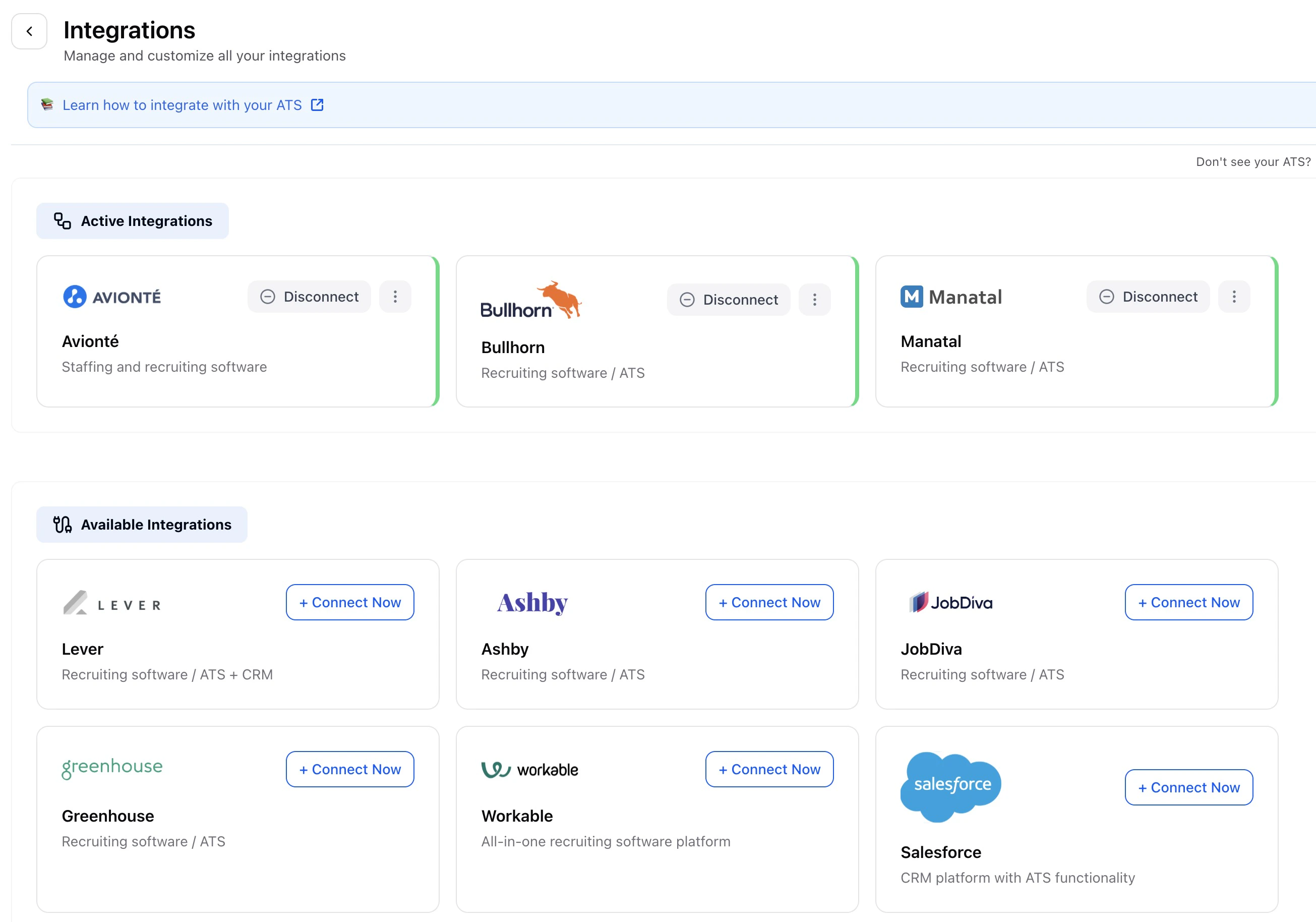
- overall scores
- transcripts
- completion status
- candidate metadata
Best Practices for Team Collaboration
Pro Tip: The best hiring teams combine individual expertise with collective wisdom. Create processes that leverage both while maintaining efficiency and candidate experience.