Documentation Index
Fetch the complete documentation index at: https://docs.heymilo.ai/llms.txt
Use this file to discover all available pages before exploring further.
Set & Manage AI Interview Agent Budgets
Interviewer budgets help you control spend and predict interview costs based on your interview workflow. Budgets are optional. If no budget is set, interviews continue as long as workspace credits are available.
How Interview Costs Work
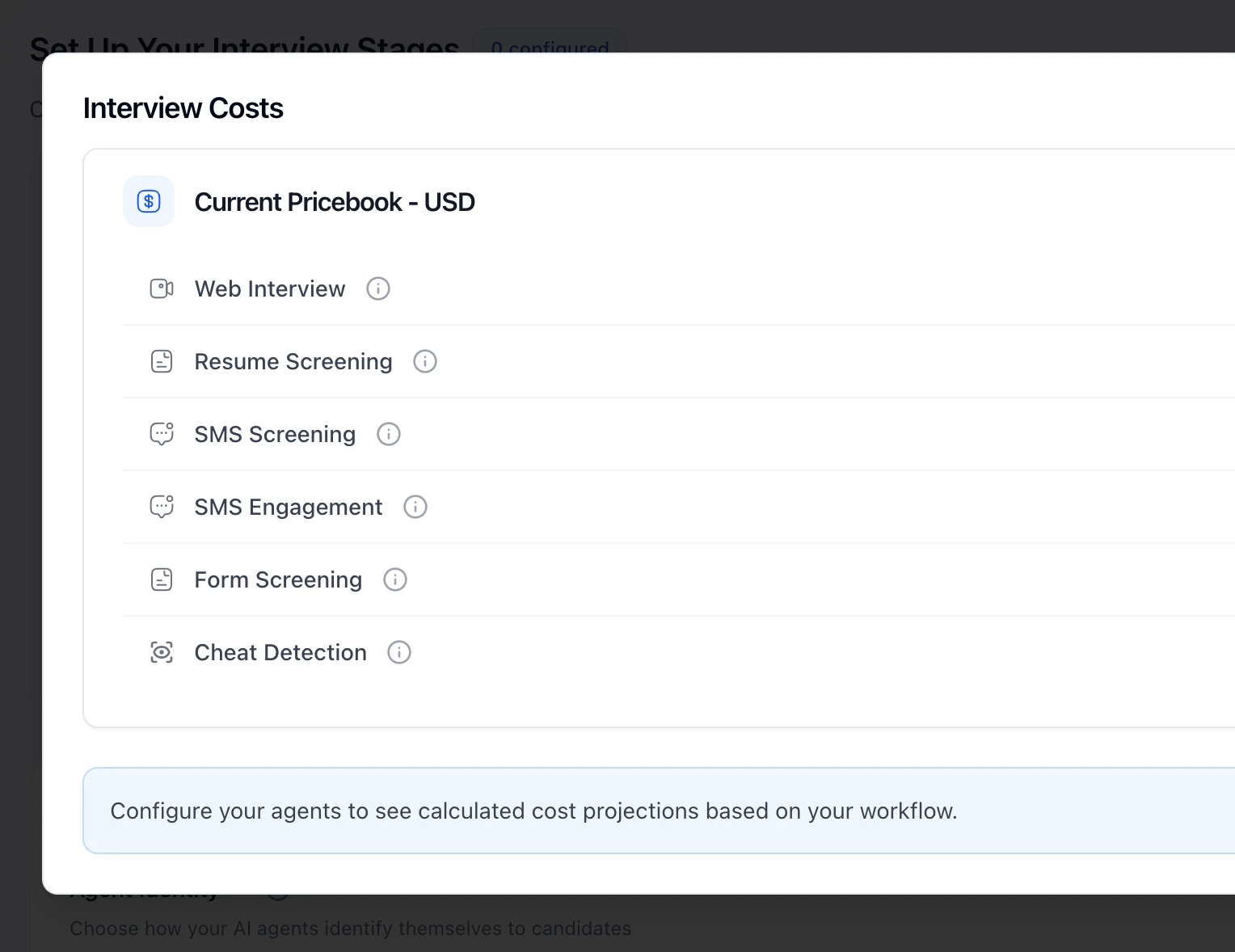
Interview costs are calculated based on the interview stages enabled in your interviewer’s workflow, such as:- Resume Screening
- Web (Voice) Interview
- SMS Screening or Engagement
- Form Screening
- Cheat Detection
Budget Types Available
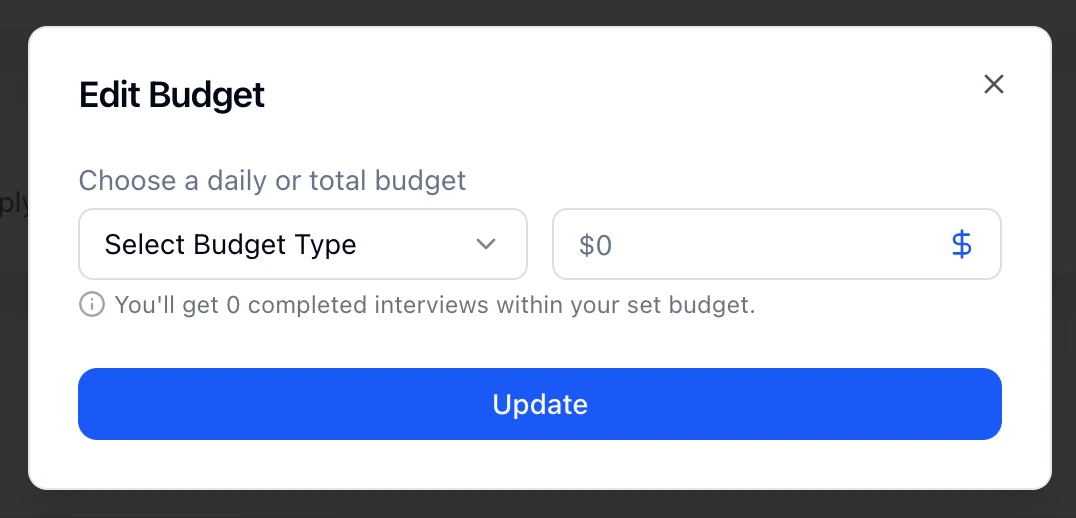
- ⭐ All-Time Budget
- ⭐ Daily Budget
Set a fixed total amount for the interviewer. Once the budget is fully spent, the interviewer pauses automatically.
How to Set an Interviewer’s Budget
There are two ways to set or update an interviewer’s budget:- during interviewer creation
- after the interviewer is live
⭐ During Interviewer Creation
Step 1 — Configure Interview Stages
As part of the Create Interviewer flow, select the interview stages you want to include.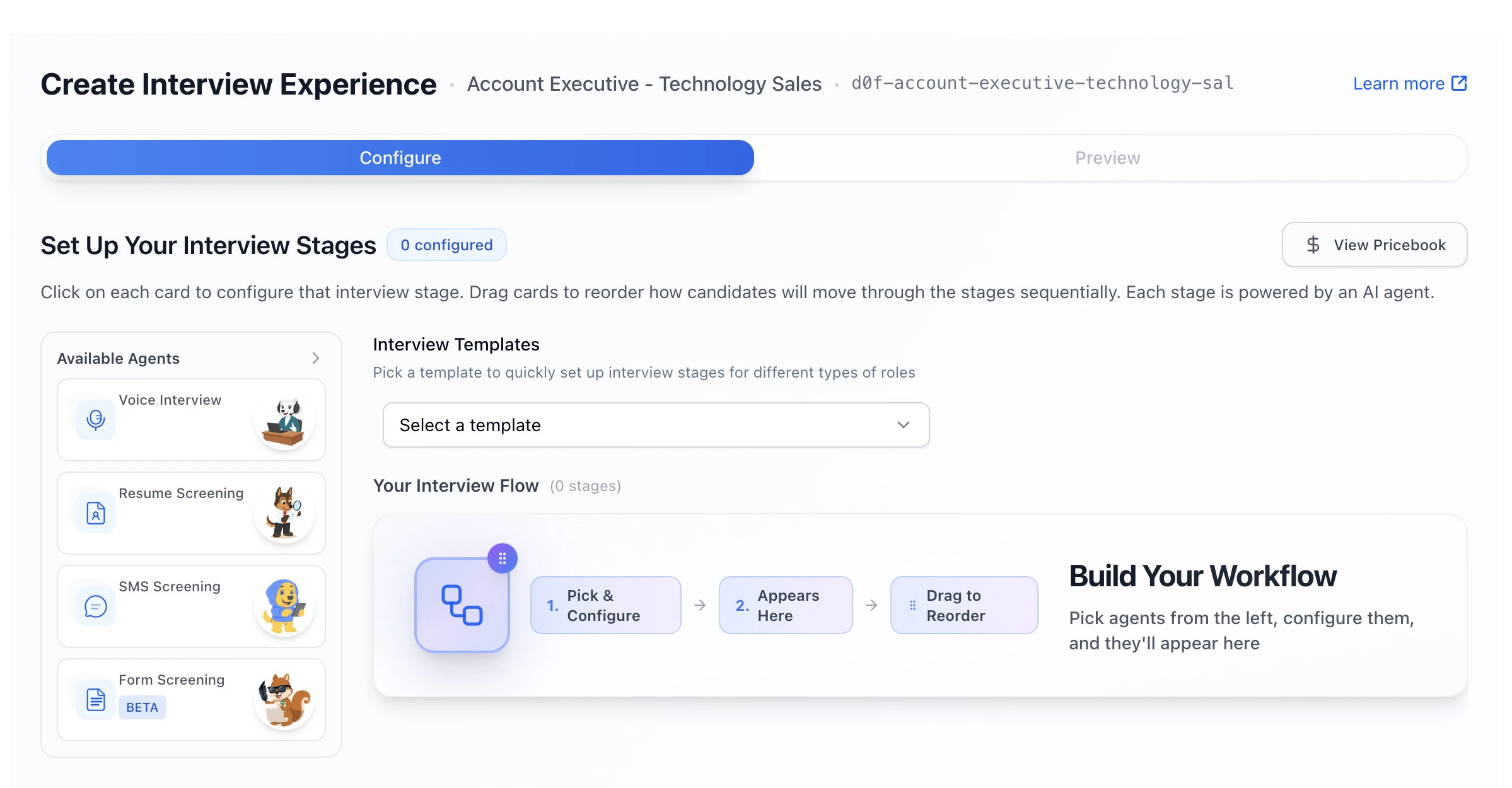
Step 2 — Review Interview Costs
Under Interview Costs, you’ll see: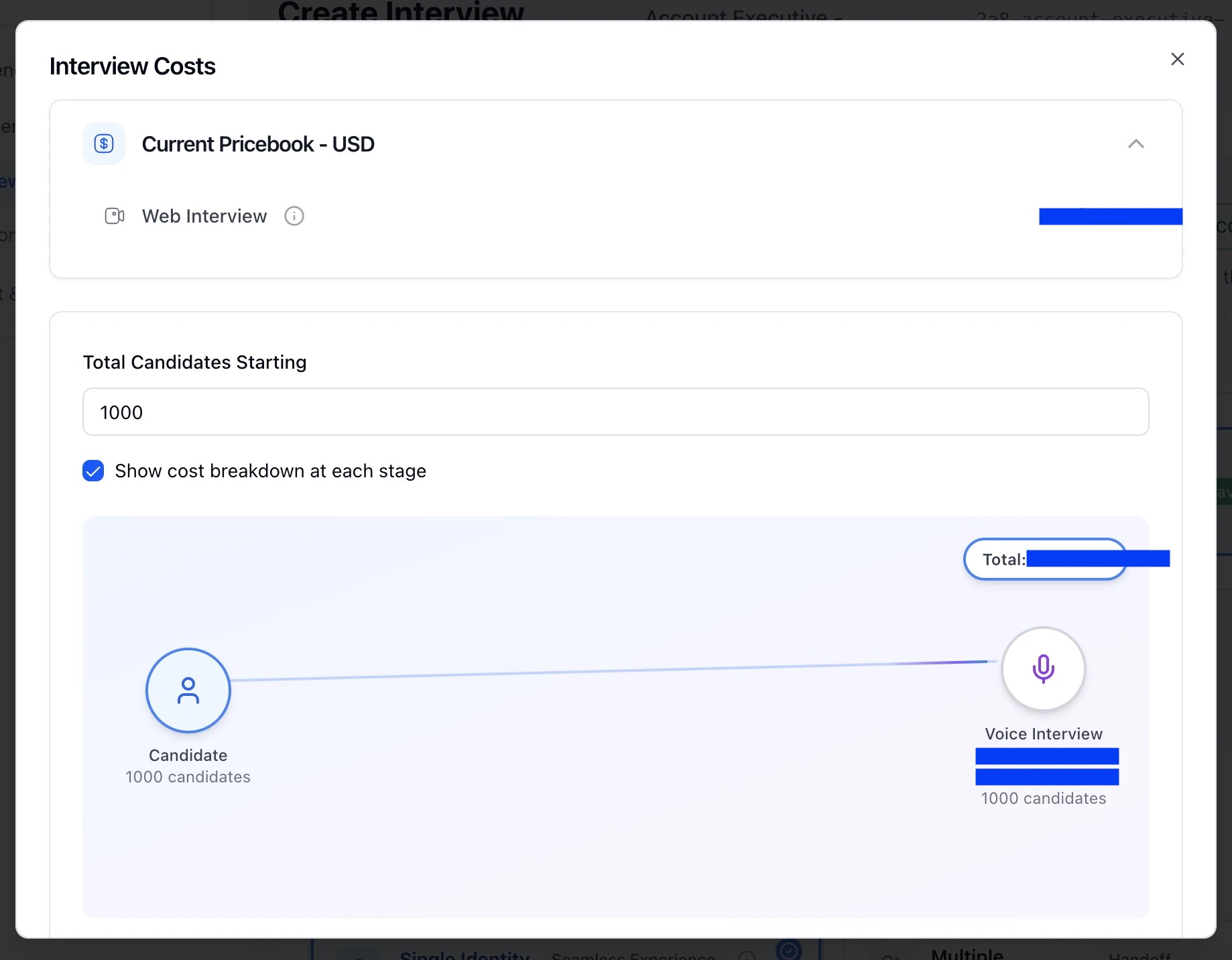
- the current pricebook (USD)
- enabled interview stages
- estimated cost per completed interview
Step 3 — Set Budget (Optional)
In Budget & Notifications: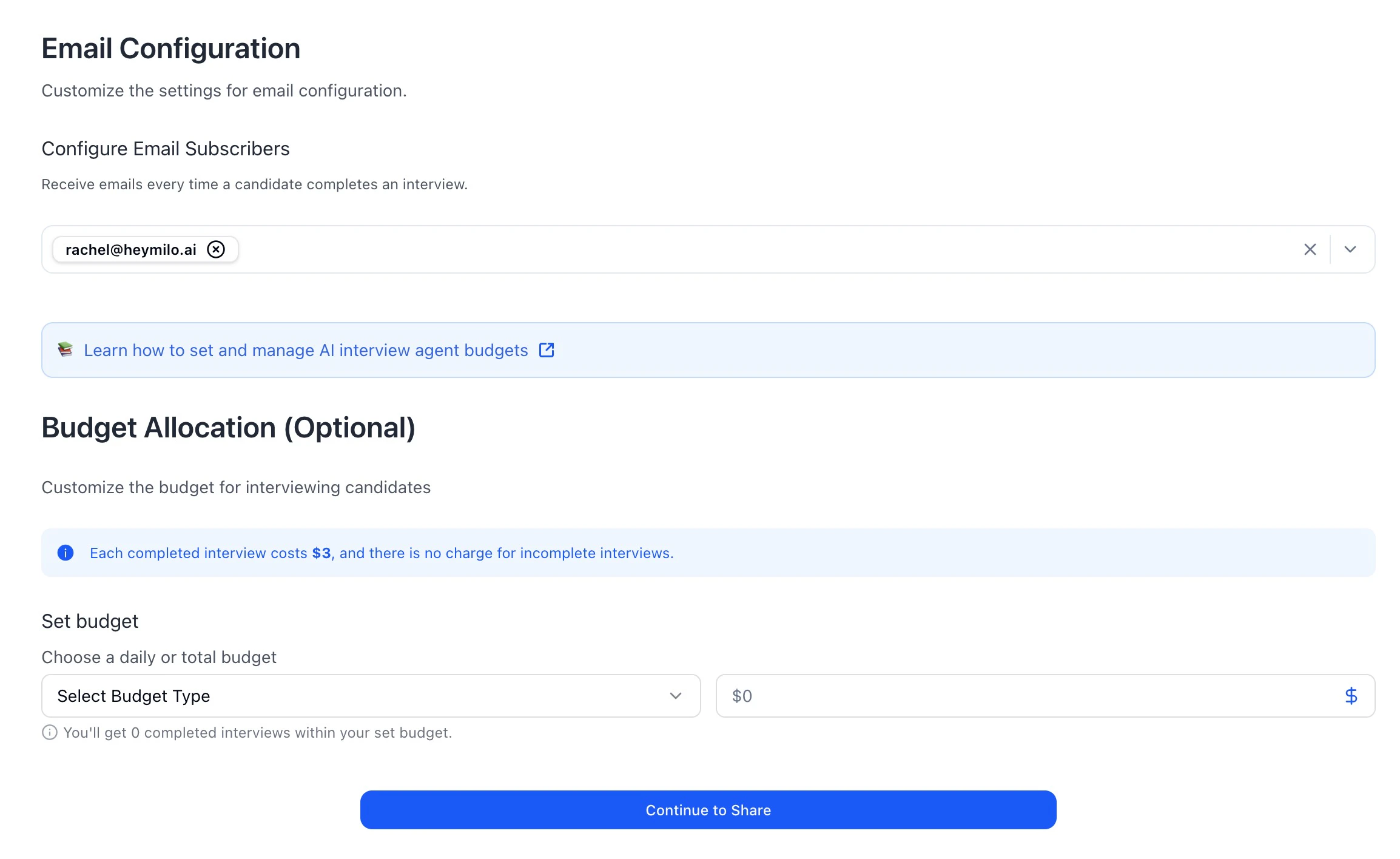
- choose a budget type (Daily or All-Time)
- enter the dollar amount
Step 4 — Review Interview Capacity
Below the budget input, you’ll see:
- the estimated number of completed interviews your budget allows
⭐ After Interviewer Creation
Step 2 — Find the interviewer you want to update
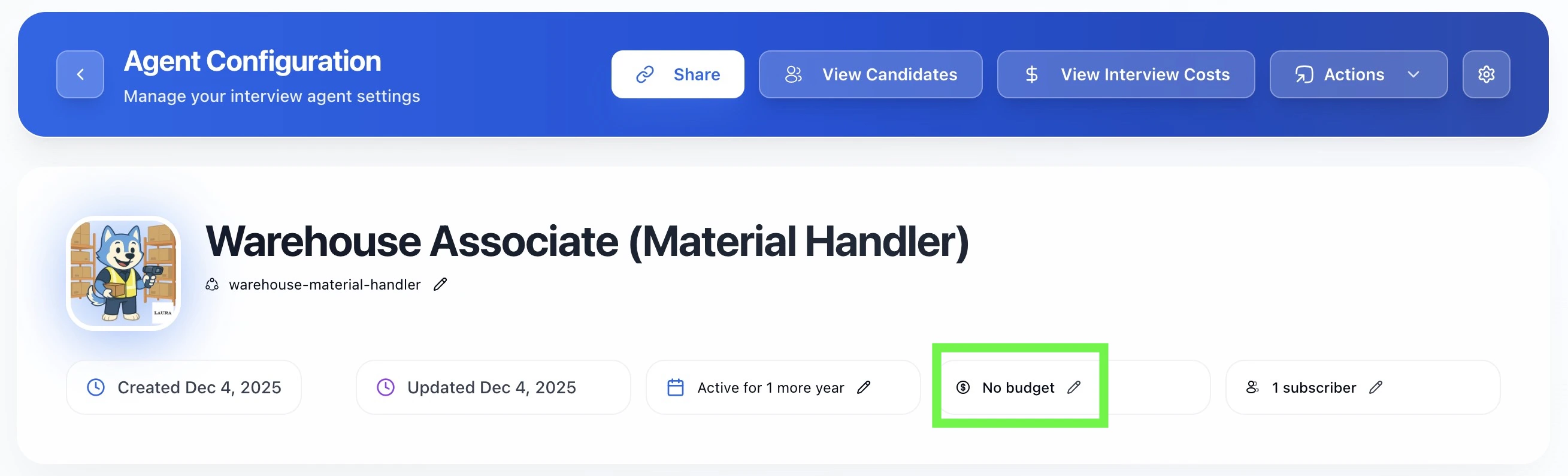
- Click into the budget icon on the interviewer row, or open View Configuration.