
Documentation Index
Fetch the complete documentation index at: https://docs.heymilo.ai/llms.txt
Use this file to discover all available pages before exploring further.
Interview Branding
Interview Branding allow you to customize how your candidate-facing interview pages look and feel. You can create branded experiences that match your company’s style and remove HeyMilo branding for a fully white-labeled experience.
What Is Interview Branding?
Interview Branding controls the design and content of pages candidates see when they:- start an interview
- complete an interview
- interact with the AI interviewer
Where to Find Interview Branding
From the left sidebar: Outreach → Interview Branding
- Templates
- Template Groups
Template Types & Configuration
Templates define one candidate-facing page at a time. Each template is reusable across interviewers.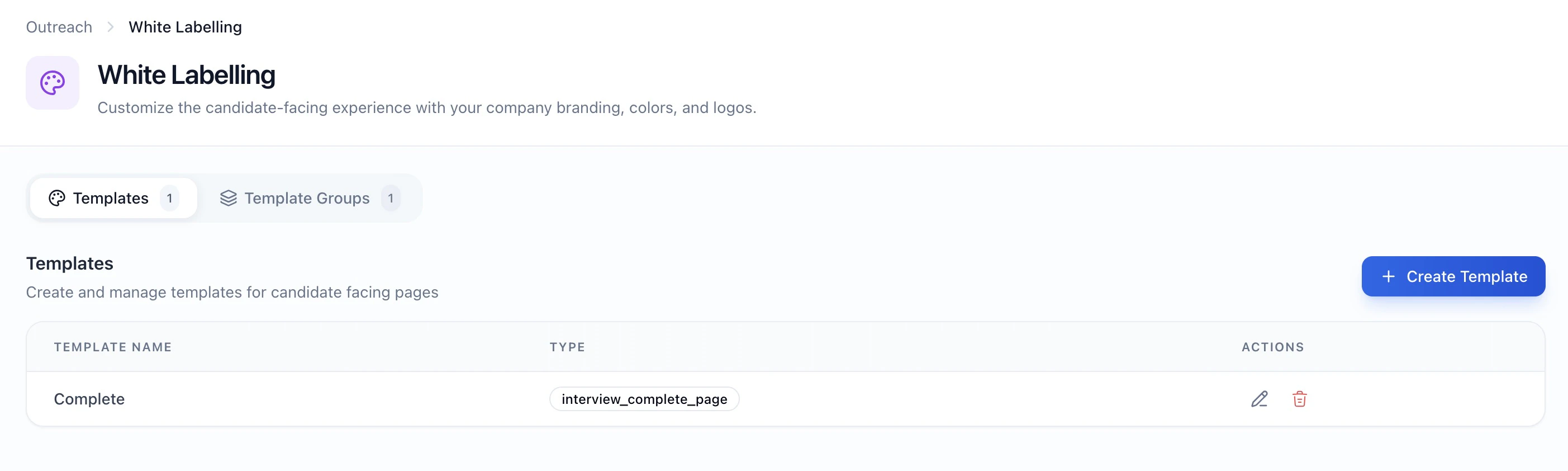
Creating a Template
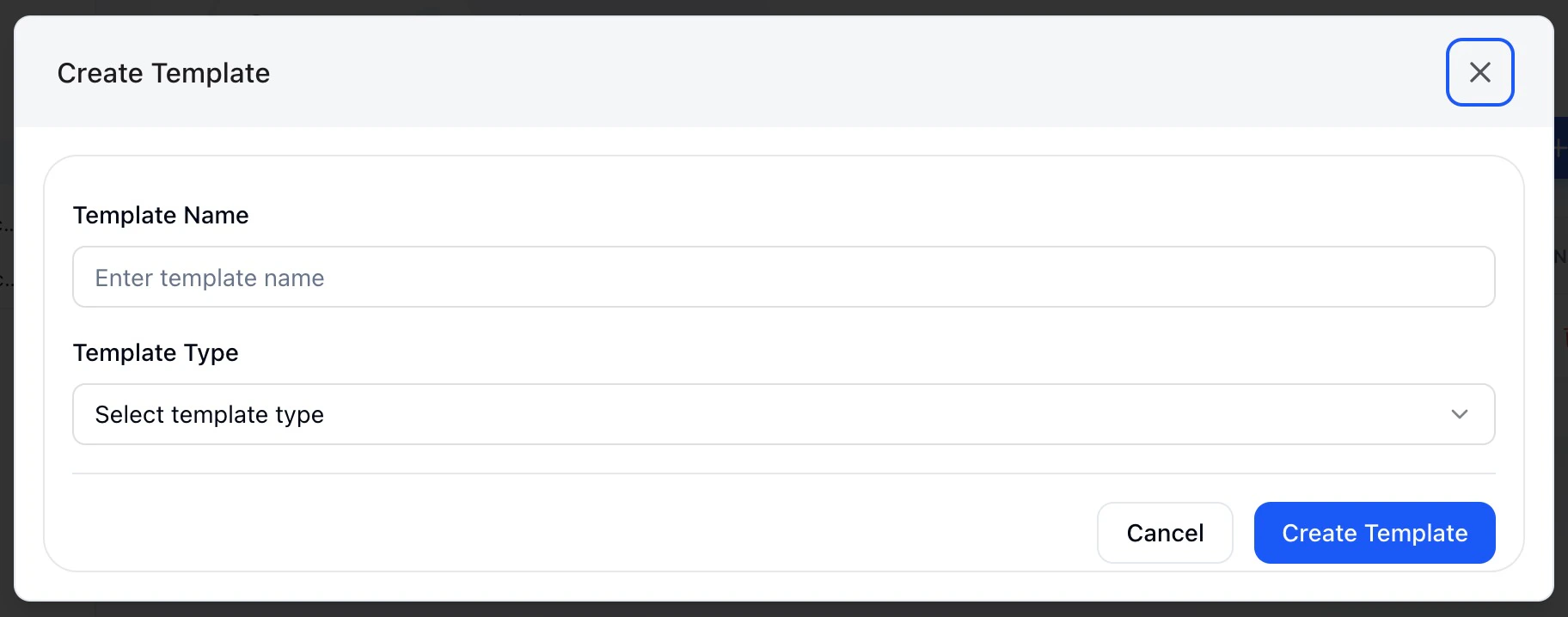
Step 1 — Go to Interview Branding → Templates
- Click Create Template
- Enter a template name
- Select a template type
- Configure the available fields
- Click Create Template
Step 2 — Organize Templates Into Groups
Template groups bundle multiple templates together so they can be applied at once.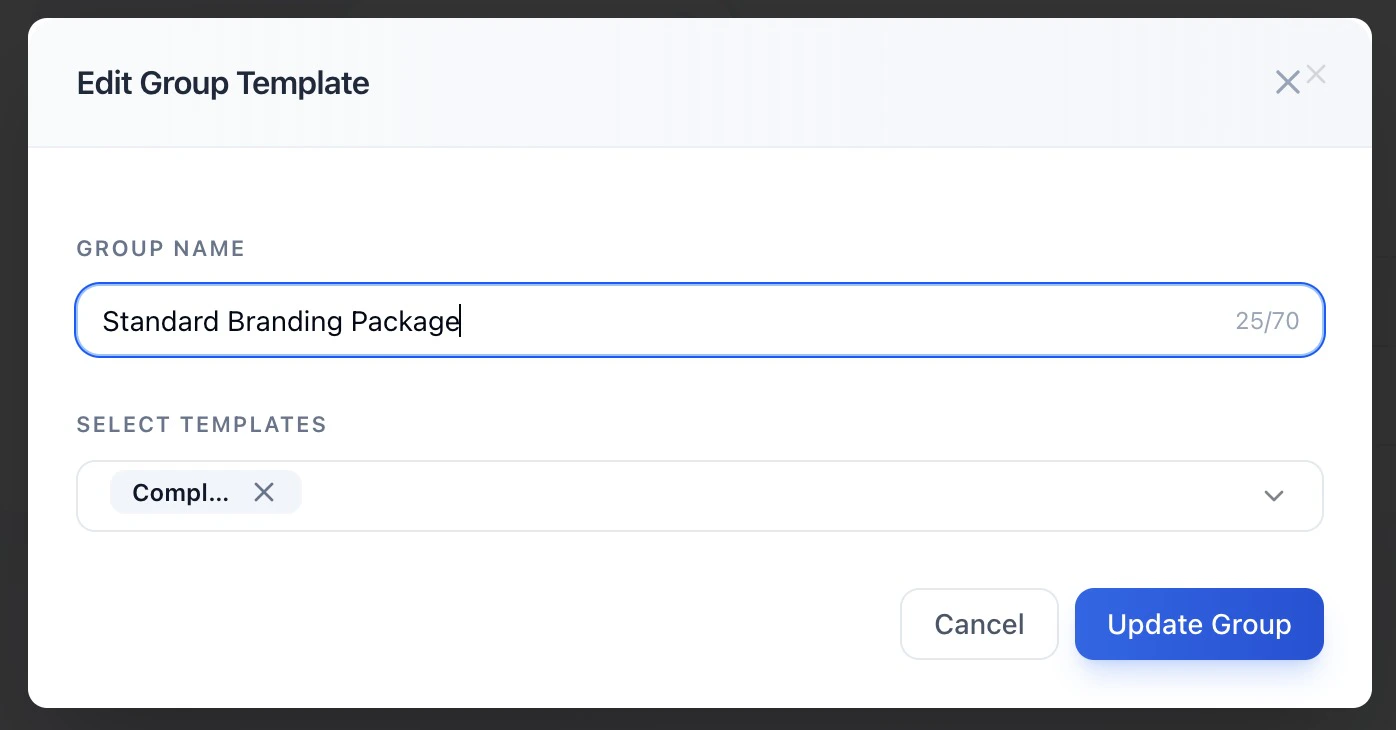
- one Welcome Page template
- one Interview Page template
- one Interview Complete Page template
- Go to Template Groups
- Click Create Group
- Enter a group name
- Select the templates to include
- Click Create Group
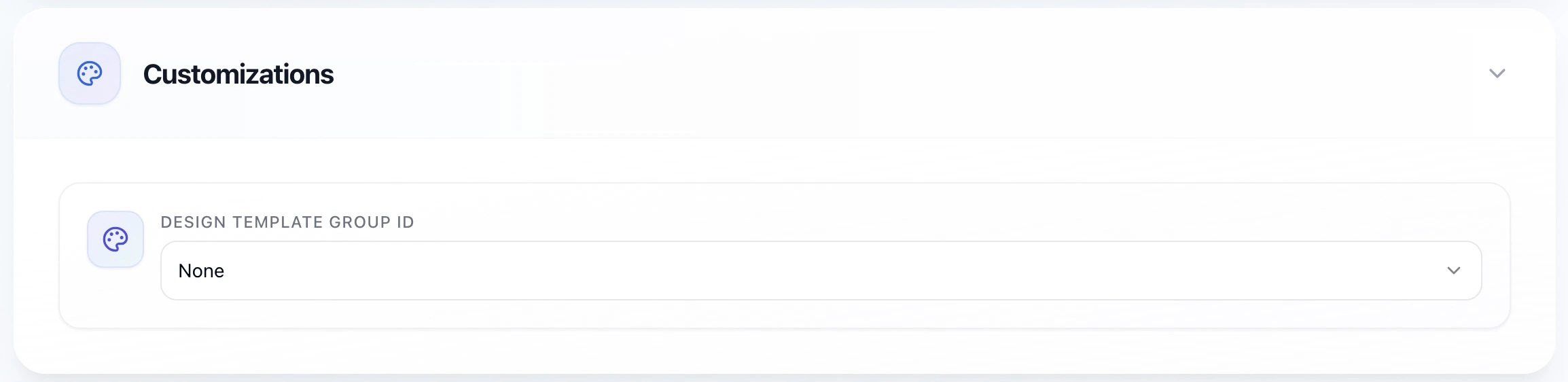
Managing Templates
Editing a Template
- Click Edit on a template
- Make your changes
- Save updates
- all template groups that include it
- all interviewers using those groups
Deleting a Template
- Templates cannot be deleted if they are used in a template group
- Remove the template from all groups first
- Then delete the template
Setting a Default Template Group

- Go to Template Groups
- Find the group you want as default
- Click the three dots menu (⋮)
- Select Set as Default
Best Practices
Keep It Professional
Make sure all links you add (privacy policy, terms, support) are working and lead to legitimate pages. Broken links create a poor candidate experience.Use High-Quality Branding Assets
When uploading images (company logos, avatars, or backdrops), use high-resolution images for the best visual quality. For logos, use transparent backgrounds (PNG format recommended). For interview avatars, use square or portrait-oriented images. For backdrops, use landscape-oriented images that complement your brand colors and don’t distract from the interview content.Test Your Templates
Before rolling out a new design template to all your agents, test it with one agent first. Go through the candidate experience yourself to make sure everything looks and works as expected, including how your logo and company name appear.Use Descriptive Names
Give your templates and groups clear, descriptive names like “Engineering Roles - Branded” or “Sales Team - White Label” so you can easily identify them later.Maintain Consistency
Use the same template group across similar roles to provide a consistent candidate experience. This helps build your employer brand.Update Regularly
If your company updates its privacy policy, terms of conditions, logo, company name, or interview branding assets (avatar/backdrop images), remember to update your design templates accordingly.Common Questions
Need Help?
If you need assistance with design templates or want to enable this feature for your workspace, contact our support team through the help icon in your dashboard.Pro Tip: Design templates work great with custom domains! Combine them to create a fully branded candidate experience from start to finish.