
Documentation Index
Fetch the complete documentation index at: https://docs.heymilo.ai/llms.txt
Use this file to discover all available pages before exploring further.
Custom Domains
Use your own subdomain (e.g.interviews.yourcompany.com) for candidate-facing interview links and related hosted pages, so URLs match your brand instead of a generic HeyMilo host.
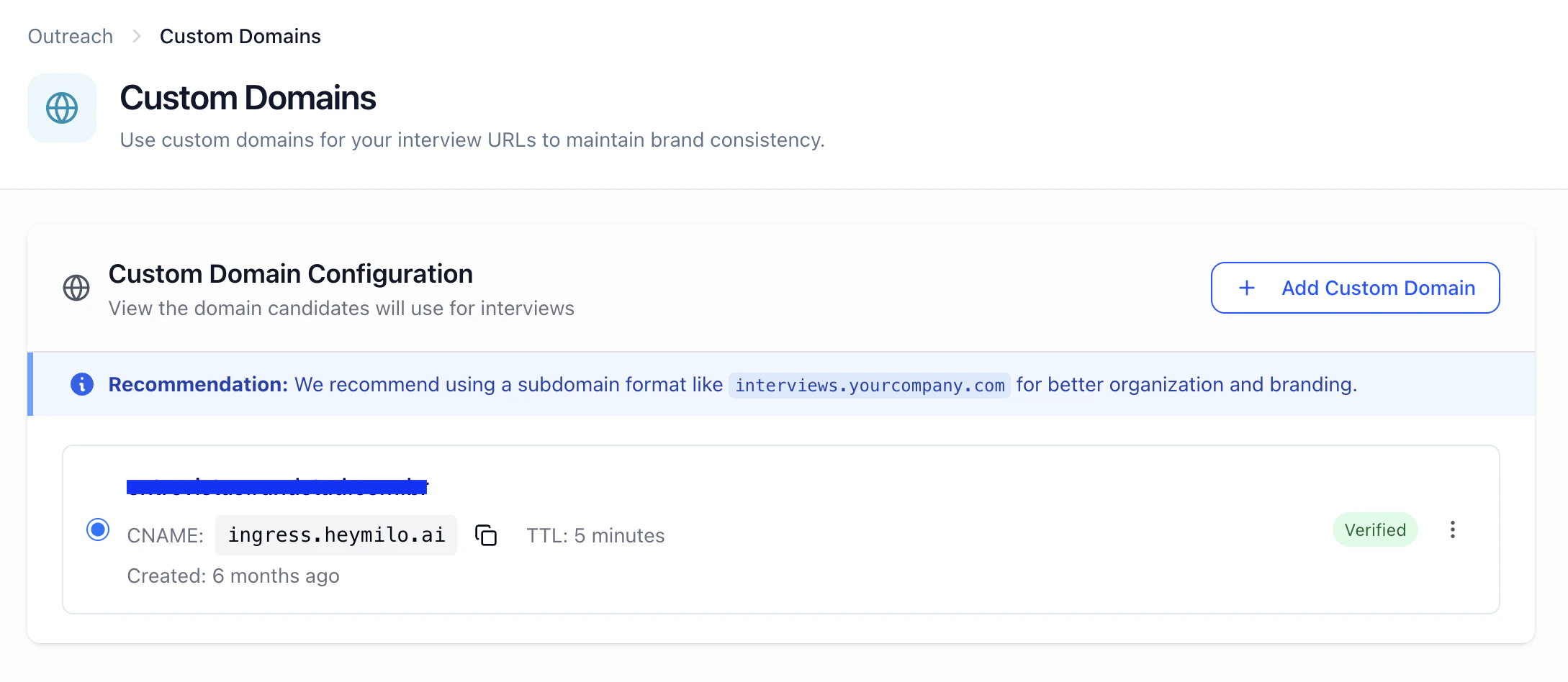
What this enables
- White-label links — Candidates see your domain in the address bar and when they copy the link.
- Trust — Familiar domains get more clicks than unknown hosts.
- Consistency — Pairs with Interview Branding and Settings → Company Context (default URL / slug) when you want the full package.
Add and verify
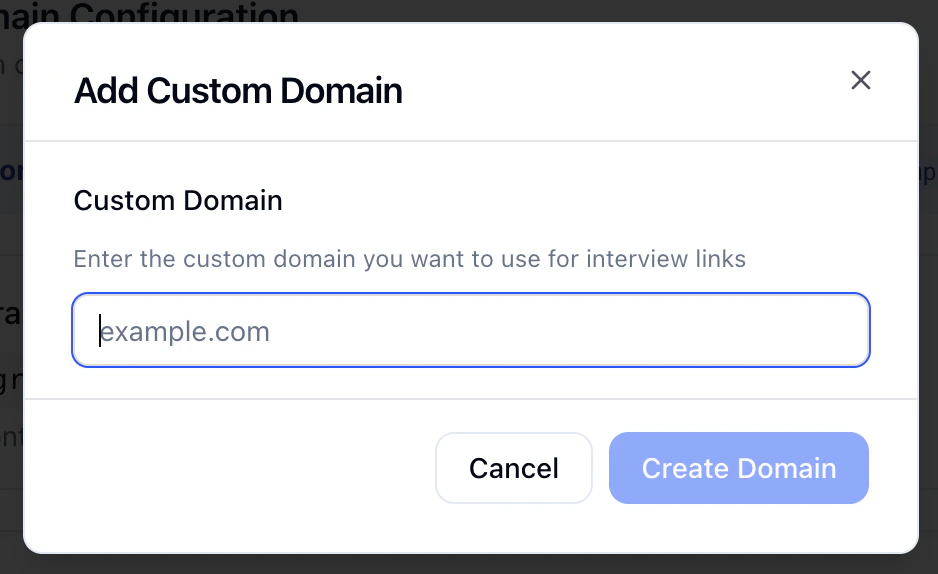
1) Add your custom domain
- Open Outreach → Custom Domains.
- If none exists, you’ll see No Custom Domain Configured → Add Custom Domain.
- Enter a hostname you control—a subdomain is best, e.g.
interviews.yourcompany.com(nothttps://, no path). - Create / save.
2) Create the CNAME at DNS
- Log into your DNS host (Cloudflare, Route 53, GoDaddy, etc.).
- Create a CNAME exactly as HeyMilo specifies:
- Name / host — Usually your subdomain label (e.g.
interviews) or the full host—match the UI, not a blog post. - Target / value — The CNAME target HeyMilo displays (e.g. an
ingress.…hostname—copy from the product).
- Name / host — Usually your subdomain label (e.g.
- TTL — The UI suggests ~5 minutes when you want faster cutovers during setup.
3) Verify
- After DNS saves, click Verify in HeyMilo.
- Status may stay Pending until DNS propagates—often ~30 minutes, sometimes several hours (occasionally longer).
- Retry verification later if needed; propagation is on the DNS provider side.
4) Day-to-day use
- Copy CNAME from the page if you need to re-paste into DNS or share with IT.
- Delete the custom domain from HeyMilo if you’re sunsetting it—confirm you’re ready for links to stop using that host.
- Share interview links from the posting/interviewer Share flow once the domain is active—candidates should land on your branded host.
Under the hood
HeyMilo checks that your DNS CNAME points to the required target, then attaches the hostname to the hosted interview environment. The exact target string is workspace-specific in the UI—always treat the app as source of truth.Best practices
- Prefer a dedicated subdomain (
interviews.…,hire.…) so you don’t collide withwwwor app traffic. - Use a low TTL during setup; you can raise it later if your IT policy requires.
- Coordinate with whoever owns DNS before promising a go-live date to hiring managers.
Troubleshooting
| Symptom | Check |
|---|---|
| Stuck on Pending | CNAME name/value typo; wrong DNS zone; propagation—wait and re-verify. |
| Verify fails | Apex vs subdomain mistake; CNAME at registrar not DNS; proxy/CDN settings (e.g. “DNS only” in Cloudflare). |
| Candidates still see old domain | Link copied before verification; cache; different posting default—re-copy Share link after active. |
Next steps
- Interview Branding — Visual polish on the interview experience
- Sender Domains — Branded email sending (separate DNS from interview CNAME)
- Outreach — Templates, phone numbers, blasts