
Documentation Index
Fetch the complete documentation index at: https://docs.heymilo.ai/llms.txt
Use this file to discover all available pages before exploring further.
Workflow View (Kanban Board)
The Workflow View provides a visual, Kanban-style board that organizes candidates by their current stage in the interview process. This view makes it easy to see at a glance where each candidate stands and manage your pipeline efficiently.
What is the Workflow View?
The Workflow View is a new way to visualize your candidate pipeline. Instead of viewing candidates in a traditional table format, the Workflow View displays candidates as cards organized into columns based on their current interview stage. This Kanban-style approach provides an intuitive overview of your entire candidate pipeline.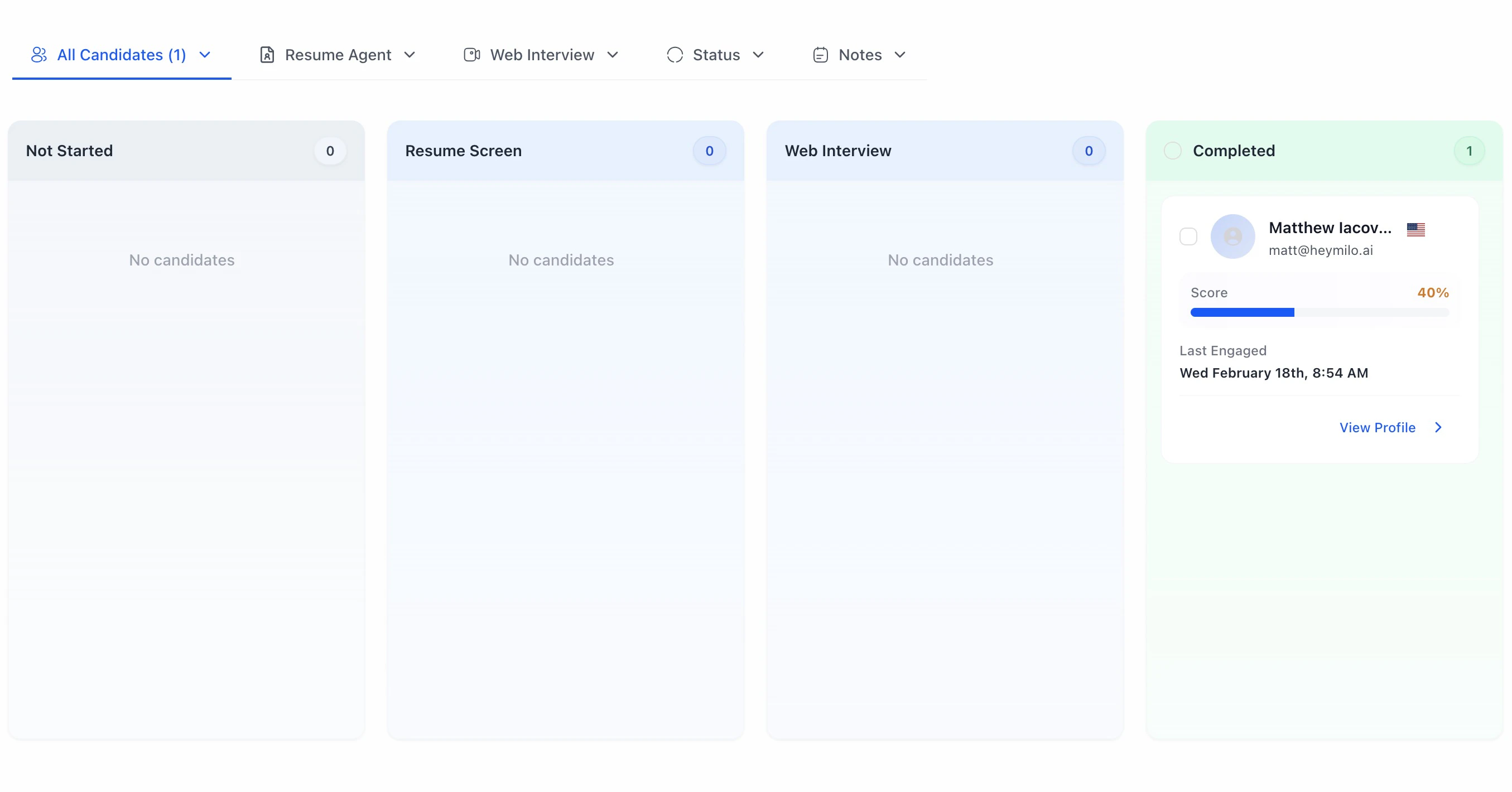
Accessing the Workflow View
To switch to the Workflow View:- Navigate to your agent’s candidate list
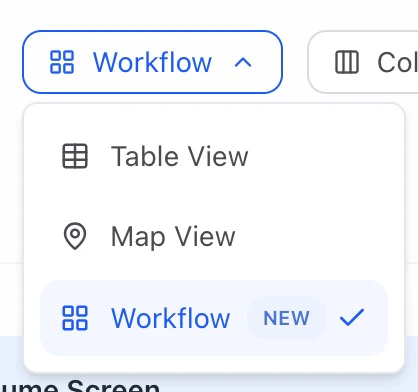
- Look for the View Mode Toggle button in the toolbar (next to the filter options)
- Click the dropdown and select Workflow from the available options
| View Mode | Description |
|---|---|
| Table | Traditional list view with sortable columns |
| Map | Geographic visualization of candidates |
| Workflow | Kanban-style board organized by interview stage |
Understanding the Workflow Board
Column Structure
The Workflow View organizes candidates into columns based on their progress through your interview workflow:Candidate Cards
Each candidate is displayed as a card containing key information at a glance:Card Information
Each candidate card displays:- Profile Picture - Candidate’s avatar or initials
- Name - Candidate’s full name
- Email - Contact email address
- Country Flag - Geographic location indicator (if available)
- Score - Overall match score with visual progress bar
- Last Engaged - Timestamp of most recent activity
- Status Badges - Shortlisted or Dismissed indicators
Card Actions
Click the three-dot menu on any card to access quick actions:| Action | Description |
|---|---|
| Share Report | Generate a shareable link to the candidate’s scorecard |
| Download Report | Download the candidate’s assessment as a PDF |
| Nudge Candidate | Send a reminder to complete their interview |
| Enrich Candidate | Enhance candidate profile with additional data |
| Delete Candidate | Remove candidate from the pipeline (dismissed candidates only) |
Selecting Candidates
The Workflow View supports both individual and bulk selection:Individual Selection
Click the checkbox on any candidate card to select it. Selected candidates can then be acted upon using the bulk actions menu.Column Selection
Each column header includes a checkbox that allows you to select all candidates in that column at once. This is useful when you want to perform bulk actions on all candidates at a specific stage.Bulk Actions
Once candidates are selected, use the Actions dropdown in the toolbar to:- Blast - Send bulk communications (email, SMS, or phone)
- Nudge - Send reminders to complete interviews
- Shortlist - Mark selected candidates as qualified
- Dismiss - Remove candidates from consideration
- Enrich - Enhance profiles with additional data
Navigating to Candidate Profiles
Click anywhere on a candidate card (except the checkbox or menu) to open their full profile and detailed scorecard. This allows you to:- Review complete interview transcripts
- Analyze communication patterns
- View detailed scoring breakdowns
- Access recordings and attachments
Best Practices
Workflow View vs Table View
| Feature | Workflow View | Table View |
|---|---|---|
| Visual Overview | Excellent - see pipeline at a glance | Limited - requires scrolling |
| Stage Tracking | Columns show exact stage | Status column shows progress |
| Bulk Selection | By column or individual | By row selection |
| Sorting | Within columns by engagement | Full table sorting options |
| Column Customization | Fixed layout | Customizable columns |
| Best For | Pipeline management, daily reviews | Detailed analysis, exports |
Pro Tip: Switch between views based on your task. Use Workflow View for pipeline management and quick reviews, then switch to Table View when you need detailed sorting, filtering, or data export capabilities.