

Agents Supported in Recruit CRM
Follow These Easy Steps to Set Up the HeyMilo Integration With Recruit CRM
Watch the video and follow the steps below to learn how to connect HeyMilo in Recruit CRM:🛠 What you need to get started
- Admin access to HeyMilo for your workspace
- Permission to view API settings in Recruit CRM
- Your Recruit CRM API key (from Recruit CRM Settings → API)
Part 1 — Add HeyMilo stages to your hiring pipeline (Recruit CRM)
HeyMilo can move or reflect candidate progress more clearly when your pipeline includes dedicated stages for the AI interview. Add these before you go live with mapped jobs.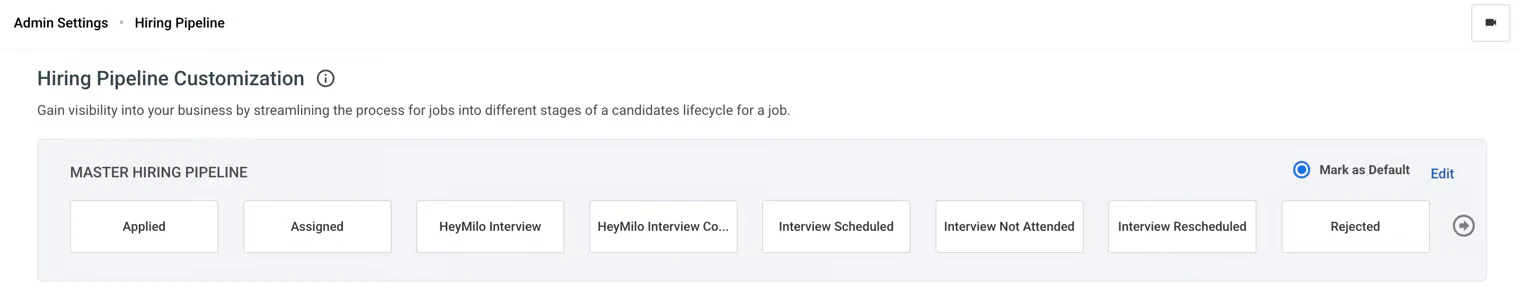
In Recruit CRM, go to Admin Settings
Open Hiring Pipeline Customization.
Under Master Hiring Pipeline, click Edit (or edit the pipeline your jobs actually use).
Add two stages, named exactly as follows:
- HeyMilo Interview: use when the candidate is invited or in progress with the HeyMilo interview.
- HeyMilo Interview Completed: use when the interview is finished and you’re ready for the next human step.
Drag the new stages into the right order
Save
Part 2 — Copy your API key from Recruit CRM
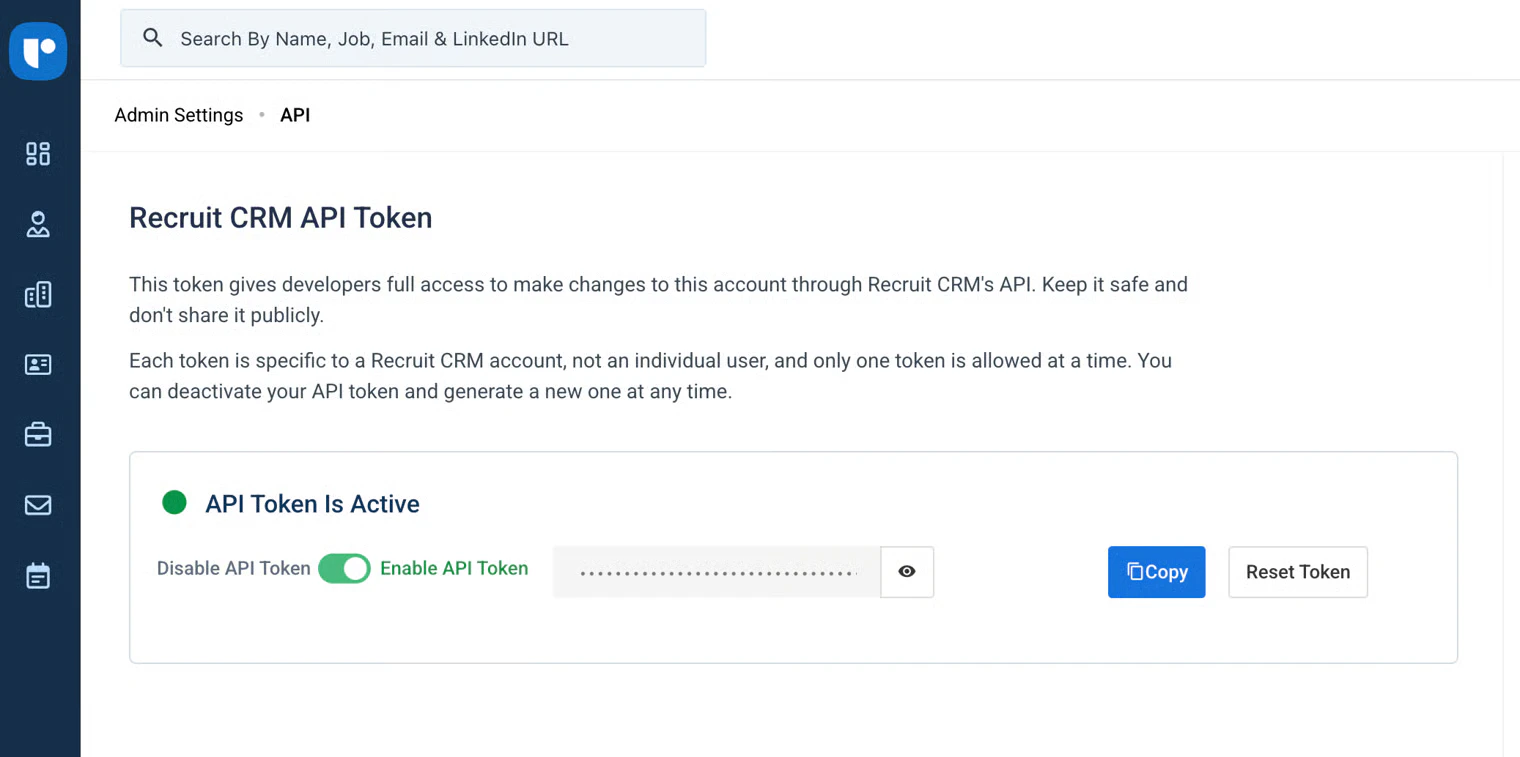
Log in to Recruit CRM.
Open Settings.
Go to the API section.
Copy your API key (or API token—use whatever Recruit CRM displays).
Treat this like a password: don’t paste it into unsecured documents or share it publicly.
Part 3 — Connect Recruit CRM in HeyMilo
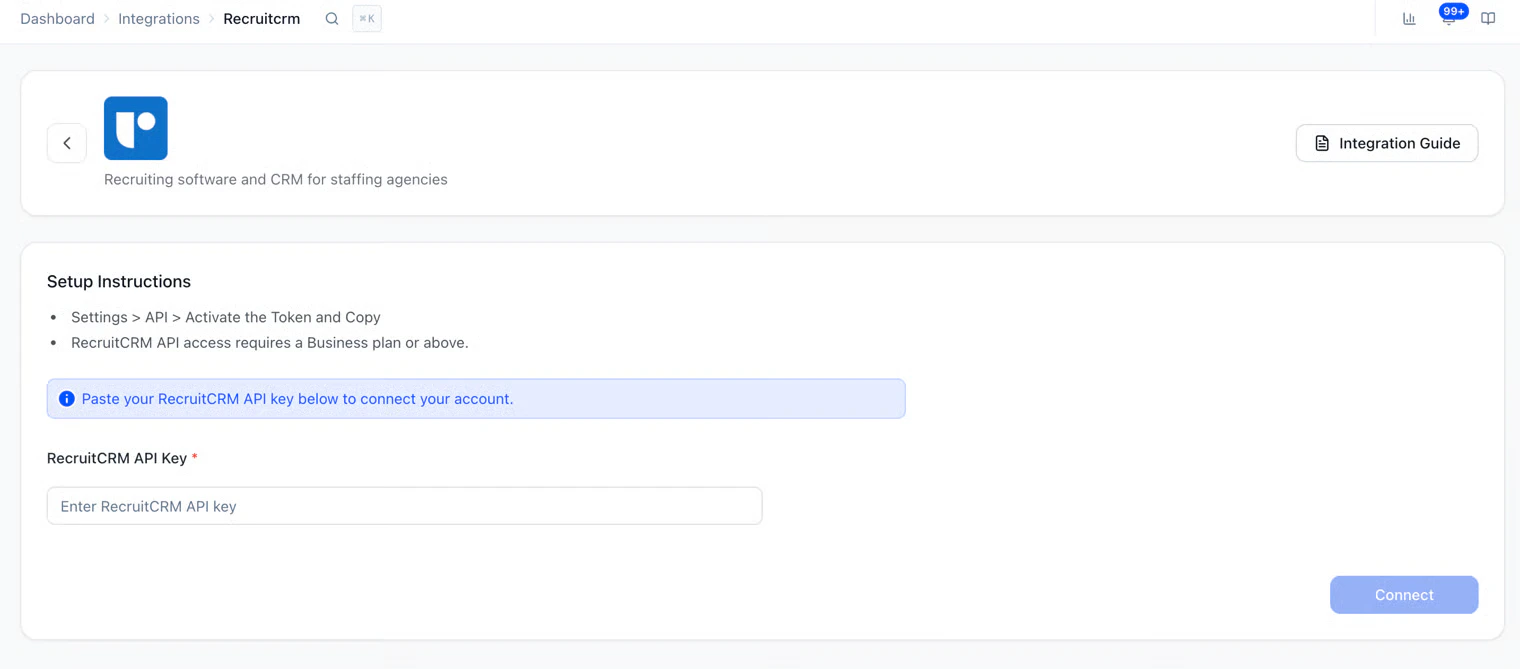
Log in to HeyMilo Admin.
Open your workspace.
Go to Integrations.
Select Recruit CRM.
Paste the API key into the field provided (and complete any other fields your HeyMilo screen shows).
Click Connect / Save to finish.
Confirm the integration shows as connected or active.
Part 4 — Map a HeyMilo agent to a Recruit CRM job
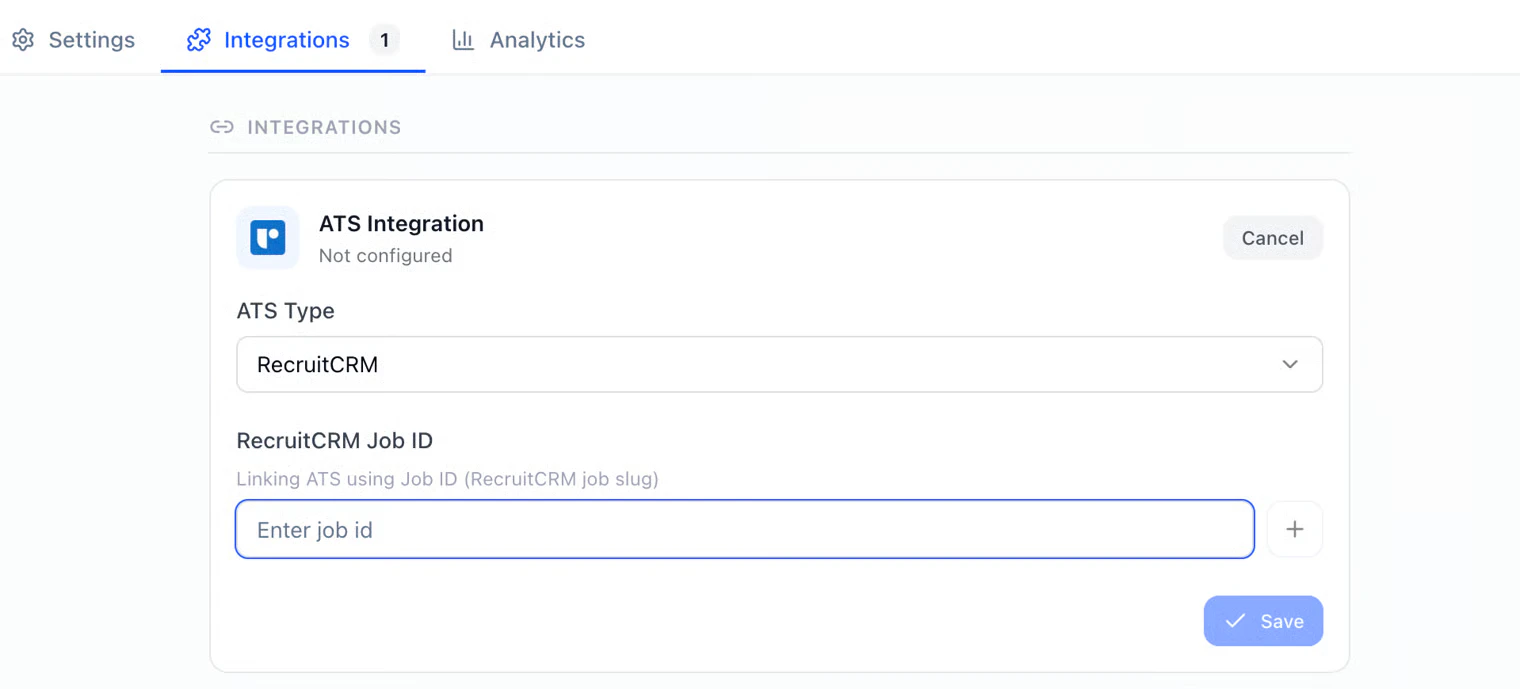
In HeyMilo, open the interview agent (posting) you want to link.
Open View configuration.
Go to ATS integration.
Choose Recruit CRM as the ATS.
Enter or select the Recruit CRM job identifier your UI expects (job ID from the URL).

Save the mapping. You should see a success confirmation.
Part 5 — Review results and how recruiting teams use it
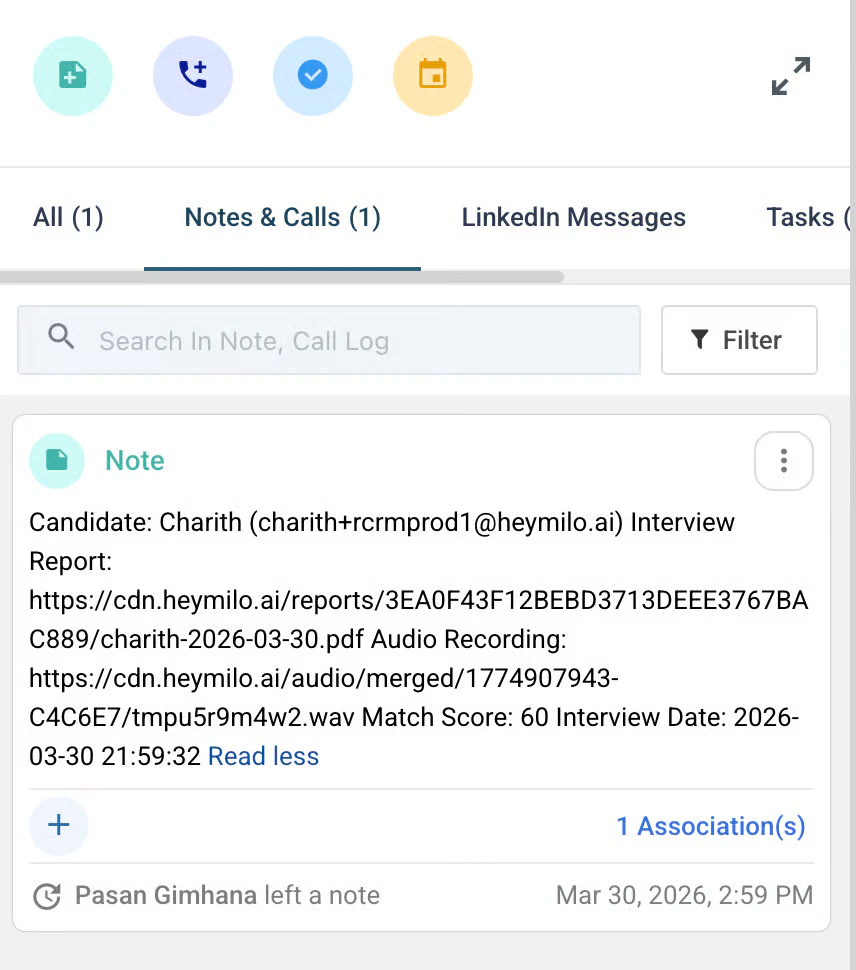
- Candidates apply (or are added) on the mapped job in Recruit CRM. Move them into HeyMilo Interview when you’re ready for the AI step, and into HeyMilo Interview Complete when they’re done—if your process uses those stages manually or via automation.
- HeyMilo invites them to complete the interview per your agent settings (email, and SMS if configured).
- The candidate report appears in Notes. Review interview status and the full candidate report: question-by-question responses, evaluation, audio links, highlights, lowlights, and full transcription.
- Recruiters can also review scores, highlights, transcript, and recording in HeyMilo where your workflow uses it.
Troubleshooting
- Can’t find API in Recruit CRM: Your role may need admin rights, or API access may be a plan feature—check with Recruit CRM support.
- HeyMilo says invalid key: Regenerate or recopy the key from Settings → API with no trailing spaces.
- Candidates not appearing in HeyMilo: Confirm job mapping is saved and the candidate is on that job in Recruit CRM.
- Stages missing: Return to Part 1 and confirm HeyMilo Interview and HeyMilo Interview Complete exist on the pipeline attached to the job.