Documentation Index

Fetch the complete documentation index at: https://docs.heymilo.ai/llms.txt

Use this file to discover all available pages before exploring further.

Lever

Agents Supported in Lever

SMS AgentResume AgentVoice/Video Agent

How does it work?

As soon as candidates apply, they get a text from Milo with your questions. They respond directly in the thread, just like a real conversation. Once they finish, Milo sends over the voice or video interview invite automatically.

How does it work?
Please be advised that the data is not automatically pulled from ATS. You can add resume screening to your agent workflow once the integration is live and your job is connected. Candidates will then be asked to upload their resume to get screened for fit before moving forward.

How does it work?

After integration and job posting mapping, when a candidate applies to your Lever job posting, the candidate’s email address is pulled from the application form and the candidate is engaged through email to take the voice/video assessment. Once the candidate has completed it, the candidate’s detailed assessment report is attached to their profile in the Lever portal.

💡HeyMilo supports SMS screening across all ATS platforms—as long as a valid phone number (with country code) is provided. Since most ATSs don’t collect phone numbers by default, be sure to make the mobile number a required field in your job post.Alternatively, you can enable both resume and SMS screening on your HeyMilo job, ensuring candidates are screened even if their phone number or resume isn’t accessible via your ATS.

Why HeyMilo + Lever

Setting Up the Integration

🛠 What You’ll Need to Get Started

Before connecting Lever with HeyMilo, you’ll need:
  • ✅ A HeyMilo workspace where you have administrator privileges - this lets you manage integrations and settings
  • ✅ Administrator access to your company’s Lever account - required to enable the webhooks and post jobs.
  • ✅ Webhooks enabled in your Lever account - required for real-time communication between Lever and HeyMilo

Enable Lever Webhooks

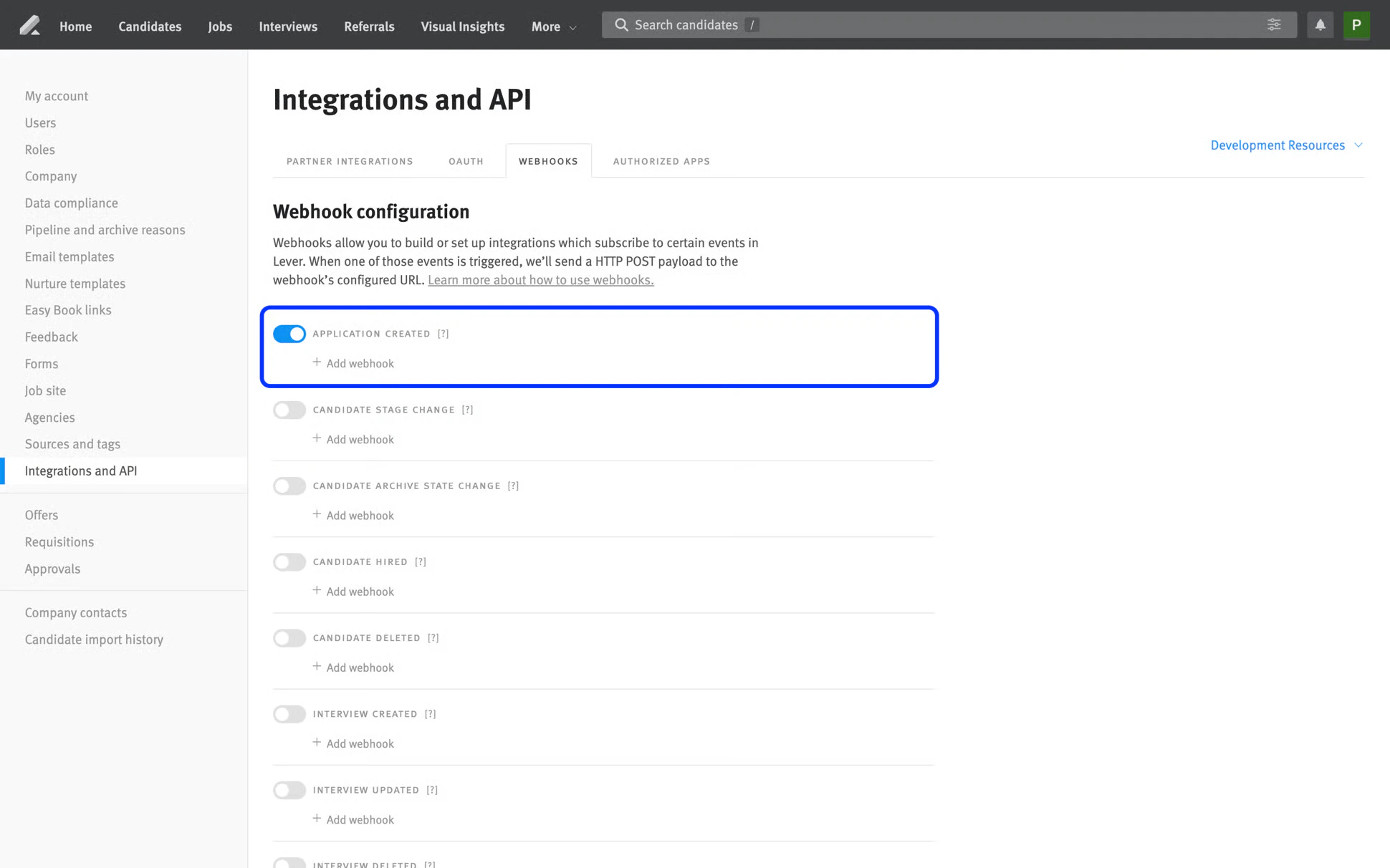
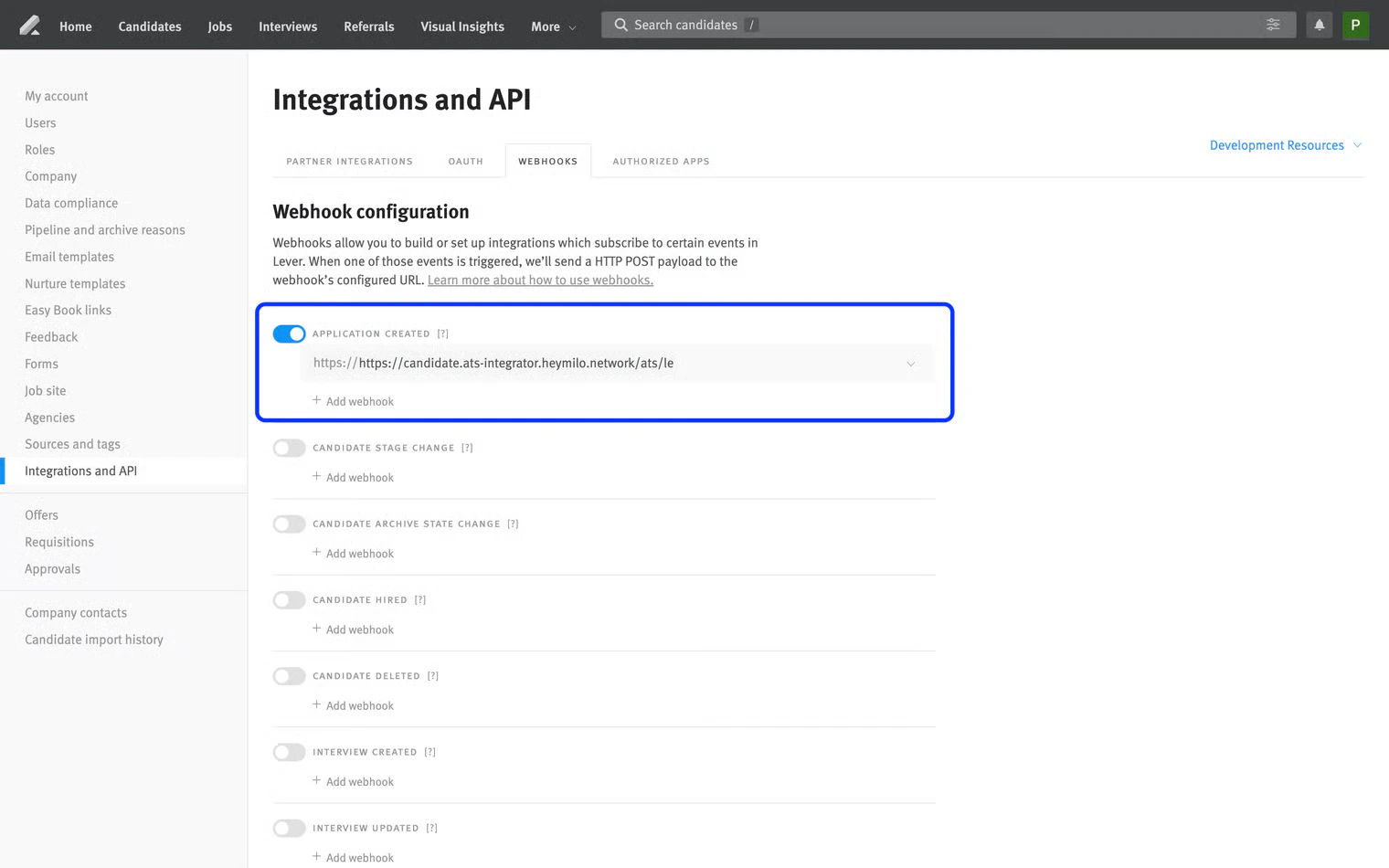
Enable webhooks to allow Lever to notify HeyMilo whenever an “Application Created” event occurs. This enables automatic processing of new candidate applications..
1

Step 1

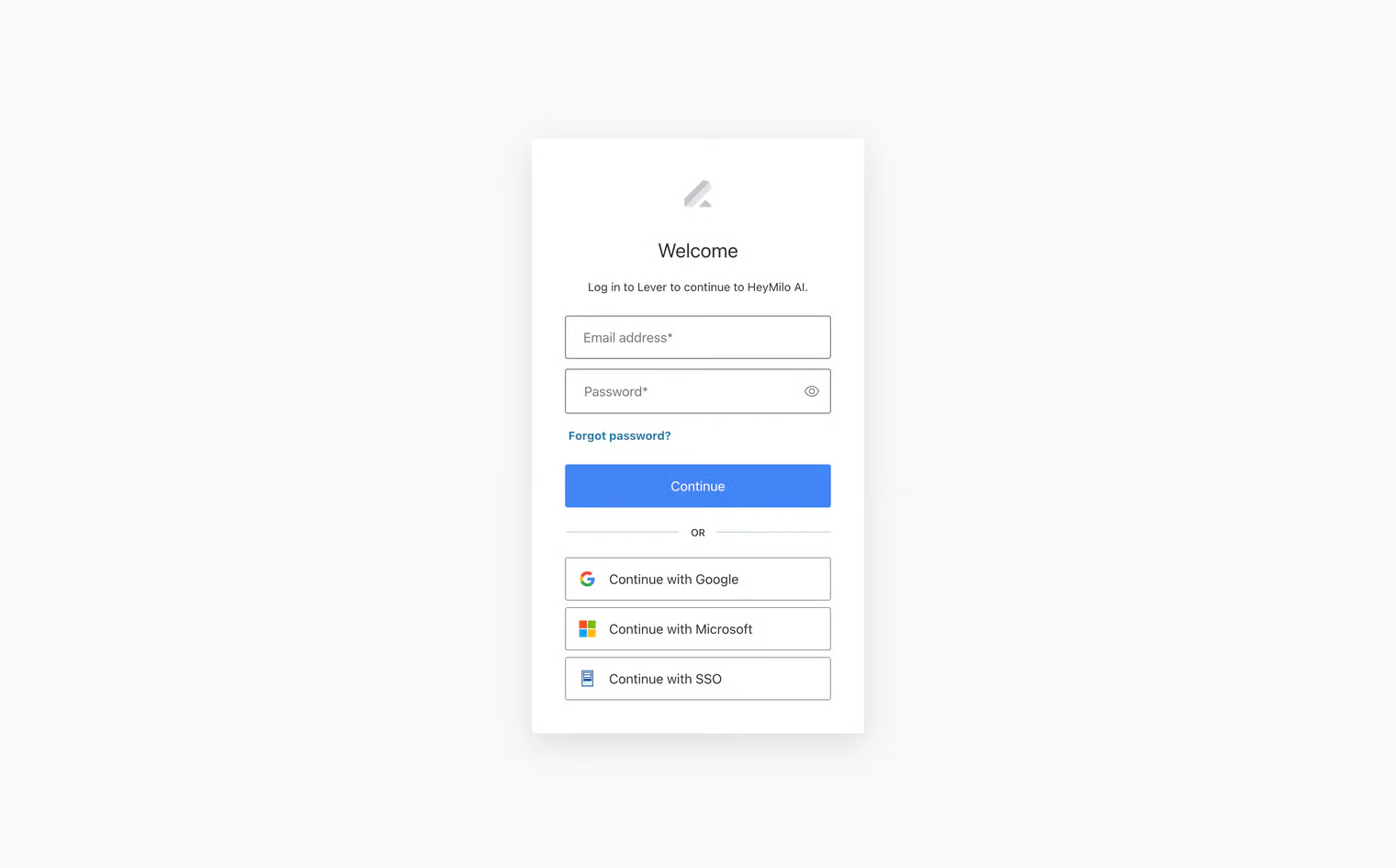
Log into your Lever admin dashboard
2

Step 2

Navigate to Settings > Integrations and API > Webhooks
3

Step 3 — Enable the \`Application Created\` webhook.

Integrate Lever With HeyMilo

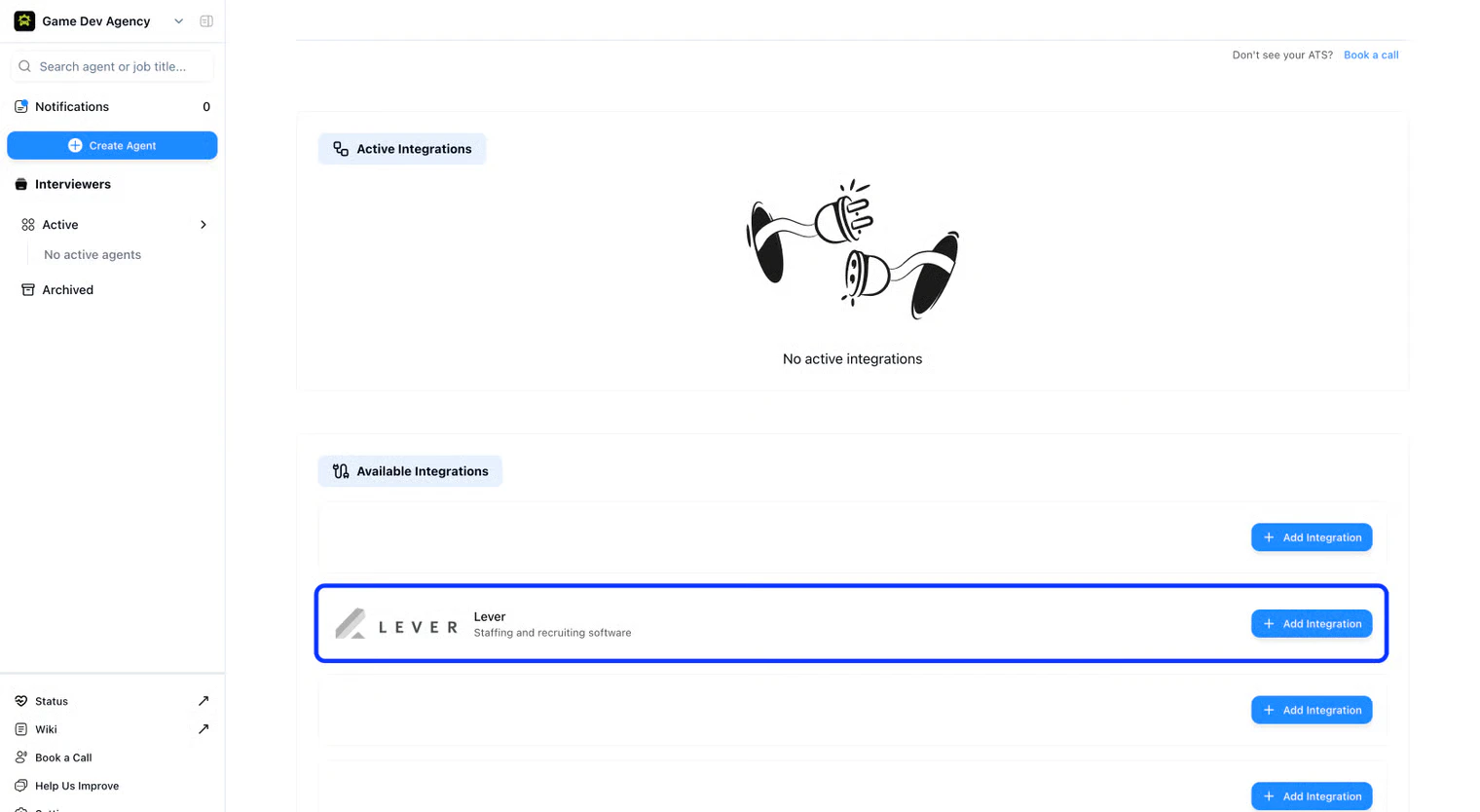
Step 1 Log in to HeyMilo Admin (https://admin.heymilo.ai) Step 2 Navigate to https://admin.heymilo.ai/w/{WORKSPACE\_ID}/integrations to access the integrations page Step 3 Find the Lever integration card and click “Add Integration
  • This will create a expanded section with additional information and instructions about the integration.
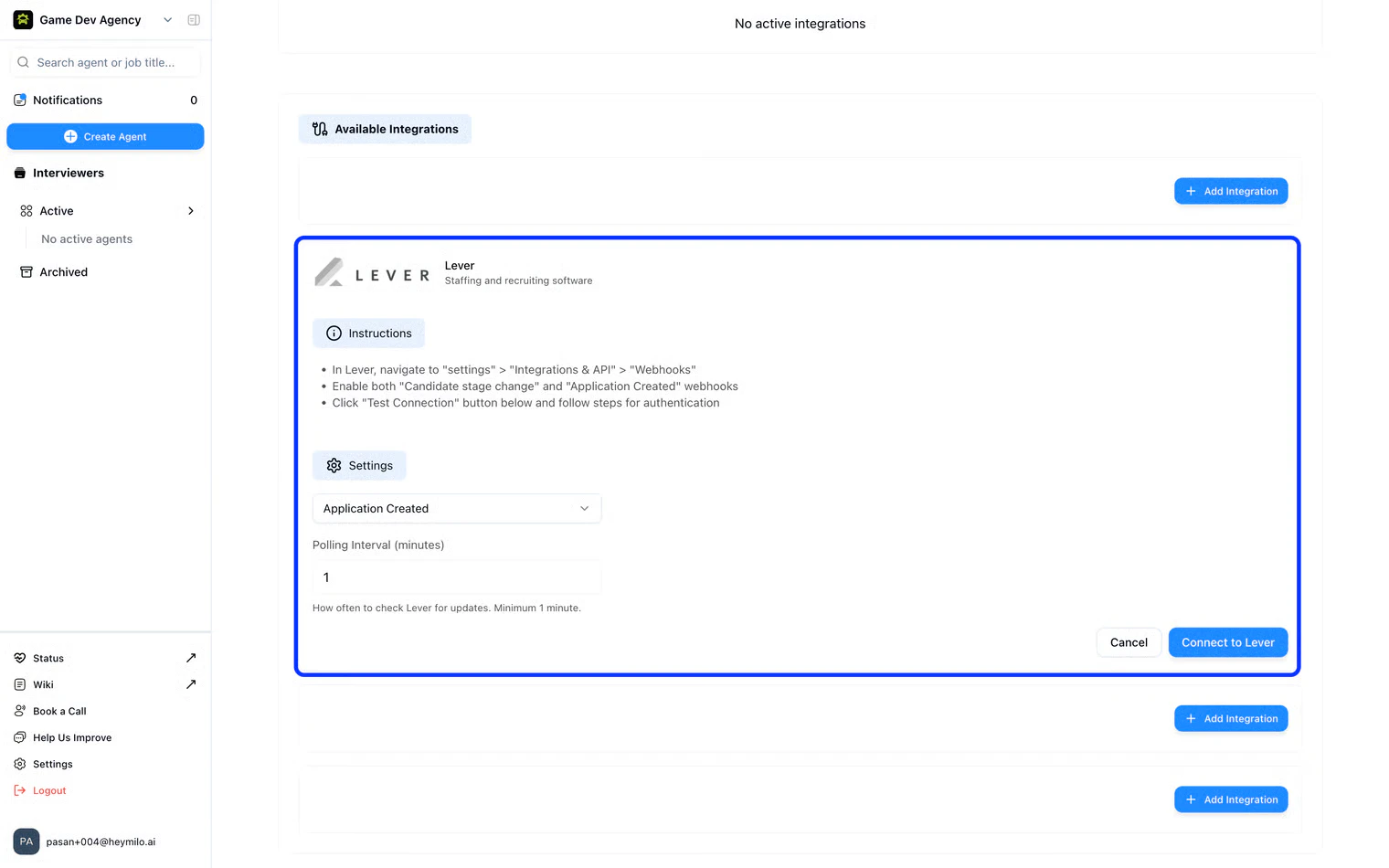
Step 4 In the dialog, select Application Created as the trigger. Select an interval you prefer HeyMilo to check Lever for new jobs.
Step 5 Next, authenticate with Lever.
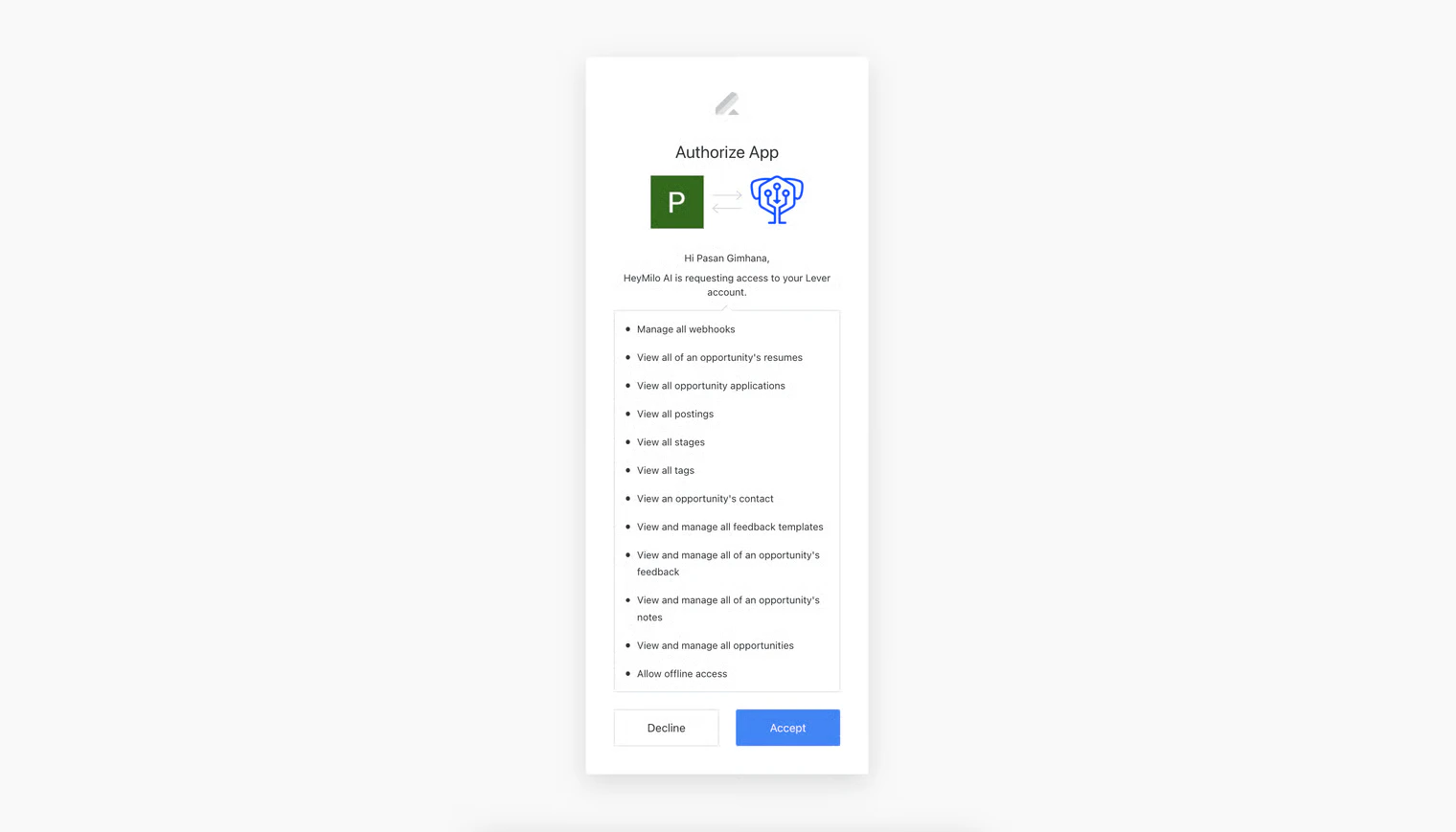
Step 6 You will then be prompted to grant necessary permissions
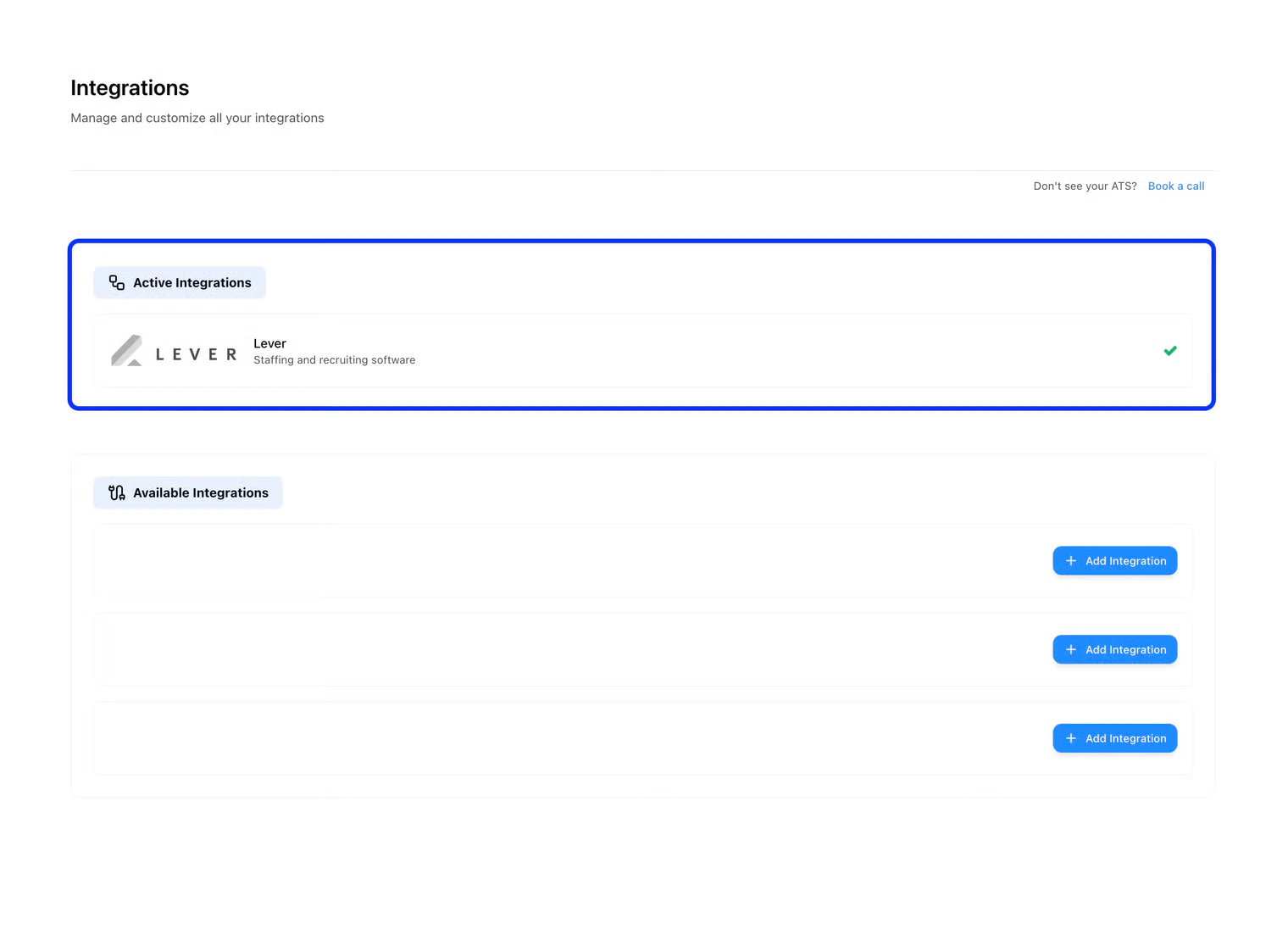
Step 7 Upon successful connection, the page will automatically refresh and you’ll see a green checkmark (✓) on the Lever integration card, confirming the setup is complete.
Step 8 (Optional) You can confirm the webhook in Lever if you like—but if you saw the ✓ in the Integrations page in HeyMilo, everything is working perfectly.
Additional resources

For additional information not covered here, reach out to support@heymilo.ai.