

Agents Supported in Avionté
⭐️ Smart Interview Reports
HeyMilo’s advanced AI analyzes each candidate’s responses to generate a detailed interview report. This report is automatically added to the candidate’s Documents section and is also visible on their Activity Page in Avionté. Reports include a score breakdown, candidate summary, and a time-stamped transcript, plus direct links to audio or video recordings (depending on the interview type).Follow These Easy Steps to Set Up the HeyMilo Integration With Avionté
Watch the video below to learn how to manually connect agents to Avionté jobs:To initiate the integration, please contact your Avionté Account Manager. Once the Avionté team shares the client tenant and tenant ID with us, we will notify you and proceed with activating the integration.
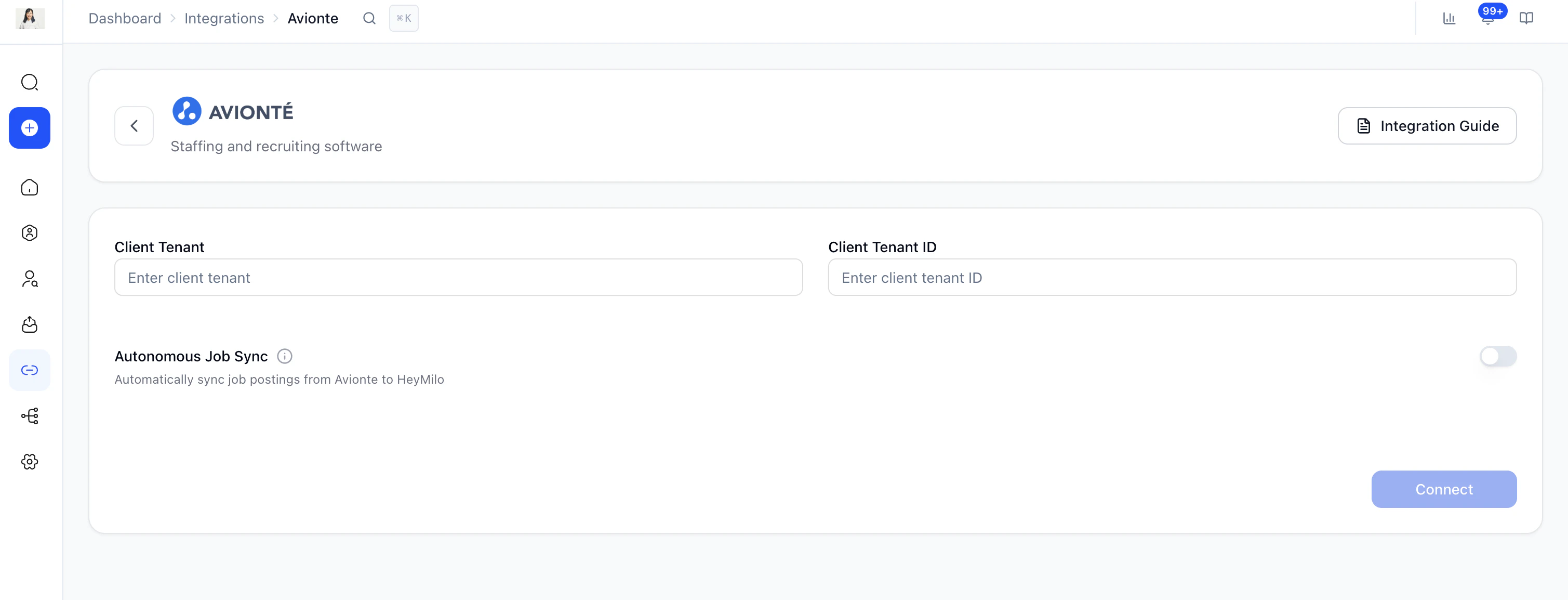
Client & tenant ID
Paste your Client ID and Tenant ID in HeyMilo.
- Once the integration is successful, Avionté will appear in the Active Integrations section in HeyMilo.
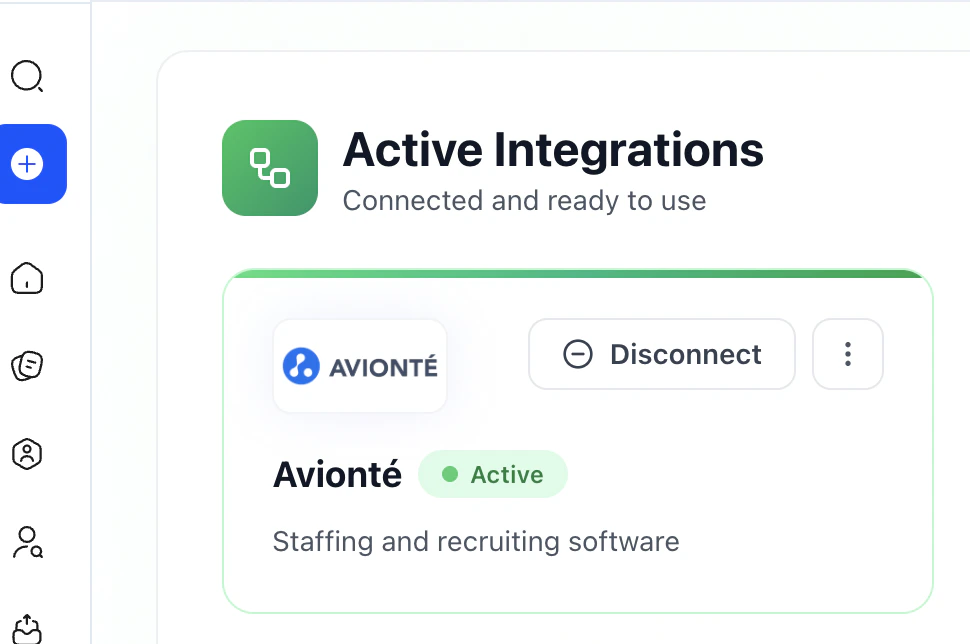
Integrations
Select a job in Avionté to connect it to a HeyMilo agent.
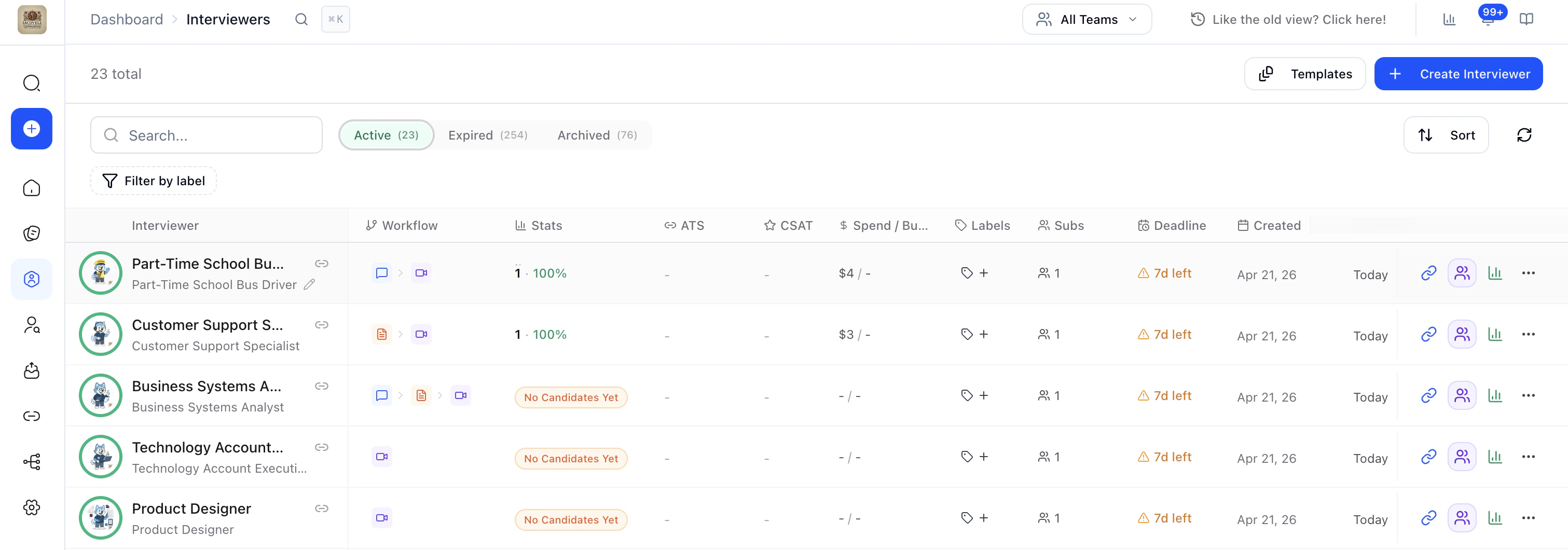
Agents
- In HeyMilo, open/create an agent for the role, select View Configuration, choose Avionté under ATS, and paste the Job ID from Avionté. Click Add and then Save Configuration.
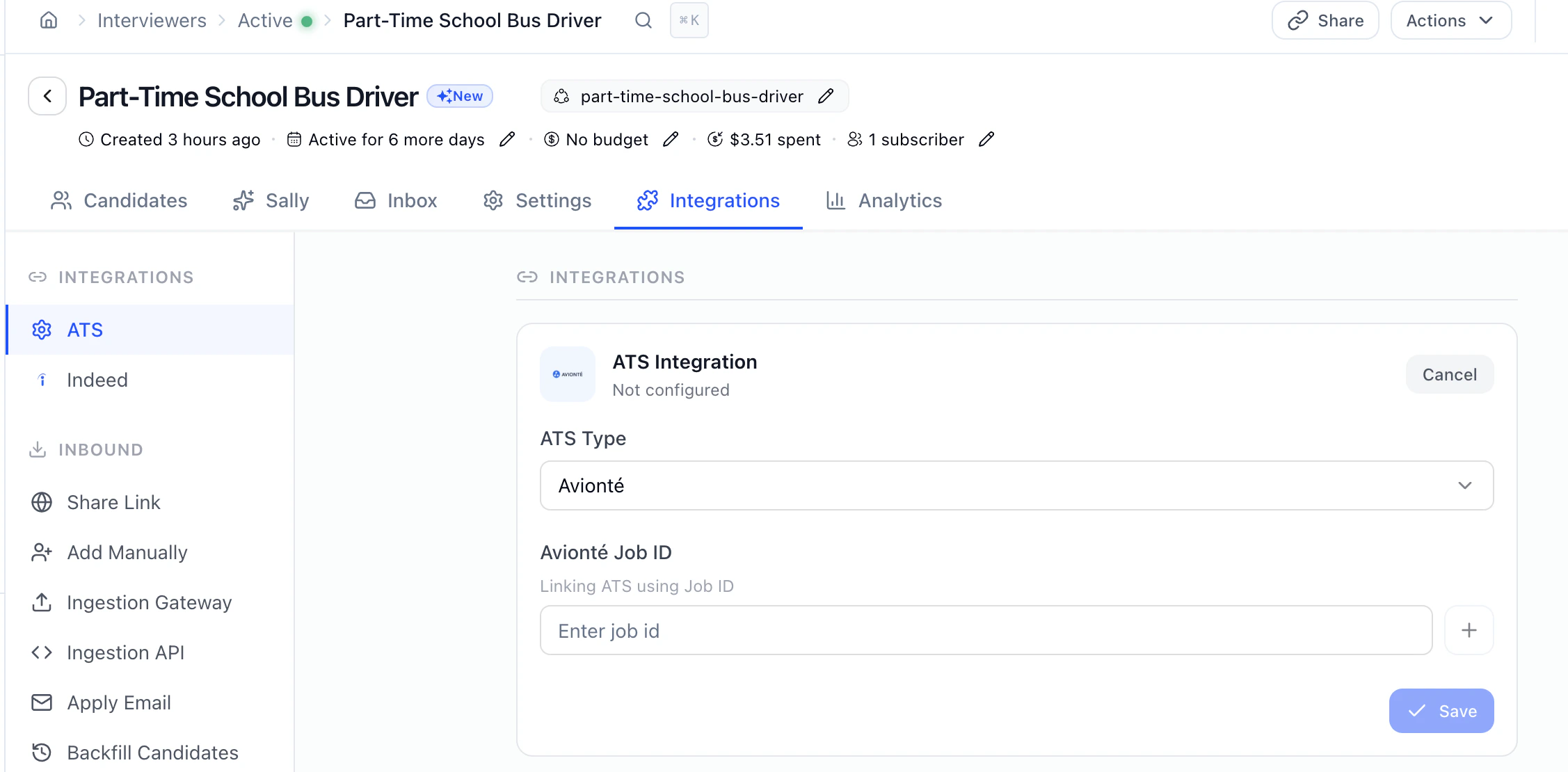
Once mapped, candidates who apply in Avionté will automatically be engaged and start the screening process you’ve set for that job in HeyMilo. This could be résumé screening, SMS questions, phone interviews, or video interviews — in any combination you choose.
Once candidates complete their screenings, their interview reports will be available in your Avionté portal under both the Documents and Activities tabs.
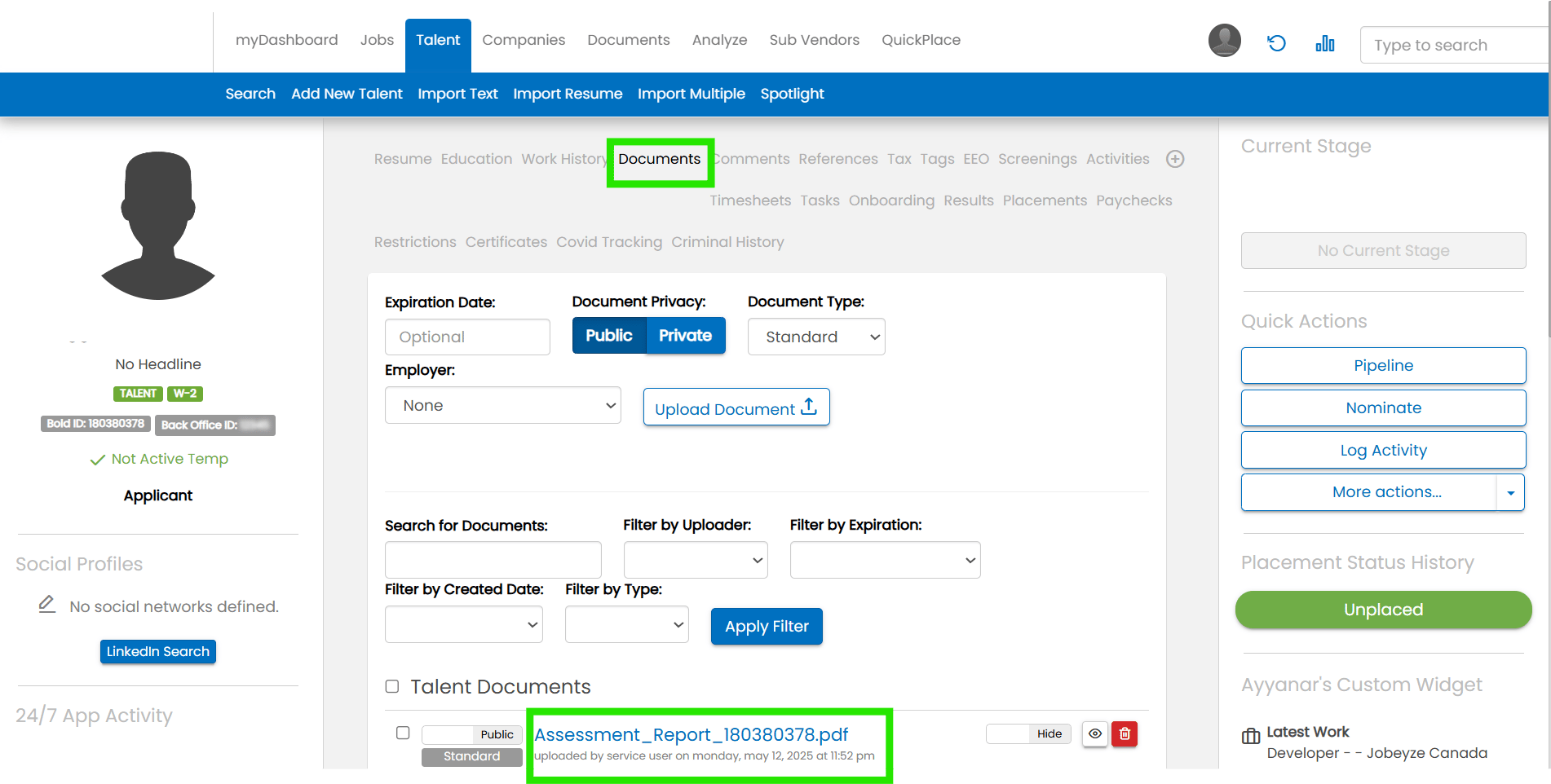
Talent documents
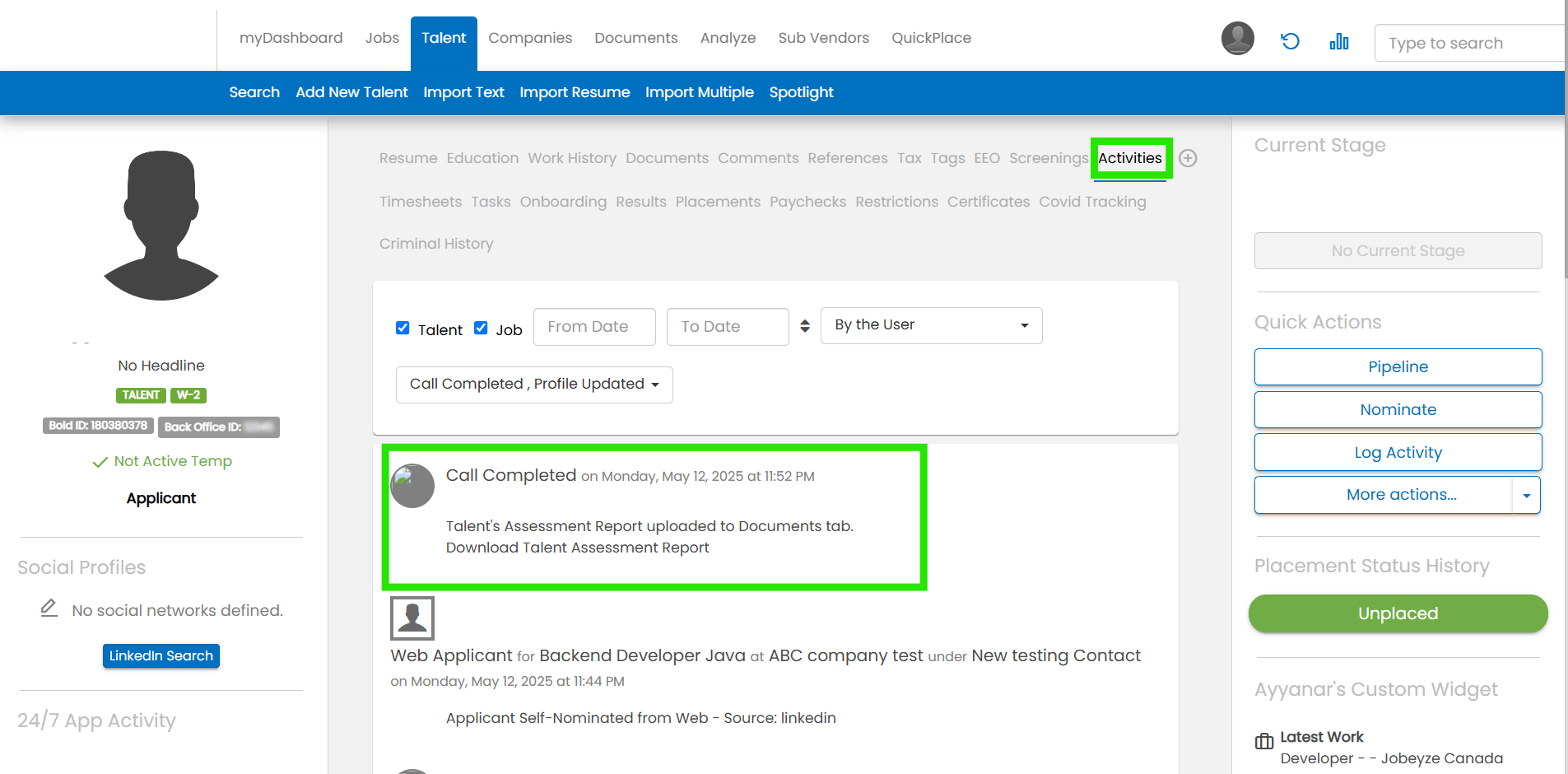
Call completed
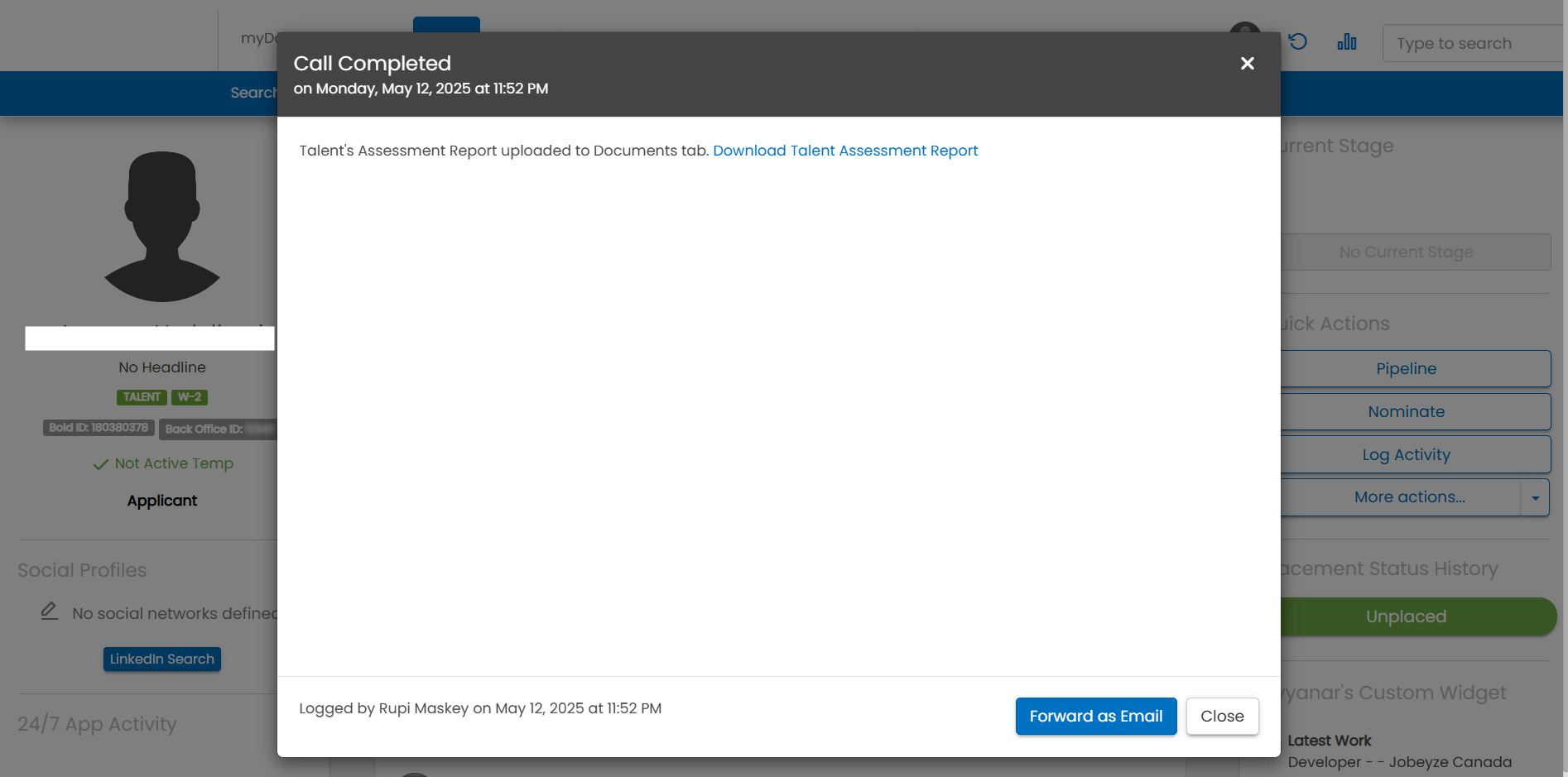
Download talent assessment report
📥 Import Jobs from Avionté (Auto-Create Agents)
Skip the manual setup. You can import jobs directly from Avionté and HeyMilo will automatically create an agent for each one — ready to start screening as soon as candidates apply. Where to find it: HeyMilo → Integrations → Import from ATS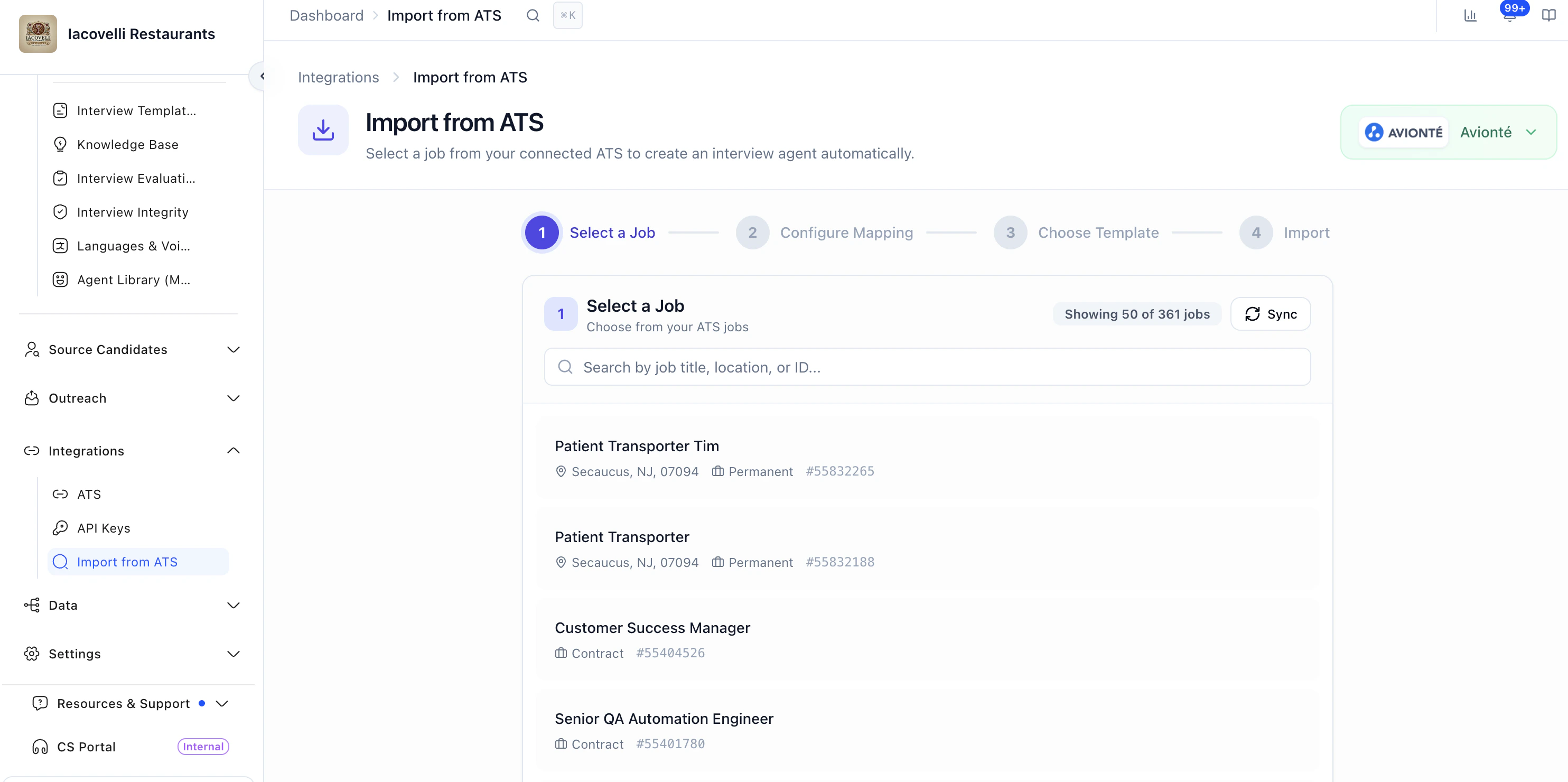
Bring In Candidates Who Applied Before You Connected the Job
You connected your Avionté job to HeyMilo—but what about everyone who already applied before that? You don’t have to leave them behind. Where to find it: Open your agent → Integrations → under INBOUND, click Backfill Candidates.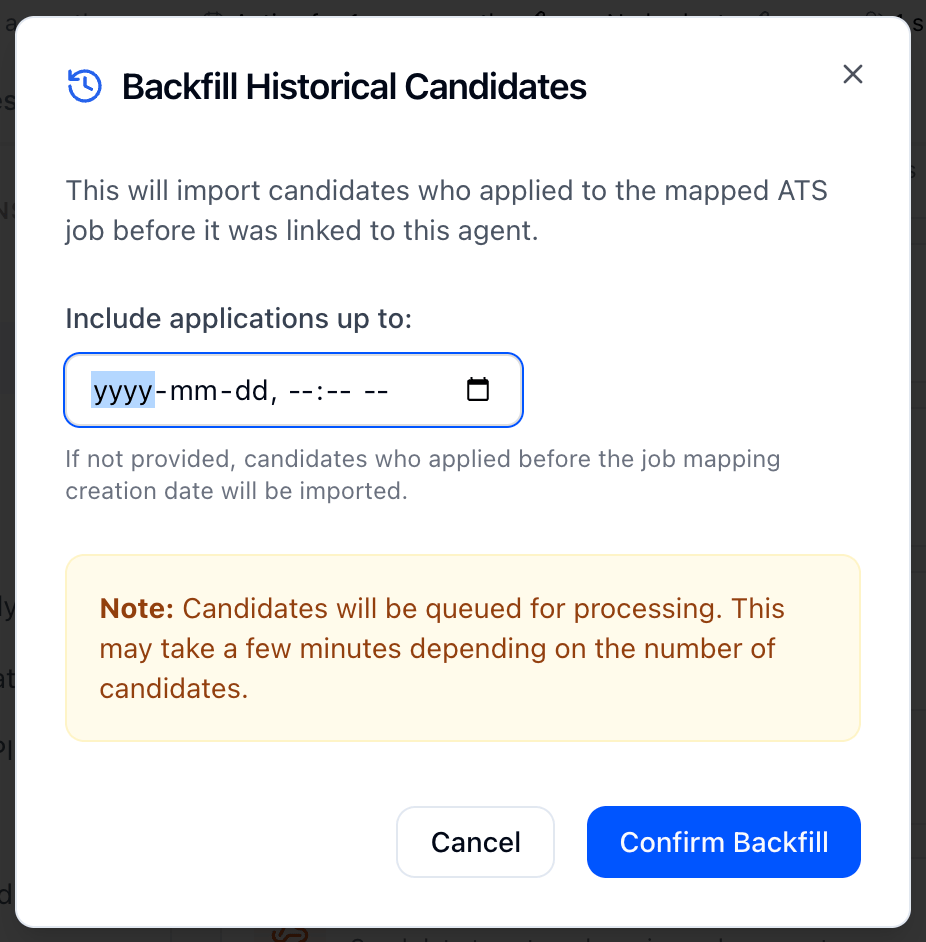
Go to your agent → Integrations → Backfill Candidates (under INBOUND).
In the Backfill Historical Candidates window, you can choose Include applications up to and pick a date if you only want people who applied by a certain time.
- Leave it blank to bring in everyone who applied before you connected the job.
Click Confirm Backfill.
- HeyMilo will bring those candidates in over the next few minutes.