Agents Supported in Ceipal
💡HeyMilo supports SMS screening across all ATS platforms—as long as a valid phone number (with country code) is provided. Since most ATSs don’t collect phone numbers by default, be sure to make the mobile number a required field in your job post.Alternatively, you can enable both resume and SMS screening on your HeyMilo job, ensuring candidates are screened even if their phone number or resume isn’t accessible via your ATS.
Follow These Easy Steps to Set Up the HeyMilo Integration With Ceipal
Click through the interactive demo, and follow the steps below to learn how to connect Ceipal with HeyMilo:1
Go to Admin Setup
In Ceipal, click your profile icon.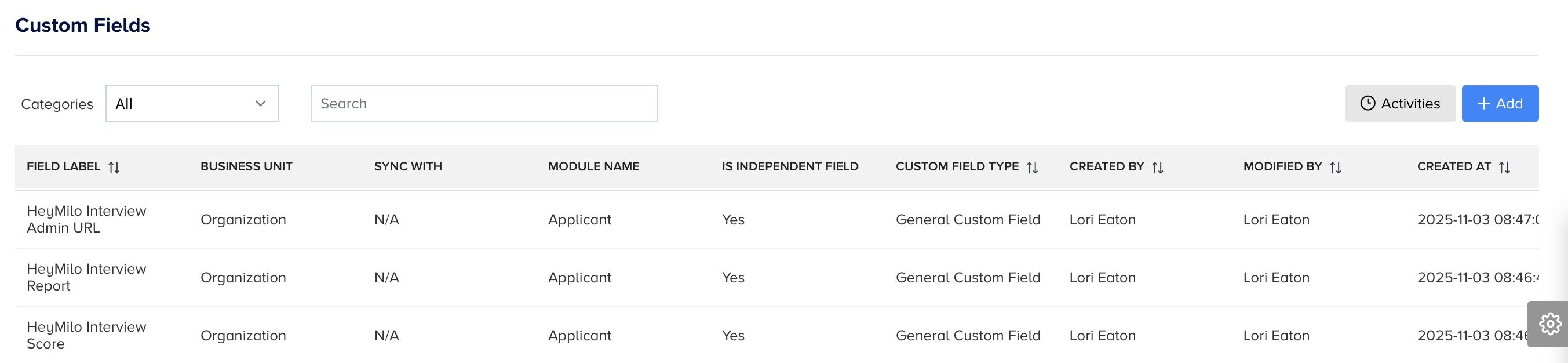
- Navigate to Admin Setup.
- Under Global Settings, click Custom Fields.
2
Create Custom Fields
You’ll add three new fields so HeyMilo can send results back into Ceipal.Click Add and create the following fields exactly as written: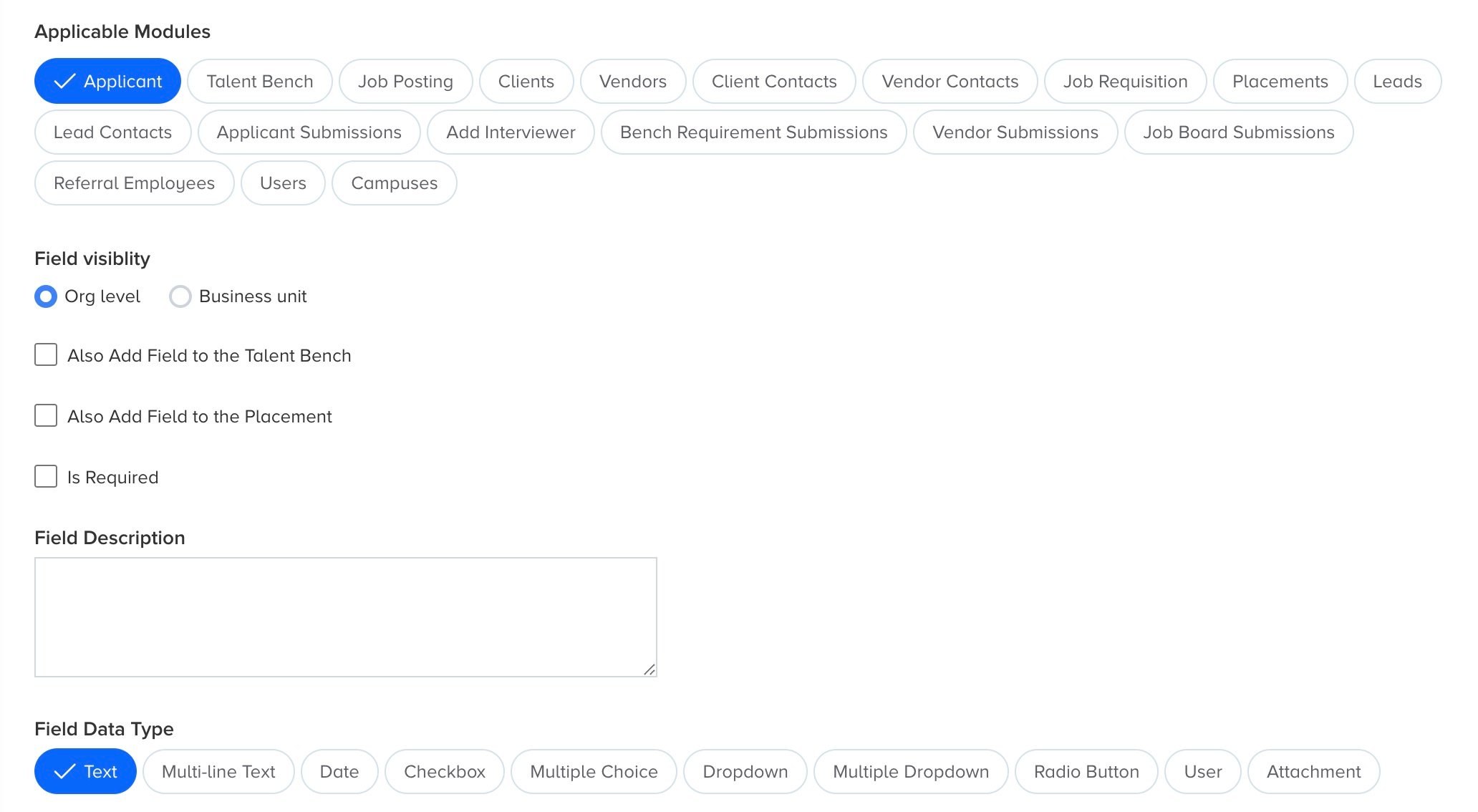
- HeyMilo Interview Score
- HeyMilo Interview Report
- HeyMilo Admin URL
- Select Applicant under Application Modules
- Choose Text under Field Data Type
- Click Save
3
Create the Custom API (Writeback Endpoint)
This API allows HeyMilo to push interview results back into Ceipal.1. Go to Custom API Configuration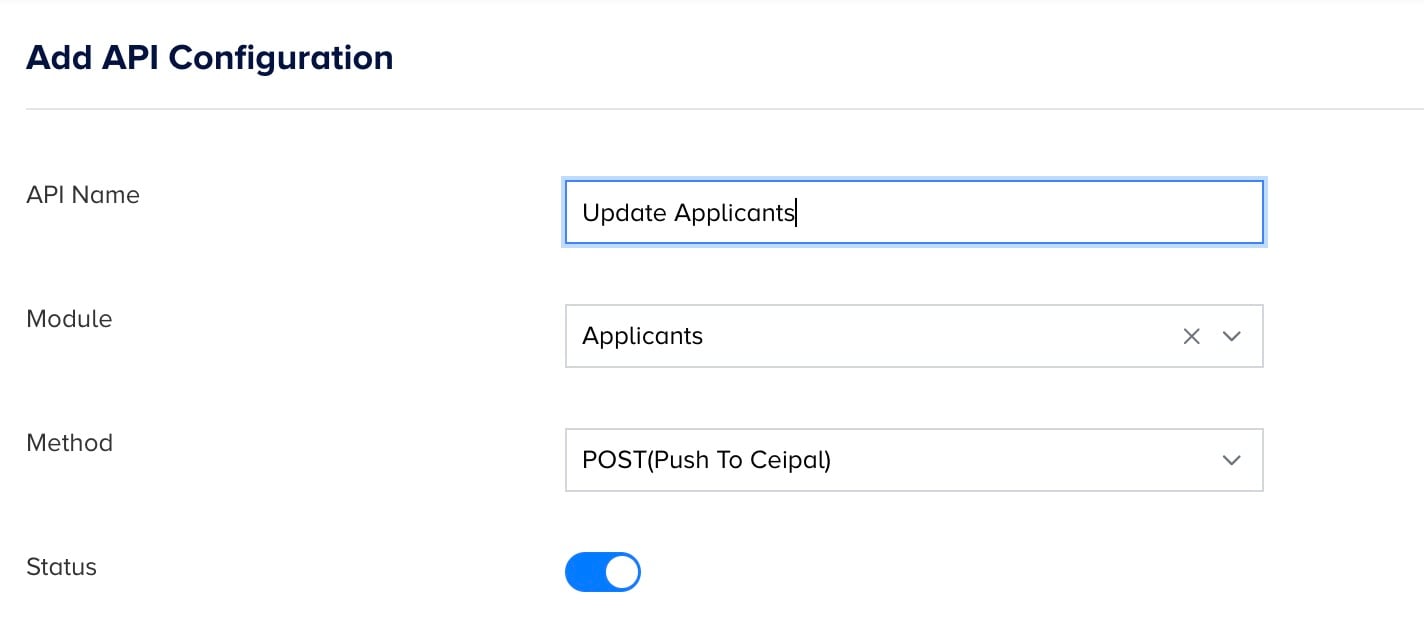
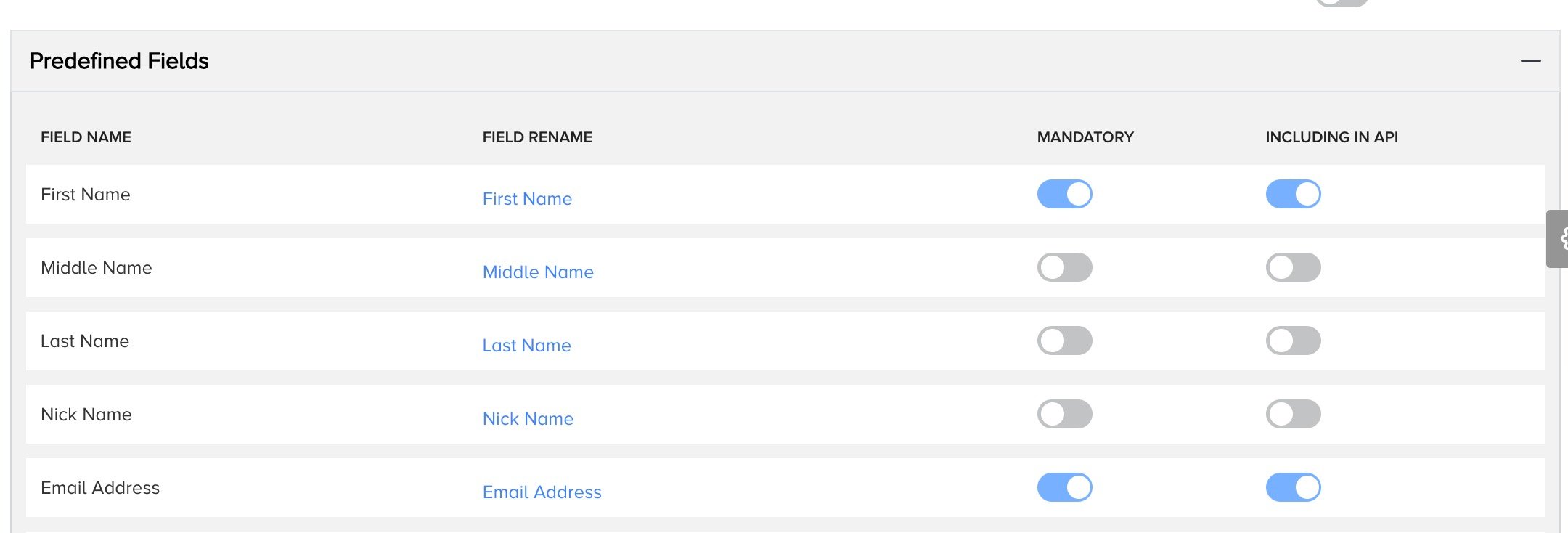
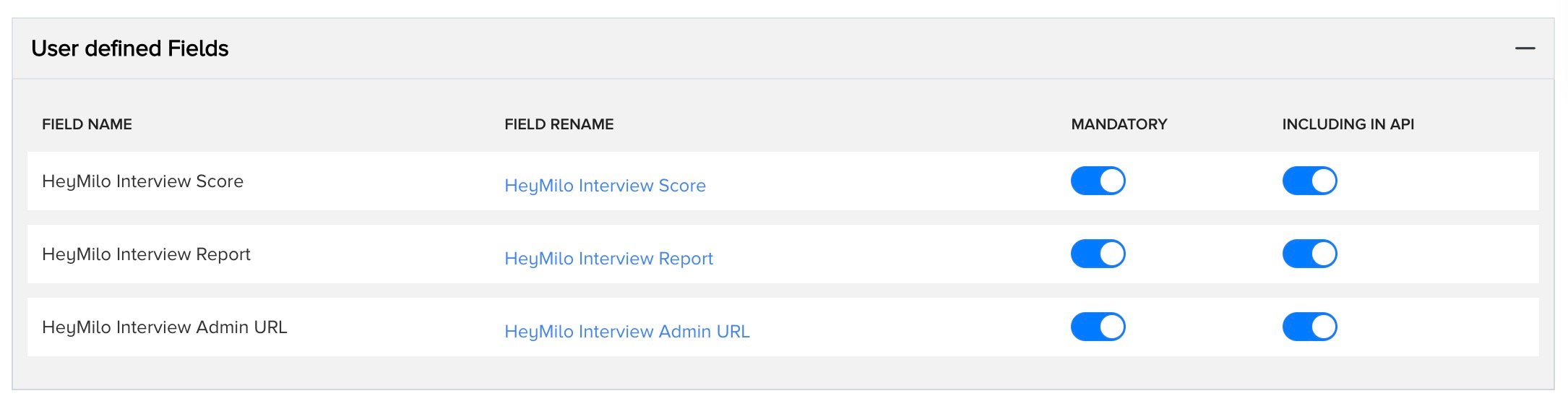
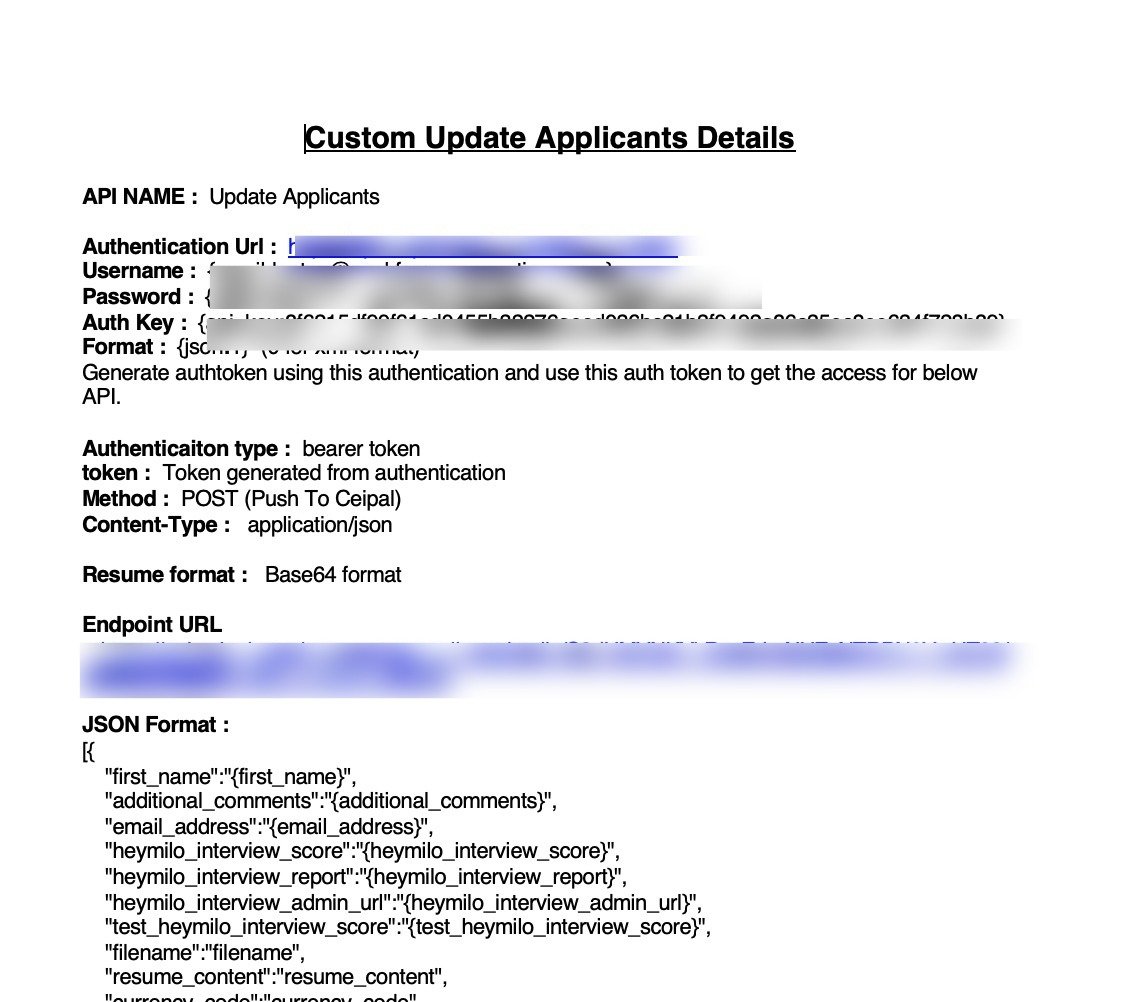
- Navigate to Custom API Configuration
- Click Add
- Name: HeyMilo WriteBack API, or Update Applicants e.g.
- Module: Applicants
- Method: POST(Push To Ceipal)
- FirstName
- HeyMilo Interview Score
- HeyMilo Interview Report
- HeyMilo Admin URL
- Click it to download a
.docfile containing your API endpoint. - Open it in Google Docs or Word.
- Inside, copy the endpoint URL (this is what HeyMilo needs).
4
Configure Your API Credentials
Now you’ll grab the credentials Ceipal generates for your writeback API.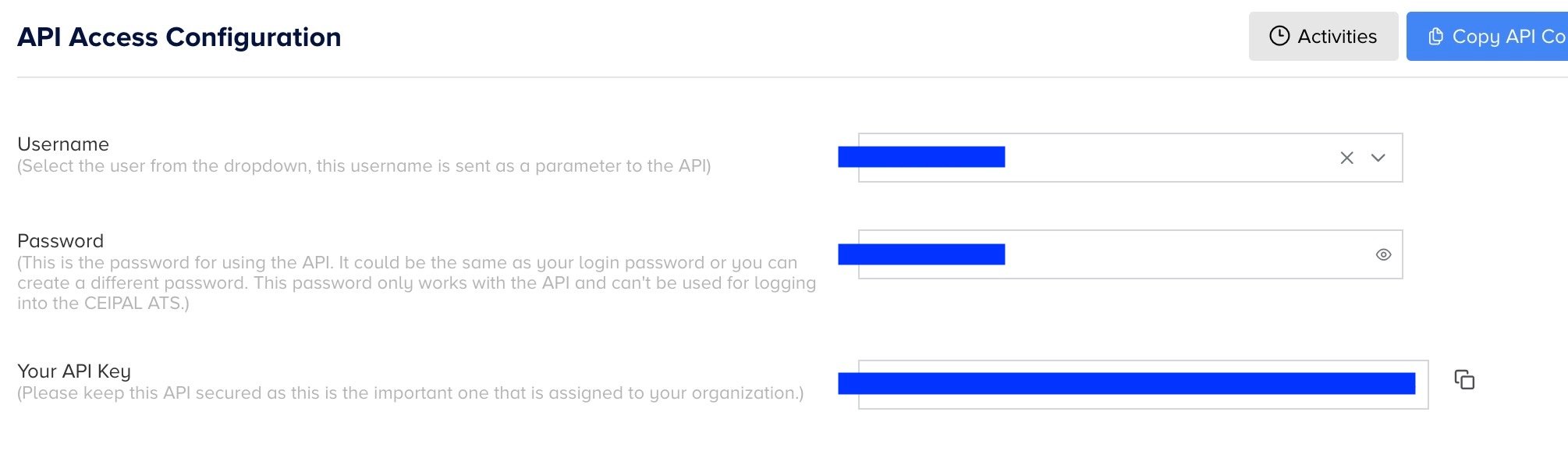
- Go to API Access Configurations
- Choose a username (this is not your Ceipal login)
- Create an API password
- Copy your API Key
- Endpoint URL
- API Username
- API Password
- API Key
Mapping Ceipal Jobs to a HeyMilo Agent
To activate screening for a specific role:1
Copy your Ceipal Job Posting ID
This is available within your job posting details.
2
Open your agent in HeyMilo
Go to the Integrations tab.
3
Select Ceipal as your ATS
Paste the Job Posting ID into the mapping field.
4
Save
Your job and agent are now linked — candidates applying to this job will automatically enter the configured HeyMilo workflow.
What Happens After Setup
Once the integration is active:Candidates apply in Ceipal
HeyMilo automatically pulls new applicants.HeyMilo runs your configured workflow
SMS → Resume screening → Form screening → Voice/Video interview.Results sync back into Ceipal
Interview score, full report, and admin URL appear in the custom fields you created.Your team reviews everything inside Ceipal
No switching systems, no extra steps.How to Review Candidate Results
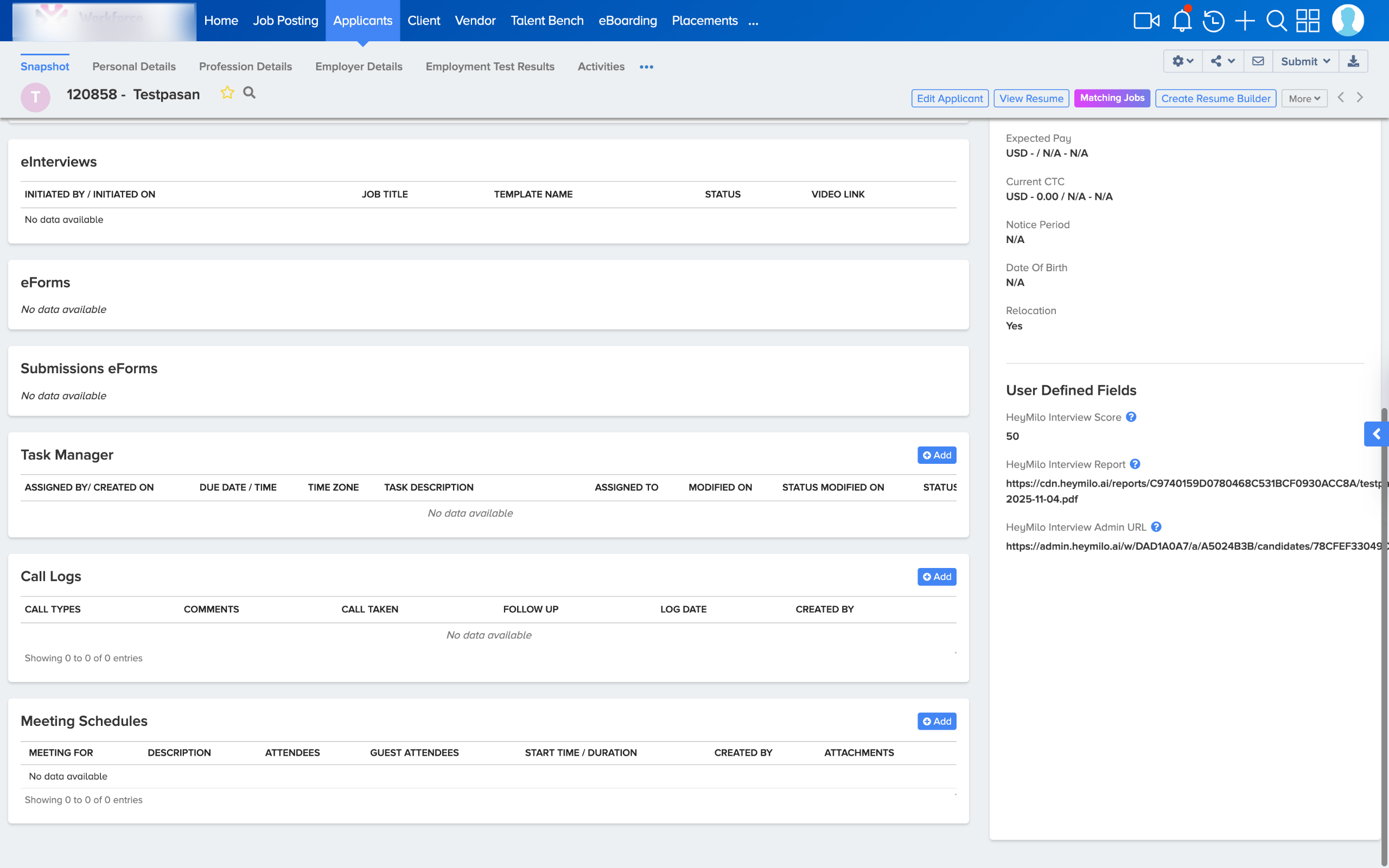
HeyMilo results appear in Candidate → Personal Details and scroll down to User Defined Fields:- HeyMilo Interview Score: numeric score based on your criteria
- HeyMilo Interview Report: full evaluation summary
- HeyMilo Admin URL: one-click access to transcripts, videos, audio, and detailed scoring inside HeyMilo