

Agents Supported in Ashby
Follow These Easy Steps to Set Up the HeyMilo Integration With Ashby
Watch this video, click through the interactive demo, and follow the steps below to learn how to connect HeyMilo in Ashby:Start by Getting API Details from HeyMilo Portal
- Log into the HeyMilo portal.
- Copy the HeyMilo API key and the Staging Base URL. Keep these details handy in another tab for the next steps.
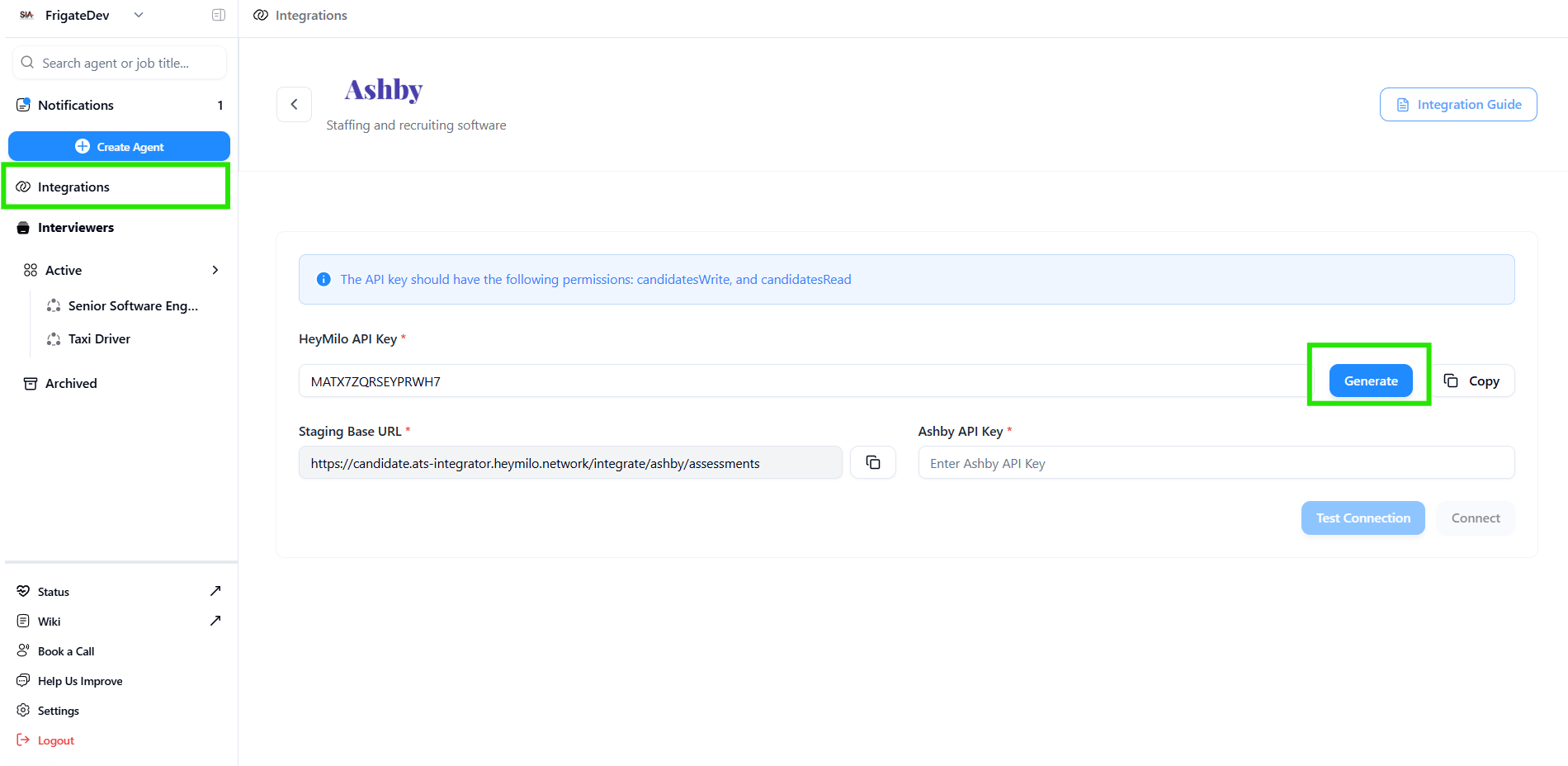
Integrations in HeyMilo
Get the API Key from Ashby
- Go to Admin in Ashby → navigate to Integrations
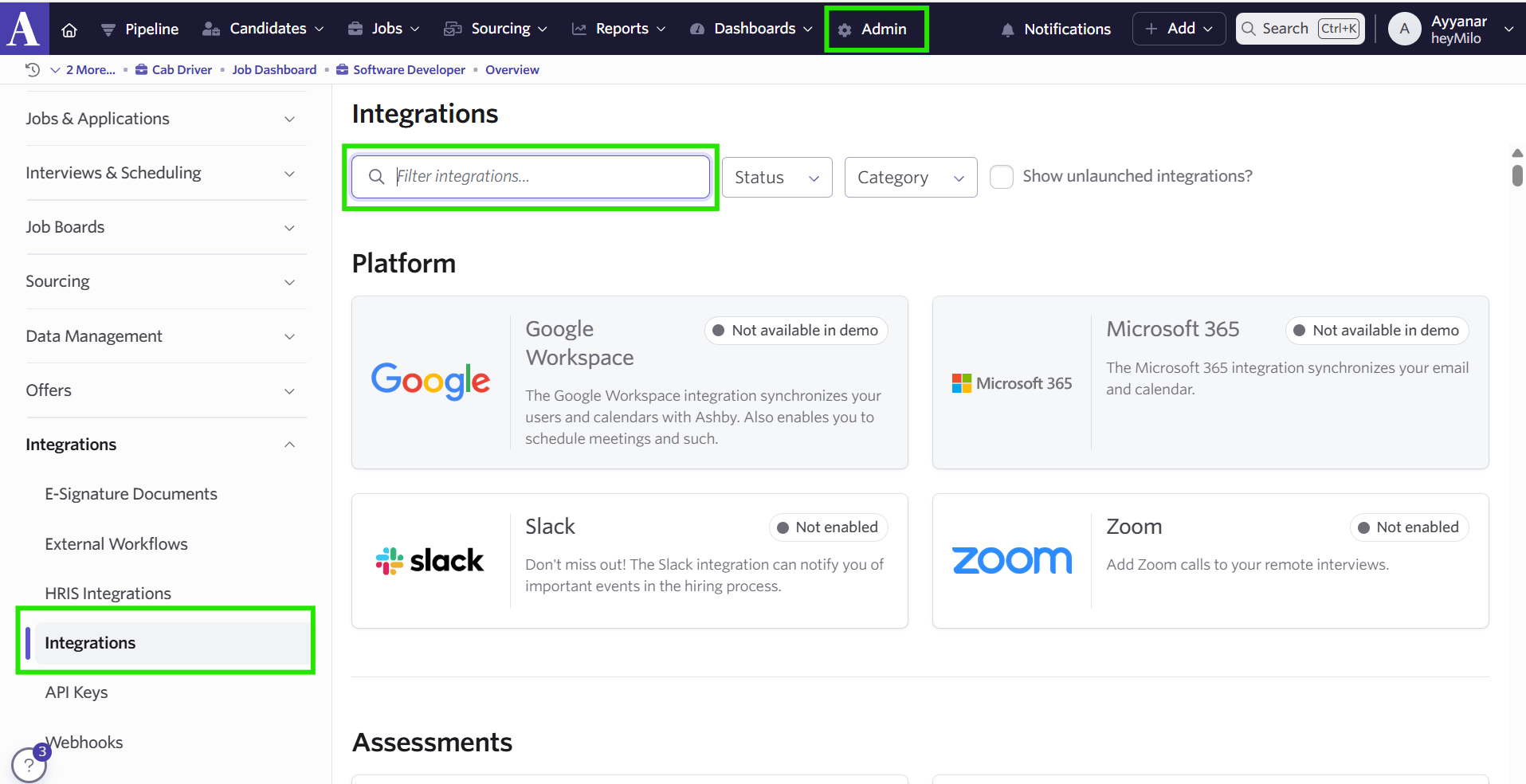
Admin in Ashby
→ select HeyMilo
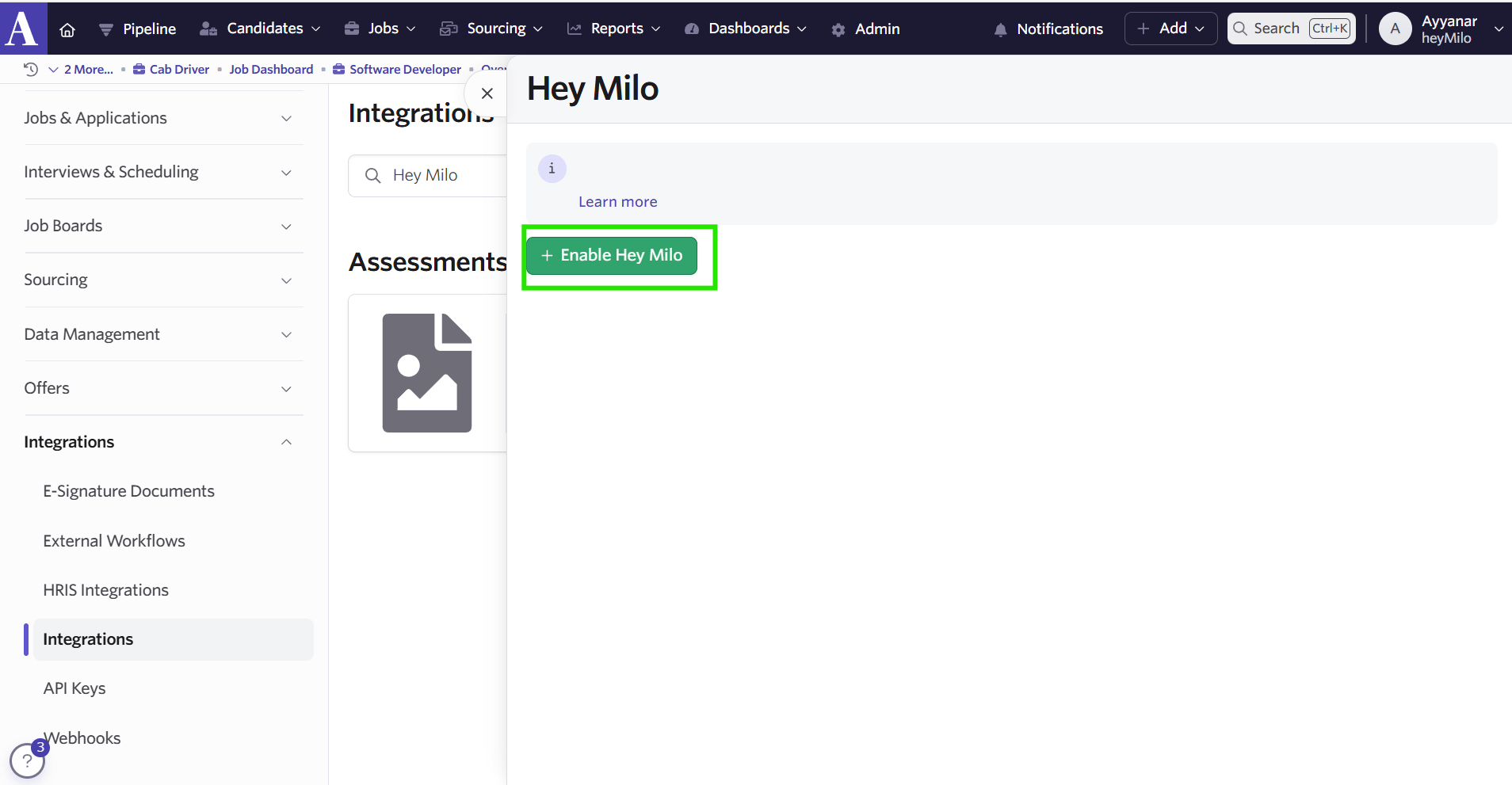
Enable integration in Ashby
Paste the HeyMilo API Key and Staging Base URL here.
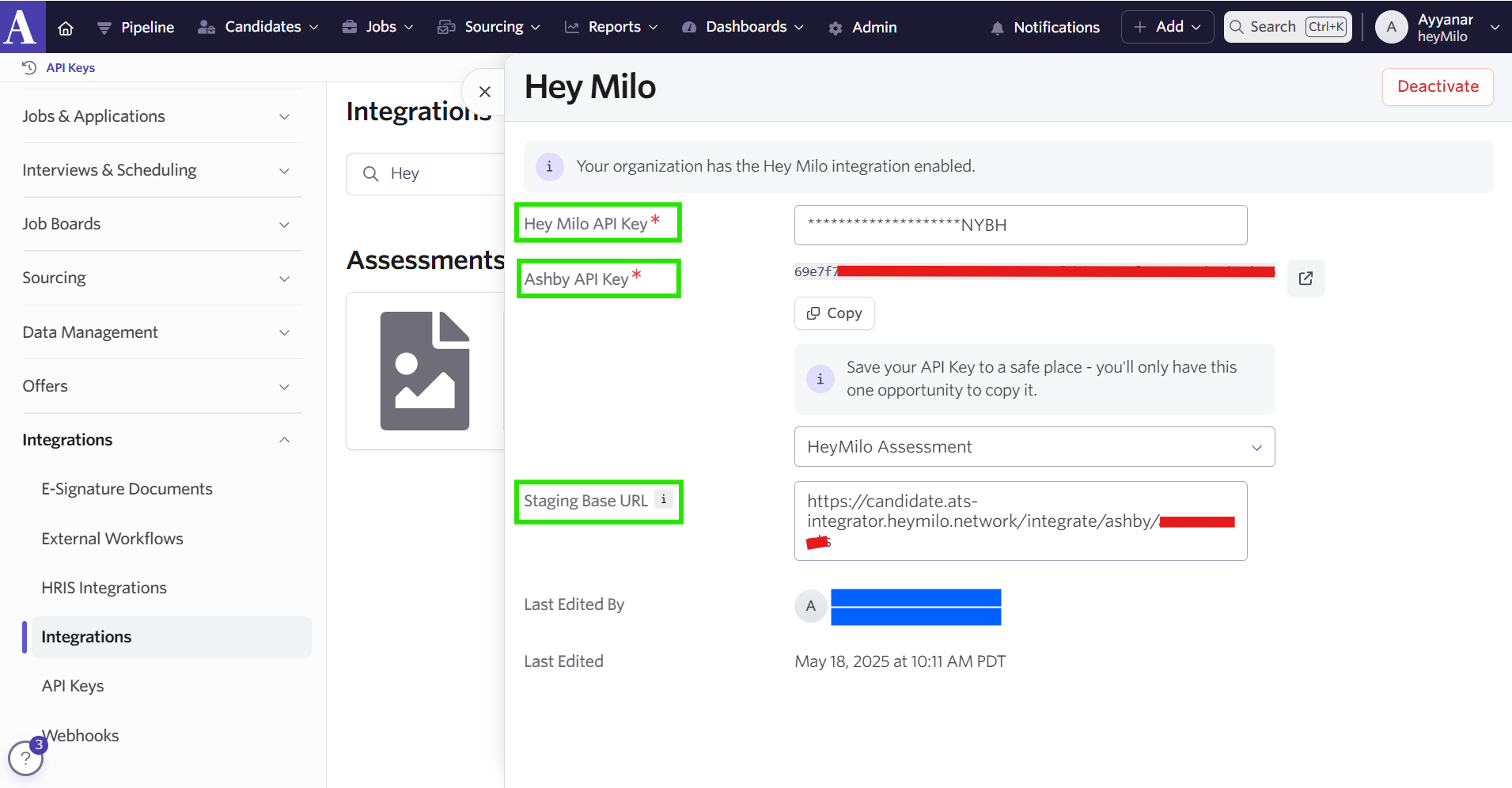
Paste API details in Ashby
Generate the Ashby API Key.
Return to the HeyMilo Portal and → Paste Ashby API Key and click Connect.
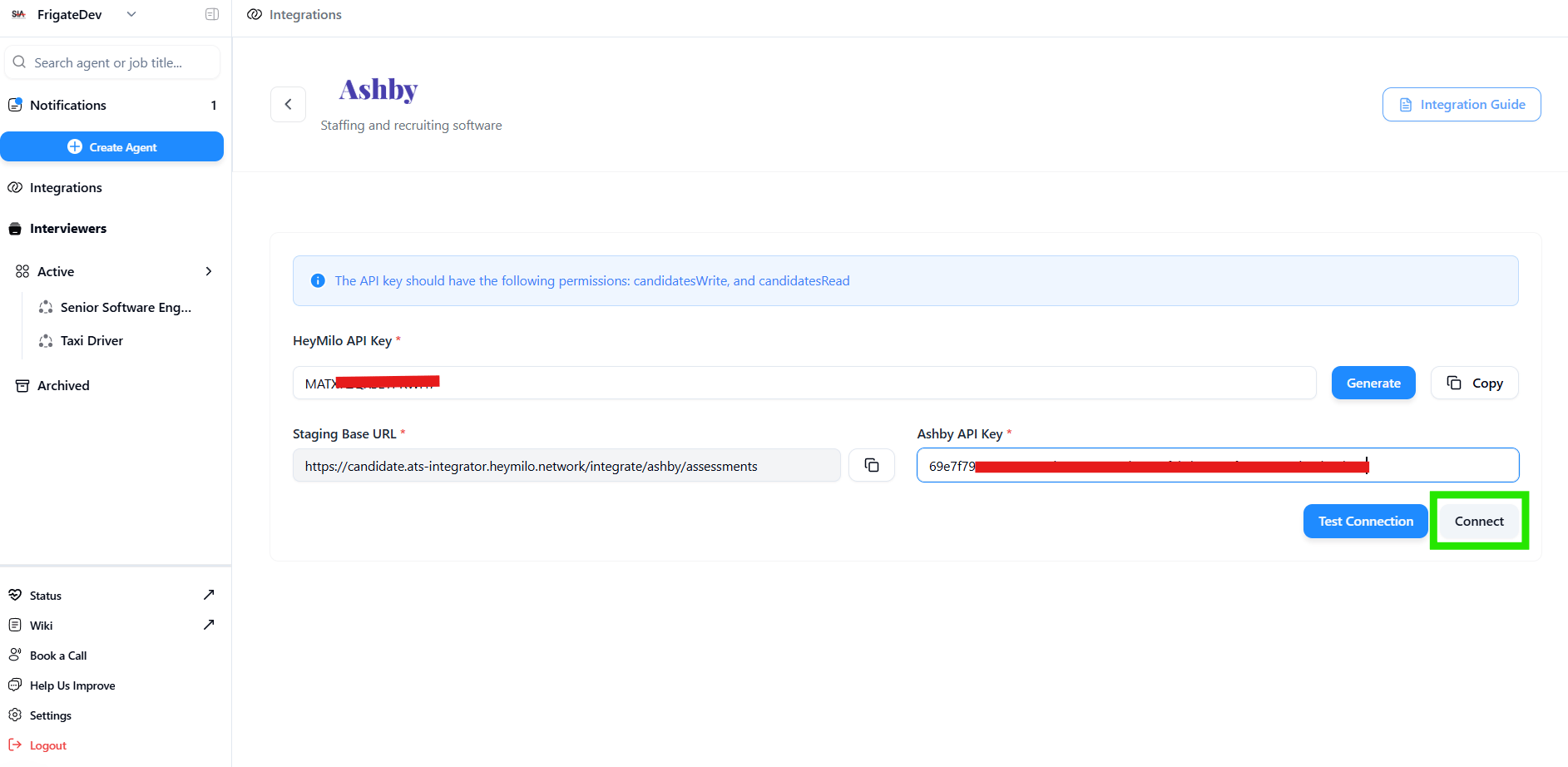
Connect integration in HeyMilo
Upon successful connection, you’ll see it listed in → Active Integrations.
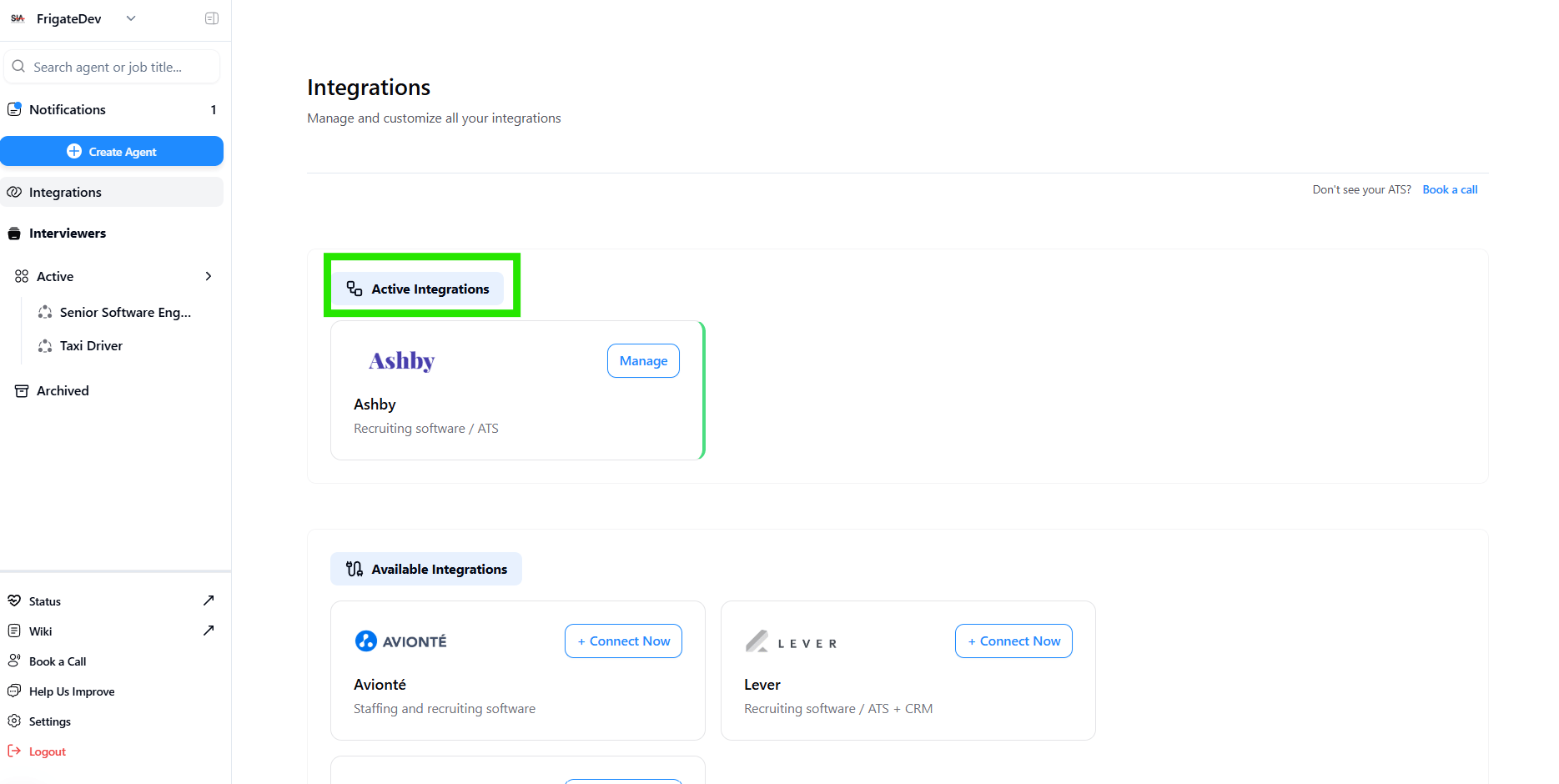
Active integrations in HeyMilo
Link a HeyMilo Agent to a job Using the Job ID (not to be mistaken with the Job Posting ID)
- Now that the API is connected, you can link the HeyMilo interview agent to your jobs in Ashby. → Just select your HeyMilo agent and link the Ashby Job ID to this agent. Your Ashby Job ID can be found by navigating to the specified job in your Ashby account and copy the ID from the url there (not the Job Posting ID from the link that appears in the job board that candidates see)
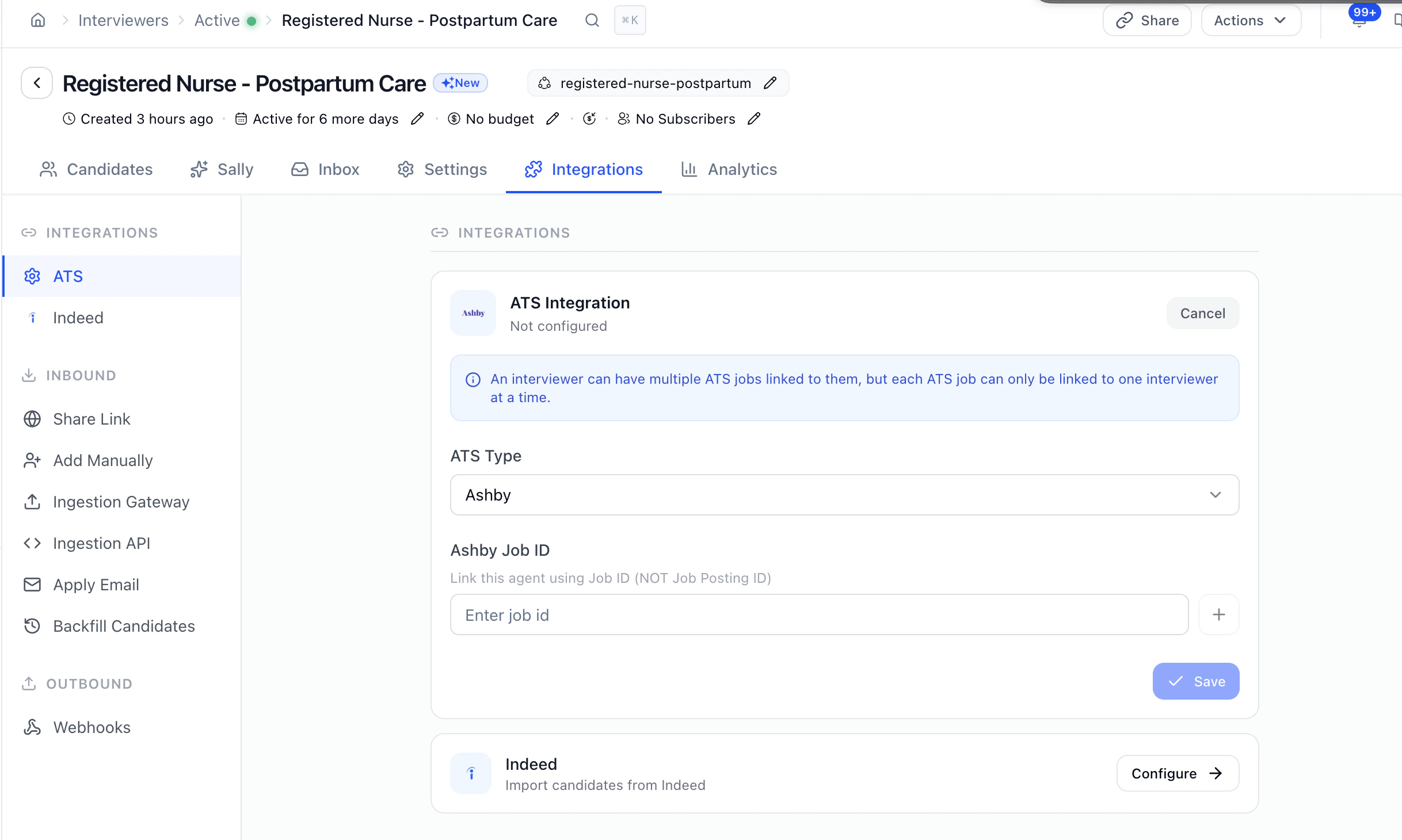
After entering job IDs, → click Save Configuration to finalize the linkage.
You can easily view active mappings for your agents in the same section.
Add HeyMilo AI Assessments to Ashby Job Postings
- In Ashby, navigate to the specific job posting and click Interview Plan → Add Activity.
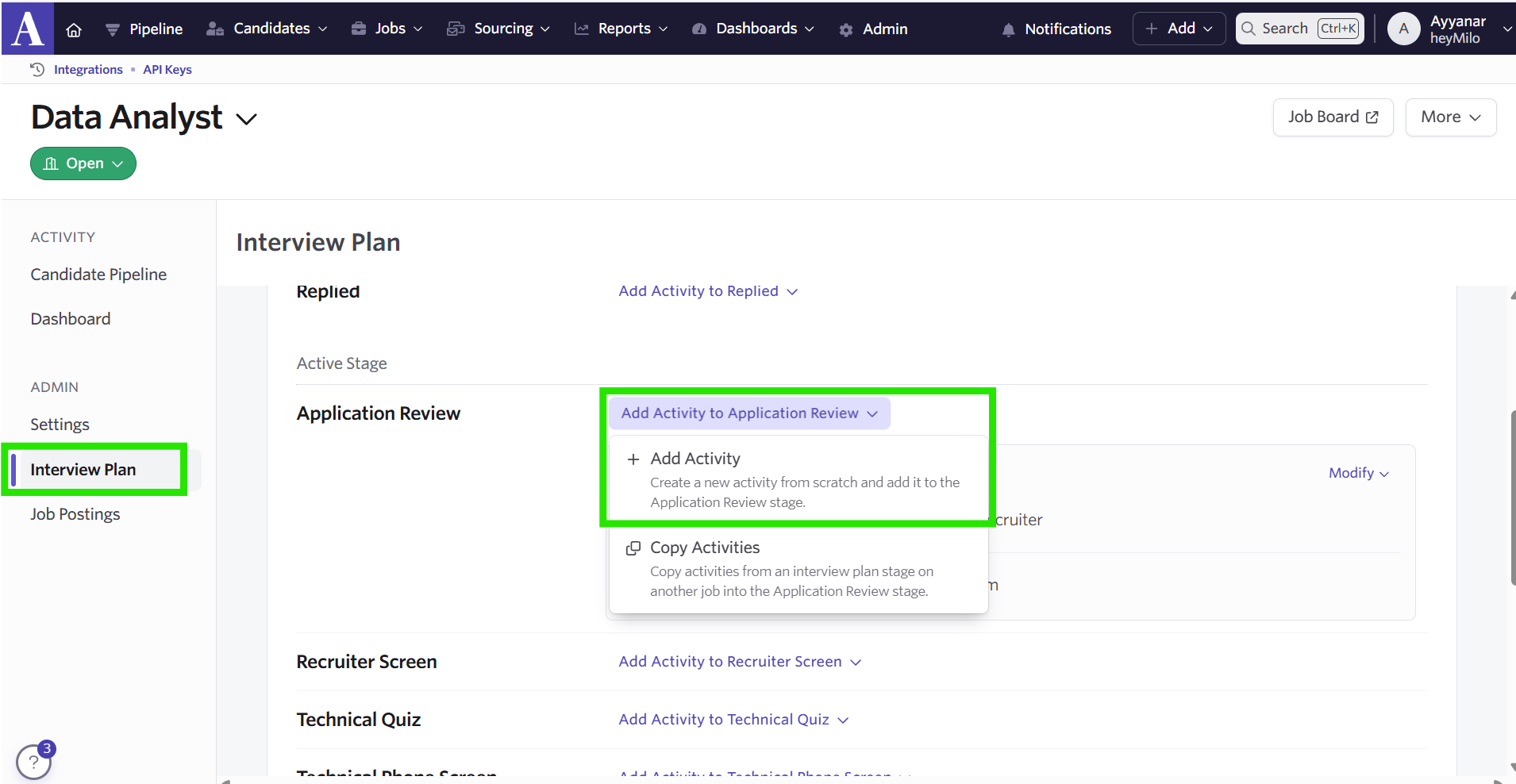
Interview plan in Ashby
Then → select HeyMilo under Integrations
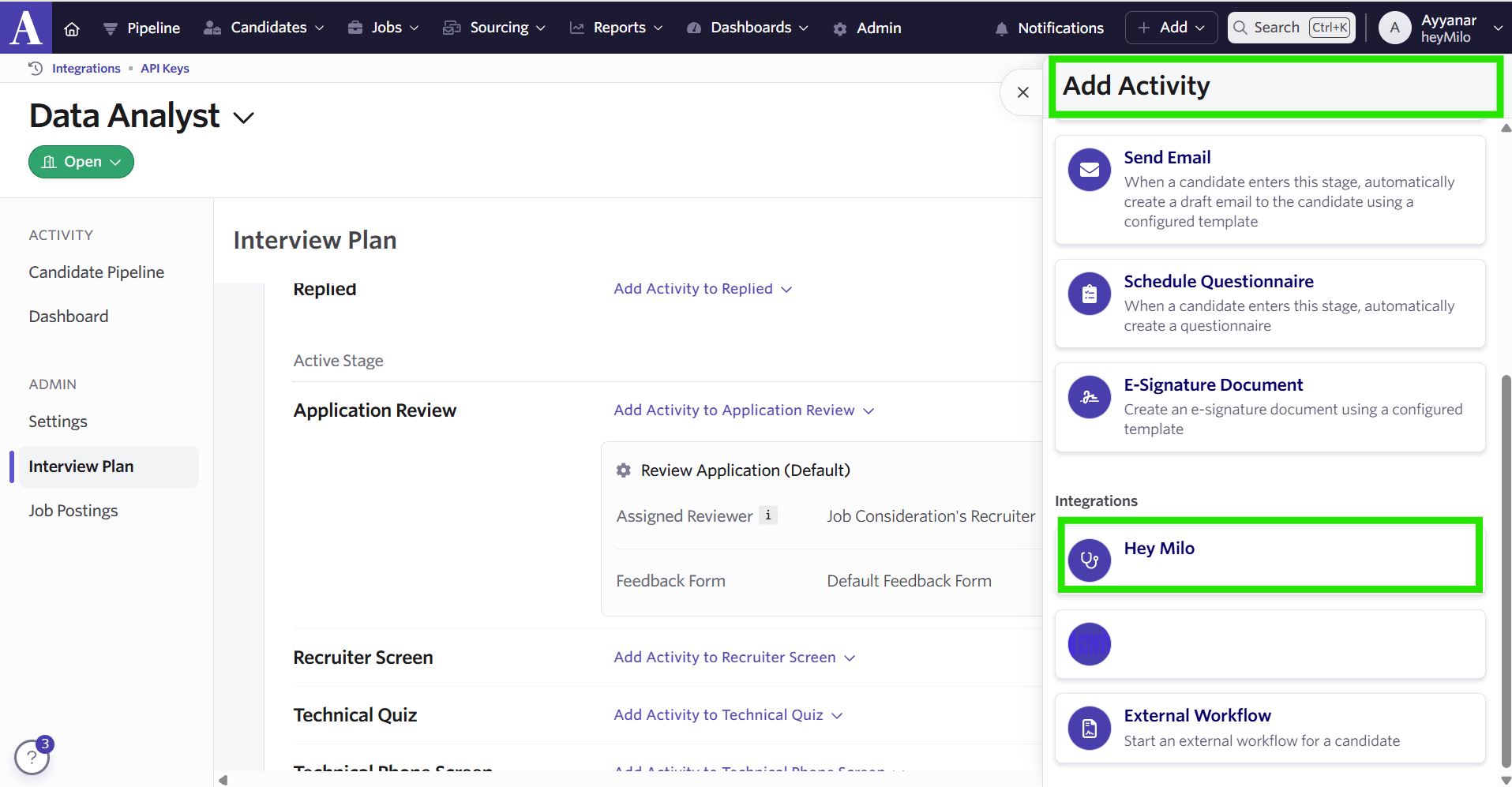
Integrations in Ashby
Choose the assessment (e.g. AI interview) you'd like to add, and → click Add.
- This ensures the HeyMilo assessment is linked to your job posting.
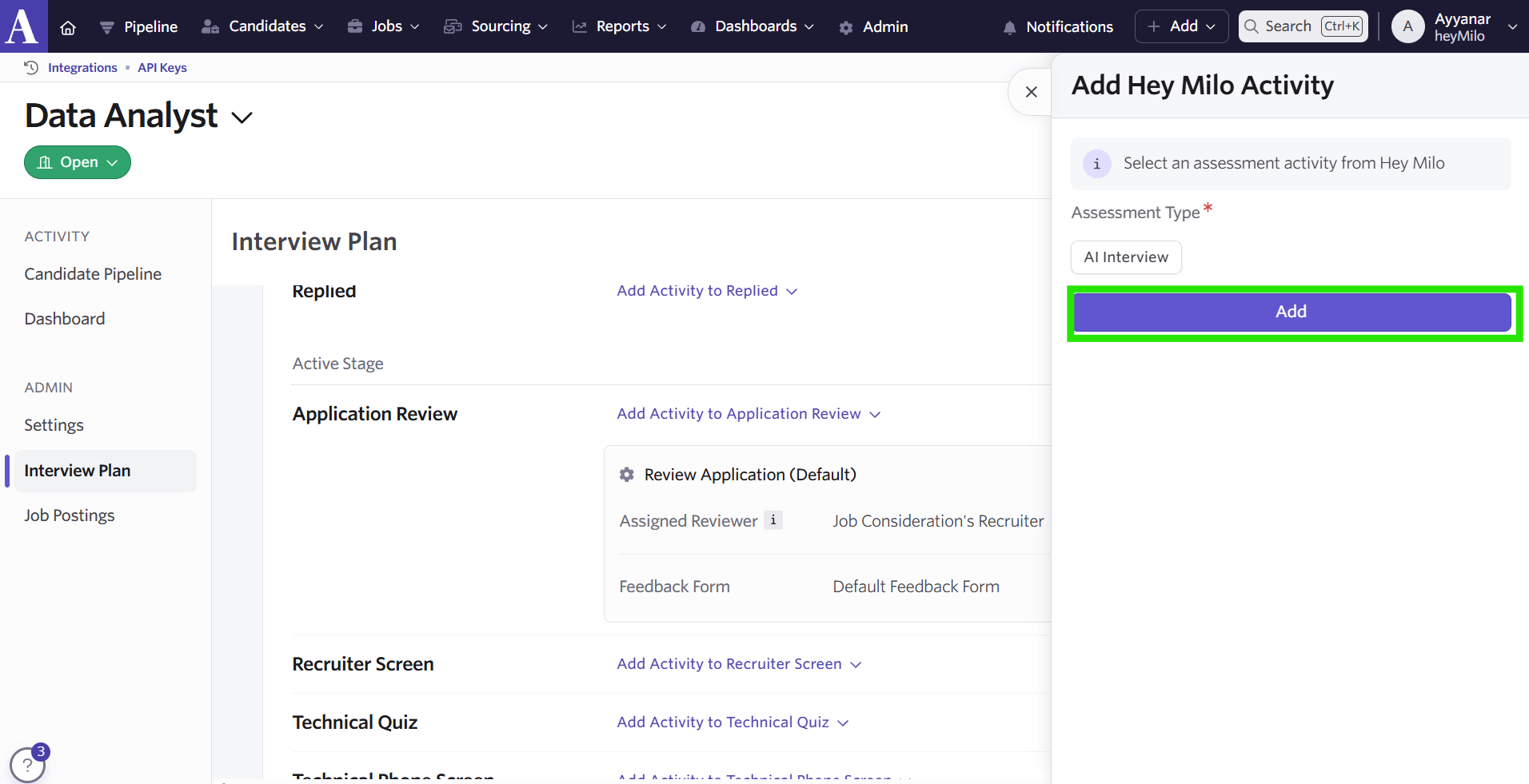
Add activity in Ashby
To automate dispatch of the HeyMilo interview, click Edit beside the HeyMilo integration, navigate to the Automation tab and select “Automate on Stage Entry”
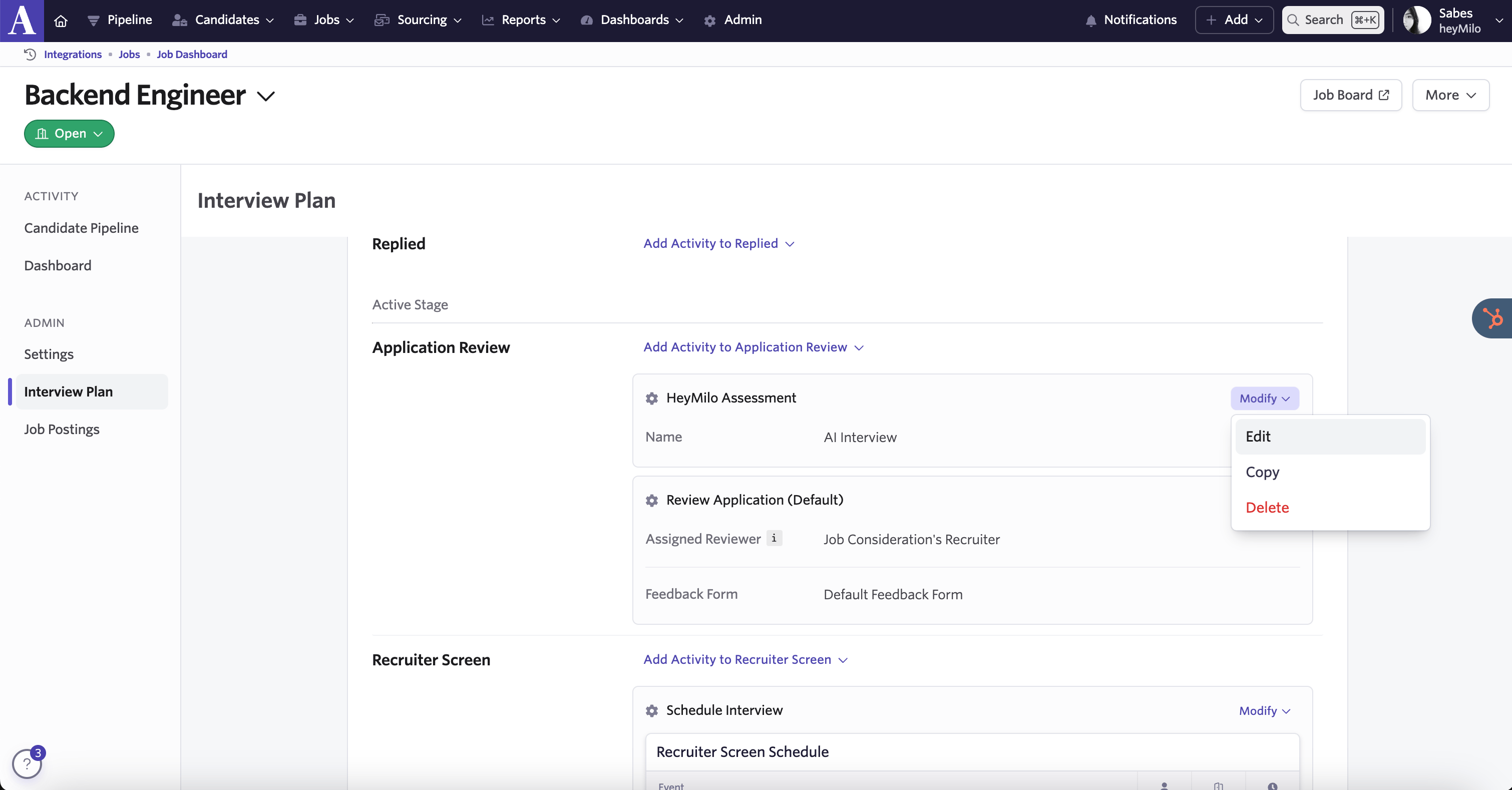
Modify interview plan
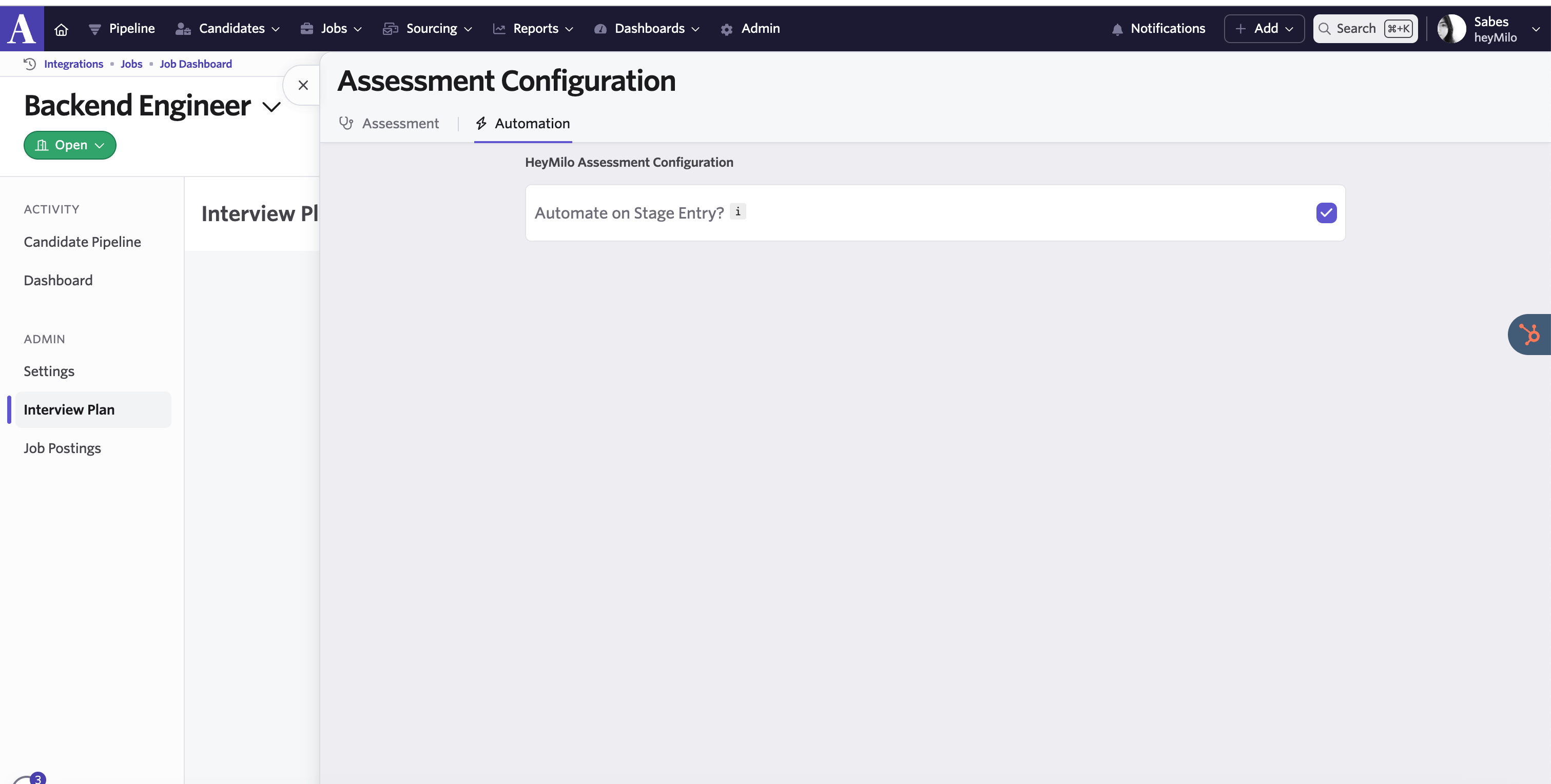
Automate on stage entry
(Optional) Manually Add Assessments For Specific Candidates
→ Go to the Candidate Pipeline in your Ashby job posting dashboard.
- Select the candidate you’d like to add a HeyMilo assessment for, click → Add New Activity
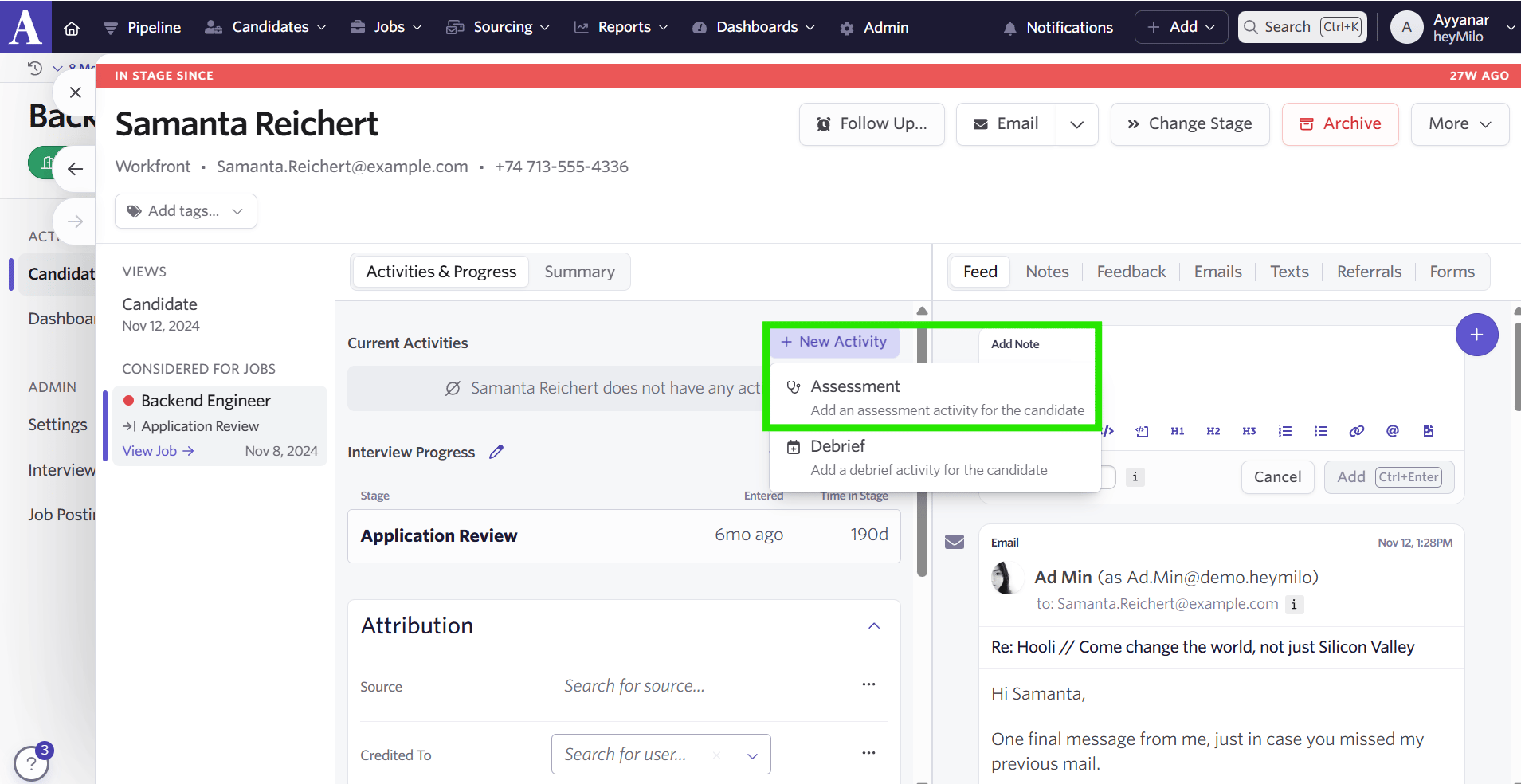
Add new activity
and → choose Start Assessment.
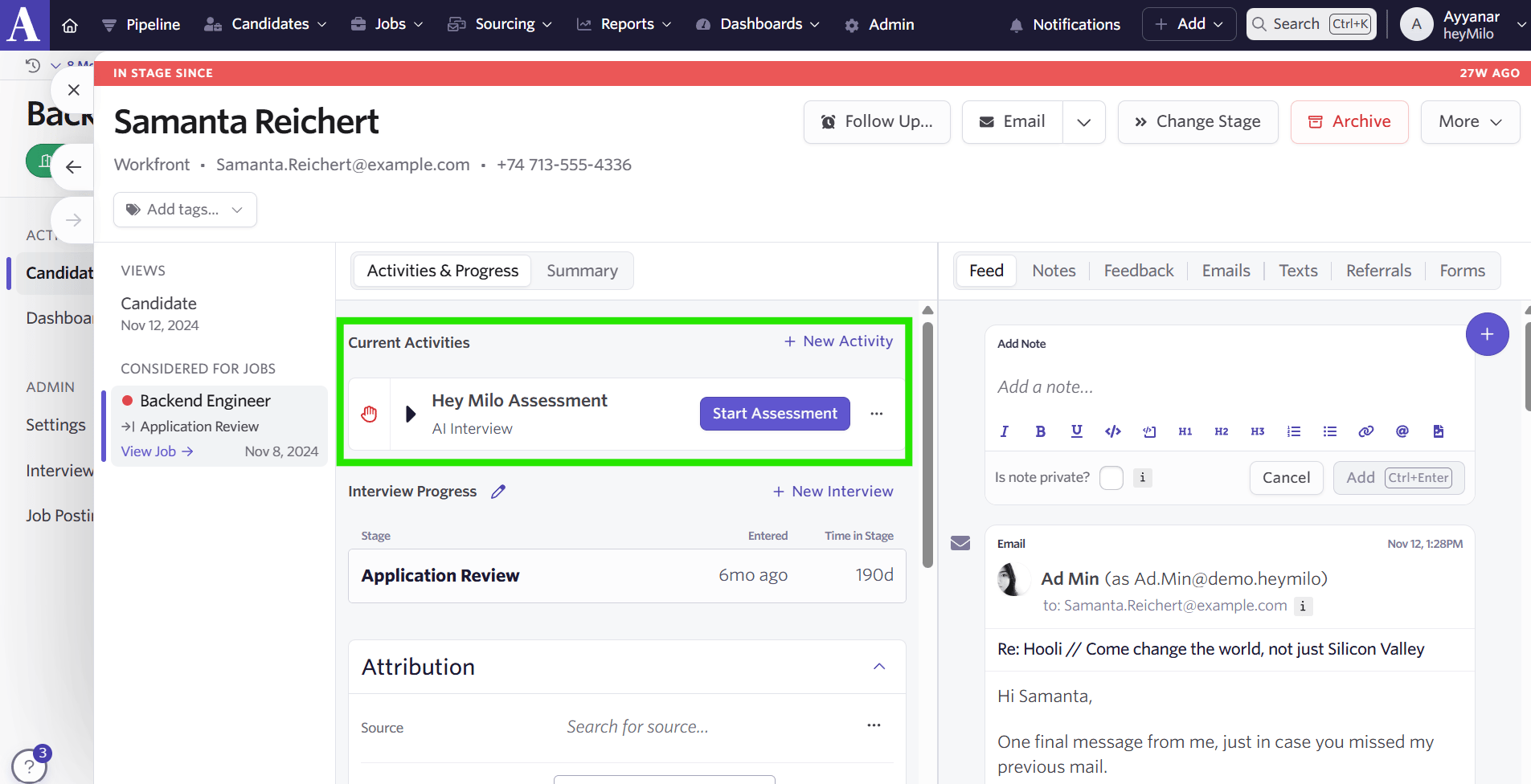
Start assessment
Once initialized successfully, you'll see the assessment link sent to the candidate displayed in the Ashby interface.
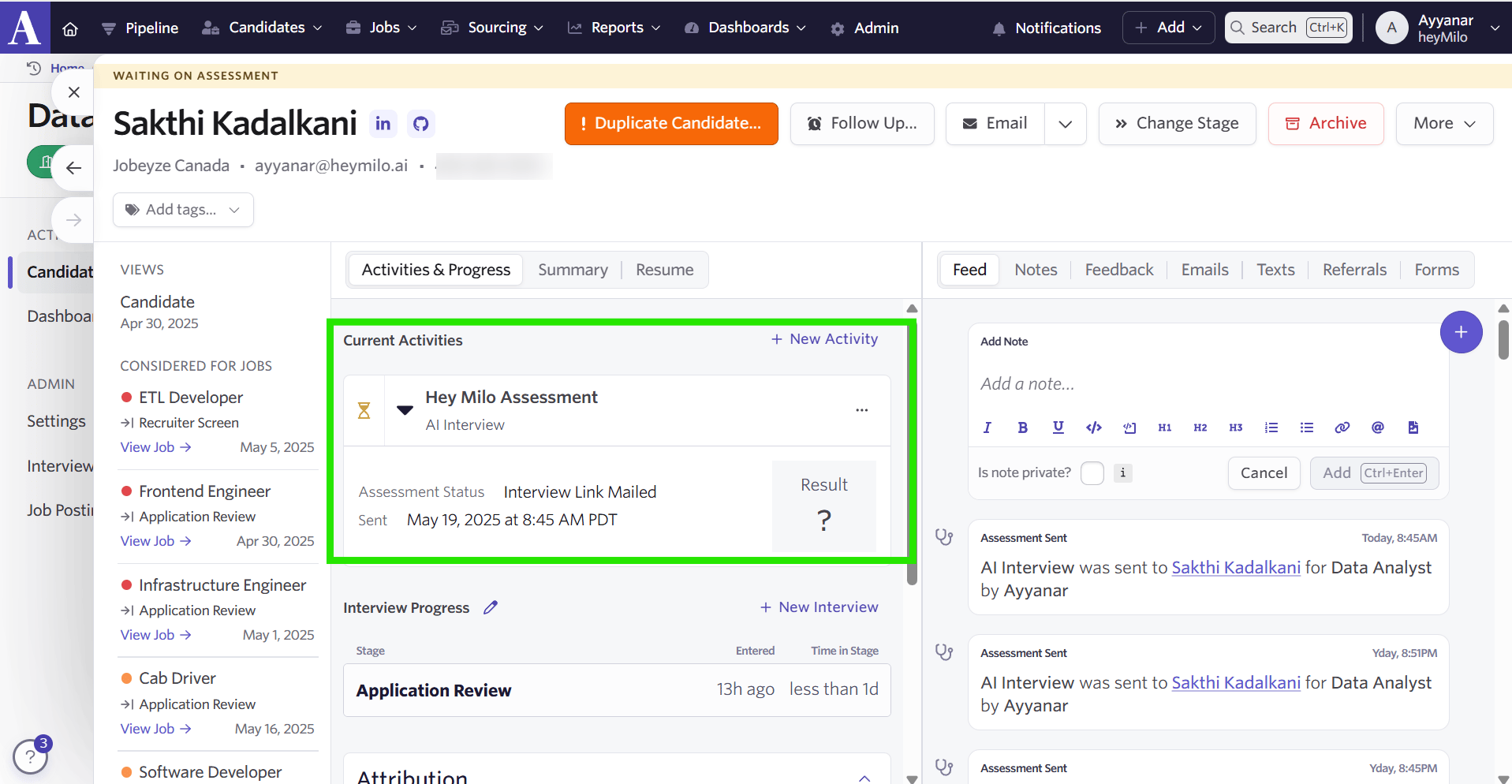
Current activities
How Do I Review Screening Results in Ashby?
After the candidate completes their interview, the results will automatically be available on their candidate profile in Ashby.
- Viewing Interview Data: Assessments will be marked as completed, and the score will be updated along with a detailed report and interview media link(s) to audio/video screenings.
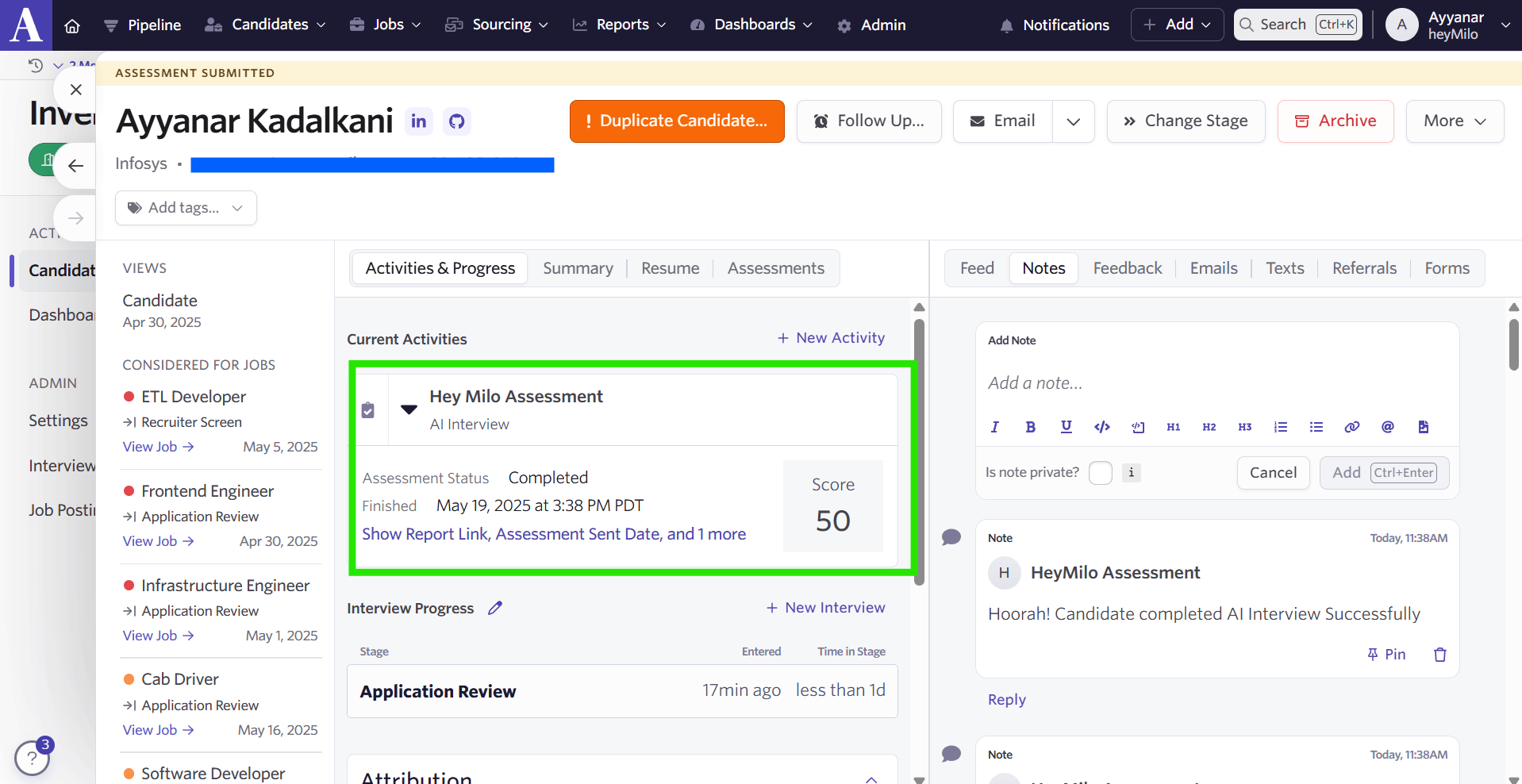
Assessment status
Viewing Completed Interviews
- In the assessments tab, you will also see the assessment results clearly noted, indicating the candidate has completed the interview.
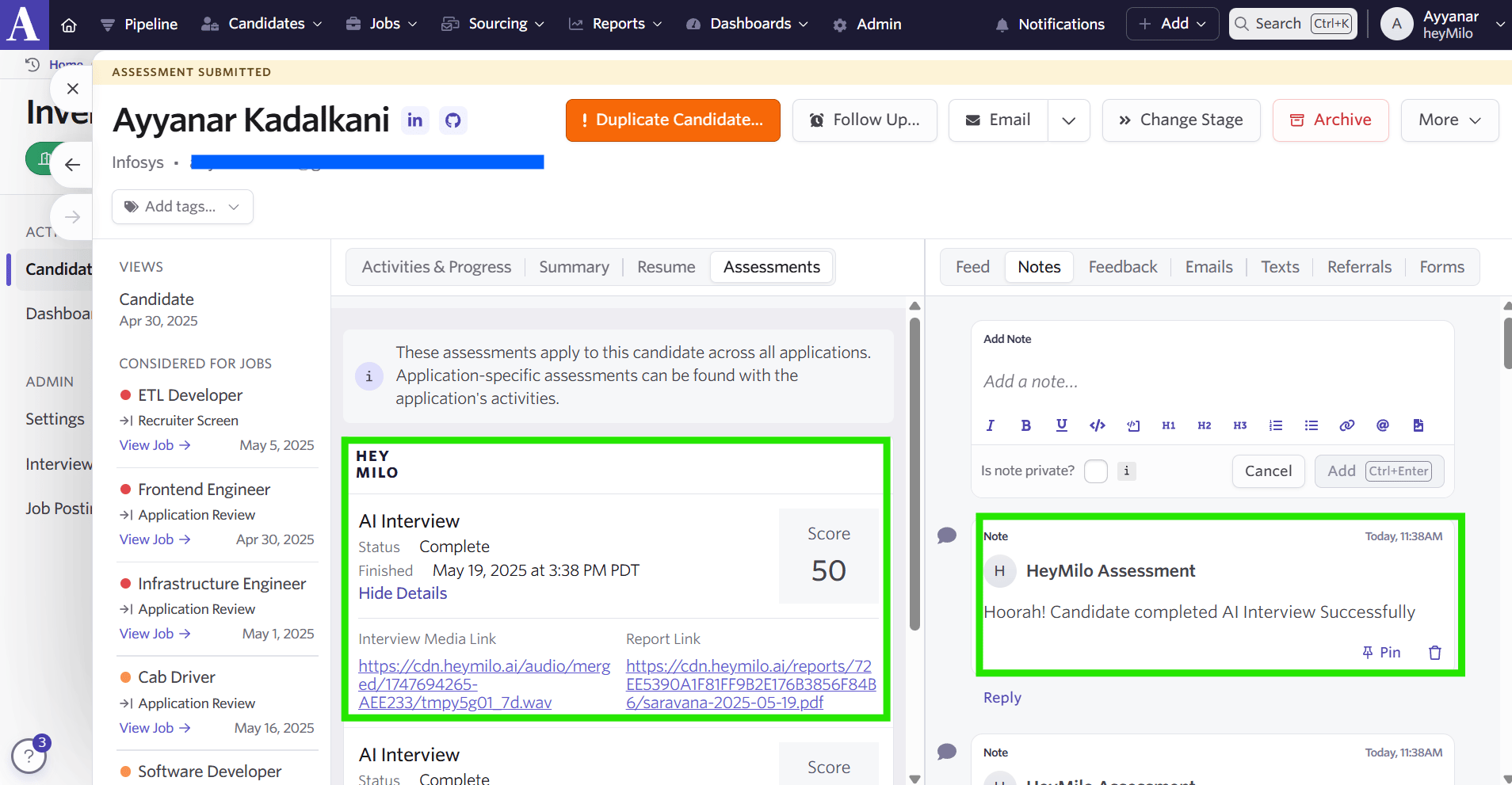
HeyMilo assessment completed