Prerequisites
Before you start, make sure you have:- Workday integration system user (ISU) credentials with permission to read jobs, candidates, and applications, and to write notes/attachments back to candidate records.
- Workday admin access to add HeyMilo as an Assessment Vendor in your tenant (your Workday admin will be prompted during the OAuth flow).
- HeyMilo workspace owner or admin role to enable integrations.
Enable The Integration
You only need to do this once per workspace. After this, every req you want to use HeyMilo on just needs to be linked to a HeyMilo agent (covered in the next section).Open Integrations in HeyMilo From your HeyMilo dashboard, open the Integrations page from the left side panel.
Find Workday under Available Integrations Scroll down to Available Integrations and click on Workday.
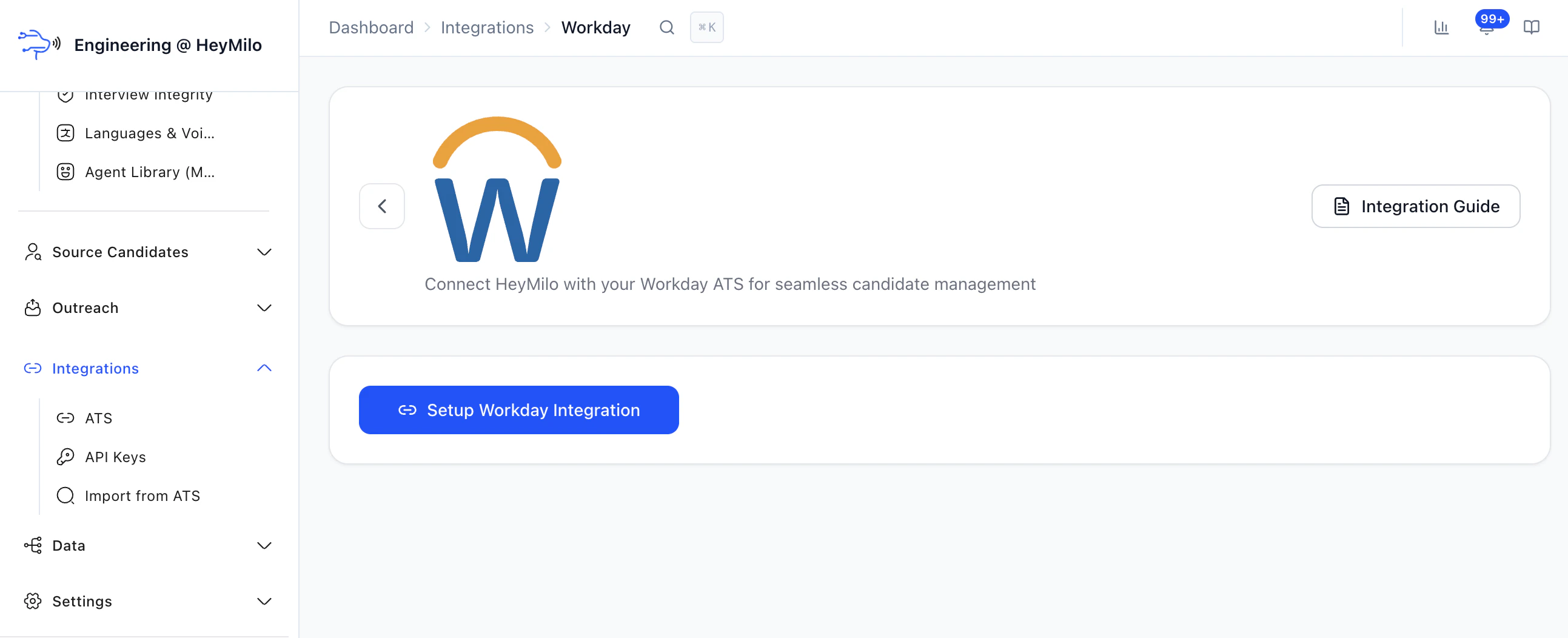
Connect Workday On the Workday integration page, click Connect Now. A secure Workday connection window will open.
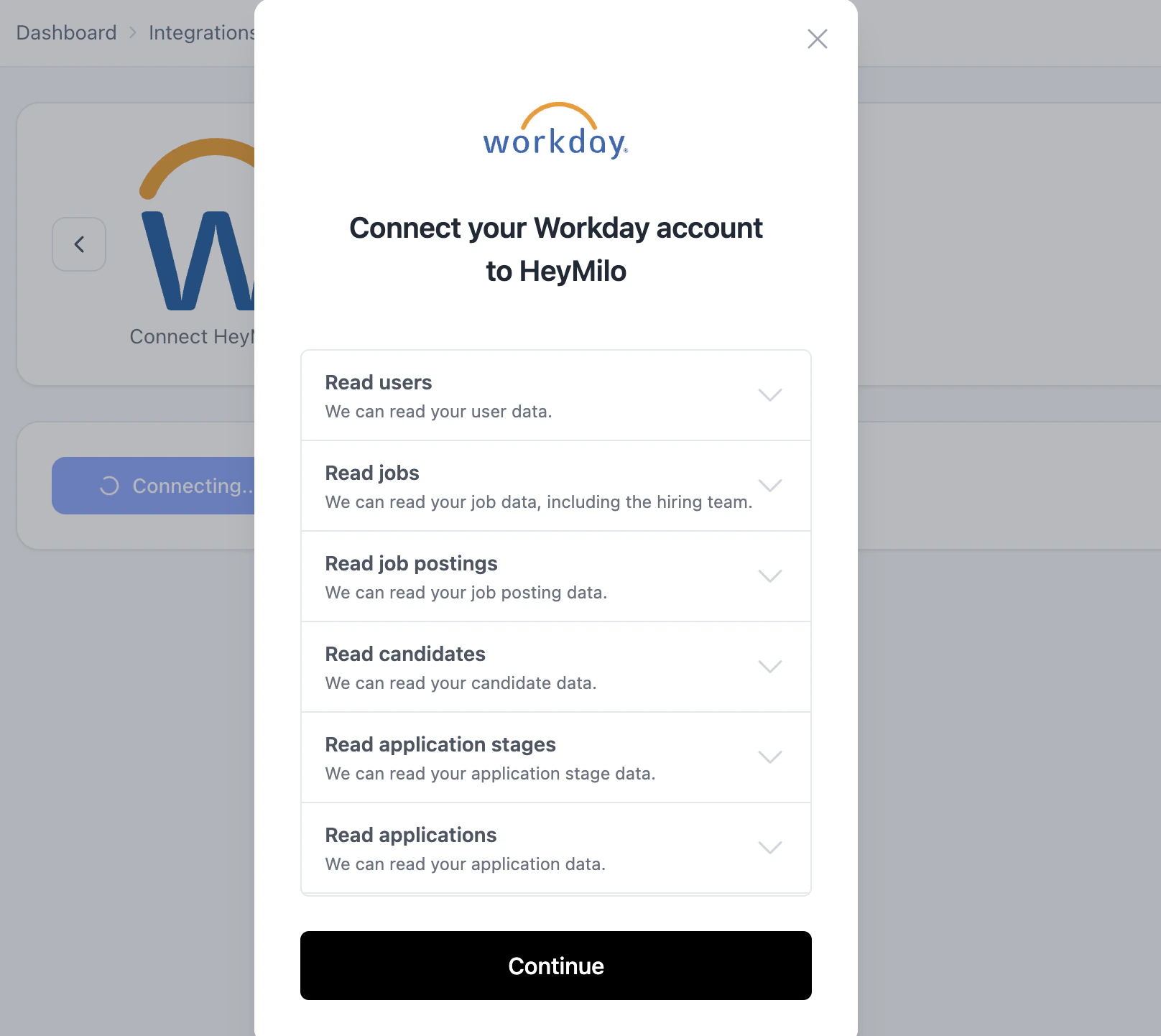
- Approve HeyMilo’s requested permissions (read access to jobs, candidates, and applications; write access for notes, attachments, and stage updates).
- Go through the steps as prompted.
- Confirm to complete the connection.
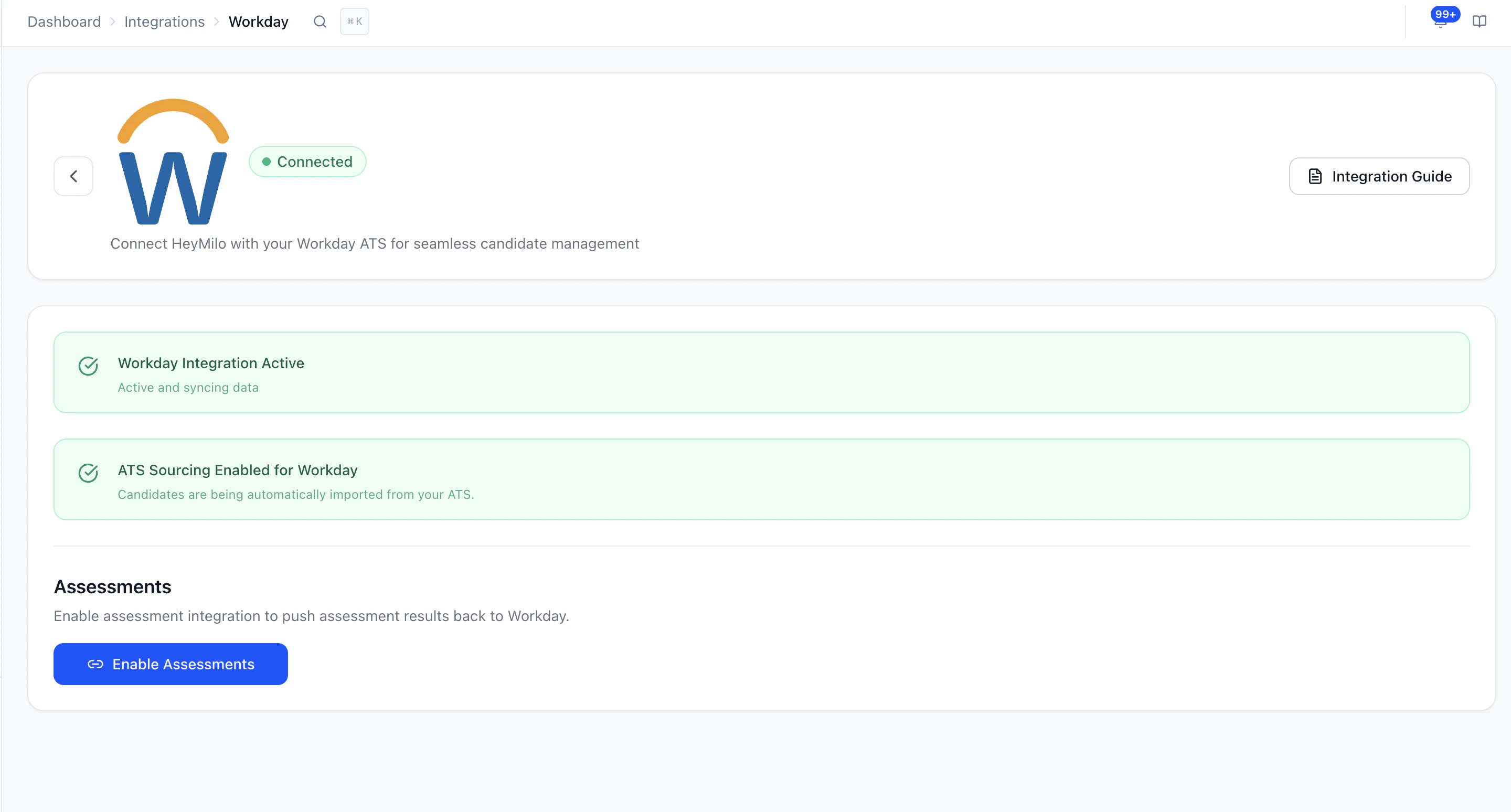
Confirm Workday is connected Once the connection completes, you'll see a 'Workday Integration Active' status in HeyMilo.
Use the Integration With Workday
Once the integration is enabled, the only setup remaining is linking each Workday requisition to the HeyMilo agent that should screen for it. After that, everything for that role happens in Workday.Link a Workday requisition to a HeyMilo agent In HeyMilo, open the agent you want to use for this role (for example, Customer Service), and go to its ATS Configuration section.
- Select Workday from the integration dropdown.
- Pick the Workday requisition you want to link from the list of jobs.
- Save the mapping.
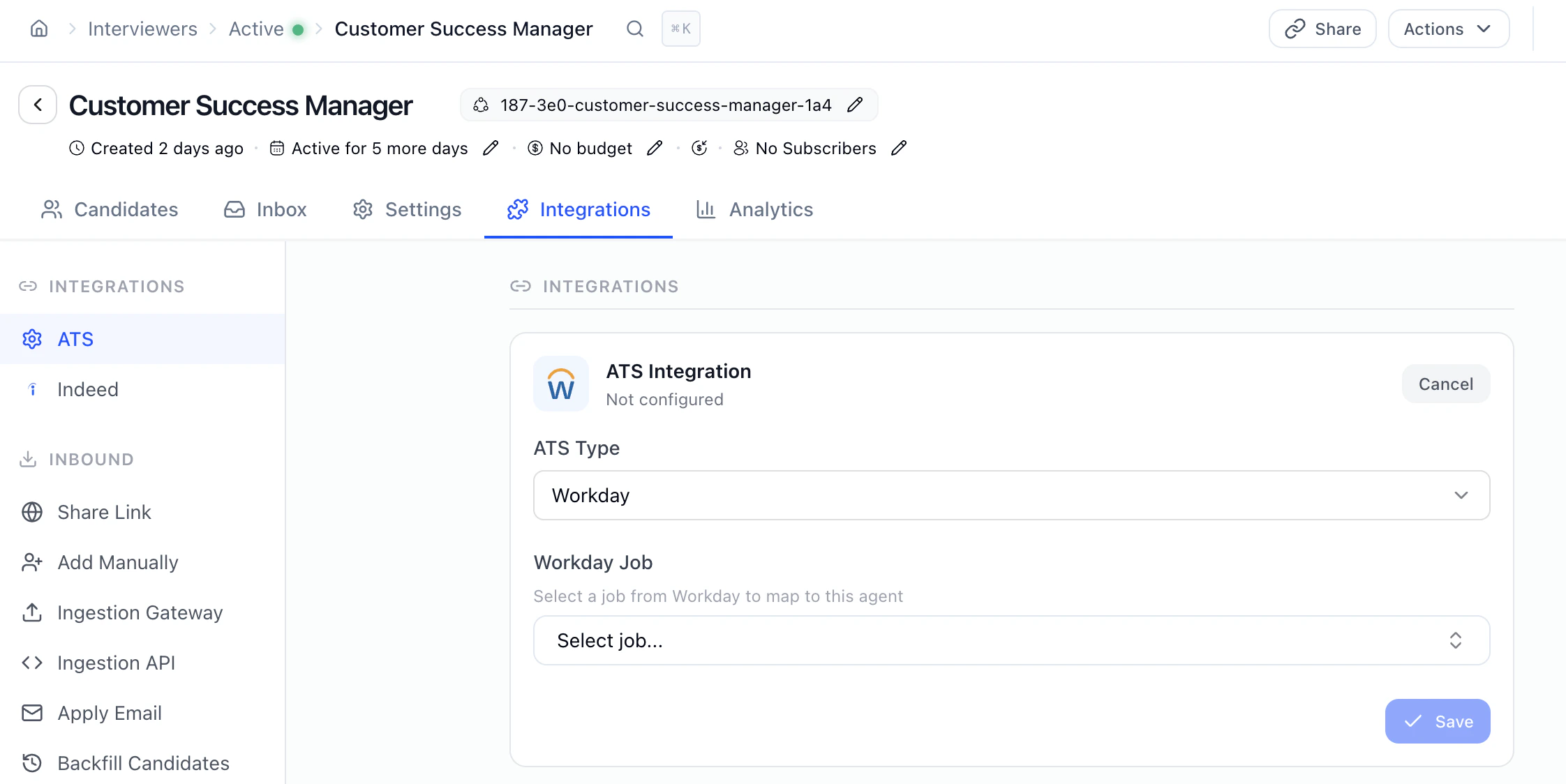
Move a candidate to the HeyMilo assessment stage in Workday From here on, your recruiters work entirely in Workday. When a candidate is ready to be screened, move them from Review into the Assessment stage that triggers HeyMilo.
HeyMilo automatically invites the candidate The stage move triggers HeyMilo to send the candidate the screening invite by email and/or SMS — no recruiter action needed.
- The candidate clicks the link and completes the AI screening flow.
- Recruiters can monitor progress in Workday; HeyMilo updates the candidate record as the screening progresses.
Results write back to Workday When the candidate finishes the interview, HeyMilo automatically writes the results back to the candidate's Workday profile, including:
- A note on the candidate with their HeyMilo pdf report in attachments and additional data
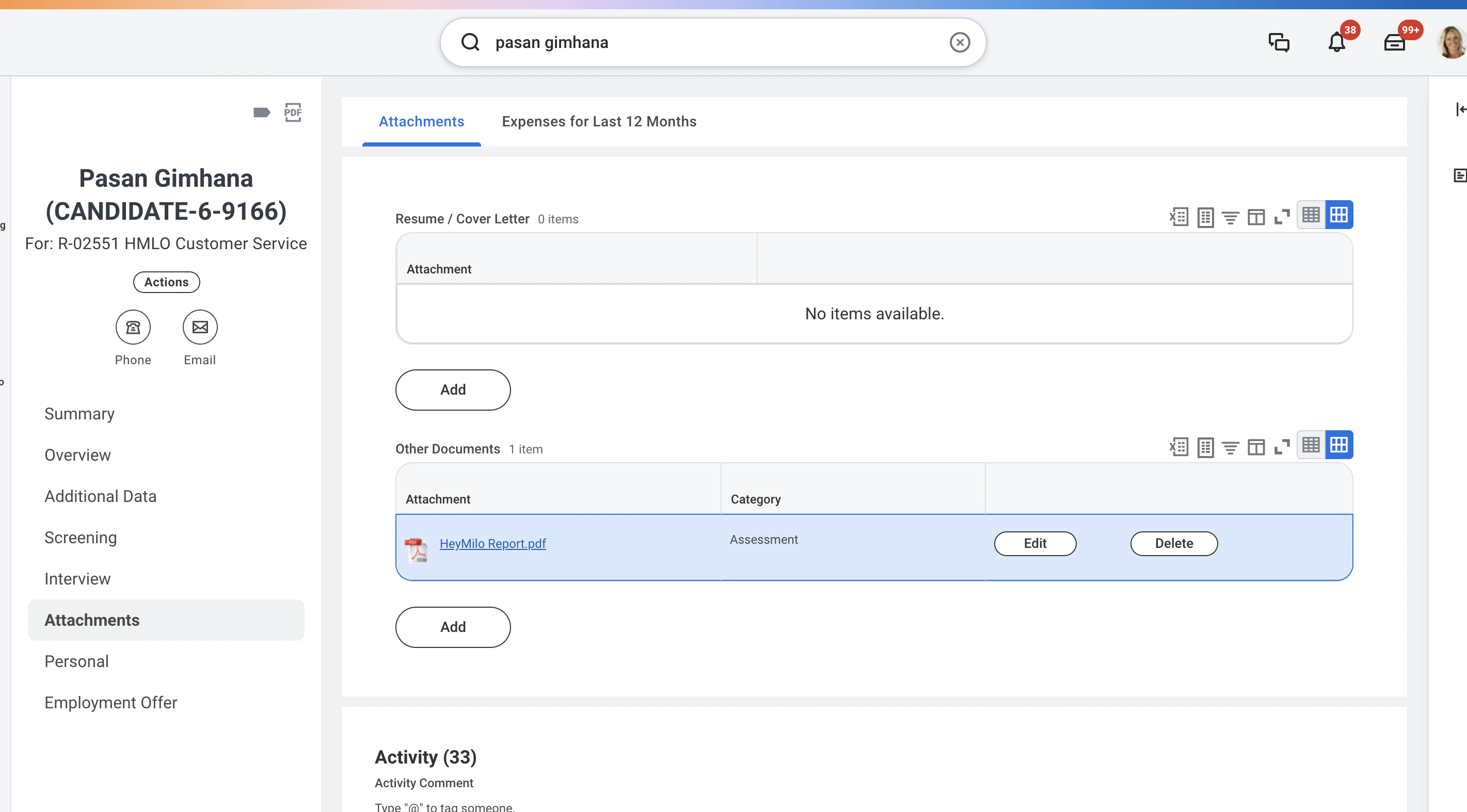
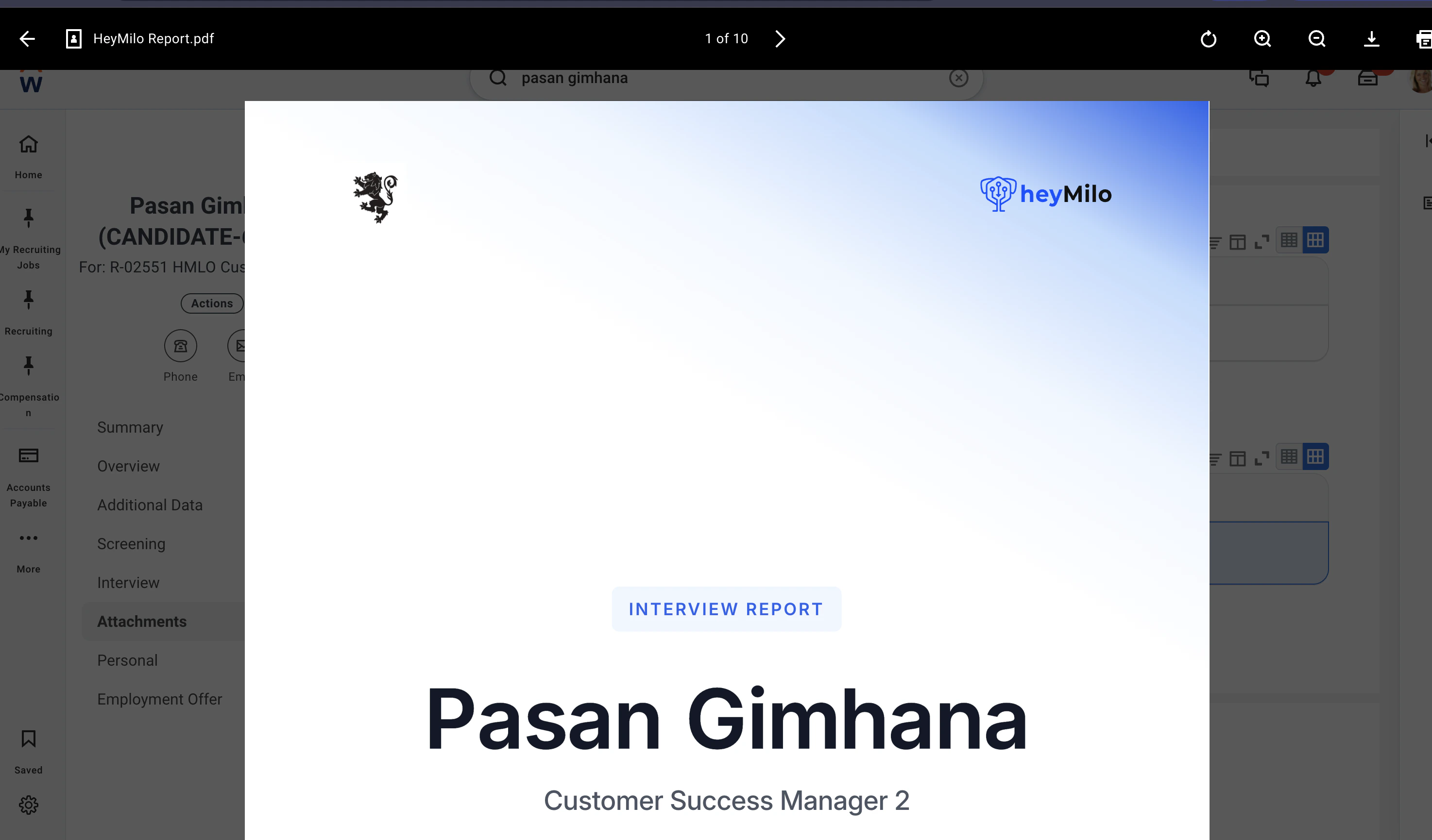
View the full report Clicking the View Report link in attachments from the Workday candidate record opens the detailed HeyMilo screening summary — transcript, score breakdown, qualifier responses, and AI-generated insights.