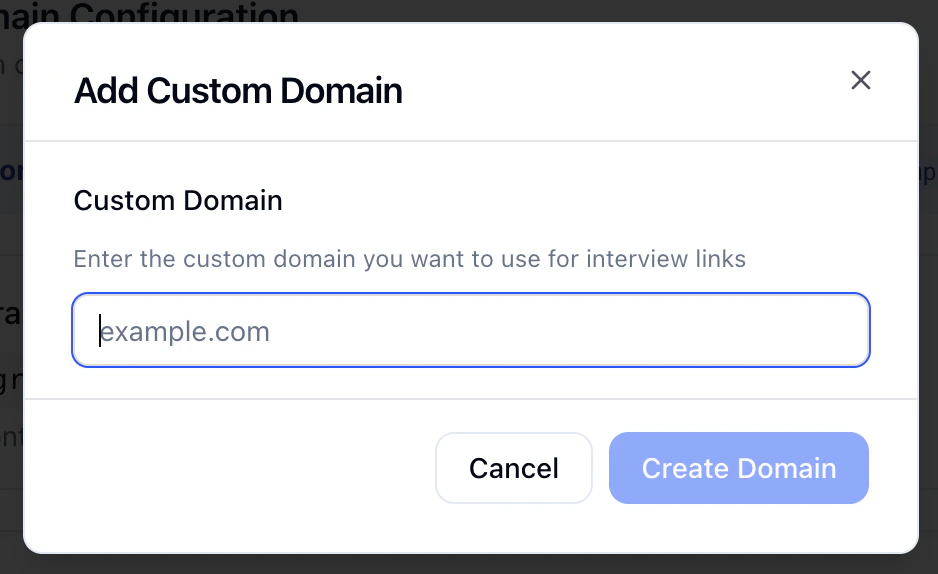
Status may stay Pending until DNS propagates—often ~30 minutes, sometimes several hours (occasionally longer).
Retry verification later if needed; propagation is on the DNS provider side.
When verification succeeds, the domain is active and new candidate links use your domain (behavior for very old links: assume existing HeyMilo URLs may still work—confirm with support if you rely on legacy bookmarks).
HeyMilo checks that your DNS CNAME points to the required target, then attaches the hostname to the hosted interview environment. The exact target string is workspace-specific in the UI—always treat the app as source of truth.
Help:support@heymilo.ai or in-app chat if DNS looks correct but verification never completes.
Was this page helpful?
{"docsConfig":{"theme":"mint","$schema":"https://mintlify.com/docs.json","name":"HeyMilo AI Documentation","colors":{"primary":"#1976d2","light":"#42a5f5","dark":"#1565c0"},"logo":{"light":"https://mintcdn.com/heymilo/1qxCNW6j6jqz7IAZ/images/HeyMilo_Logo_Primary.svg?fit=max\u0026auto=format\u0026n=1qxCNW6j6jqz7IAZ\u0026q=85\u0026s=e66a830eafb646a025265c1f784731ee","dark":"https://mintcdn.com/heymilo/sD7bprECHmd4gxYn/images/HeyMilo_Logo_Full_White.svg?fit=max\u0026auto=format\u0026n=sD7bprECHmd4gxYn\u0026q=85\u0026s=e6f5fcf3c549c76a46269215055d5ee7"},"favicon":"https://mintcdn.com/heymilo/1qxCNW6j6jqz7IAZ/images/HeyMilo_Icon_Primary.png?fit=max\u0026auto=format\u0026n=1qxCNW6j6jqz7IAZ\u0026q=85\u0026s=2bc77c79483508c8925f10e5fc9b9531","navbar":{"links":[{"href":"mailto:hello@heymilo.ai","label":"Support"}],"primary":{"type":"button","label":"Dashboard","href":"https://admin.heymilo.ai"}},"footer":{"socials":{"linkedin":"https://linkedin.com/company/heymilo"}},"icons":{"library":"fontawesome"},"styling":{"eyebrows":"breadcrumbs","latex":true},"integrations":{"posthog":{"apiKey":"phc_oQCWs4B60yvLBlAhHWFtamuaBYWQkymhDWK6b3tLQNg","sessionRecording":false}},"navigation":{"global":{"anchors":[{"anchor":"HeyMilo AI","icon":"house","color":{"light":"#0052FF","dark":"#0052FF"},"href":"https://www.heymilo.ai/"},{"anchor":"HeyMilo Red","icon":"shield-check","color":{"light":"#D62828","dark":"#E63946"},"href":"https://heymilo.red/docs"}]},"pages":[]}},"deployment":{"deploymentMetadataValue":{"subdomain":"heymilo","hasAudioNarration":false,"actualSubdomain":"heymilo","customDomains":["docs.heymilo.ai"],"gitSource":{"type":"github","owner":"heymilo","repo":"pub-docs","deployBranch":"main","contentDirectory":"","isPrivate":true,"mountPath":"","label":""},"chroma":{"liveDeploymentHistoryId":"6adf85ceb6ccf8efa60c690f","collectionId":"6b01d9ad-e632-4785-841c-cf008b1030c9","schemaVersion":"v3","latestBuiltDeploymentHistoryId":"6adf85ceb6ccf8efa60c690f"},"feedback":{"thumbs":true,"edits":true,"issues":true},"entitlements":{"AI_CHAT":{"status":"ENABLED"},"WEB_MCP":{"status":"ENABLED"},"NARRATION":{"status":"ENABLED"}},"buildId":"6adf85ceb6ccf8efa60c690f","clientVersion":"0.0.3969","searchFilterCounts":[{"language":"default","tag":"API Reference","count":69},{"language":"default","tag":"Public API (v2)","count":67},{"language":"default","tag":"v2 API Reference","count":60},{"language":"default","tag":"Integrations","count":46},{"language":"default","tag":"Deep Dive","count":45},{"language":"default","tag":"Guides","count":21},{"language":"default","tag":"ATS guides","count":18},{"language":"default","tag":"Interviews","count":16},{"language":"default","tag":"Getting Started","count":14},{"language":"default","tag":"Settings \u0026 Admin","count":10}]},"assistantConfig":{},"basePath":"","hasChatPermissions":true,"hasWebMcpPermissions":true,"toggles":[],"isAtlas":false,"googleFontsInlined":false},"customCss":[],"page":{"pagePath":"deep-dive/outreach/custom-domains","slug":"/deep-dive/outreach/custom-domains","pageMetadata":{"description":"White-label your interview URLs with a custom domain so candidates see your brand, not HeyMilo's.","title":"Custom Domains","keywords":["interview url","interview link","custom domain","interview domain","white label url"],"href":"/deep-dive/outreach/custom-domains"},"description":{"compiledSource":"\"use strict\";\nconst {jsx: _jsx} = arguments[0];\nconst {useMDXComponents: _provideComponents} = arguments[0];\nfunction _createMdxContent(props) {\n const _components = {\n p: \"p\",\n ..._provideComponents(),\n ...props.components\n };\n return _jsx(_components.p, {\n children: \"White-label your interview URLs with a custom domain so candidates see your brand, not HeyMilo’s.\"\n });\n}\nfunction MDXContent(props = {}) {\n const {wrapper: MDXLayout} = {\n ..._provideComponents(),\n ...props.components\n };\n return MDXLayout ? _jsx(MDXLayout, {\n ...props,\n children: _jsx(_createMdxContent, {\n ...props\n })\n }) : _createMdxContent(props);\n}\nreturn {\n default: MDXContent\n};\n","frontmatter":{},"scope":{}},"pageType":"default","mdx":{"mdxSource":{"compiledSource":"\"use strict\";const{Fragment:_Fragment,jsx:_jsx,jsxs:_jsxs}=arguments[0];const{useMDXComponents:_provideComponents}=arguments[0];function _createMdxContent(props){const _components={a:`a`,code:`code`,li:`li`,ol:`ol`,p:`p`,strong:`strong`,tbody:`tbody`,td:`td`,th:`th`,thead:`thead`,tr:`tr`,ul:`ul`,..._provideComponents(),...props.components},{Frame,Heading,OptimizedImage,Table,Warning}=_components;if(!Frame)_missingMdxReference(`Frame`,true);if(!Heading)_missingMdxReference(`Heading`,true);if(!OptimizedImage)_missingMdxReference(`OptimizedImage`,true);if(!Table)_missingMdxReference(`Table`,true);if(!Warning)_missingMdxReference(`Warning`,true);return _jsxs(_Fragment,{children:[_jsxs(_components.p,{children:[_jsx(_components.strong,{children:`Path:`}),` `,_jsx(_components.strong,{children:`Sidebar → Outreach → Custom Domains`})]}),`\n`,_jsx(Frame,{children:_jsx(OptimizedImage,{src:`https://mintcdn.com/heymilo/wz6dvoJccwwfpMsP/images/image-92.png?fit=max\u0026auto=format\u0026n=wz6dvoJccwwfpMsP\u0026q=85\u0026s=c7575a5fe8d02a636dfb3137f13bc599`,alt:`Image`,\"data-og-width\":`1520`,width:`1520`,\"data-og-height\":`661`,height:`661`,\"data-path\":`images/image-92.png`,\"data-optimize\":`true`,\"data-opv\":`3`,srcset:`https://mintcdn.com/heymilo/wz6dvoJccwwfpMsP/images/image-92.png?w=280\u0026fit=max\u0026auto=format\u0026n=wz6dvoJccwwfpMsP\u0026q=85\u0026s=1b6834ddfbc8cecdab119dc874275a73 280w, https://mintcdn.com/heymilo/wz6dvoJccwwfpMsP/images/image-92.png?w=560\u0026fit=max\u0026auto=format\u0026n=wz6dvoJccwwfpMsP\u0026q=85\u0026s=eafa9984f0204189ad92016014fc4fca 560w, https://mintcdn.com/heymilo/wz6dvoJccwwfpMsP/images/image-92.png?w=840\u0026fit=max\u0026auto=format\u0026n=wz6dvoJccwwfpMsP\u0026q=85\u0026s=9b93b09662113d6a3449816d530f5411 840w, https://mintcdn.com/heymilo/wz6dvoJccwwfpMsP/images/image-92.png?w=1100\u0026fit=max\u0026auto=format\u0026n=wz6dvoJccwwfpMsP\u0026q=85\u0026s=a2efcbfb80d66e64d6b957e72331cd31 1100w, https://mintcdn.com/heymilo/wz6dvoJccwwfpMsP/images/image-92.png?w=1650\u0026fit=max\u0026auto=format\u0026n=wz6dvoJccwwfpMsP\u0026q=85\u0026s=e7c532f9f184278e0997f8d32b113bf4 1650w, https://mintcdn.com/heymilo/wz6dvoJccwwfpMsP/images/image-92.png?w=2500\u0026fit=max\u0026auto=format\u0026n=wz6dvoJccwwfpMsP\u0026q=85\u0026s=4a88555815c2ff8ab5c9b6f0e58894fd 2500w`})}),`\n`,_jsx(Heading,{level:`3`,id:`what-this-enables`,children:`What this enables`}),`\n`,_jsxs(_components.ul,{children:[`\n`,_jsxs(_components.li,{children:[_jsx(_components.strong,{children:`White-label links`}),`: Candidates see `,_jsx(_components.strong,{children:`your domain`}),` in the address bar and when they copy the link.`]}),`\n`,_jsxs(_components.li,{children:[_jsx(_components.strong,{children:`Trust`}),`: Familiar domains get more clicks than unknown hosts.`]}),`\n`,_jsxs(_components.li,{children:[_jsx(_components.strong,{children:`Consistency`}),`: Pairs with `,_jsx(_components.strong,{children:`Interview Branding`}),` and `,_jsx(_components.strong,{children:`Settings → Company Context`}),` (default URL / slug) when you want the full package.`]}),`\n`]}),`\n`,_jsx(Heading,{level:`3`,id:`add-and-verify`,children:`Add and verify`}),`\n`,_jsx(Frame,{children:_jsx(OptimizedImage,{src:`https://mintcdn.com/heymilo/khmklczV5WPXMedr/images/Screenshot%202026-03-20%20at%2012.17.46%E2%80%AFPM.png?fit=max\u0026auto=format\u0026n=khmklczV5WPXMedr\u0026q=85\u0026s=c260b11b63747d5d63e360c15b994890`,className:`mint-mx-auto`,style:{width:`81%`},\"data-og-width\":`938`,width:`938`,\"data-og-height\":`574`,height:`574`,\"data-path\":`images/Screenshot 2026-03-20 at 12.17.46 PM.png`,\"data-optimize\":`true`,\"data-opv\":`3`,srcset:`https://mintcdn.com/heymilo/khmklczV5WPXMedr/images/Screenshot%202026-03-20%20at%2012.17.46%E2%80%AFPM.png?w=280\u0026fit=max\u0026auto=format\u0026n=khmklczV5WPXMedr\u0026q=85\u0026s=64f52fbb4dec58b877f236d7ea1c42a3 280w, https://mintcdn.com/heymilo/khmklczV5WPXMedr/images/Screenshot%202026-03-20%20at%2012.17.46%E2%80%AFPM.png?w=560\u0026fit=max\u0026auto=format\u0026n=khmklczV5WPXMedr\u0026q=85\u0026s=c843d271008401d18394660fcd2e9646 560w, https://mintcdn.com/heymilo/khmklczV5WPXMedr/images/Screenshot%202026-03-20%20at%2012.17.46%E2%80%AFPM.png?w=840\u0026fit=max\u0026auto=format\u0026n=khmklczV5WPXMedr\u0026q=85\u0026s=e13991e009fd35a1ff284f7b122a6e6b 840w, https://mintcdn.com/heymilo/khmklczV5WPXMedr/images/Screenshot%202026-03-20%20at%2012.17.46%E2%80%AFPM.png?w=1100\u0026fit=max\u0026auto=format\u0026n=khmklczV5WPXMedr\u0026q=85\u0026s=c5facd84fb9e1d9d68395b2cd51f8e6c 1100w, https://mintcdn.com/heymilo/khmklczV5WPXMedr/images/Screenshot%202026-03-20%20at%2012.17.46%E2%80%AFPM.png?w=1650\u0026fit=max\u0026auto=format\u0026n=khmklczV5WPXMedr\u0026q=85\u0026s=e81ca9d2213d85bdc02935ad3a75c751 1650w, https://mintcdn.com/heymilo/khmklczV5WPXMedr/images/Screenshot%202026-03-20%20at%2012.17.46%E2%80%AFPM.png?w=2500\u0026fit=max\u0026auto=format\u0026n=khmklczV5WPXMedr\u0026q=85\u0026s=66f4d6fda462333eb35e633856a352f3 2500w`})}),`\n`,_jsx(Heading,{level:`4`,id:`1-add-your-custom-domain`,children:`1) Add your custom domain`}),`\n`,_jsxs(_components.ol,{children:[`\n`,_jsxs(_components.li,{children:[`Open `,_jsx(_components.strong,{children:`Outreach → Custom Domains`}),`.`]}),`\n`,_jsxs(_components.li,{children:[`If none exists, you’ll see `,_jsx(_components.strong,{children:`No Custom Domain Configured`}),` → `,_jsx(_components.strong,{children:`Add Custom Domain`}),`.`]}),`\n`,_jsxs(_components.li,{children:[`Enter a hostname you control—`,_jsx(_components.strong,{children:`a subdomain is best`}),`, e.g. `,_jsx(_components.code,{children:`interviews.yourcompany.com`}),` (not `,_jsx(_components.code,{children:`https://`}),`, no path).`]}),`\n`,_jsxs(_components.li,{children:[_jsx(_components.strong,{children:`Create`}),` / save.`]}),`\n`]}),`\n`,_jsxs(_components.p,{children:[`The app will show the `,_jsx(_components.strong,{children:`CNAME record`}),` you need next (name/host + `,_jsx(_components.strong,{children:`target`}),` value).`]}),`\n`,_jsx(Heading,{level:`4`,id:`2-create-the-cname-at-dns`,children:`2) Create the CNAME at DNS`}),`\n`,_jsxs(_components.ol,{children:[`\n`,_jsx(_components.li,{children:`Log into your DNS host (Cloudflare, Route 53, GoDaddy, etc.).`}),`\n`,_jsxs(_components.li,{children:[`Create a `,_jsx(_components.strong,{children:`CNAME`}),` exactly as HeyMilo specifies:`,`\n`,_jsxs(_components.ul,{children:[`\n`,_jsxs(_components.li,{children:[_jsx(_components.strong,{children:`Name / host`}),`: Usually your subdomain label (e.g. `,_jsx(_components.code,{children:`interviews`}),`) or the full host—`,_jsx(_components.strong,{children:`match the UI`}),`, not a blog post.`]}),`\n`,_jsxs(_components.li,{children:[_jsx(_components.strong,{children:`Target / value`}),`: The `,_jsx(_components.strong,{children:`CNAME target`}),` HeyMilo displays (e.g. an `,_jsx(_components.code,{children:`ingress.…`}),` hostname—`,_jsx(_components.strong,{children:`copy from the product`}),`).`]}),`\n`]}),`\n`]}),`\n`,_jsxs(_components.li,{children:[_jsx(_components.strong,{children:`TTL`}),`: The UI suggests `,_jsx(_components.strong,{children:`~5 minutes`}),` when you want faster cutovers during setup.`]}),`\n`]}),`\n`,_jsx(Warning,{children:_jsxs(_components.p,{children:[_jsx(_components.strong,{children:`Important:`}),` Use `,_jsx(_components.strong,{children:`only`}),` what the HeyMilo screen shows. Wrong host or target is the main reason verification stays `,_jsx(_components.strong,{children:`Pending`}),`.`]})}),`\n`,_jsx(Heading,{level:`4`,id:`3-verify`,children:`3) Verify`}),`\n`,_jsxs(_components.ol,{children:[`\n`,_jsxs(_components.li,{children:[`After DNS saves, click `,_jsx(_components.strong,{children:`Verify`}),` in HeyMilo.`]}),`\n`,_jsxs(_components.li,{children:[`Status may stay `,_jsx(_components.strong,{children:`Pending`}),` until DNS propagates—often `,_jsx(_components.strong,{children:`~30 minutes`}),`, sometimes `,_jsx(_components.strong,{children:`several hours`}),` (occasionally longer).`]}),`\n`,_jsx(_components.li,{children:`Retry verification later if needed; propagation is on the DNS provider side.`}),`\n`]}),`\n`,_jsxs(_components.p,{children:[`When verification succeeds, the domain is `,_jsx(_components.strong,{children:`active`}),` and new candidate links use your domain (behavior for `,_jsx(_components.strong,{children:`very old`}),` links: assume existing HeyMilo URLs may still work—confirm with support if you rely on legacy bookmarks).`]}),`\n`,_jsx(Heading,{level:`4`,id:`4-day-to-day-use`,children:`4) Day-to-day use`}),`\n`,_jsxs(_components.ul,{children:[`\n`,_jsxs(_components.li,{children:[_jsx(_components.strong,{children:`Copy CNAME`}),` from the page if you need to re-paste into DNS or share with IT.`]}),`\n`,_jsxs(_components.li,{children:[_jsx(_components.strong,{children:`Delete`}),` the custom domain from HeyMilo if you’re sunsetting it—confirm you’re ready for links to stop using that host.`]}),`\n`,_jsxs(_components.li,{children:[_jsx(_components.strong,{children:`Share`}),` interview links from the posting/interviewer `,_jsx(_components.strong,{children:`Share`}),` flow once the domain is `,_jsx(_components.strong,{children:`active`}),`—candidates should land on your branded host.`]}),`\n`]}),`\n`,_jsx(Heading,{level:`3`,id:`under-the-hood`,children:`Under the hood`}),`\n`,_jsxs(_components.p,{children:[`HeyMilo checks that your DNS `,_jsx(_components.strong,{children:`CNAME points to the required target`}),`, then attaches the hostname to the `,_jsx(_components.strong,{children:`hosted interview environment`}),`. The exact target string is `,_jsx(_components.strong,{children:`workspace-specific`}),` in the UI—always treat the app as source of truth.`]}),`\n`,_jsx(Heading,{level:`3`,id:`best-practices`,children:`Best practices`}),`\n`,_jsxs(_components.ul,{children:[`\n`,_jsxs(_components.li,{children:[`Prefer a `,_jsx(_components.strong,{children:`dedicated subdomain`}),` (`,_jsx(_components.code,{children:`interviews.…`}),`, `,_jsx(_components.code,{children:`hire.…`}),`) so you don’t collide with `,_jsx(_components.code,{children:`www`}),` or app traffic.`]}),`\n`,_jsxs(_components.li,{children:[`Use a `,_jsx(_components.strong,{children:`low TTL`}),` during setup; you can raise it later if your IT policy requires.`]}),`\n`,_jsxs(_components.li,{children:[`Coordinate with whoever owns `,_jsx(_components.strong,{children:`DNS`}),` before promising a go-live date to hiring managers.`]}),`\n`]}),`\n`,_jsx(Heading,{level:`3`,id:`troubleshooting`,children:`Troubleshooting`}),`\n`,_jsxs(Table,{children:[_jsx(_components.thead,{children:_jsxs(_components.tr,{children:[_jsx(_components.th,{children:`Symptom`}),_jsx(_components.th,{children:`Check`})]})}),_jsxs(_components.tbody,{children:[_jsxs(_components.tr,{children:[_jsx(_components.td,{children:_jsx(_components.strong,{children:`Stuck on Pending`})}),_jsx(_components.td,{children:`CNAME name/value typo; wrong DNS zone; propagation—wait and re-verify.`})]}),_jsxs(_components.tr,{children:[_jsx(_components.td,{children:_jsx(_components.strong,{children:`Verify fails`})}),_jsx(_components.td,{children:`Apex vs subdomain mistake; CNAME at registrar not DNS; proxy/CDN settings (e.g. “DNS only” in Cloudflare).`})]}),_jsxs(_components.tr,{children:[_jsx(_components.td,{children:_jsx(_components.strong,{children:`Candidates still see old domain`})}),_jsxs(_components.td,{children:[`Link copied before verification; cache; different posting default—re-copy `,_jsx(_components.strong,{children:`Share`}),` link after `,_jsx(_components.strong,{children:`active`}),`.`]})]})]})]}),`\n`,_jsx(Heading,{level:`3`,id:`next-steps`,children:`Next steps`}),`\n`,_jsxs(_components.ul,{children:[`\n`,_jsxs(_components.li,{children:[_jsx(_components.a,{href:`interview-branding`,children:`Interview Branding`}),` — Visual polish on the interview experience`]}),`\n`,_jsxs(_components.li,{children:[_jsx(_components.a,{href:`sender-domains`,children:`Sender Domains`}),` — Branded `,_jsx(_components.strong,{children:`email`}),` sending (separate DNS from interview CNAME)`]}),`\n`,_jsxs(_components.li,{children:[_jsx(_components.a,{href:`.`,children:`Outreach`}),` — Templates, phone numbers, blasts`]}),`\n`]}),`\n`,_jsxs(_components.p,{children:[_jsx(_components.strong,{children:`Help:`}),` `,_jsx(_components.a,{href:`mailto:support@heymilo.ai`,children:_jsx(_components.strong,{children:`support@heymilo.ai`})}),` or in-app chat if DNS looks correct but verification never completes.`]})]})}function MDXContent(props={}){const{wrapper:MDXLayout}={..._provideComponents(),...props.components};return MDXLayout?_jsx(MDXLayout,{...props,children:_jsx(_createMdxContent,{...props})}):_createMdxContent(props)}return{default:MDXContent};function _missingMdxReference(id,component){throw new Error(`Expected `+(component?`component`:`object`)+\" `\"+id+\"` to be defined: you likely forgot to import, pass, or provide it.\")}","frontmatter":{},"scope":{"config":{},"pageMetadata":{"description":"White-label your interview URLs with a custom domain so candidates see your brand, not HeyMilo's.","title":"Custom Domains","keywords":["interview url","interview link","custom domain","interview domain","white label url"],"href":"/deep-dive/outreach/custom-domains"}}},"mdxSourceWithNoJs":null},"mdxExtracts":{"tableOfContents":[{"title":"What this enables","slug":"what-this-enables","depth":3,"children":[]},{"title":"Add and verify","slug":"add-and-verify","depth":3,"children":[]},{"title":"1) Add your custom domain","slug":"1-add-your-custom-domain","depth":4,"children":[]},{"title":"2) Create the CNAME at DNS","slug":"2-create-the-cname-at-dns","depth":4,"children":[]},{"title":"3) Verify","slug":"3-verify","depth":4,"children":[]},{"title":"4) Day-to-day use","slug":"4-day-to-day-use","depth":4,"children":[]},{"title":"Under the hood","slug":"under-the-hood","depth":3,"children":[]},{"title":"Best practices","slug":"best-practices","depth":3,"children":[]},{"title":"Troubleshooting","slug":"troubleshooting","depth":3,"children":[]},{"title":"Next steps","slug":"next-steps","depth":3,"children":[]}],"codeExamples":{}},"jsLinks":[],"dynamicCss":".mint-mx-auto {\n margin-left: auto;\n margin-right: auto\n}","subdomain":"heymilo","siteName":"HeyMilo AI Documentation","title":"Custom Domains - HeyMilo AI Documentation","navMaps":{"firstHrefInVersion":{},"firstHrefInLanguage":{}},"lastModified":"2026-09-10T12:47:13.145Z","originalFileLocation":"deep-dive/outreach/custom-domains.mdx"},"headHtml":"\u003cscript data-mint-head>(function(){var d=document.documentElement,p=null;if(!p){try{p=localStorage.getItem(\"isDarkMode\")}catch(e){}if(p==='true')p='dark';else if(p==='false')p='light';if(p!=='light'\u0026\u0026p!=='dark'\u0026\u0026p!=='system')p=\"system\"}var r=p==='system'?(matchMedia(\"(prefers-color-scheme: dark)\").matches?'dark':'light'):p;d.classList.remove(r==='dark'?'light':'dark');d.classList.add(r);d.setAttribute(\"data-theme-preference\",p)})();\u003c/script>\u003cmeta data-mint-head name=\"description\" content=\"White-label your interview URLs with a custom domain so candidates see your brand, not HeyMilo\u0026#x27;s.\">\u003cmeta data-mint-head name=\"application-name\" content=\"HeyMilo AI Documentation\">\u003cmeta data-mint-head name=\"generator\" content=\"Mintlify\">\u003clink data-mint-head rel=\"icon\" type=\"image/png\" sizes=\"192x192\" href=\"/mintlify-assets/_mintlify/favicons/heymilo/WyW8Dy4eYqnJ2HYo/_generated/favicon/android-chrome-192x192.png\" media=\"(prefers-color-scheme: light)\">\u003clink data-mint-head rel=\"apple-touch-icon\" type=\"image/png\" sizes=\"180x180\" href=\"/mintlify-assets/_mintlify/favicons/heymilo/WyW8Dy4eYqnJ2HYo/_generated/favicon/apple-touch-icon.png\">\u003clink data-mint-head rel=\"icon\" type=\"image/png\" sizes=\"16x16\" href=\"/mintlify-assets/_mintlify/favicons/heymilo/WyW8Dy4eYqnJ2HYo/_generated/favicon/favicon-16x16.png\" media=\"(prefers-color-scheme: light)\">\u003clink data-mint-head rel=\"icon\" type=\"image/png\" sizes=\"32x32\" href=\"/mintlify-assets/_mintlify/favicons/heymilo/WyW8Dy4eYqnJ2HYo/_generated/favicon/favicon-32x32.png\" media=\"(prefers-color-scheme: light)\">\u003clink data-mint-head rel=\"shortcut icon\" type=\"image/x-icon\" href=\"/mintlify-assets/_mintlify/favicons/heymilo/WyW8Dy4eYqnJ2HYo/_generated/favicon/favicon.ico\" media=\"(prefers-color-scheme: light)\">\u003clink data-mint-head rel=\"icon\" type=\"image/png\" sizes=\"192x192\" href=\"/mintlify-assets/_mintlify/favicons/heymilo/WyW8Dy4eYqnJ2HYo/_generated/favicon-dark/android-chrome-192x192.png\" media=\"(prefers-color-scheme: dark)\">\u003clink data-mint-head rel=\"icon\" type=\"image/png\" sizes=\"16x16\" href=\"/mintlify-assets/_mintlify/favicons/heymilo/WyW8Dy4eYqnJ2HYo/_generated/favicon-dark/favicon-16x16.png\" media=\"(prefers-color-scheme: dark)\">\u003clink data-mint-head rel=\"icon\" type=\"image/png\" sizes=\"32x32\" href=\"/mintlify-assets/_mintlify/favicons/heymilo/WyW8Dy4eYqnJ2HYo/_generated/favicon-dark/favicon-32x32.png\" media=\"(prefers-color-scheme: dark)\">\u003clink data-mint-head rel=\"shortcut icon\" type=\"image/x-icon\" href=\"/mintlify-assets/_mintlify/favicons/heymilo/WyW8Dy4eYqnJ2HYo/_generated/favicon-dark/favicon.ico\" media=\"(prefers-color-scheme: dark)\">\u003cmeta data-mint-head property=\"og:title\" content=\"Custom Domains - HeyMilo AI Documentation\">\u003cmeta data-mint-head property=\"og:description\" content=\"White-label your interview URLs with a custom domain so candidates see your brand, not HeyMilo\u0026#x27;s.\">\u003cmeta data-mint-head property=\"og:site_name\" content=\"HeyMilo AI Documentation\">\u003cmeta data-mint-head property=\"og:url\" content=\"https://docs.heymilo.ai/deep-dive/outreach/custom-domains\">\u003cmeta data-mint-head property=\"og:type\" content=\"website\">\u003cmeta data-mint-head property=\"og:image\" content=\"https://heymilo.mintlify.app/_mintlify/api/og/v2?division=Domains+%26+deliverability\u0026amp;title=Custom+Domains\u0026amp;description=White-label+your+interview+URLs+with+a+custom+domain+so+candidates+see+your+brand%2C+not+HeyMilo%27s.\u0026amp;theme=93ff494a8b6eda6bf87beecd\u0026amp;signature=d43fe2a922a476e6aaf41d22b3604140da08996d6147c0b14044fd41c63dcc45\">\u003cmeta data-mint-head property=\"og:image:width\" content=\"1200\">\u003cmeta data-mint-head property=\"og:image:height\" content=\"630\">\u003cmeta data-mint-head name=\"twitter:card\" content=\"summary_large_image\">\u003cmeta data-mint-head name=\"twitter:title\" content=\"Custom Domains - HeyMilo AI Documentation\">\u003cmeta data-mint-head name=\"twitter:description\" content=\"White-label your interview URLs with a custom domain so candidates see your brand, not HeyMilo\u0026#x27;s.\">\u003cmeta data-mint-head name=\"twitter:image\" content=\"https://heymilo.mintlify.app/_mintlify/api/og/v2?division=Domains+%26+deliverability\u0026amp;title=Custom+Domains\u0026amp;description=White-label+your+interview+URLs+with+a+custom+domain+so+candidates+see+your+brand%2C+not+HeyMilo%27s.\u0026amp;theme=93ff494a8b6eda6bf87beecd\u0026amp;signature=d43fe2a922a476e6aaf41d22b3604140da08996d6147c0b14044fd41c63dcc45\">\u003cmeta data-mint-head name=\"twitter:image:width\" content=\"1200\">\u003cmeta data-mint-head name=\"twitter:image:height\" content=\"630\">\u003cmeta data-mint-head name=\"msapplication-config\" content=\"/mintlify-assets/_mintlify/favicons/heymilo/WyW8Dy4eYqnJ2HYo/_generated/favicon/browserconfig.xml\">\u003cmeta data-mint-head name=\"apple-mobile-web-app-title\" content=\"HeyMilo AI Documentation\">\u003cmeta data-mint-head name=\"msapplication-TileColor\" content=\"#1976d2\">\u003clink data-mint-head rel=\"canonical\" href=\"https://docs.heymilo.ai/deep-dive/outreach/custom-domains\">\u003clink data-mint-head rel=\"alternate\" type=\"application/xml\" href=\"/sitemap.xml\">\u003clink data-mint-head rel=\"alternate\" type=\"text/markdown\" href=\"/deep-dive/outreach/custom-domains.md\">\u003cscript data-mint-head type=\"application/ld+json\">{\"@context\":\"https://schema.org\",\"@graph\":[{\"@type\":\"Organization\",\"@id\":\"https://docs.heymilo.ai/#organization\",\"name\":\"HeyMilo AI Documentation\",\"url\":\"https://docs.heymilo.ai\",\"logo\":{\"@type\":\"ImageObject\",\"url\":\"https://mintcdn.com/heymilo/1qxCNW6j6jqz7IAZ/images/HeyMilo_Logo_Primary.svg?fit=max\u0026auto=format\u0026n=1qxCNW6j6jqz7IAZ\u0026q=85\u0026s=e66a830eafb646a025265c1f784731ee\"}},{\"@type\":\"WebSite\",\"@id\":\"https://docs.heymilo.ai#website\",\"name\":\"HeyMilo AI Documentation\",\"url\":\"https://docs.heymilo.ai\",\"publisher\":{\"@id\":\"https://docs.heymilo.ai/#organization\"}},{\"@type\":\"WebPage\",\"@id\":\"https://docs.heymilo.ai/deep-dive/outreach/custom-domains#webpage\",\"url\":\"https://docs.heymilo.ai/deep-dive/outreach/custom-domains\",\"name\":\"Custom Domains\",\"description\":\"White-label your interview URLs with a custom domain so candidates see your brand, not HeyMilo's.\",\"dateModified\":\"2026-09-10T12:47:13.145Z\",\"isPartOf\":{\"@id\":\"https://docs.heymilo.ai#website\"},\"breadcrumb\":{\"@id\":\"https://docs.heymilo.ai/deep-dive/outreach/custom-domains#breadcrumb\"}},{\"@type\":\"BreadcrumbList\",\"@id\":\"https://docs.heymilo.ai/deep-dive/outreach/custom-domains#breadcrumb\",\"itemListElement\":[{\"@type\":\"ListItem\",\"position\":1,\"name\":\"Outreach\",\"item\":\"https://docs.heymilo.ai/deep-dive/outreach\"},{\"@type\":\"ListItem\",\"position\":2,\"name\":\"Domains \u0026 deliverability\",\"item\":\"https://docs.heymilo.ai/deep-dive/outreach/sender-domains\"},{\"@type\":\"ListItem\",\"position\":3,\"name\":\"Custom Domains\",\"item\":\"https://docs.heymilo.ai/deep-dive/outreach/custom-domains\"}]},{\"@type\":[\"Article\",\"TechArticle\"],\"@id\":\"https://docs.heymilo.ai/deep-dive/outreach/custom-domains#article\",\"headline\":\"Custom Domains\",\"name\":\"Custom Domains\",\"description\":\"White-label your interview URLs with a custom domain so candidates see your brand, not HeyMilo's.\",\"url\":\"https://docs.heymilo.ai/deep-dive/outreach/custom-domains\",\"mainEntityOfPage\":{\"@id\":\"https://docs.heymilo.ai/deep-dive/outreach/custom-domains#webpage\"},\"dateModified\":\"2026-09-10T12:47:13.145Z\",\"keywords\":\"interview url, interview link, custom domain, interview domain, white label url\",\"publisher\":{\"@id\":\"https://docs.heymilo.ai/#organization\"},\"isPartOf\":{\"@id\":\"https://docs.heymilo.ai#website\"}}]}\u003c/script>\u003cscript data-mint-head type=\"application/ld+json\">{\"@context\":\"https://schema.org\",\"@type\":\"WebSite\",\"name\":\"HeyMilo AI Documentation\",\"creator\":{\"@type\":\"Organization\",\"name\":\"Mintlify\",\"url\":\"https://mintlify.com\"}}\u003c/script>","siteName":"HeyMilo AI Documentation","nav":{"global":{"anchors":[{"anchor":"HeyMilo AI","icon":"house","color":{"light":"#0052FF","dark":"#0052FF"},"href":"https://www.heymilo.ai/"},{"anchor":"HeyMilo Red","icon":"shield-check","color":{"light":"#D62828","dark":"#E63946"},"href":"https://heymilo.red/docs"}]},"tabs":[{"tab":"Guides","pages":[{"title":"Guides","href":"/guides/get-started/landing"}]},{"tab":"Integrations","pages":[{"title":"Integrations","href":"/integrations/ats-quickstarts"}]},{"tab":"API Reference","pages":[{"title":"API Reference","href":"/api-reference/introduction"}]},{"tab":"Deep Dive","groups":[{"group":"Your Dashboard","icon":"square-poll-vertical","expanded":true,"pages":[{"title":"Your Dashboard","href":"/deep-dive/dashboard"}]},{"group":"Interviews","icon":"user-gear","root":{"title":"Overview","href":"/deep-dive/interviews"},"expanded":true,"pages":[{"group":"Interview types","pages":[{"title":"Resume Analysis","href":"/deep-dive/interviews/resume-analysis"},{"title":"Form Interviews","href":"/deep-dive/interviews/form-interviews"},{"title":"SMS Interviews","href":"/deep-dive/interviews/sms-interviews"},{"title":"Voice/Video Interviews","href":"/deep-dive/interviews/voice-interviews"},{"title":"AI Scenario Assessment","href":"/deep-dive/interviews/ai-scenario-assessment"}]},{"group":"Questions \u0026 scoring","pages":[{"title":"Question Library","href":"/deep-dive/interviews/question-library"},{"title":"Structured Questions","href":"/deep-dive/interviews/structured-questions"},{"title":"Interview Tags","href":"/deep-dive/interviews/interview-tags"},{"title":null,"href":"/deep-dive/interviews/interview-settings"},{"title":"How to Set Up Grading Criteria","href":"/deep-dive/interviews/grading-criteria"}]},{"group":"Manage interviewers","pages":[{"title":"Multilingual Support","href":"/deep-dive/interviews/multilingual-support"},{"title":"Cloning, Editing \u0026 Archiving","href":"/deep-dive/interviews/cloning-editing-archiving"}]}]},{"group":"Candidate Experience","icon":"user-check","root":{"title":"Candidate Experience","href":"/deep-dive/candidate-experience"},"expanded":true,"pages":[{"title":"What Candidates See","href":"/deep-dive/candidate-experience/what-candidates-see"},{"title":"Talking to Candidates About AI","href":"/deep-dive/candidate-experience/talking-to-candidates-about-ai"}]},{"group":"Sourcing","icon":"magnifying-glass-chart","root":{"title":"Sourcing","href":"/deep-dive/sourcing"},"expanded":true,"pages":[{"title":"Sally \u0026 data sources (Databricks)","href":"/deep-dive/sourcing/sally-and-data-sources-databricks"}]},{"group":"AI Settings","icon":"screwdriver-wrench","root":{"title":"Interviewers: AI Settings","href":"/deep-dive/ai-settings"},"expanded":true,"pages":[{"group":"Templates \u0026 agents","pages":[{"title":"Interview Templates","href":"/deep-dive/ai-settings/interview-templates"},{"title":"Agent Library","href":"/deep-dive/ai-settings/agent-library"}]},{"group":"Scoring \u0026 evaluation","pages":[{"title":"Adjusting Scoring (Interview Evaluation)","href":"/deep-dive/ai-settings/scoring-calibration-guide"},{"title":"Interview Evaluation","href":"/deep-dive/ai-settings/interview-evaluation"}]},{"group":"Integrity \u0026 voice","pages":[{"title":"Interview Integrity (Cheat Detection)","href":"/deep-dive/ai-settings/interview-integrity"},{"title":"Interpreting Cheat Detection Results","href":"/deep-dive/ai-settings/interpreting-cheat-detection"},{"title":"Languages \u0026 Voices","href":"/deep-dive/ai-settings/languages-and-voices"}]},{"group":"Communication","pages":[{"title":"Communication Policies","href":"/deep-dive/ai-settings/communication-policies"},{"title":"Knowledge Base","href":"/deep-dive/ai-settings/knowledge-base"}]}]},{"group":"Outreach","icon":"comments","root":{"title":"Outreach","href":"/deep-dive/outreach"},"expanded":true,"pages":[{"group":"Messaging","pages":[{"title":"Email Templates","href":"/deep-dive/outreach/contact-blasts"},{"title":"Contact Blasts","href":"/deep-dive/outreach/contact-blasts-1"}]},{"group":"Domains \u0026 deliverability","pages":[{"description":"Send candidate email from your own email (e.g. no-reply@yourcompany.com or interviews@yourcompany.com) instead of a generic HeyMilo “from” address.","title":"Sender Domains","href":"/deep-dive/outreach/sender-domains"},{"title":"Custom Domains","href":"/deep-dive/outreach/custom-domains"},{"description":"Phone Numbers are the caller ID for AI phone/voice outreach and the from number for SMS to candidates.","title":"Phone Numbers","href":"/deep-dive/outreach/phone-numbers"}]},{"group":"Branding","pages":[{"title":"Interview Branding","href":"/deep-dive/outreach/interview-branding"}]}]},{"group":"Data","icon":"table-list","root":{"title":"Data","href":"/deep-dive/data"},"expanded":true,"pages":[{"title":"Resource Labels","href":"/deep-dive/data/resource-labels"},{"title":"Data Indexing","href":"/deep-dive/data/data-indexing"}]},{"group":"Settings \u0026 Admin","icon":"gear","root":{"title":"Settings \u0026 Admin","href":"/deep-dive/settings-and-admin"},"expanded":true,"pages":[{"title":"Profile","href":"/deep-dive/settings-and-admin/profile"},{"group":"Company","pages":[{"title":"General","href":"/deep-dive/settings-and-admin/company-general"},{"title":"Candidate messaging","href":"/deep-dive/settings-and-admin/candidate-messaging"},{"title":"Reports","href":"/deep-dive/settings-and-admin/reports"}]},{"title":"Access","href":"/deep-dive/settings-and-admin/access"},{"title":"Data export","href":"/deep-dive/settings-and-admin/data-export"},{"title":"Billing","href":"/deep-dive/settings-and-admin/billing"},{"title":"Notifications","href":"/deep-dive/settings-and-admin/notifications"},{"group":"Compliance","pages":[{"title":"Compliance","href":"/deep-dive/settings-and-admin/compliance"},{"title":"Offboarding, Exports \u0026 Data Retention","href":"/deep-dive/settings-and-admin/offboarding-and-data-retention"}]}]},{"group":"Best Practices","icon":"thumbs-up","root":{"title":"Best Practices","href":"/deep-dive/best-practices"},"expanded":true,"pages":[{"title":"Quick Reference Cheat Sheet","href":"/deep-dive/best-practices/recruiter-quick-reference"},{"title":"Common Mistakes to Avoid","href":"/deep-dive/best-practices/common-mistakes"}]}]}]},"title":"Custom Domains - HeyMilo AI Documentation","buildId":"dpl_G8u2B2Ji9qJYF9umedjv293TxycS","deploymentId":"dpl_G8u2B2Ji9qJYF9umedjv293TxycS","dynamics":["07c022d89b","a74be98ba7"],"chunks":["Frame-CKfAdMi0.js","DynamicMarkdown-DpsHMHVL.js","zoom-image-lightbox-Io6GMTYV.js","lightbox-handle-r17bVUz3.js"]}