

Why this matters
- Trust: Candidates recognize your domain in the inbox.
- Deliverability: Authenticated sending reduces spam-folder risk.
- Prerequisite: You need a verified domain before you can add sender addresses used with Email Templates and other sends.
From address vs replies
Sender Domains change who the email is from (for exampleinterviews@yourcompany.com instead of a generic HeyMilo address). That helps trust and deliverability. It is not the same as Reply-To.
HeyMilo doesn’t let you set Reply-To at the workspace, posting, template, or sender level in the app today. When a candidate hits Reply on mail HeyMilo sent, that reply typically goes to support@heymilo.ai, not to your recruiters. Don’t tell candidates to “reply to this email” if your team needs to see the thread unless you’ve agreed a workflow with HeyMilo support.
Integrations and API teams: see API & Integration FAQ — Email & outreach.
”Via HeyMilo” in the inbox
After your domain is Verified and you send from a sender address on that domain, candidates should see your address in From. Some email clients still add a via HeyMilo (or similar) line when the message is sent through HeyMilo’s provider. That is normal for some providers and clients. It is not the same as Reply-To: verifying the domain does not send candidate replies to your sender address. Replies still go to support@heymilo.ai today. Send a test email from the sender list and open the message in Gmail, Outlook, or your corporate client to see exactly what your candidates will get.Requirements
- DNS access: Someone who can create records at your DNS host (IT / whoever runs the domain).
- Admin access in HeyMilo to add and verify domains and senders.
- Domain verified first: You can’t create sender addresses on a domain until verification succeeds.
Setup
1) Add your email domain
- Open Outreach → Sender Domains.

- If nothing is set up yet, you’ll see a state like No Email Domain Configured — use Add Email Domain.
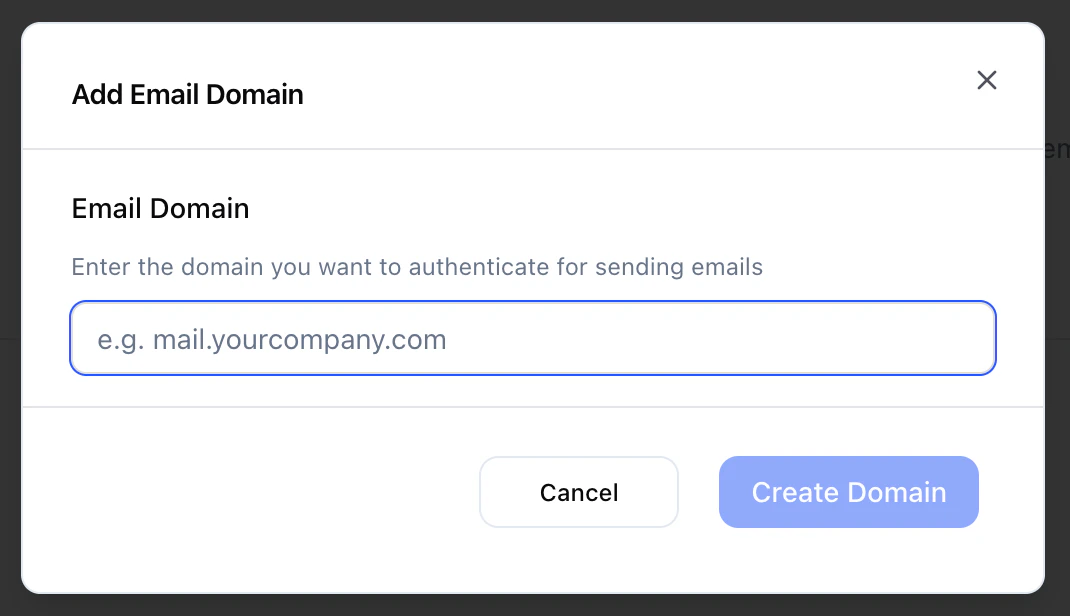
- Enter the domain only (e.g.
yourcompany.com— nohttps://, no path).
2) Add the DNS records HeyMilo shows
- The app lists the exact DNS records (names, types, values).
- Create them exactly as shown at your DNS provider (Cloudflare, GoDaddy, Route 53, etc.).
- Copy/paste carefully. A typo or wrong host/name is the #1 reason verification fails.
Tip: Send your IT team a screenshot or export of the records from HeyMilo. This is standard “authenticate our email vendor” work.
3) Verify the domain
- After DNS is saved, click Verify in HeyMilo.
- Propagation is often ~30 minutes but can take several hours (sometimes longer depending on TTL and provider).
- If it fails, wait and retry — don’t assume it’s broken on the first try.
4) Create sender email addresses
After the domain is verified:- Find Sender Email Addresses (or equivalent).
- Add Sender Email.
- Choose the verified domain.
- Enter the local part (prefix), e.g.
interviews→interviews@yourcompany.com. - Save.
5) Optional: test send

Under the hood
HeyMilo uses SendGrid for domain authentication and sending. Verification checks your DNS for the required records the app displays (including DKIM and related mail CNAME records). When those validate, the domain is marked verified and you may send from addresses on that domain.Troubleshooting
Next steps
- Email Templates — Attach templates and groups; sends use your verified senders.
- Outreach — Phone numbers, custom domains, branding, contact blasts.
- Contact Blasts — Bulk outreach from a posting (where applicable).