

When to use it
- Filter large applicant pools early
- Enforce must-haves (work auth, experience, certifications)
- Rank candidates before interviews
- Save time and budget. Lower interview cost on people who don’t meet the basics
Tip: Put resume screening first in your workflow.
Add resume screening
Step 1 — Add the stage
In Interview Stages, add Resume Screening. Click the card to configure.
Add Resume Screening, then click the card to configure.
Step 2 — Configure settings
- Resume upload: Required or optional
- Required qualifications: How many pass/fail items (e.g. 3–4). Enforce = auto-disqualify if they fail
- Scored criteria: How many to rank by (e.g. 5). Enforce = minimum score to advance
- Context (optional): Company/role info to improve evaluation — not shown to candidates

Resume upload, required qualifications, scored criteria.
Step 3 — Define required qualifications (dealbreakers)
In Questions & Scoring → Required Qualifications, define what candidates must have. Edit wording, pass/fail, reorder. Examples: multi-year store leadership; portfolio with shipped work; valid license.
Define dealbreakers.
Step 4 — Define scored criteria
In Evaluation Criteria, define how resumes are scored and ranked. Each criterion: what to look for, what strong (5) and weak (1) look like. Edit, reorder, or exclude from score. Enforce to block low scorers from costlier stages.
Define what strong vs weak looks like per criterion.

Edit or generate criteria.
Step 5 — Reorder
Drag to reorder required qualifications and scored criteria. Order doesn’t change the math; it makes priorities and results easier to scan.
Reorder to match priorities.
Step 6 — Test before going live
Click Test Now to preview how resumes are evaluated. Validate dealbreakers and scoring, catch overly strict rules. Always test before going live.
Test with a sample resume.
Step 7 — Activate and review results
Once active: resumes are evaluated automatically, candidates ranked by score, unqualified filtered out. Results appear in each candidate’s Resume tab:- PDF: Candidate’s resume
- Eligibility: Pass/fail on required qualifications + short explanations
- Scorecard: Score summary and per-criterion reasoning

Resume tab — PDF.

Resume tab — Eligibility.

Resume tab — Scorecard.
Things to remember
- Specific must-haves: e.g. “2+ years SaaS sales” or “proficient in Salesforce” so good candidates aren’t wrongly screened out.
- Dealbreakers = pass/fail; scoring = rank: Use scoring to differentiate good vs great among those who meet the basics.
- Enforce to protect budget: Keeps unqualified candidates out of costlier voice/video or SMS.
- Start with 3 required + 5 scored: You can add or tighten later.
Fast-track a candidate past resume review
Sometimes you already know a candidate should move forward — a referral, a prior conversation, internal testing, or a resume score you disagree with. Skip resume review (Resume Fast Track) lets recruiters override resume scoring and knockouts and send the candidate to the next stage (for example voice or video), similar to SMS Fast Track.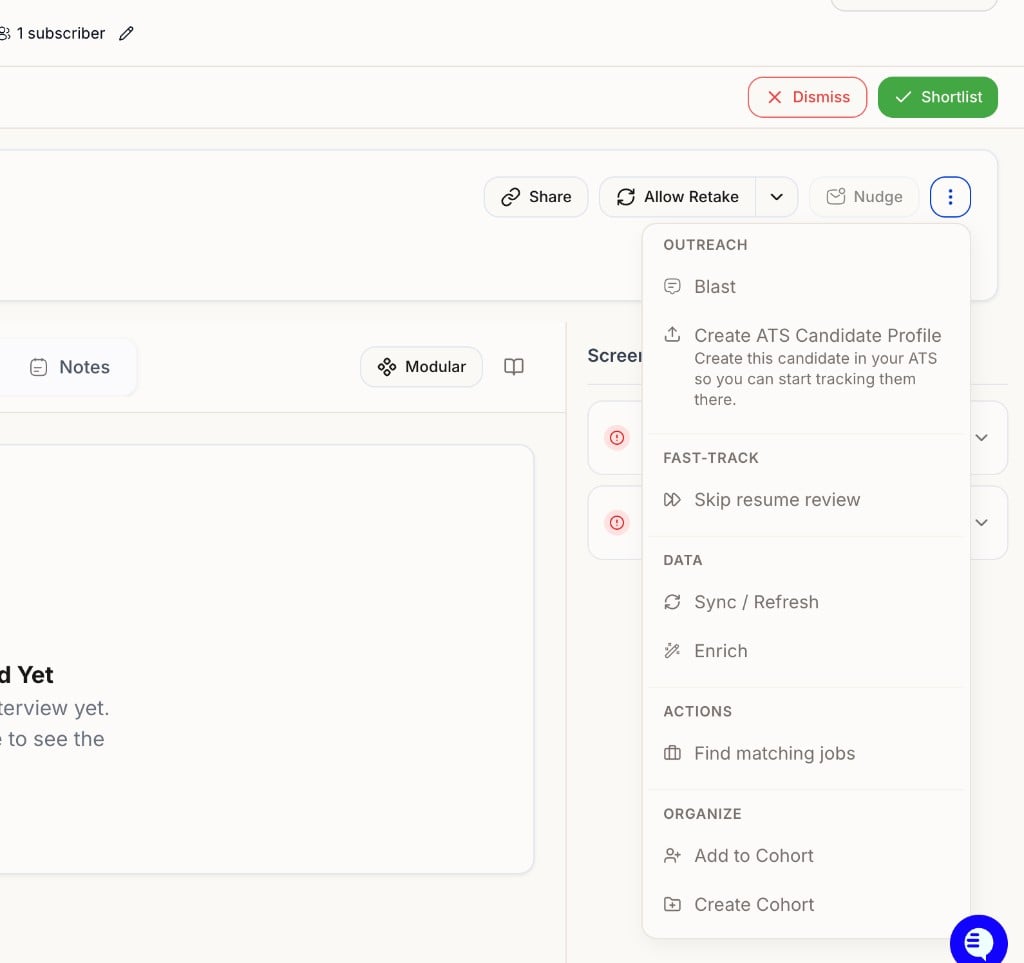
Candidate profile ⋮ menu — Fast-track → Skip resume review.
- Open the interviewer → Candidates.
- Open the candidate (or use the ⋯ menu on their row).
- Open the ⋯ (three dots) menu → Fast-track → Skip resume review → confirm.
- Use this when you want to override automated resume disqualification or low scores — not as a replacement for tuning your rubric.
- Helpful for testing end-to-end flows without uploading a perfect resume every time.
- Only the candidates you fast-track skip resume gating; the rest of the pipeline is unchanged.