Documentation Index
Fetch the complete documentation index at: https://docs.heymilo.ai/llms.txt
Use this file to discover all available pages before exploring further.
Ceipal
Integrating HeyMilo with Ceipal gives your team access to full end-to-end conversational AI recruiting inside your existing hiring pipeline. Once connected, HeyMilo automatically engages candidates, screens them using your configured workflow (SMS, resume checks, voice/video interviews), evaluates their fit, and syncs the results back into Ceipal—keeping your pipeline clean and up to date.
Agents Supported in Ceipal
| SMS Agent | Resume Agent | Voice/Video Agent |
|---|---|---|
| ✅ | ✅ | ✅ |
How does it work? As soon as candidates apply, they get a text from HeyMilo with your questions. They respond directly in the thread, just like a real conversation. Once they finish, HeyMilo sends over the voice or video interview invite automatically. | How does it work? | How does it work? After integration and job posting mapping, when a candidate applies to your Ceipal job posting, the candidate’s email address is pulled from the application form and the candidate is engaged through email to take the voice/video assessment. Once the candidate has completed it, the candidate’s detailed assessment report is attached to their profile in the Ceipal portal. |
Follow These Easy Steps to Set Up the HeyMilo Integration With Ceipal
Click through the interactive demo, and follow the steps below to learn how to connect Ceipal with HeyMilo:Step 1 — Go to Admin Setup
- Navigate to Admin Setup.
- Under Global Settings, click Custom Fields.
.jpeg?fit=max&auto=format&n=XXdWrVdsjIdeG_o8&q=85&s=3a814f44803edf8baa24d317134f55b6)
Step 2 — Create Custom Fields
- HeyMilo Interview Score
- HeyMilo Interview Report
- HeyMilo Admin URL
- Select Applicant under Application Modules
- Choose Text under Field Data Type
.jpeg?fit=max&auto=format&n=a36iCrOYkAjGnbcv&q=85&s=d0ff45351f2d6706a8aeaedd6b937d87)
- Click Save
Step 3 — Create the Custom API (Writeback Endpoint)
- Navigate to Custom API Configuration
- Click Add
- Name: HeyMilo WriteBack API, or Update Applicants e.g.
- Module: Applicants
- Method: POST(Push To Ceipal)
.jpeg?fit=max&auto=format&n=59ow9Q-QQUCNhM7q&q=85&s=f7eccde91a6756f83e4d11629395063e)
- FirstName
.jpeg?fit=max&auto=format&n=59ow9Q-QQUCNhM7q&q=85&s=e5ae07174a358e26b9502cf160d2d6b3)
- HeyMilo Interview Score
- HeyMilo Interview Report
- HeyMilo Admin URL
.jpeg?fit=max&auto=format&n=XXdWrVdsjIdeG_o8&q=85&s=40b712b250273272bd99256bcf2b330a)
- Click it to download a
.docfile containing your API endpoint. - Open it in Google Docs or Word.
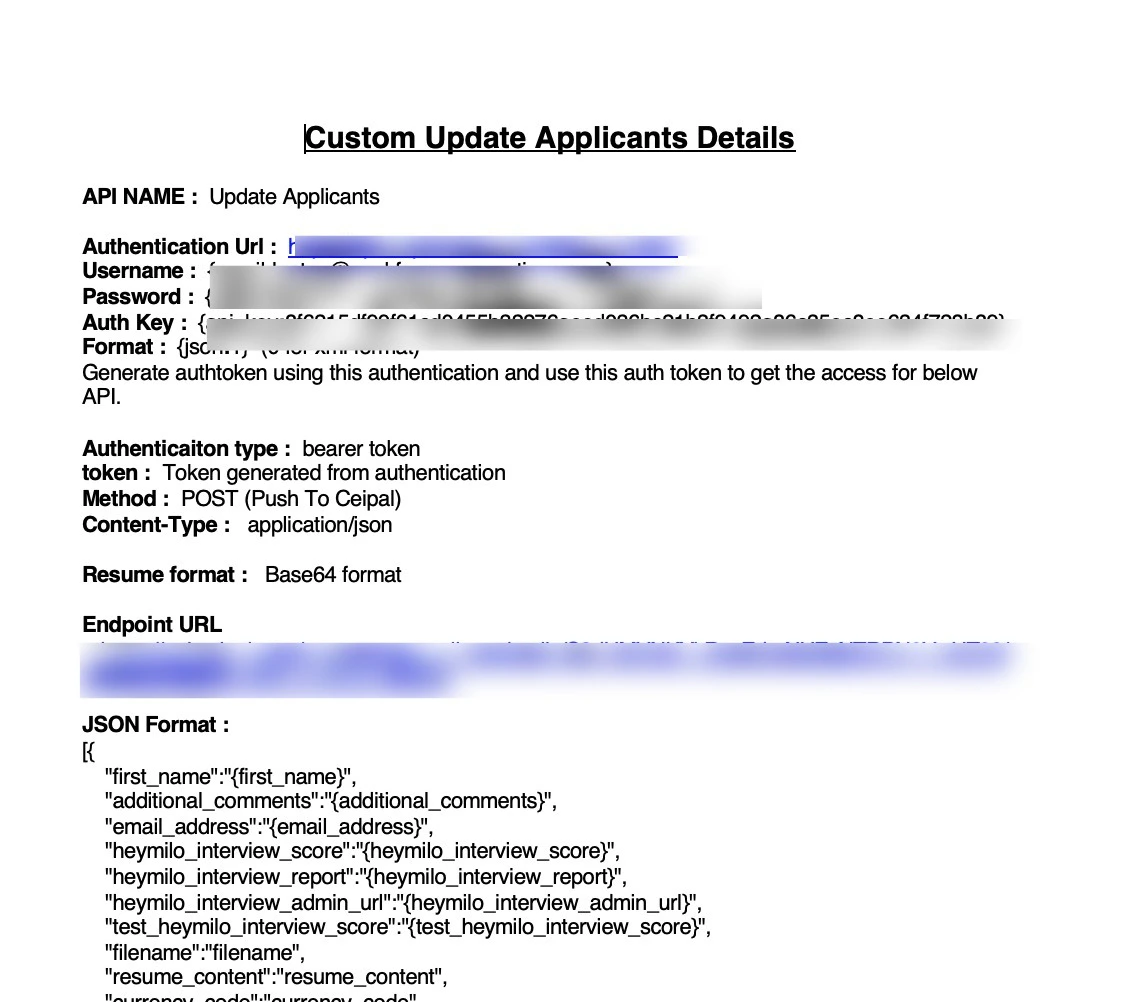
- Inside, copy the endpoint URL (this is what HeyMilo needs).
Step 4 — Configure Your API Credentials
- Go to API Access Configurations
- Choose a username (this is not your Ceipal login)
- Create an API password
- Copy your API Key
- Endpoint URL
- API Username
- API Password
- API Key
.jpeg?fit=max&auto=format&n=59ow9Q-QQUCNhM7q&q=85&s=e22c2c100263b222b35a9dc9f66943d9)
.jpeg?fit=max&auto=format&n=59ow9Q-QQUCNhM7q&q=85&s=e26f3d9c57a1ddea5beef59e060af1c1)
Mapping Ceipal Jobs to a HeyMilo Agent
To activate screening for a specific role:What Happens After Setup
Once the integration is active:Candidates apply in Ceipal
HeyMilo automatically pulls new applicants.HeyMilo runs your configured workflow
SMS → Resume screening → Form screening → Voice/Video interview.Results sync back into Ceipal
Interview score, full report, and admin URL appear in the custom fields you created.Your team reviews everything inside Ceipal
No switching systems, no extra steps.How to Review Candidate Results
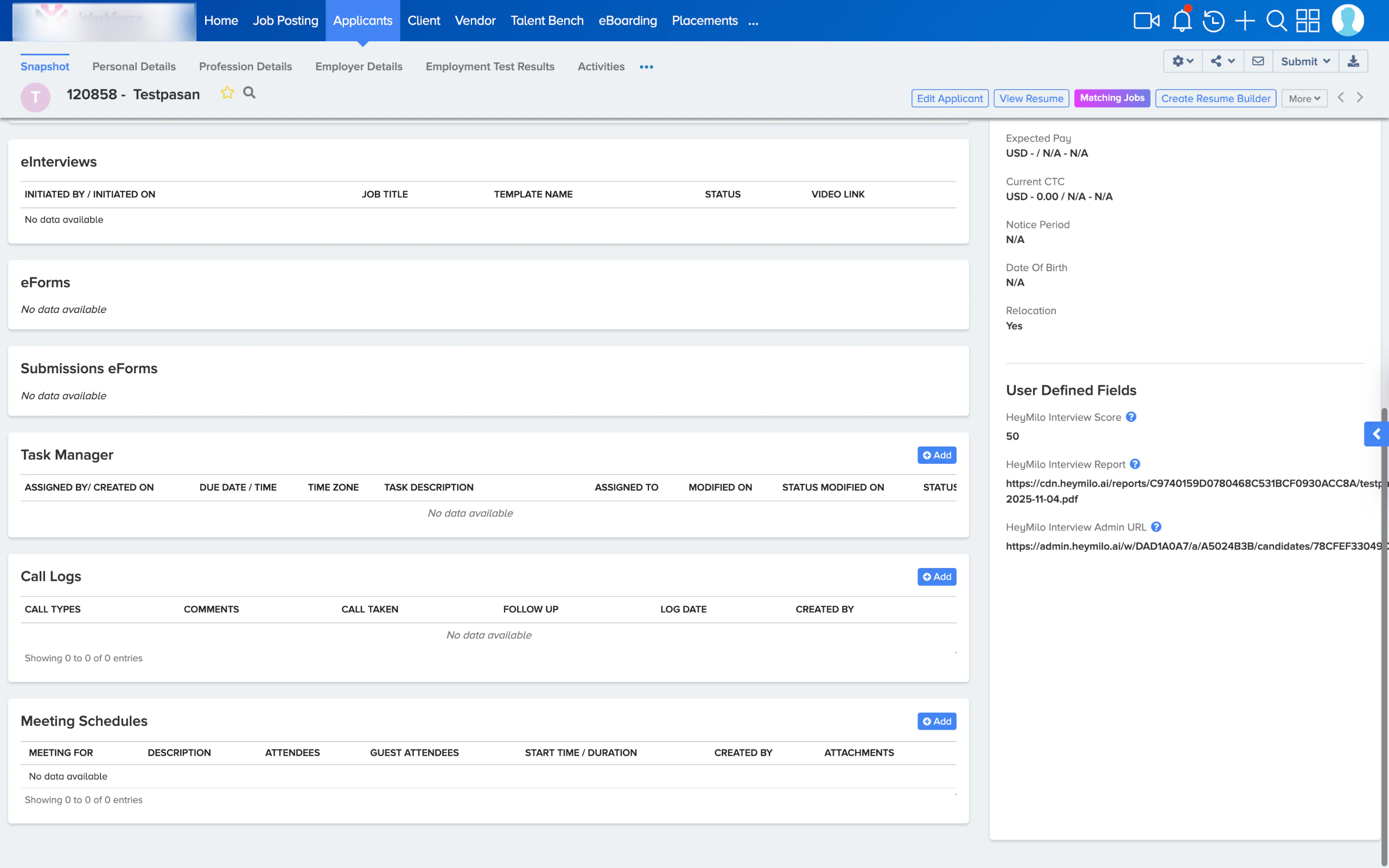
HeyMilo results appear in Candidate → Personal Details and scroll down to User Defined Fields:- HeyMilo Interview Score: numeric score based on your criteria
- HeyMilo Interview Report: full evaluation summary
- HeyMilo Admin URL: one-click access to transcripts, videos, audio, and detailed scoring inside HeyMilo