
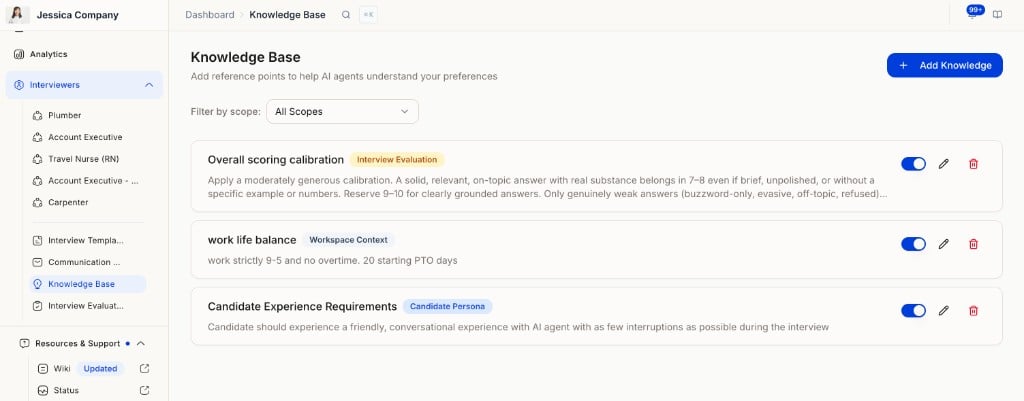
Knowledge Base list view showing an Interview Evaluation entry alongside other scope types.
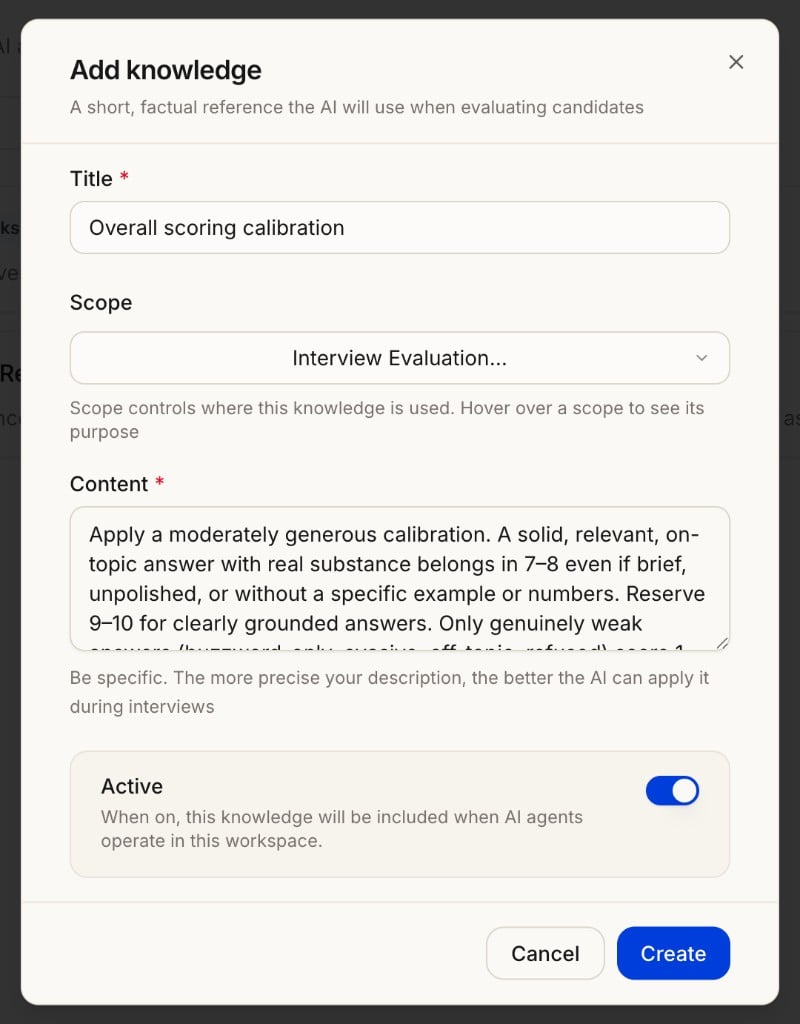
Add knowledge form showing Title, Scope set to Interview Evaluation, Content, and Active toggle.
The Knowledge Base prompts referenced in this guide use Scope = “Interview Evaluation.” These are separate from FAQ-style entries you use to answer candidate questions during interviews.
How to make interview scoring stricter or less strict
1. The one thing to know first
All scoring lives in Knowledge Base entries with Scope = “Interview Evaluation.” These apply to every agent in the workspace. After any edit, click Reanalyze on a candidate to see the new score on their existing interview — you do not need a new interview to test scoring changes. Think of the scale in two parts:- The floor (1–3): genuinely weak answers — buzzwords, evasive, off-topic, refused.
- The middle and top (4–10): relevant answers of varying quality.
2. Your main dial: “Overall scoring calibration”
90% of adjustments should happen in this one entry. It defines what each 1–10 band means. To shift strictness, you widen or narrow the upper bands. To make scoring LESS strict — broaden the high bands so more answers qualify:7–8: A solid, relevant, on-topic answer with real substance, even if brief, unpolished, or without a specific example or numbers. Most genuine, on-point answers belong here.(Pulling “relevant but brief” answers up into 7–8 is what lifts scores.) To make scoring MORE strict — raise the bar for high scores:
7–8: A strong, relevant answer that includes a specific example or concrete supporting detail. General or brief answers belong in 5–6. 9–10: Reserved for answers with a specific example AND a clear outcome or result.Rule of thumb: Move the description of a typical “decent” answer between the 5–6 band (stricter) and the 7–8 band (more lenient). That single change moves overall scores the most.
3. Supporting levers (use only if the main dial isn’t enough)
4. Copy-paste examples
Make it less strict (lenient calibration):5. Do’s and don’ts
- Do change one entry at a time, then reanalyze so you know what caused the shift.
- Do keep a known weak candidate and a known strong candidate as reference points. After each change, reanalyze both.
- Don’t raise the floor when trying to be more lenient. Keep the 1–3 band wording (buzzword/evasive/refused) intact — otherwise weak candidates climb too.
- Don’t stack many new entries. Edit the calibration dial rather than adding more; overlapping entries dilute each other.
- Remember: a question’s own Evaluation Criteria / Score 1 / Score 5 override the Knowledge Base. If one specific question scores wrong while others are fine, fix it on that question — not in the Knowledge Base. See Configuring Your AI Interviewer for how to update per-question criteria.
6. Quick verification checklist
After any change:- Reanalyze a strong candidate. Did they move in the intended direction?
- Reanalyze a weak candidate. Did they stay low? If they jumped, the floor was affected — undo the floor change.
- If both look right, the change is good. If not, adjust the calibration band wording and re-test.
Knowledge Base (Interview Evaluation) — Reference prompts
These are the full prompt texts for each entry. Copy them into your Knowledge Base entries with Scope = “Interview Evaluation” and edit the wording as needed using the guide above.Overall scoring calibration
Scripted or over-polished answers
Calibrate to the role’s level
Don’t penalize depth the interviewer didn’t probe for
When question type conflicts with its rubric
Buzzword-only and evasive answers
What earns a strong score
Next steps
- Knowledge Base — How to create and manage Knowledge Base entries
- Configuring Your AI Interviewer — Per-question criteria and scoring weights
- How Scoring Works — How overall scores are built and what they mean
- Interview Evaluation — Language proficiency rubrics