

Before you start
- If you don’t see these controls, contact your dedicated CS Manager or support@heymilo.ai (or in-app chat).
- Candidates should use a current browser and allow camera and microphone when prompted (needed for video-based signals).
Where to configure
Cheat detection is set up on each interviewer, while you’re creating or editing it: Path: Create or Edit Interviewer → Voice/Video interview stage → Settings → Experience Under Experience, turn on Detect suspicious activity — this flags signs of cheating during interviews, such as coached answers or a second person in the room, and shows them on the candidate report. The detection categories appear right below the toggle so you can expand each one and choose exactly which checks run.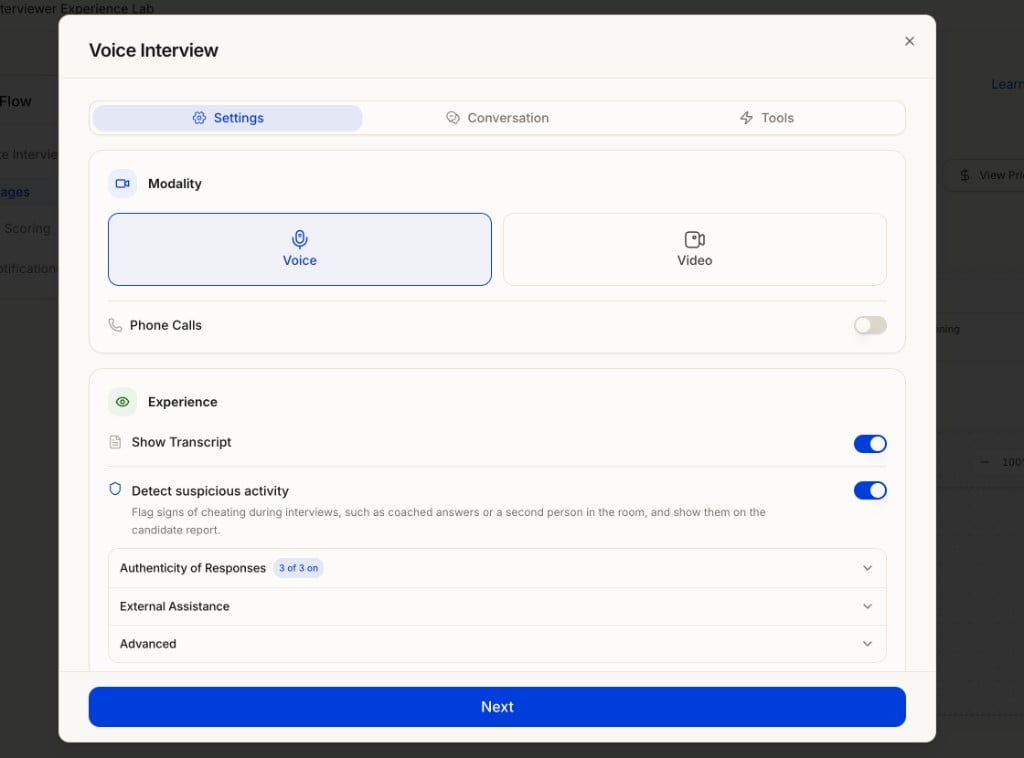
Voice interview — Detect suspicious activity with Authenticity of Responses, External Assistance, and Advanced.
Voice and video interviews get different checks. Audio-only interviews can’t see the candidate, so camera-based checks only appear on video:
- Voice — Authenticity of Responses, External Assistance, and Advanced.
- Video — everything voice has, plus Candidate Presence, Candidate Identity, and Session Trust Integrity.
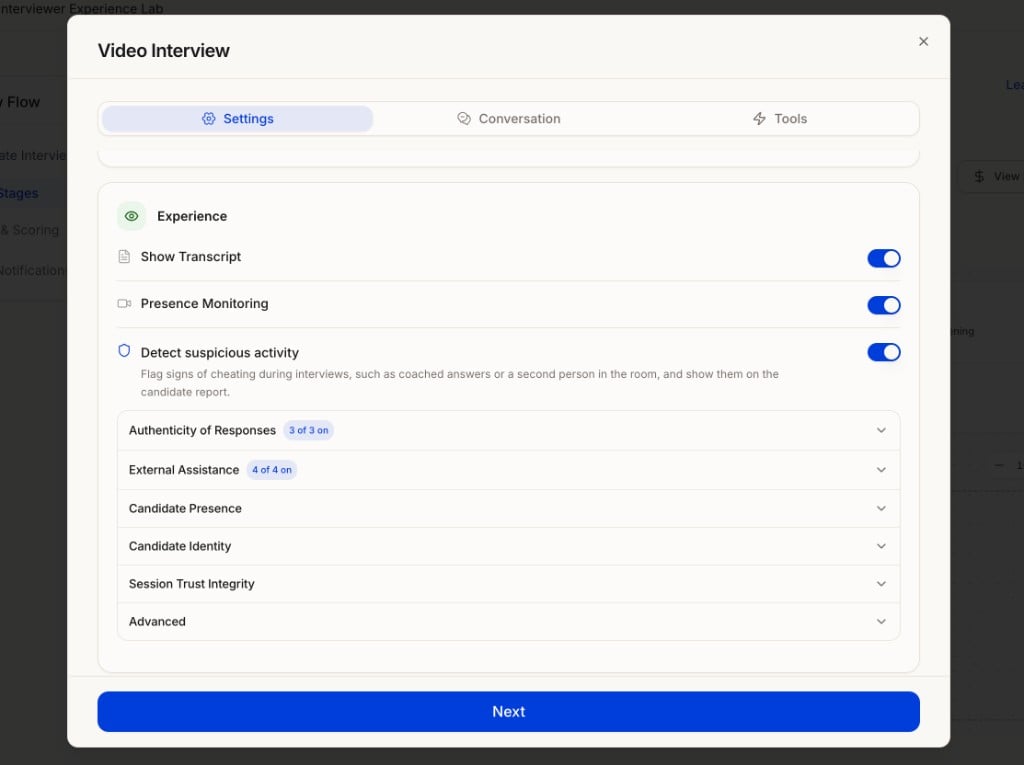
Video interview — additional categories: Candidate Presence, Candidate Identity, and Session Trust Integrity.
What each category checks
Each category expands into individual checks you can turn on or off. Signals are observational — they indicate something looked unusual, not intent.Authenticity of Responses
Authenticity of Responses
Whether the answers are genuinely produced by the candidate’s own cognition in real time.
- AI-Generated Answers: Flags answers that were generated by AI and read aloud.
- Answers Rephrased with AI: Catches answers that were AI-written and then lightly reworded before being read.
- AI-Generated Voice: Detects the candidate’s spoken answers being synthesized or voice-cloned rather than genuinely spoken live — which may indicate an attempt to disguise AI-generated or pre-recorded answers as real-time speech.
External Assistance
External Assistance
Whether the candidate is receiving help from external sources during the interview.
- Suspicious Pauses Before Answering: Flags a repeated pause-then-answer pattern across questions — a sign someone is feeding answers in real time. Comes with a Max Acceptable Response Delay slider (default 5 seconds, range 1–60) so natural thinking time isn’t flagged.
- Pattern of Looking Off Screen: Flags when a candidate consistently looks away while answering. Distinguishes between natural thinking pauses and sustained off-screen reference.
- Unauthorized Device Being Used: Detects devices that provide assistance during the interview. You choose which to watch for: Mobile Phone, Tablet, Laptop, Smartwatch, Second Monitor / Screen, and Paper Notes.
- Multiple Participants: Flags when more than one person is visible and participating in frame during the interview.
Candidate Presence (video)
Candidate Presence (video)
Whether the candidate is continuously present, visible, and observable.
- Candidate Left the Frame: Flags when the candidate is not visibly present for an extended period during the interview.
Candidate Identity (video)
Candidate Identity (video)
Whether the person appearing in the interview is genuinely the claimed candidate.
- Candidate Swap Detected: Checks whether the same person appears throughout the interview. Flags if a noticeably different face is detected mid-session.
Session Trust Integrity (video)
Session Trust Integrity (video)
Whether the technical session itself is manipulated, spoofed, or unreliable.
- Face Swapping with Deepfake: Detects the candidate’s face being swapped with a deepfake face, which may indicate an attempt to impersonate the candidate or manipulate the session.
Advanced
Advanced
These settings apply to every detection check in the interview.
- Minimum flag duration (default 5 seconds, range 0–60): Limits how many times the same type of cheating is flagged in one session. Keeps results clean and focused.
- Rejection Threshold (default 10%, range 0–50): The percentage of the interview that must be flagged as high-risk before HeyMilo recommends rejecting.
Reviewing results
Path: Interviewers → [candidate] → Verify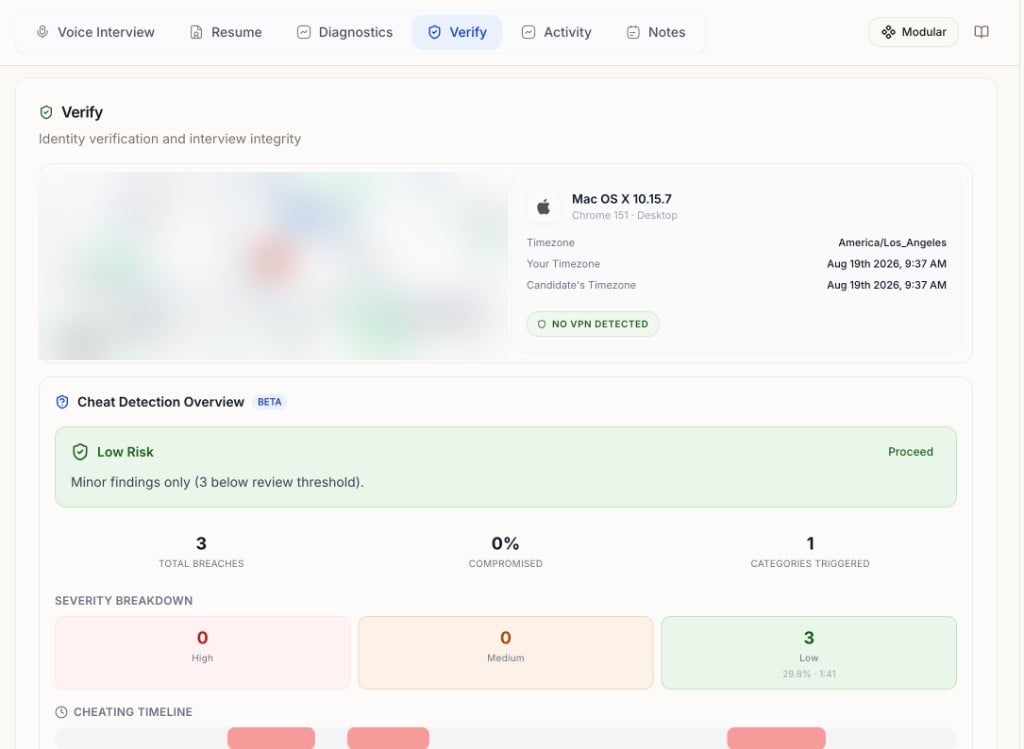
Verify tab — session details, Cheat Detection Overview, and Identity Verification.
- Session details: The candidate’s approximate location, device and browser (e.g. macOS, Chrome, Desktop), timezone comparison, and a VPN check.
- Cheat Detection Overview: The headline result — a risk level with a recommended action (e.g. Low Risk — Proceed) and a plain-language summary such as “Minor findings only (3 below review threshold).”
- Total Breaches: Number of flagged events in the session.
- % Compromised: Share of the session where signals were detected.
- Categories Triggered: How many detection categories fired.
- Severity Breakdown: High, medium, and low counts, with percentage of session and duration for each.
- Cheating Timeline: A visual timeline of when flags occurred across the interview.
- By Category: Each triggered category with severity, breach count, percentage of session, and duration.
- Breach Details: Each individual flag with its timestamp range (e.g. “Offscreen Reference Pattern, 1:05 – 1:38”).
- Warnings: Lower-level observations that didn’t rise to a breach.
- Identity Verification: Email and phone verification signals, with a summary like Review Suggested when issues are found. Click a signal for details.
- High: Worth a careful look — still not confirmation of cheating.
- Medium: Check context, such as question difficulty, nerves, or environment.
- Low: Often lighting, angle, movement, or a one-off glitch.
What cheat detection does not do
- Does not auto-fail or auto-advance candidates
- Does not raise or lower the interview score
- Does not replace recruiter judgment
- Does not use biometrics for “identity” decisions in the sense of facial recognition hiring outcomes — think behavioral / environmental signals for review
Flags are informational. Always pair them with transcript, answers, and video context before conclusions.
Best practices
- Turn on Detect suspicious activity for roles where integrity matters, and use video interviews when you want the fuller set of checks (presence, identity, deepfake detection).
- Only enable checks you will actually review — the category counters (e.g. “3 of 3 on”) make it easy to see what’s active.
- The defaults (5s minimum flag duration, 10% rejection threshold, 5s max response delay) are sensible starting points; tune them if you see too much noise or too little signal.
- Give candidates clear setup instructions (quiet room, stable camera, good light, supported browser).
- Align as a team on how you interpret flags so decisions stay consistent.
Troubleshooting
Next steps
- Reviewing Candidates — Score reports and workflow
- How Scoring Works — Separate from integrity flags
- Interview Evaluation — Scoring and language rubrics
- AI Settings — Other workspace AI defaults
Need help reading the output? See Interpreting Cheat Detection Results — a full breakdown of every finding, confidence score, severity level, worked examples, and tuning guide.