

Duplicate an interviewer
When: Same role elsewhere, similar role with tweaks, or you want a template. You get a full copy; change the title and anything else, then share the new link. How: Interviewers → find the one → ⋯ (or open it → Actions) → Duplicate → name it and adjust → share when ready.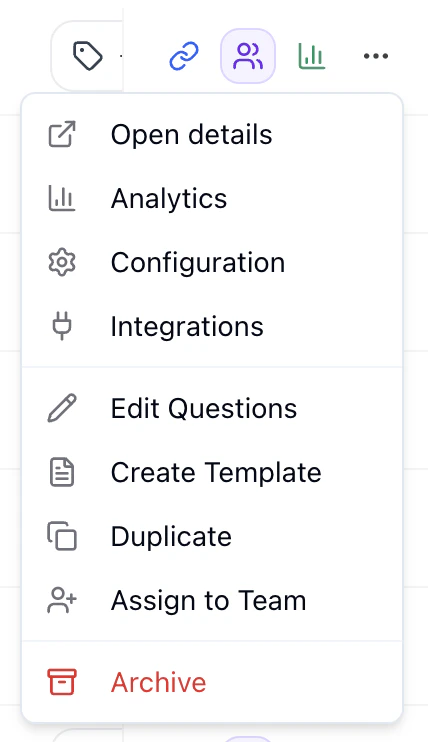
Actions → Duplicate to copy an interviewer.
Tip: Keep one “template” per common role and duplicate from it each time.
Edit a live interviewer
You can edit questions and settings on a live interviewer. Changes apply to new candidates only; past candidates keep their original experience and scores. Where: Open the interviewer → Settings tab. Use the left panel (Agent Overview, Root Level Configuration, Workflow Steps, etc.) or open a stage to edit its questions and config.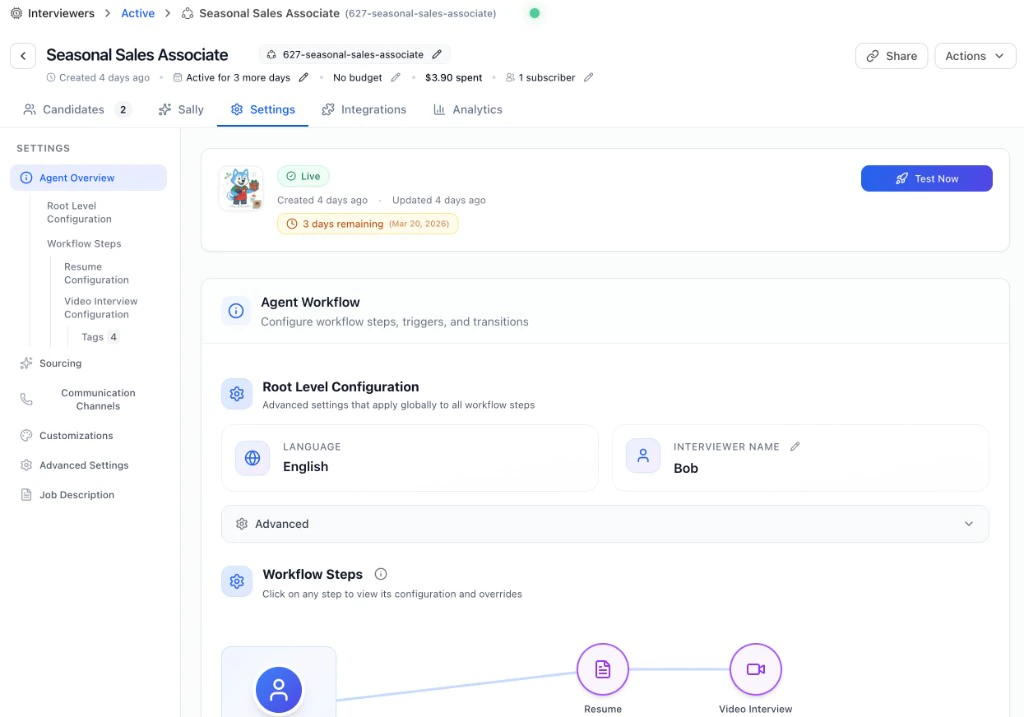
Settings — edit name, workflow steps, context, and more.
Tweak a question’s wording
Sometimes a candidate or hiring manager points out that a question is too narrow or unclear. Good news, you don’t need to duplicate the whole agent for a copy fix. How:- Open the interviewer → Settings → open the stage (e.g. Voice Interview).
- Click into the question you want to edit.
- Update the wording the same way you would when first creating it, then Save.
If you duplicate and change the job description, the interview content doesn’t auto-update — adjust questions and messaging in the new interviewer yourself.
Archive an interviewer
When: Role is filled or you don’t need it anymore. What happens: It moves to the Archived tab, the link stops working for new candidates, and all data (scores, transcripts, candidates) stays so you can open it from Archived anytime. How: Interviewers → ⋯ (or open → Actions) → Archive → confirm. Unarchive: Archived tab → find it → ⋯ → Unarchive. Link works again; it’s back under Active.Quick tips
- Name clearly: e.g. role + location + date so you can find it in the table.
- Reconnect ATS after duplicating: If the old interviewer was linked to your ATS, link the new one and unlink the old so new candidates go to the right place.
- Your Dashboard: See all interviewers and analytics.