

What it does
Grading Criteria lets you define what you want to evaluate beyond the standard question scores. Unlike individual question scores, Grading Criteria evaluates concepts across the entire interview.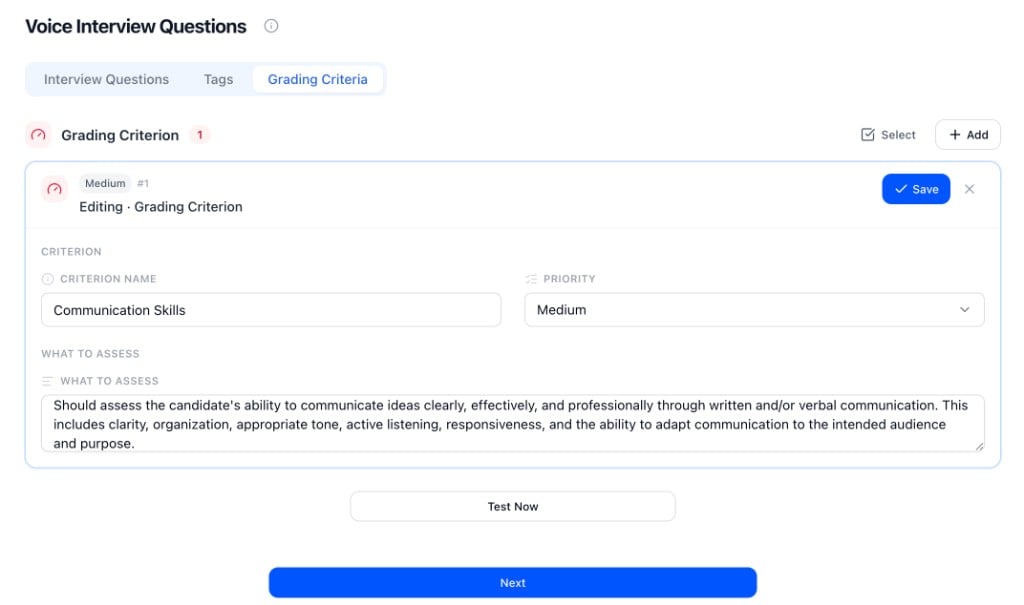
Priority levels
Each criterion has a priority that signals how much weight it should carry in your review.
Higher-priority criteria appear first on the candidate’s score card.
Setting up criteria
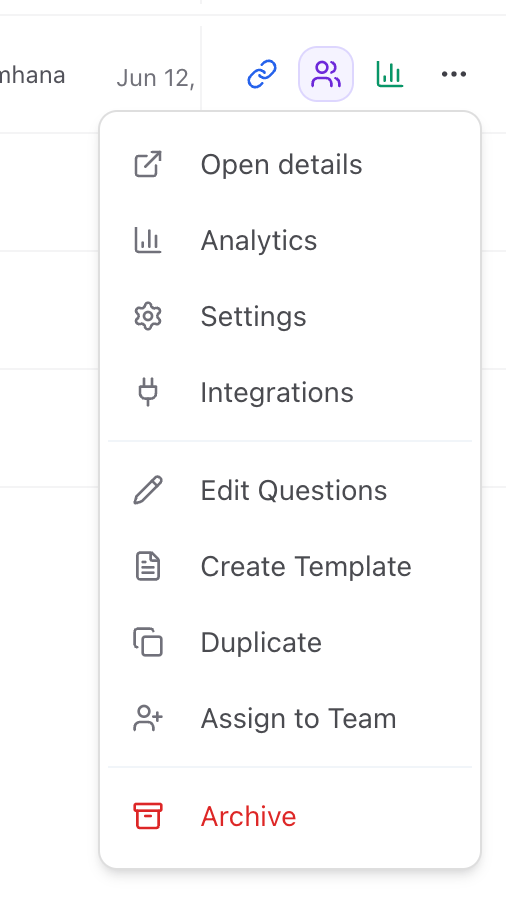
- Open an interviewer and go to Questions & Scoring
- Find the Grading Criteria section and click Add
- Enter a name (e.g. “Communication Skills”) and a guidance note to help your team understand what this criterion is for
- Once you enter a name, Priority and What to Assess populate automatically — review and edit them to match what you actually want scored
- Save
Viewing scores
After a candidate completes their interview, open their profile and go to the Grading Criteria tab.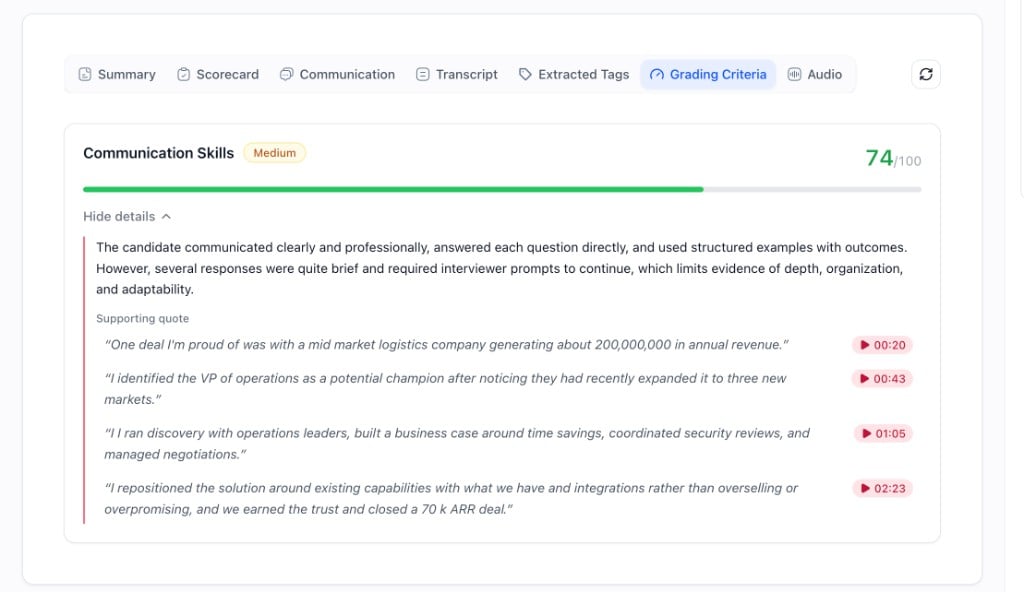
- Criterion name and priority badge
- Score out of 100
- Written rationale
- Supporting quotes with clickable timestamps
Grading only runs for completed interviews. If an interview wasn’t finished, no score cards are produced.
Re-running grading
If scores aren’t showing yet or you want to refresh them, click the Re-analyze button (circular refresh icon near the top of the Grading Criteria tab). Grading can take a minute to process after an interview completes.Tips
- Write specific “what to assess” descriptions. The more precise you are, the more accurate the scores.
- Give the AI something to work with. Short or one-word interview answers will produce low scores or “Not enough data.”
- Use Re-analyze after adding new criteria to an interviewer — existing completed interviews can be re-graded against the updated set.