

What you can customize (all stages)
For every question or criterion you can:- Edit the wording
- Choose how it’s evaluated (scored vs pass/fail)
- Assign weight (how much it affects the overall score)
- Mark it as a dealbreaker (auto-disqualify if not met)
- Control follow-up behavior (voice/SMS)
- Reorder questions or criteria to control flow
Reordering and weights
- Reorder: Drag and drop questions or criteria to change the order candidates see. Put dealbreakers first to filter early; group related topics together.
- Weights: Higher weight = the question matters more in the final score. You don’t need to make everything high weight; many teams use the defaults. See How Scoring Works.
Resume Screening
Configure Required Qualifications (auto-disqualifiers) and Evaluation Criteria (scored items like relevance and experience). You can enforce a minimum score so only candidates who meet your threshold advance.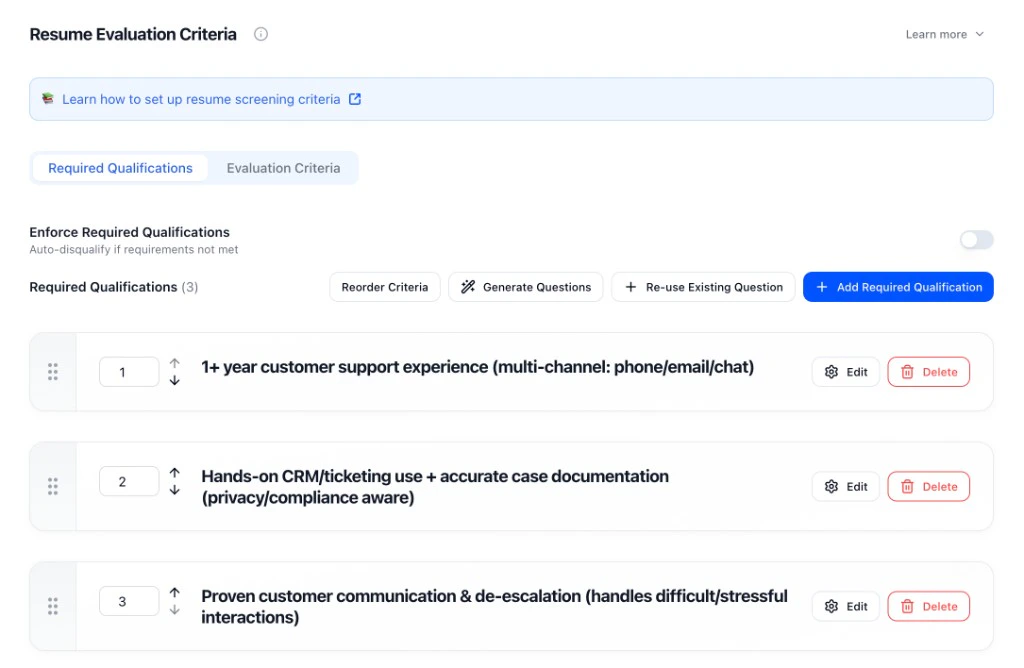
Resume Screening — Required Qualifications and Evaluation Criteria.
- Required Qualifications: Add must-haves (e.g. 1+ year support experience, CRM experience, communication skills). Toggle “Enforce Required Qualifications” to auto-disqualify when not met.
- Evaluation Criteria: Scored items for relevance, depth of experience, role fit.
- Reorder / Generate / Re-use: Reorder criteria, generate with AI, or re-use from another interviewer.
Application Form
Form questions collect structured answers and can enforce eligibility before candidates move on. Use Enforce Criteria so candidates who don’t meet requirements don’t advance.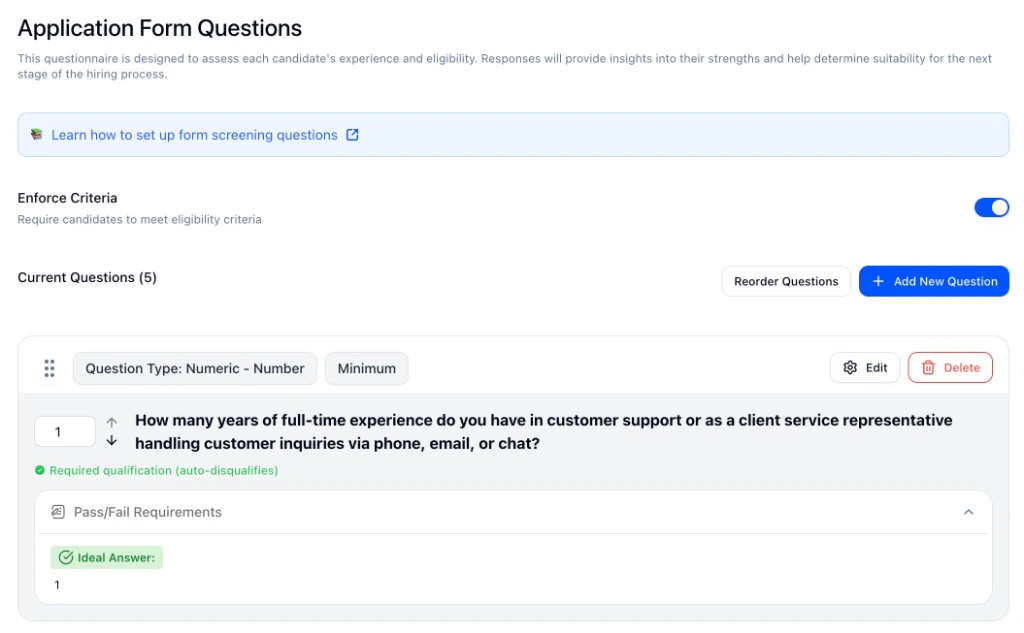
Form — Enforce Criteria, question types, and pass/fail requirements.
- Question types: Short answer, numeric (min/slider), multiple choice, date, file upload.
- Required qualification (auto-disqualifies): Mark questions as dealbreakers with pass/fail requirements (e.g. minimum years of experience, ideal answer “1”).
- Reorder / Add: Reorder questions or add new ones.
SMS Screening
SMS is built for quick eligibility checks. Use Enforce Required Qualifications so candidates who don’t meet your pass/fail answers are auto-disqualified.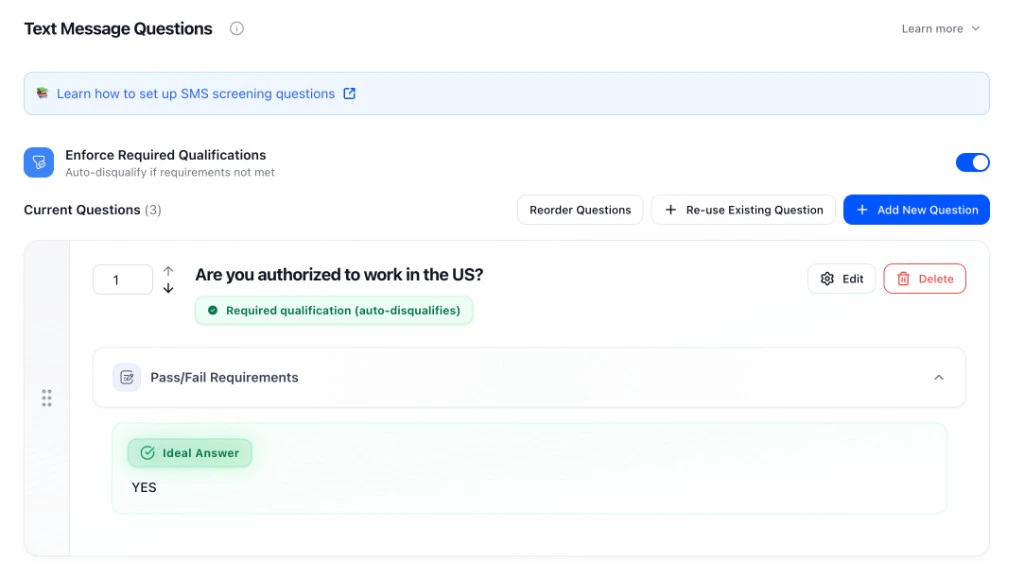
SMS — Enforce Required Qualifications and pass/fail ideal answers.
- Question types: Yes/no, numeric, pass/fail.
- Required qualification (auto-disqualifies): Set the ideal answer (e.g. “YES” for work authorization). Candidates who don’t match don’t advance.
- Reorder / Re-use / Add: Reorder, re-use existing questions, or add new ones.
Voice/Video Interview
For voice and video, you define evaluation criteria for each question: what a strong answer looks like (score of 5) and what a weak answer looks like (score of 1). Set weight and how many follow-ups the AI can ask.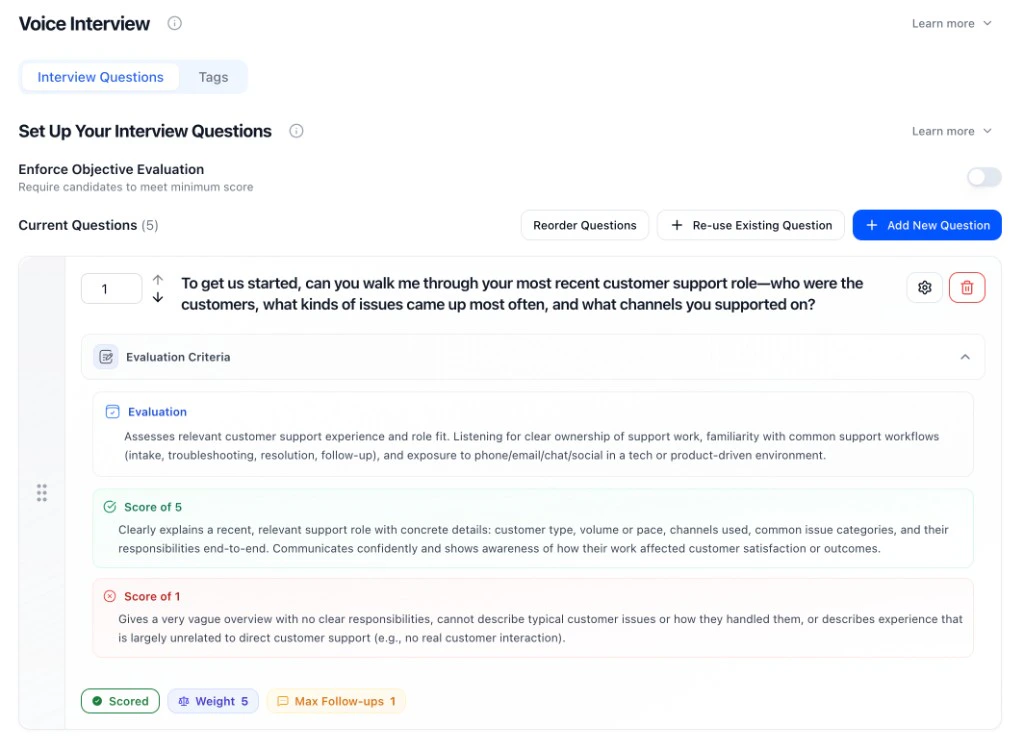
Voice/Video — Evaluation criteria, Score of 5 / Score of 1, weight, and follow-ups.
- Evaluation criteria: Describe what you’re listening for; define Score of 5 (strong) and Score of 1 (weak).
- Weight: How much the question affects the overall score (e.g. 1–10).
- Max follow-ups: How many follow-up questions the AI can ask to probe for more detail.
- Enforce Objective Evaluation: Optional: require candidates to meet a minimum score to pass.
- You can mix scored questions (1–5), structured (pass/fail, multiple choice), and informational (no score impact). See Question Library.
AI Scenario Assessment
For AI Scenario Assessment stages, configuration works differently — instead of setting questions and rubrics manually, you provide a task background and HeyMilo generates the full scenario, deliverable, and scoring rubric automatically.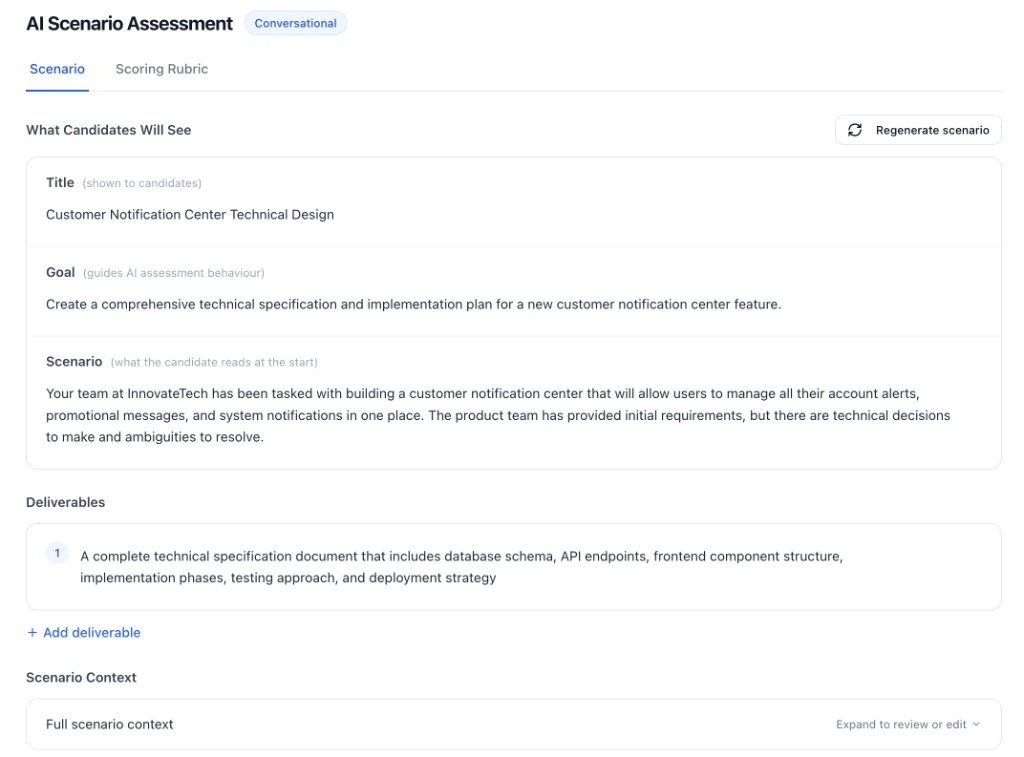
- Task background: Describe the task the candidate will work through. HeyMilo uses this plus the job description to generate the scenario.
- Assessment style: Standard (collaborative) or Test AI Error Detection (candidate identifies AI mistakes).
- Conversation behavior: Toggle whether the AI sends a greeting first and whether it invents missing details to keep the scenario flowing.
- Time limit and rounds: Set how long candidates have and how many back-and-forth exchanges before the assessment ends.
- Passing score: Optional threshold — candidates below this won’t advance.
Dealbreakers vs scoring
- Dealbreakers = eligibility (work authorization, certifications, availability, hard minimums). Use required qualifications / enforce criteria so candidates who don’t meet them don’t advance.
- Scoring = quality (judgment, communication, depth of experience). Use evaluation criteria and weights so stronger answers rank higher.
Other settings
- Tags (optional): Extract extra details from responses (e.g. years of experience, tools) without affecting the score. Tags appear in reports for filtering and review. See Interview Tags.
- Test before you launch: Run through as a candidate to check wording, follow-ups, and scoring before you activate.
- Multilingual Support: Languages and voices. Cheat Detection — Interview Integrity.
Settings tab
Open the Settings tab (next to Integrations and Analytics). What you can edit vs view: Editable- Root Level Configuration: Edit language, interviewer name; under Advanced: Days to Complete, Scheduling URL, Redirect URL; Additional Context (company overview, job overview, interview process, instructions).
- Workflow Steps: Click a step (e.g. Resume, Video Interview) to edit that step’s questions, evaluation, and Enabled Features (turn video or phone on/off for that step, tags). Phone and video are per step, not one global toggle.
- Communication Channels: Set email template group, phone/messaging, and candidate intake fields (reusable fields candidates fill out at registration — see Creating an Interviewer).
- Customizations: Set design template group (branding).
- Advanced Settings: Turn Detect suspicious activity, Test Posting, Deployed, Allow SMS, Email Report to Candidate, and retakes on or off.
- Sourcing: See what’s assigned; configure in Sourcing.
- Job Description: Shown to candidates; edit the description where you created the posting.
- Agent Mascot: Name and status (e.g. Live) are shown; created/updated time and deadline (e.g. “6 days remaining”) are displayed here.
Next steps
- How Scoring Works — How scores are calculated and what appears on reports
- Question Library — Reusable questions and AI generation
- Reviewing Candidates — Use score reports to advance or decline