

Where to find it
Sidebar → Interview Evaluation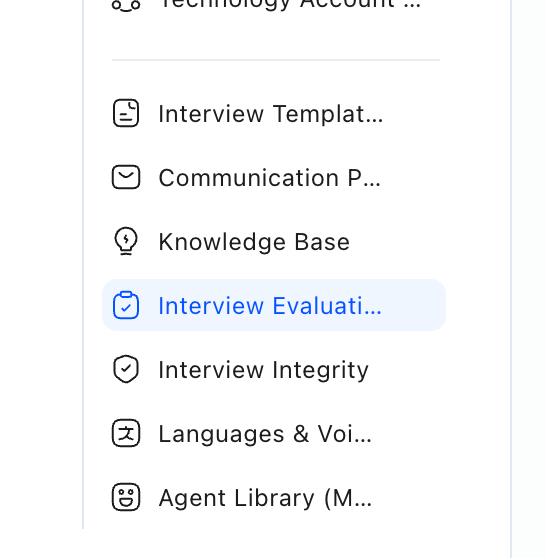
What this page controls
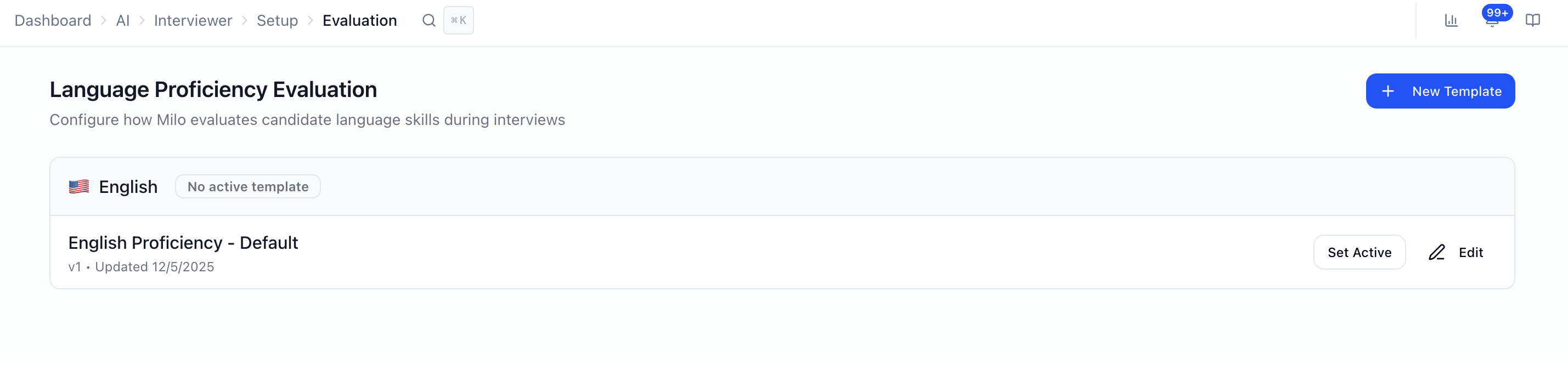
- Language proficiency scoring: not job-specific interview questions.
- Templates grouped by language (e.g. English, Spanish, French, Portuguese, Japanese, Arabic).
- For each template: proficiency categories (e.g. grammar, fluency — the exact list comes from your default categories).
- One active template per language: the active rubric is what Milo uses for that language’s proficiency evaluation until you switch it.
Templates and “active”
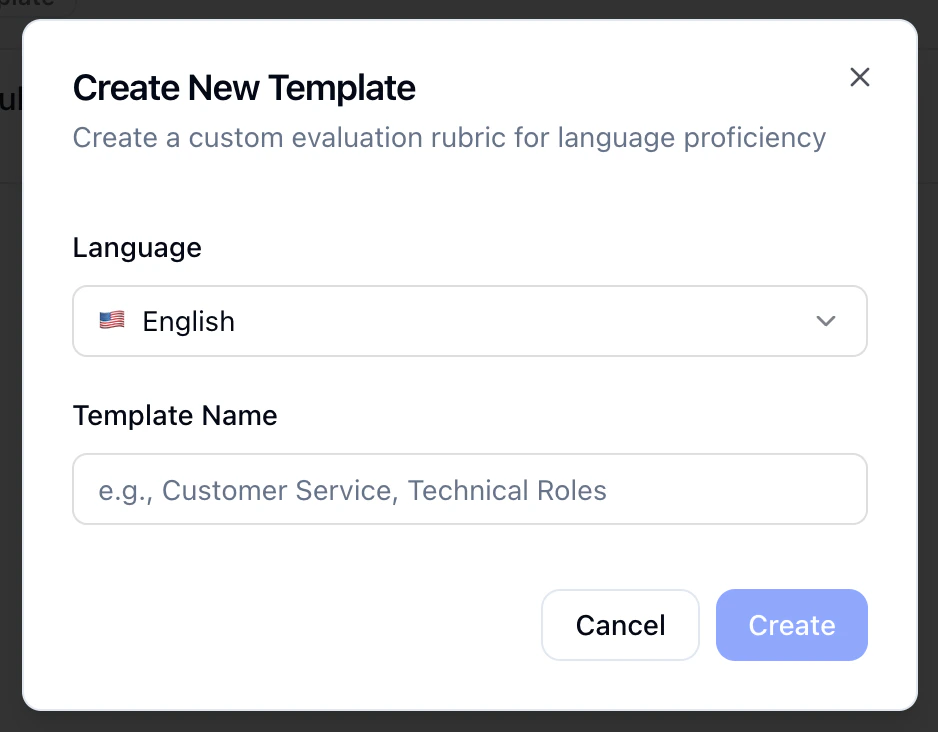
- New Template: Pick a language, name the template (e.g. “Customer service,” “Technical roles”), and start from the workspace default categories and score definitions.
- Edit, rename the template and edit the Scoring Rubric: expand each category and fill in what 1 (weakest) through 5 (strongest) mean for that category.
- Set Active / Deactivate: Only one template can be active per language at a time.
- Saving updates the template (the product may version it behind the scenes).
AI Tune
On each category, AI Tune lets you describe how you want criteria adjusted (e.g. stricter for senior roles, more lenient for entry-level). Milo proposes updated 1–5 text for that category; review and save when it matches what you want.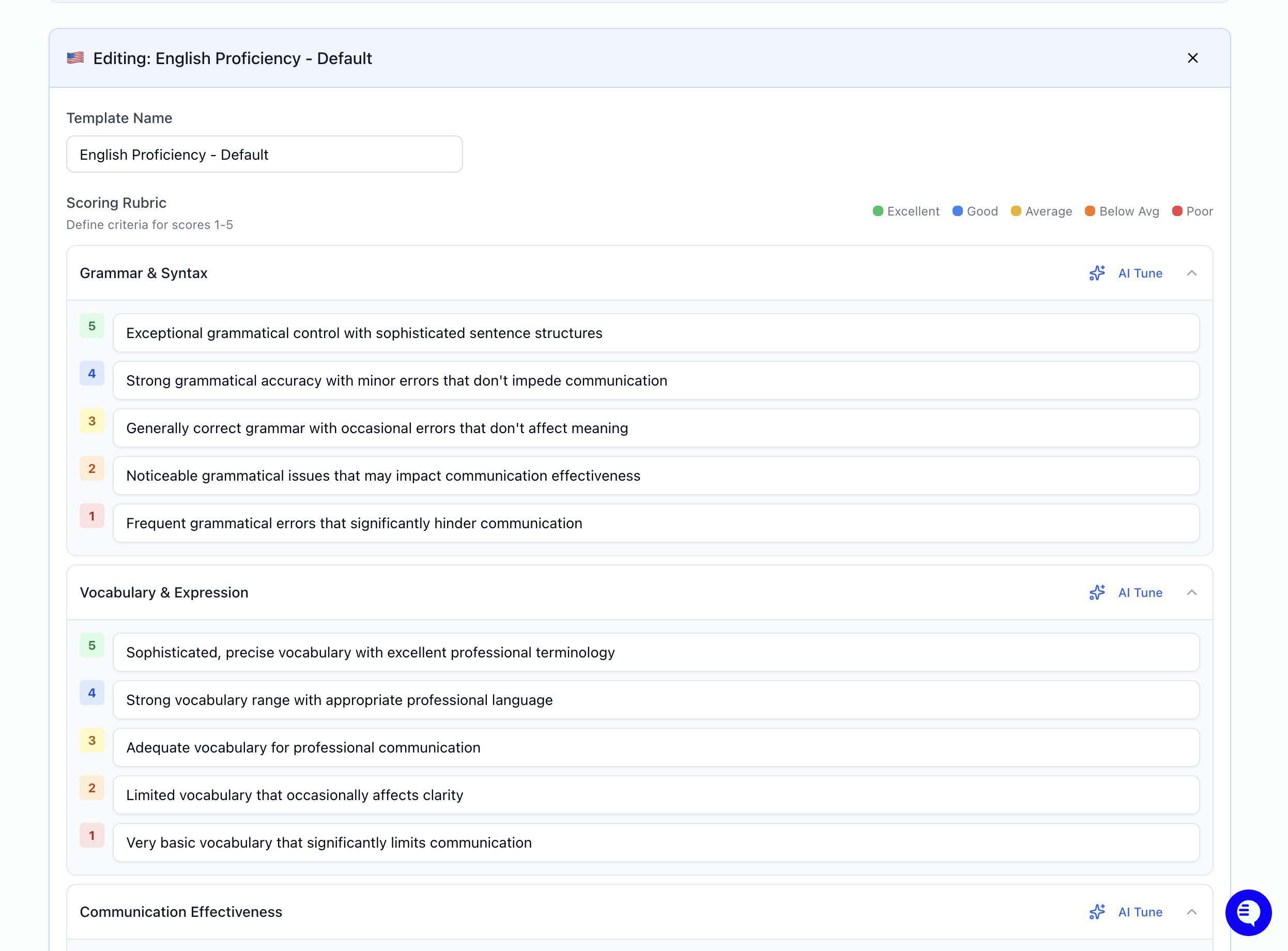
How this fits with overall candidate scores
- Language proficiency rubrics here apply to how Milo evaluates language in line with your workspace standards.
- Role-specific answers are still judged using evaluation criteria on each question when you build voice/video (and similar) steps — see How Scoring Works for the 1–5 anchor model and how mid scores are inferred.
- Hard requirements (yes/no, dealbreakers) use Structured Questions, not this rubric screen.
FAQ
- Is this the same as question weights on my posting? No. Weights and per-question rubrics live on the interviewer / posting setup. This page is language proficiency templates only.
- Can I have different rubrics for the same language? Yes — multiple templates per language; only one is active at a time.
- Where do I set “minimum score to pass”? On the interviewer configuration for the relevant step (e.g. voice/video questions), not on Interview Evaluation.
Next steps
- How Scoring Works — 1–5 system, overrides, what’s in the score report
- Configuring Your AI Interviewer — Per-question criteria, weights, workflow
- Structured Questions — Pass/fail and dealbreakers
- Languages & Voices — Interview language and voice options
- Interview Templates — Reusable full interviewer setups