

How deletion requests work
There are two ways a deletion request can be created.Candidate-initiated
Candidates can request deletion of their own data directly from their interview experience page. Here is what they go through:- At the bottom of their interview page, the candidate clicks My Data. This opens the Privacy and communications page, where they can also manage reminder email preferences.
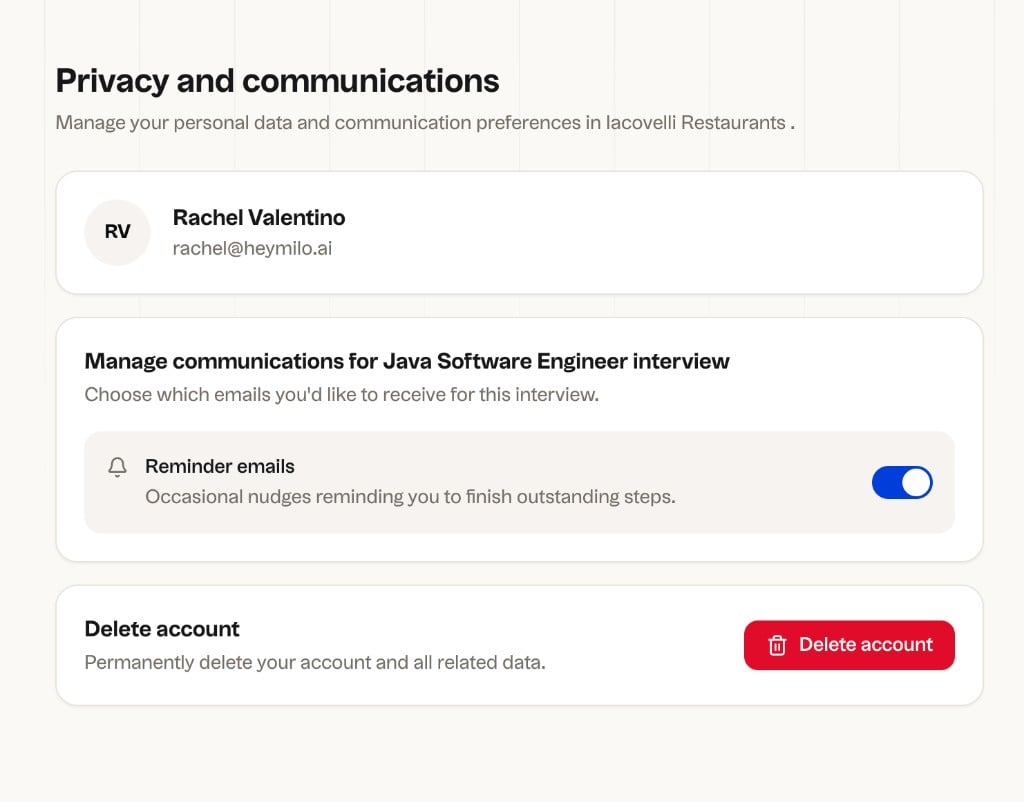
Privacy and communications: the candidate sees their profile, communication preferences, and the Delete account option.
- They click Delete account. A confirmation dialog appears explaining that a verification link will be sent to their email address. They click Continue.
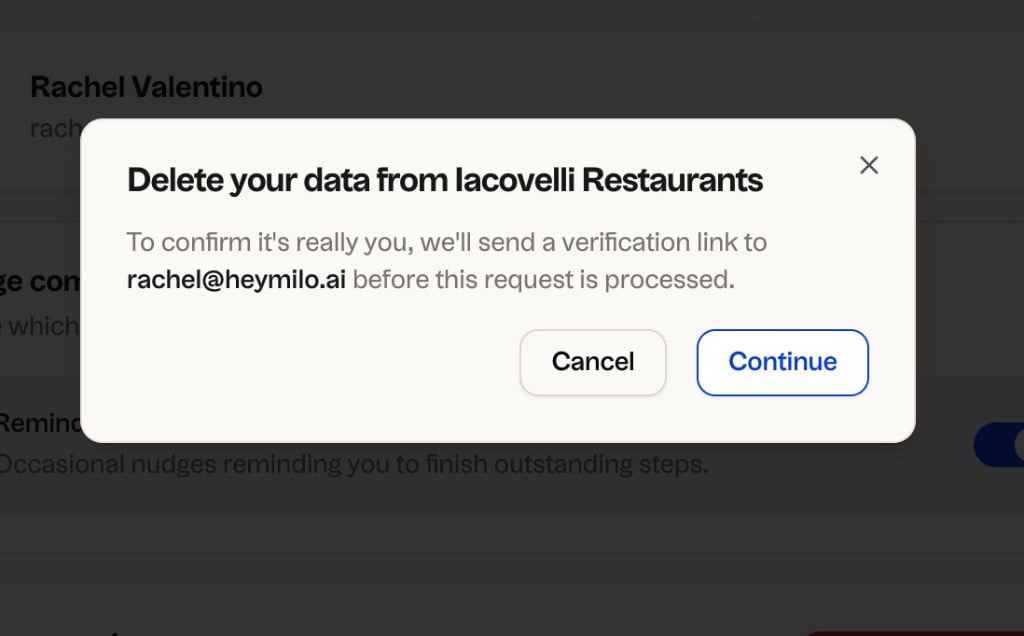
Delete your data confirmation: clicking Continue sends a verification email.
- A Check your email screen appears. The verification link expires in 1 hour. If it doesn’t arrive, check spam.
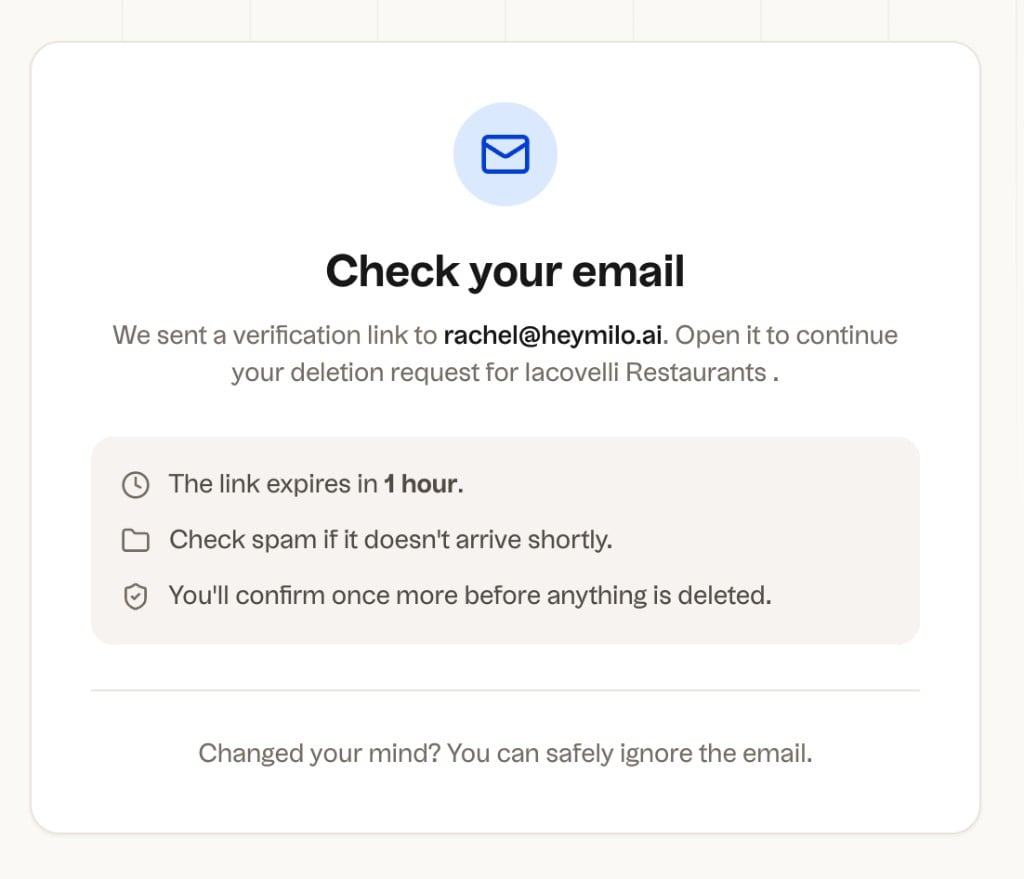
Check your email: the link expires in 1 hour and one more confirmation is required before anything is deleted.
- The candidate clicks Verify deletion request in the email. A final Confirm data deletion page shows exactly what will be deleted. They check the acknowledgment box and click Confirm deletion.
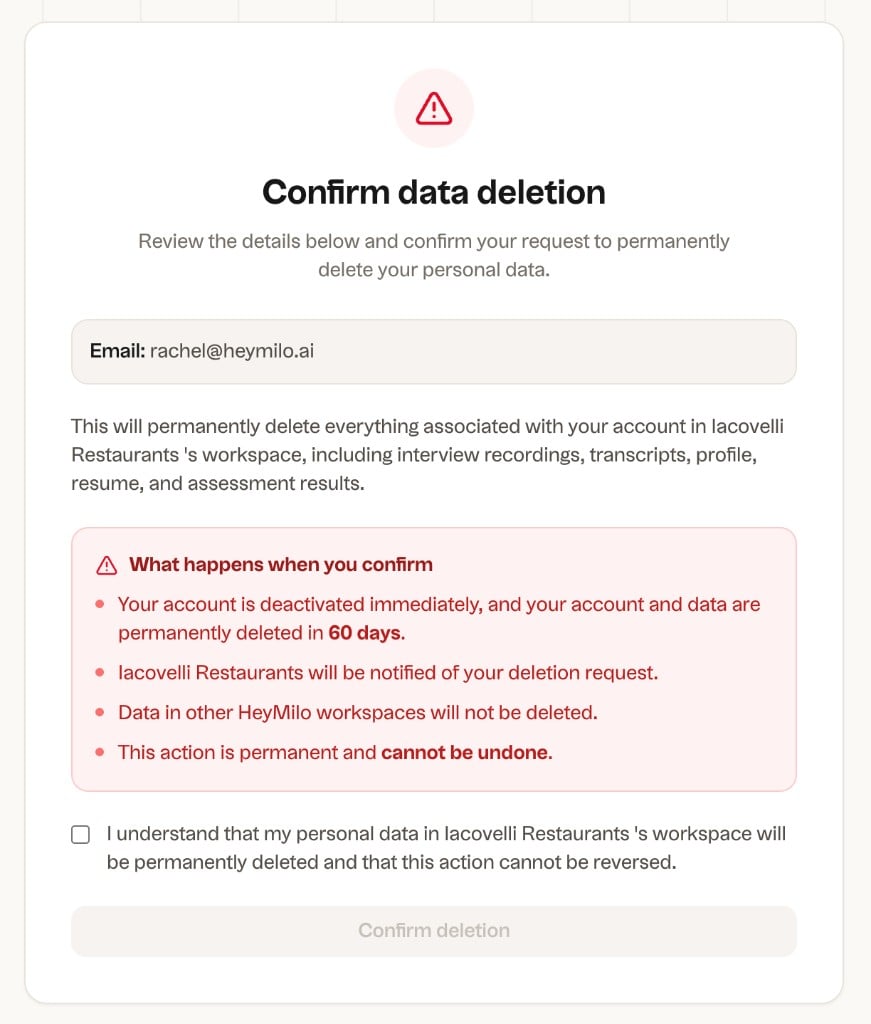
Confirm data deletion: the candidate reviews what will be deleted, checks the acknowledgment, and confirms.
- A confirmation screen appears with their Request ID and Scheduled deletion date. The candidate’s account is deactivated immediately. Their data is permanently deleted by the scheduled date.
Admin-initiated
Admins can trigger a deletion directly from a candidate’s profile. An optional audit note or reason can be added for record-keeping. Path: Sidebar → Source Candidates → Interviewed Candidates → open a candidate profile.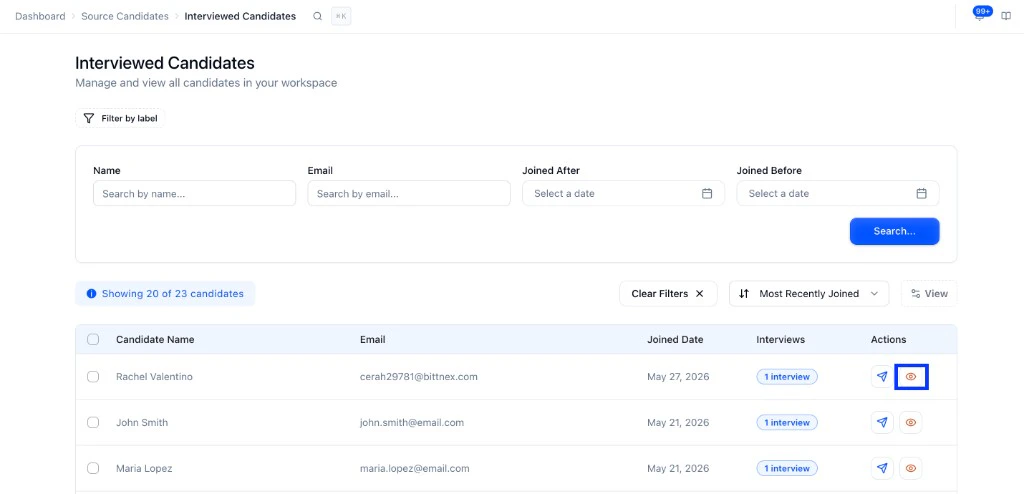
What gets deleted
Once confirmed and processed, everything associated with the candidate is removed from the workspace:- Interview recordings and transcripts
- Profile information and resume
- Assessment scores
What you see on the recruiter side
Once a deletion request is confirmed, the candidate is marked Deactivated in your candidate list. They stay visible with that tag until the deletion is fully processed, then they are removed entirely. The candidate can no longer access their interview pages or application link once deactivated.
Compliance dashboard
The Compliance section gives you a full picture of all deletion activity in your workspace. Find it in the sidebar under Compliance.Dashboard
The dashboard is your overview of all privacy and data governance activity.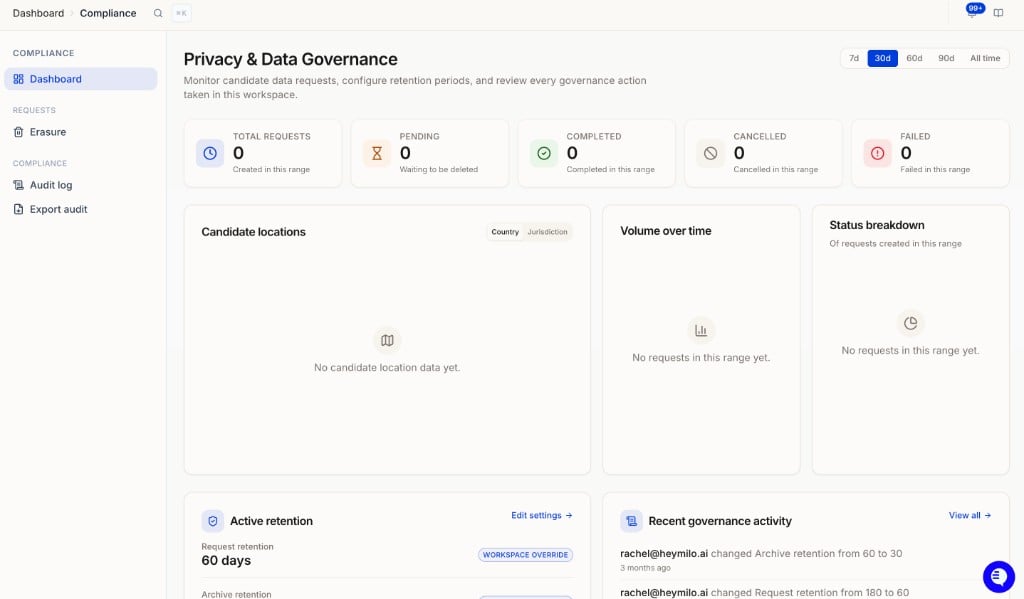
Privacy and Data Governance dashboard showing request stats, volume chart, status breakdown, active retention, and recent activity.
- Total requests with a breakdown by status: Pending, Completed, Cancelled, Failed
- Candidate locations map by country or jurisdiction (only populates when Resolve candidate locations is on; see Location policy)
- Volume over time chart filterable by 7d, 30d, 60d, 90d, or all time
- Status breakdown donut chart
- Active retention widget showing your current request and archive retention windows, with an Edit settings link to Settings → Compliance
- Recent governance activity log
Erasure requests
Under Compliance → Requests → Erasure, the Deletion requests tab shows every request.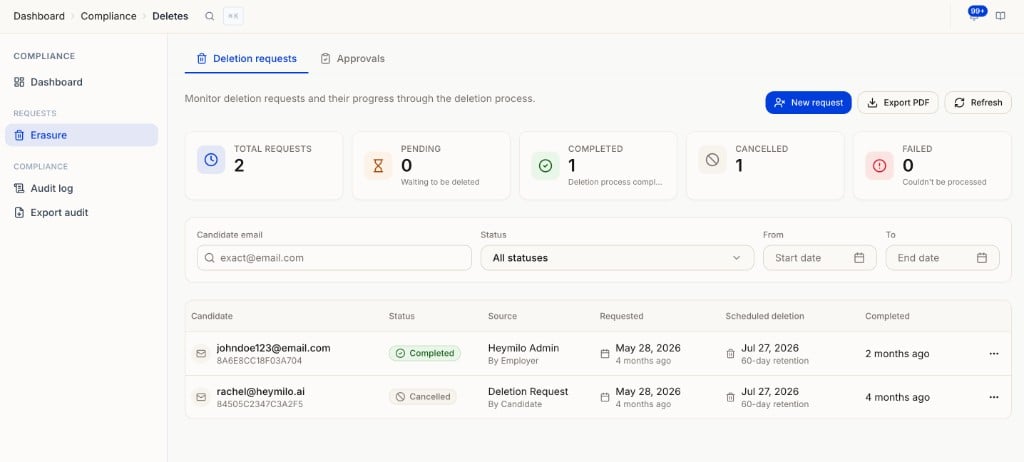
Erasure page showing Deletion requests and Approvals tabs, stat cards, filters, and the full request list.
- Candidate email and ID
- Status (Pending, Completed, Cancelled, Failed)
- Source (candidate-initiated or admin-initiated)
- Requested date and scheduled deletion date
- Completed date
Approvals
The Approvals tab is for reviewing candidates flagged by your retention policy before their deletion is scheduled.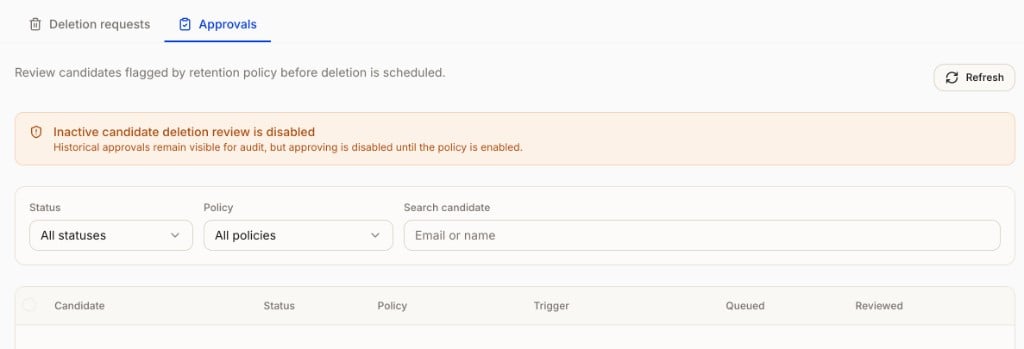
Approvals tab: inactive candidate deletion review is disabled until the policy is enabled in Settings.
Audit log
Under Compliance → Audit log. Tracks every governance action taken in the workspace, such as retention setting changes, with who made it and the before and after values. Filter by event type, person, or date. Useful for compliance reviews and audits.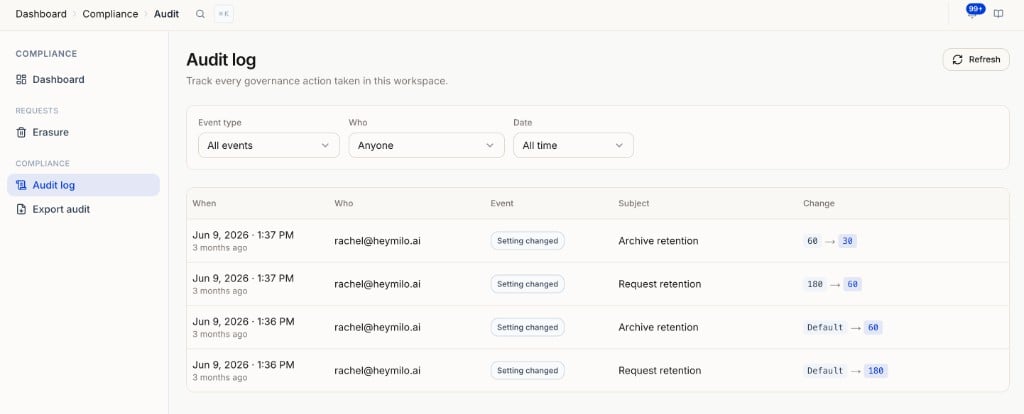
Export audit
Under Compliance → Export audit. A record of every export taken out of this workspace and who took it, with View and Download on each row. To run a new export, go to Settings → Data export; see Workspace Exports & Custom Reporting.Retention settings
Under Settings → Compliance → Retention, configure how long HeyMilo holds data before deletion is processed.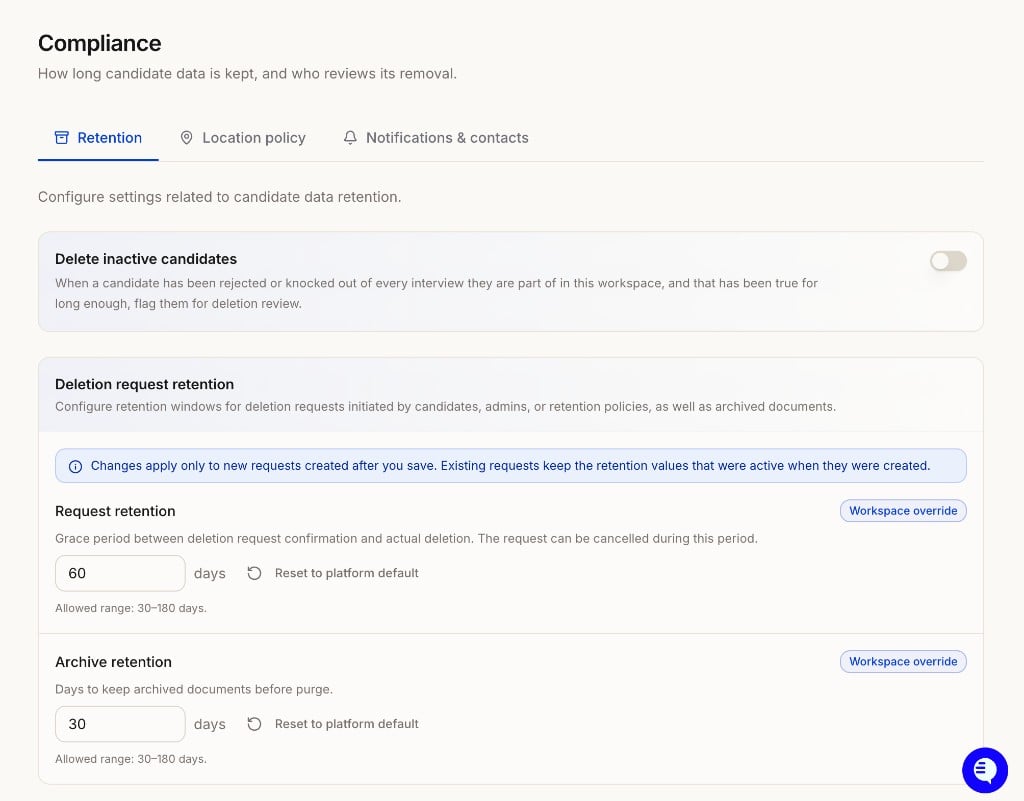
Location policy
Under Settings → Compliance → Location policy, the Resolve candidate locations toggle decides whether HeyMilo works out each interviewed candidate’s country and region from signals already collected during the interview. Resolved locations show on the map in the Compliance overview. Turning it off stops new locations from resolving; existing ones stay until the candidate’s personal data is deleted.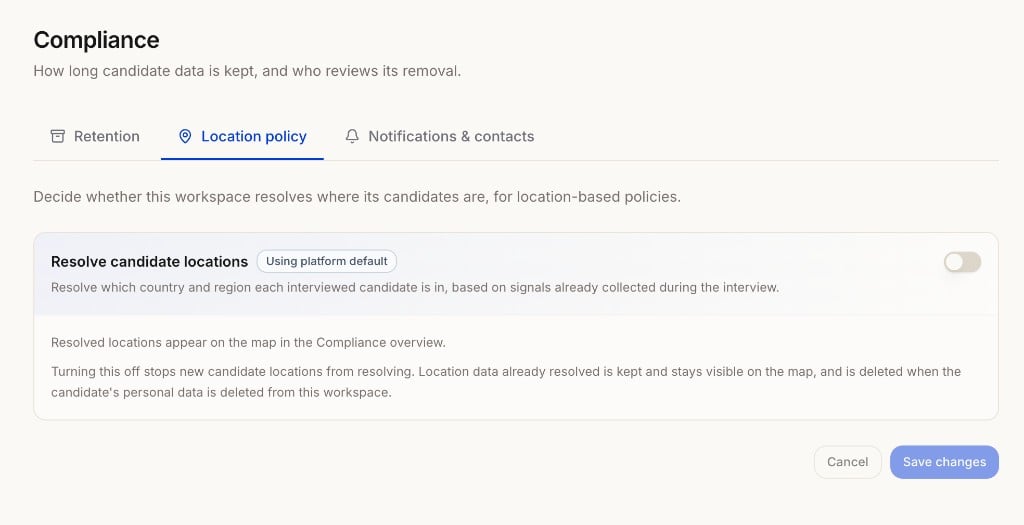
Notifications and contacts
Under Settings → Compliance → Notifications & contacts, configure who is responsible for candidate privacy and how they are notified.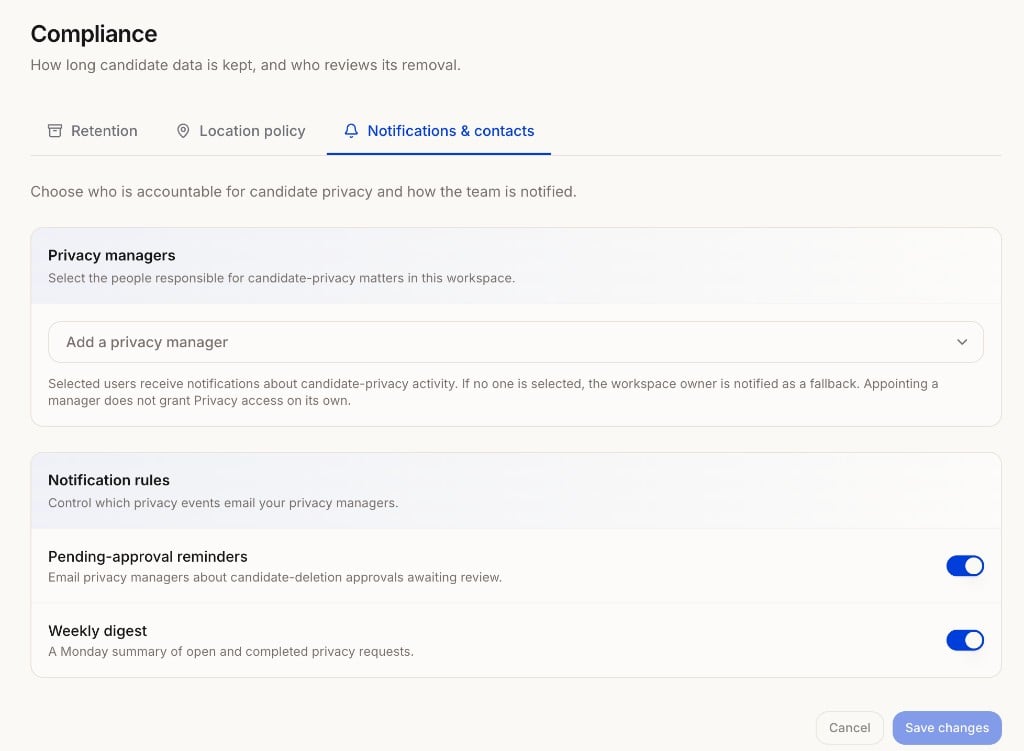
Notifications & contacts showing Privacy managers and Notification rules.
- Privacy managers: Select the people responsible for privacy matters in your workspace. Selected users receive notifications about privacy activity. If no one is selected, the workspace owner is notified as a fallback. Appointing a manager does not grant Privacy access on its own.
- Pending-approval reminders: Email privacy managers about deletion approvals awaiting review.
- Weekly digest: A Monday summary of open and completed privacy requests.
A few things to note
- Deletion cannot be reversed once processing begins.
- If a deletion request already exists for a candidate’s email, the system surfaces the existing request instead of creating a duplicate.
- Data in other HeyMilo workspaces is not affected by a deletion request made in one workspace.
- Deletion in HeyMilo does not remove copies already synced to your ATS or other systems — manage those there.
- Leaving HeyMilo? See Offboarding, Exports & Data Retention for what happens to your data after cancellation.