
Documentation Index
Fetch the complete documentation index at: https://docs.heymilo.ai/llms.txt
Use this file to discover all available pages before exploring further.
Interview Integrity (Cheat Detection)
Interview integrity helps you spot possible cheating during web (voice/video) interviews—off-screen help, suspicious timing, device use, and similar signals. Flags are for review; they do not auto-reject candidates or change scores.Before you start
- Feature on for the workspace — If you don’t see these controls, contact your dedicated CS Manager or support@heymilo.ai (or in-app chat).
- Candidates — Use a current browser; allow camera and microphone when prompted (needed for video-based signals).
Where to configure (two places)
1) Workspace default (usual starting point)
Path: Sidebar → Interviewers → Tools → Interview Integrity Use this when you want one default across interviews.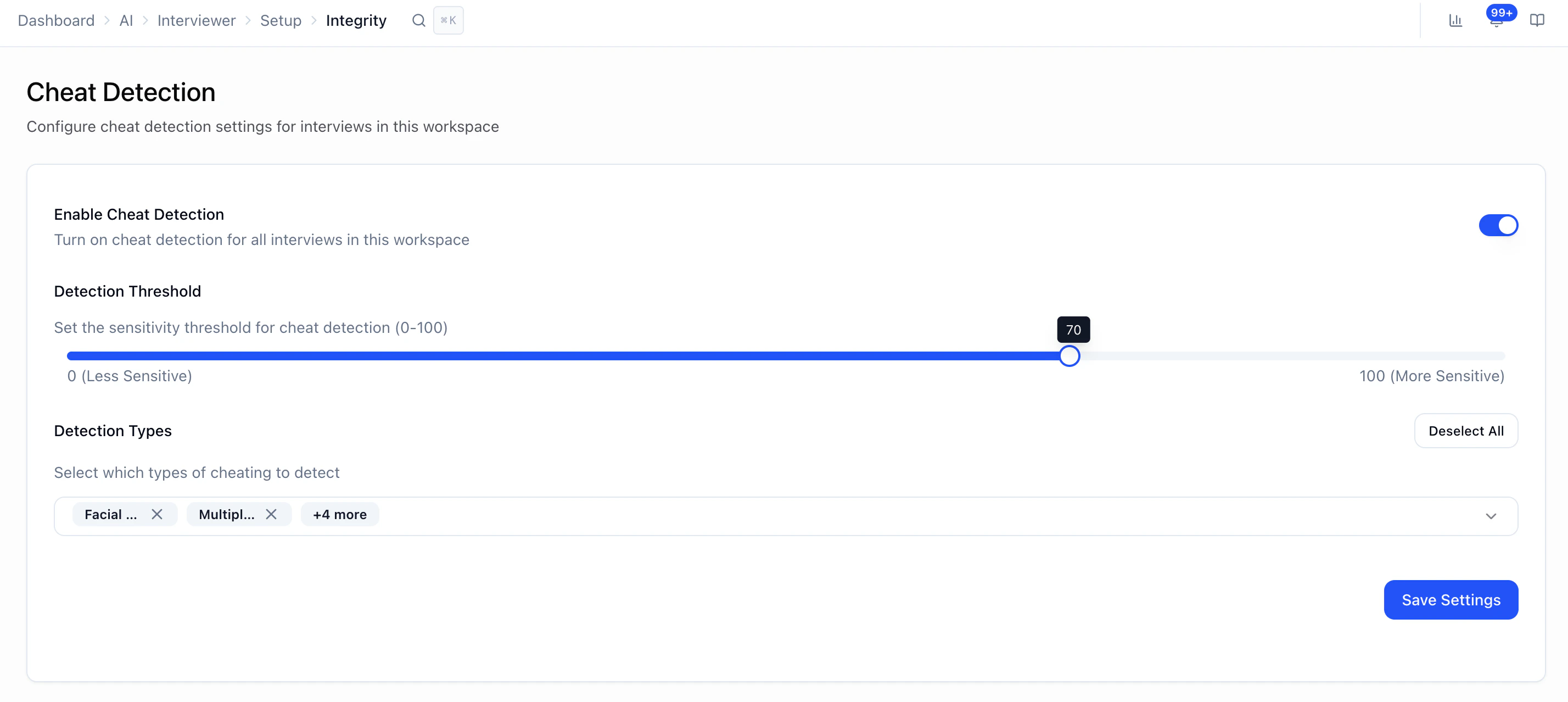
- Enable Cheat Detection — Workspace-wide on/off for interviews that use these defaults.
- Detection Threshold (0–100) — How strict flagging is. Lower = fewer flags; higher = more. A practical starting point is ~70.
- Detection Types — Which signals to monitor (see below). Use Select All / Deselect All if shown.
2) Per interviewer (override)
Path: Create or Edit Interviewer → Voice/Video (web interview) workflow step → Settings (cheat detection section)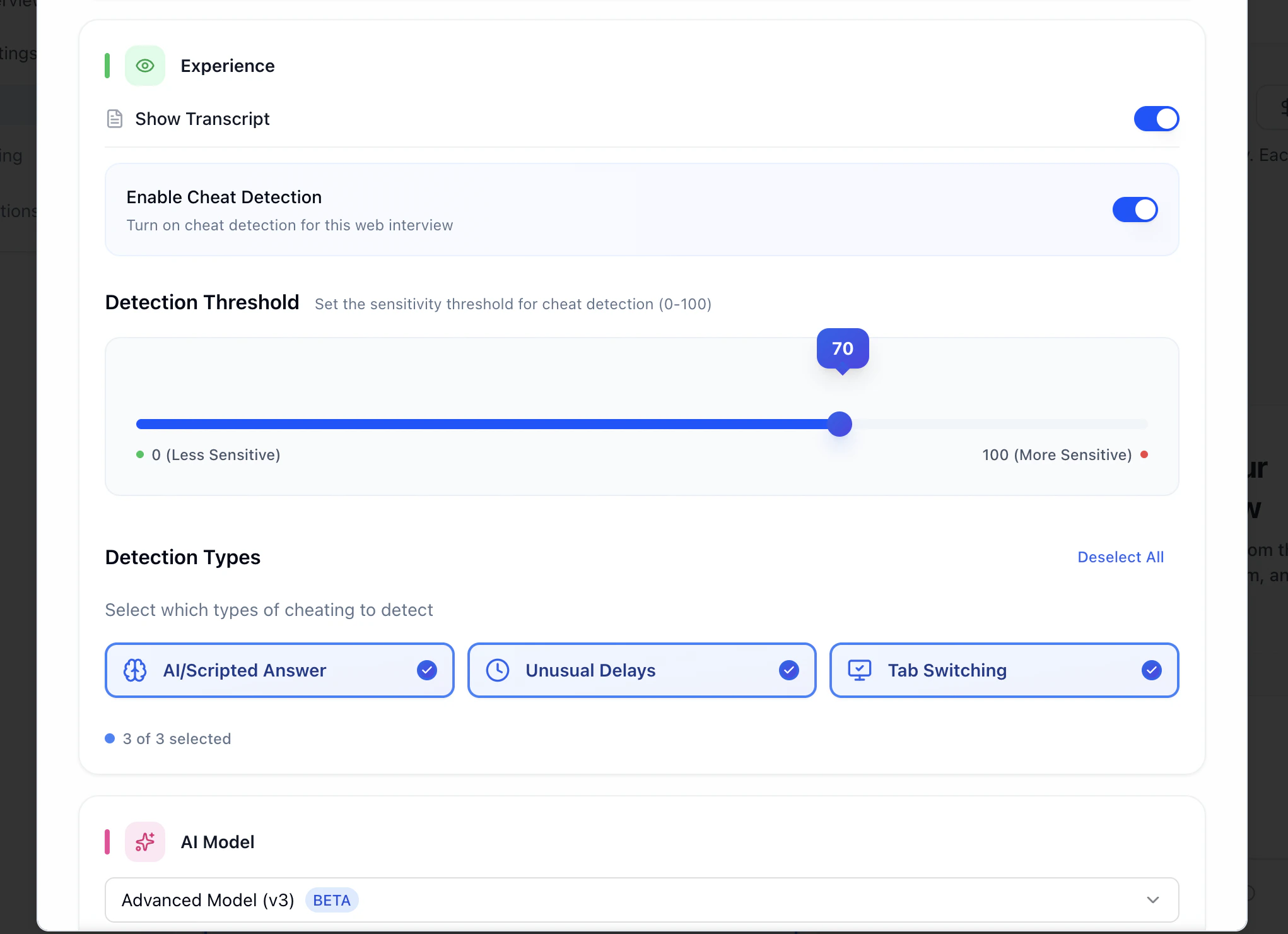
Detection types (what they mean)
Signals are observational—they indicate something looked unusual, not intent.| Type | What it’s looking for |
|---|---|
| Facial Behaviour | Sustained or repeated looking away from the screen (e.g. notes or another display). |
| Multiple People | More than one person visible in frame during the interview. |
| Phone Detection | A mobile device appears in view. |
| AI/Scripted Answer | Answer patterns that resemble scripted or AI-like structure/timing (heuristic, not proof). |
| Unusual Delays | Long or inconsistent pauses that may suggest off-screen help or lookup. |
| Tab Switching | Candidate leaves the interview tab/window during a response. |
Reviewing results
Path: Interviewers → [candidate] → Diagnostics & Analysis
- Events grouped by type
- Timestamps
- Confidence / strength per event (stronger signal ≠ automatic guilt)
- A synced player or jump-to-moment behavior to review video + context
- Treat high confidence as “worth a careful look,” not “confirmed cheating.”
- Moderate — check context (question difficulty, nerves, environment).
- Low — often lighting, angle, movement, or one-off glitches.
What cheat detection does not do
- Does not auto-fail or auto-advance candidates
- Does not raise or lower the interview score
- Does not replace recruiter judgment
- Does not use biometrics for “identity” decisions in the sense of facial recognition hiring outcomes—think behavioral / environmental signals for review
Flags are informational. Always pair them with transcript, answers, and video context before conclusions.
Best practices
- Start near threshold 70, then tune if you’re flooded with noise or missing what you care about.
- Only enable detection types you’ll actually review.
- Give candidates clear setup (quiet room, stable camera, good light, supported browser).
- Align as a team on how you interpret flags so decisions stay consistent.
Troubleshooting
| Issue | What to check |
|---|---|
| No cheat detection data | Feature disabled; interview very short; camera/mic denied; unsupported browser. |
| Too many flags | Lower threshold slightly; improve candidate instructions and environment. |
| Weird inconsistency | Browser updates; lighting; camera placement; connection quality. |
Next steps
- Reviewing Candidates — Score reports and workflow
- How Scoring Works — Separate from integrity flags
- Interview Evaluation — Scoring and language rubrics
- AI Settings — Other workspace AI defaults