

Setting Up the Integration
Watch the video and follow the steps below to connect HeyMilo with Tracker:🛠 What You’ll Need
Before you begin, make sure you have:- Tracker access token (bearer token)
- Your Tracker region: US, CA, or Other
- Admin access to your HeyMilo workspace
Connect HeyMilo to Tracker
1
Go to Integrations → Tracker
- On the side bar, click Integrations and select Tracker.
2
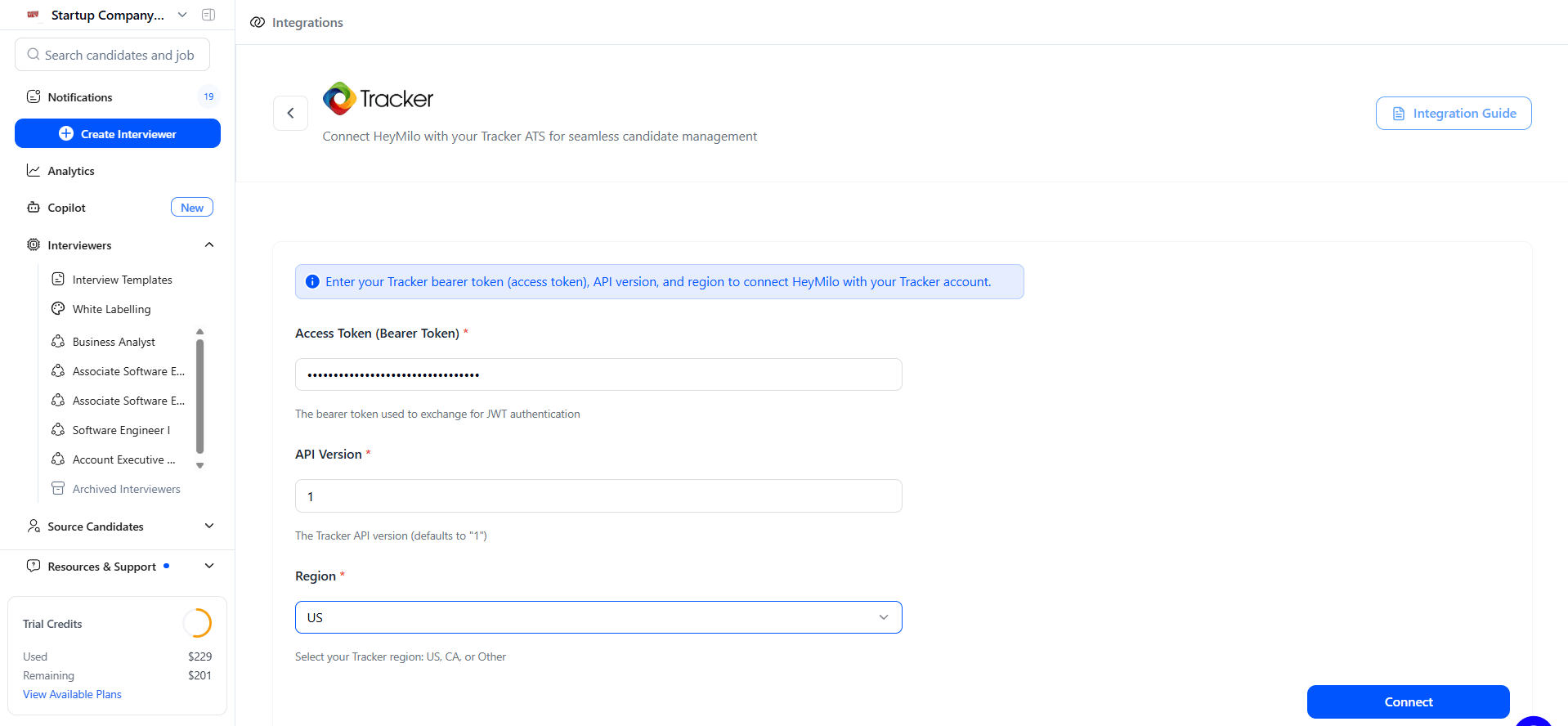
Enter your Tracker credentials
You will be asked for:
- Access Token (Bearer Token)
- API Version (defaults to 1)
- Region (US, CA, or Other)
3
Click Connect
- You’ll see a confirmation when the integration is successfully activated!
Keep the connection working
Tracker’s API token behavior is different from most ATS integrations:- One token at a time. If someone on your team generates a new token in Tracker for any reason, the old token stops working right away. HeyMilo can’t pull candidates or back-sync until we have the current token.
- Before you rotate the token, tell support@heymilo.ai or your CS Manager so we can update the connection with minimal downtime.
- If sync suddenly fails (refresh fails, no candidates coming in), ask your Tracker admin whether a new API token was generated recently. That’s the most common cause.
Create or Select a Job in Tracker
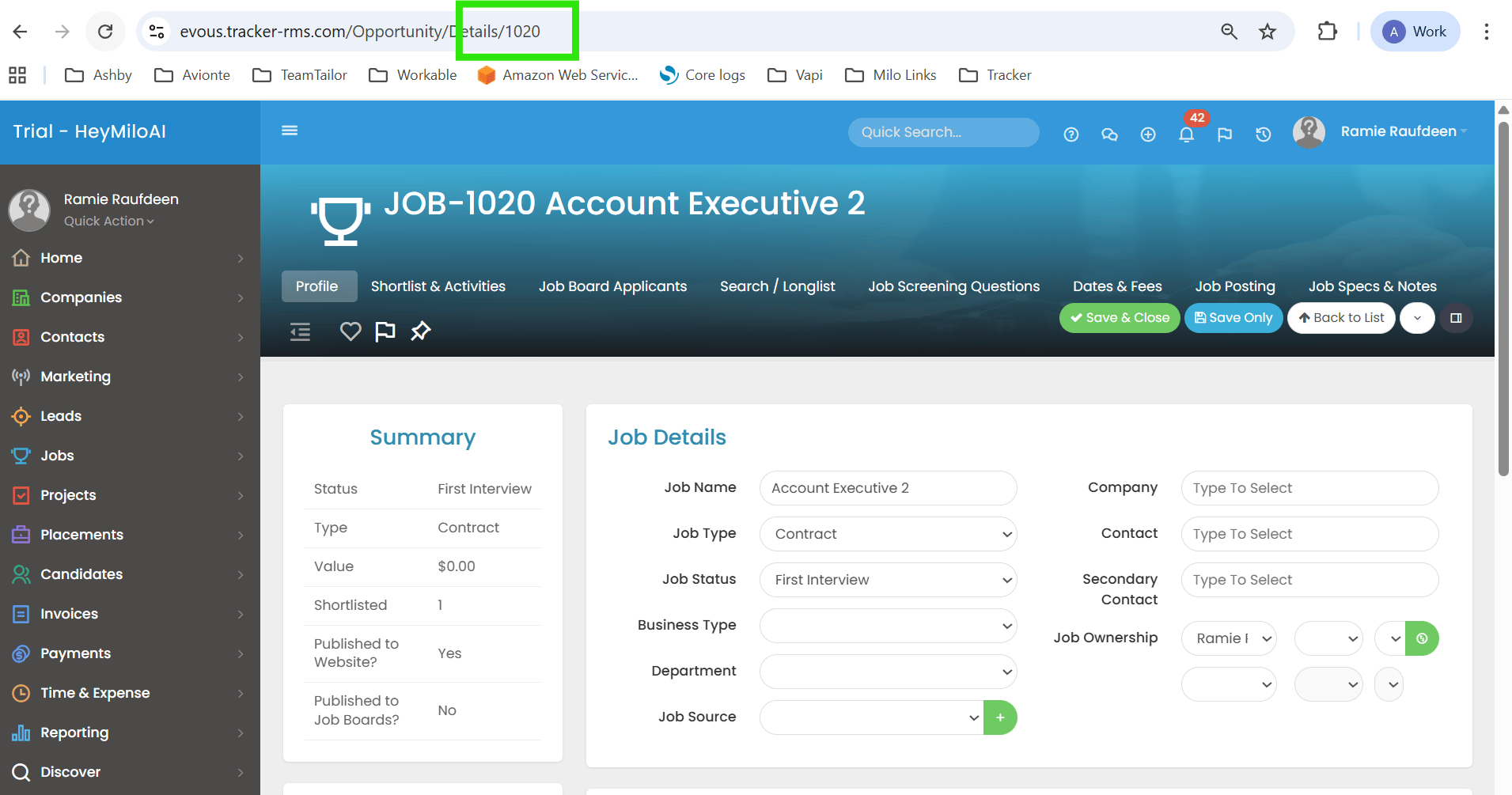
Create a Tracker job or open an existing one.- Copy the Job Posting ID
- You can find it in the URL:
Map Your Jobs to a HeyMilo Agent
1
Open your HeyMilo agent
- Go to the agent → Actions → Integrations
2
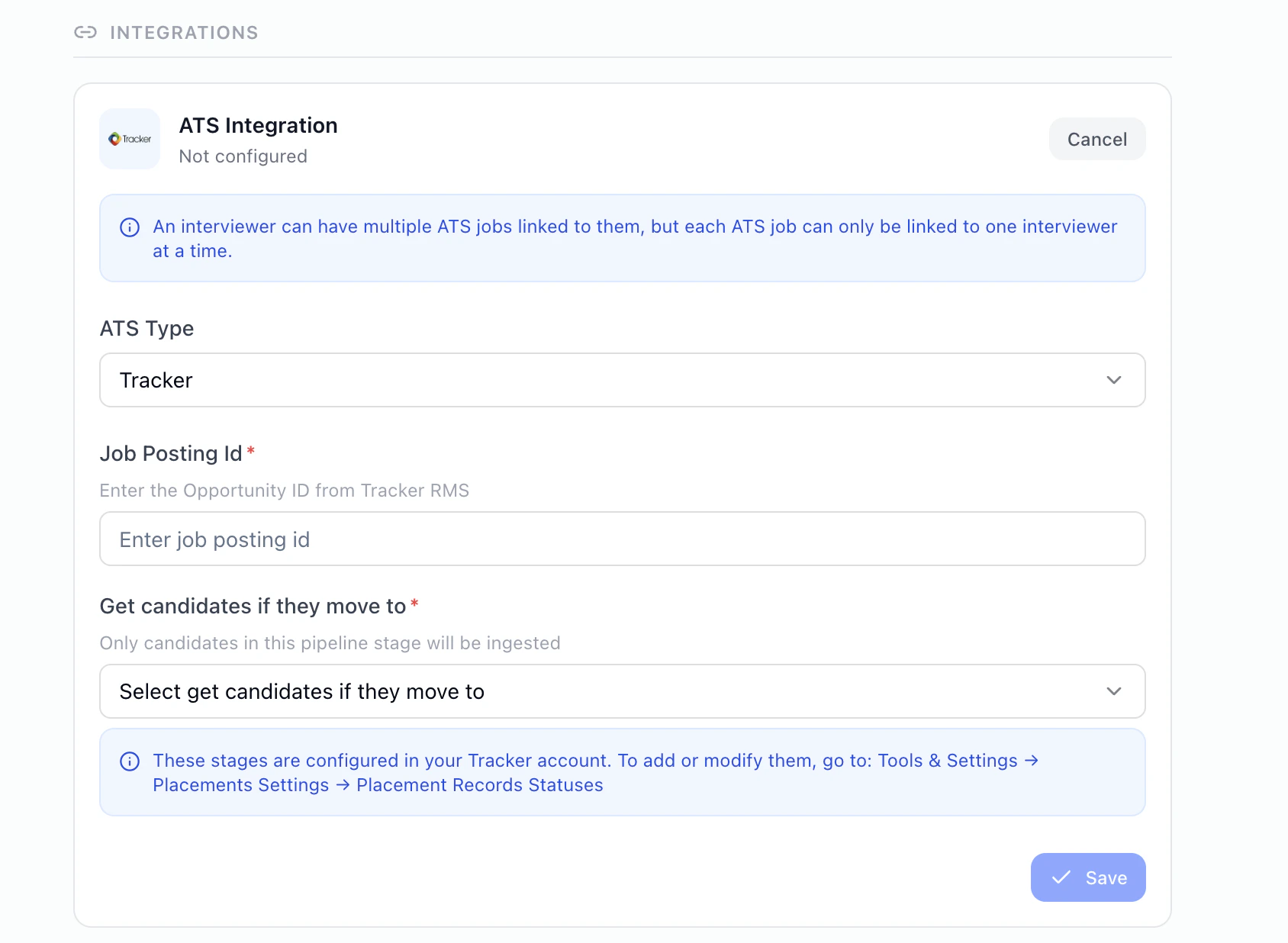
Open the ATS Integration tab
Select:
- ATS Type: Tracker
- Paste your Tracker Job ID
3
Select “Get candidates if they move to”
This dropdown controls which Tracker stage triggers HeyMilo screening.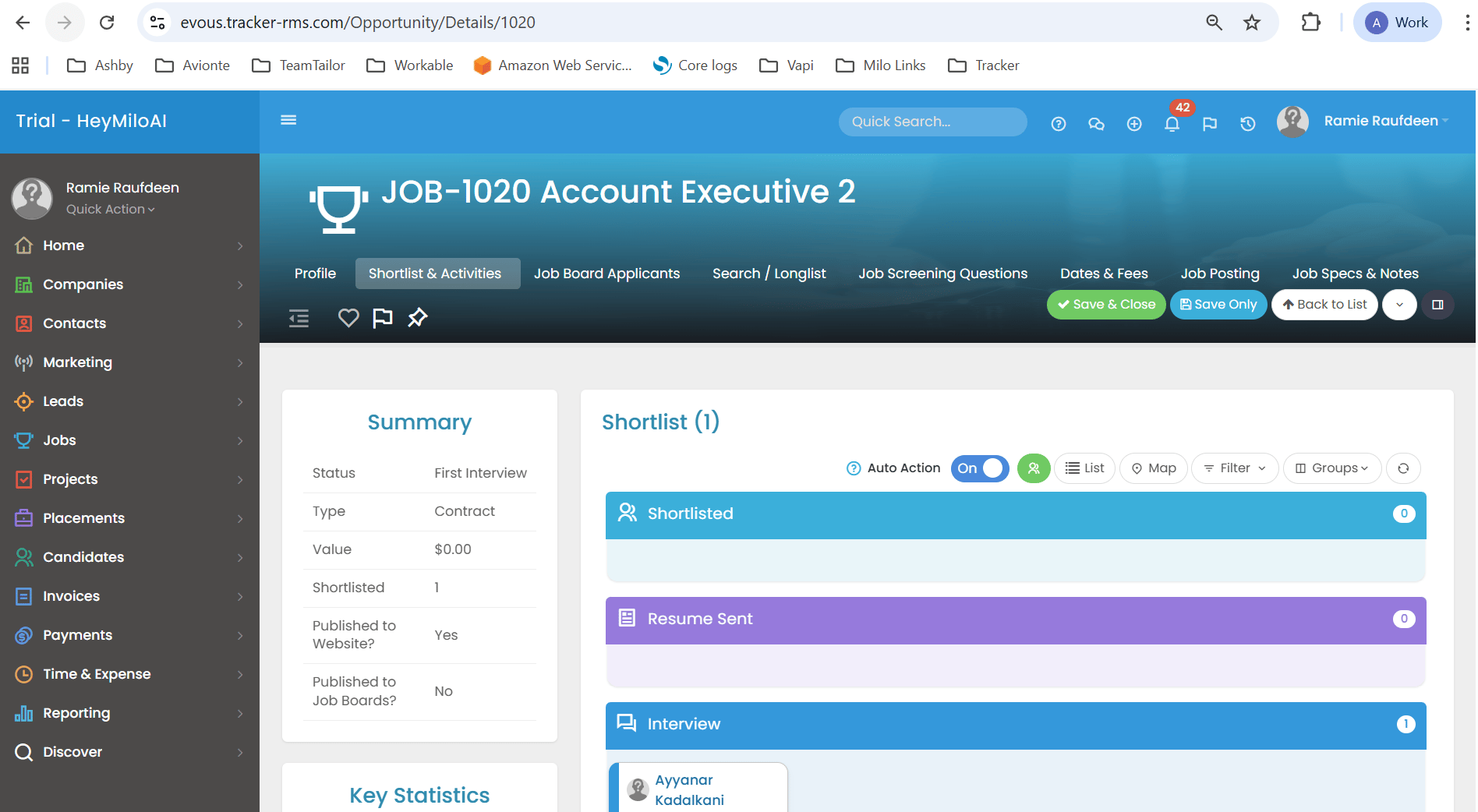
Important clarification: Tracker groups its internal stages under broad categories. HeyMilo shows a detailed dropdown representing those categories. If you see options in HeyMilo that don’t exactly match Tracker labels, it’s because they are sub-stages mapped to Tracker’s main stage categories.
4
Save Configuration
- You’ll see a success message confirming the mapping!
Bring In Candidates Who Applied Before You Connected the Job
You linked your Tracker job to HeyMilo—but what about everyone who already applied before that? You don’t have to leave them behind. Where to find it: Open your agent → Integrations → under INBOUND, click Backfill Candidates.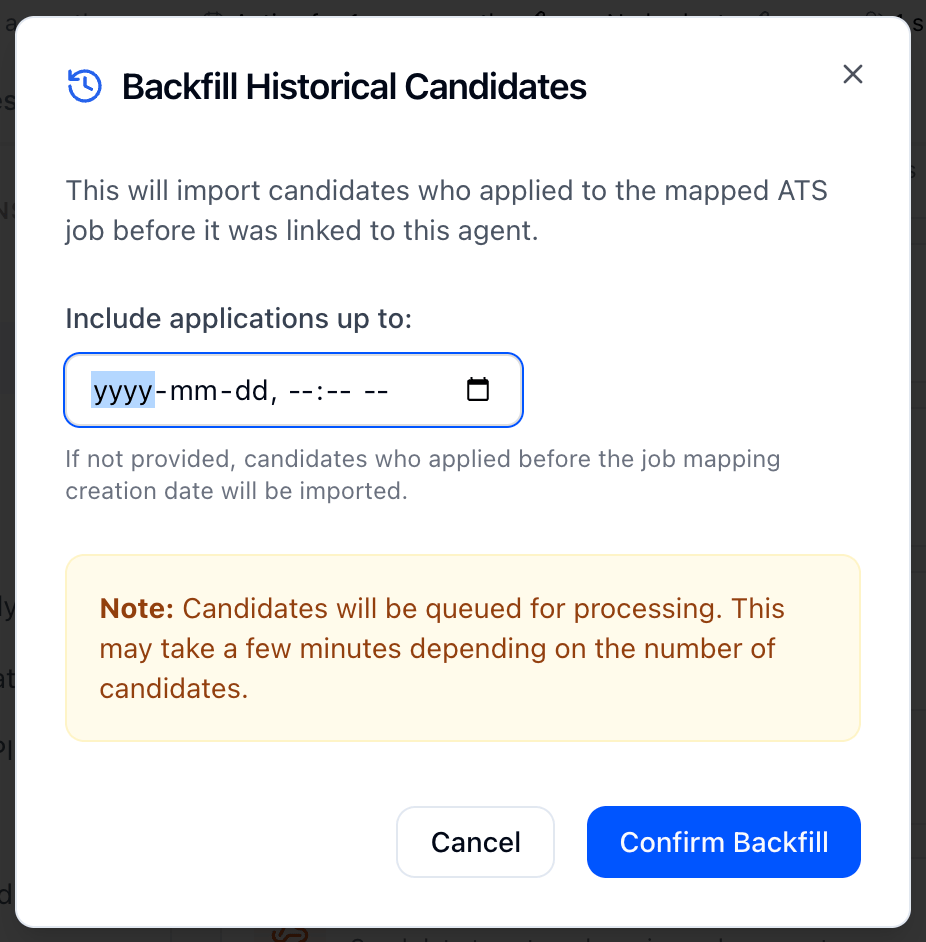
1
Go to your agent → Integrations → Backfill Candidates (under INBOUND).
2
In the Backfill Historical Candidates window, you can choose Include applications up to and pick a date if you only want people who applied by a certain time.
- Leave it blank to bring in everyone who applied before you connected the job.
3
Click Confirm Backfill.
- HeyMilo will bring those candidates in over the next few minutes.
How Candidates Sync Into HeyMilo
Review HeyMilo Results in Tracker
After the candidate completes their assessment, HeyMilo writes the data back into the candidate’s profile under Activity: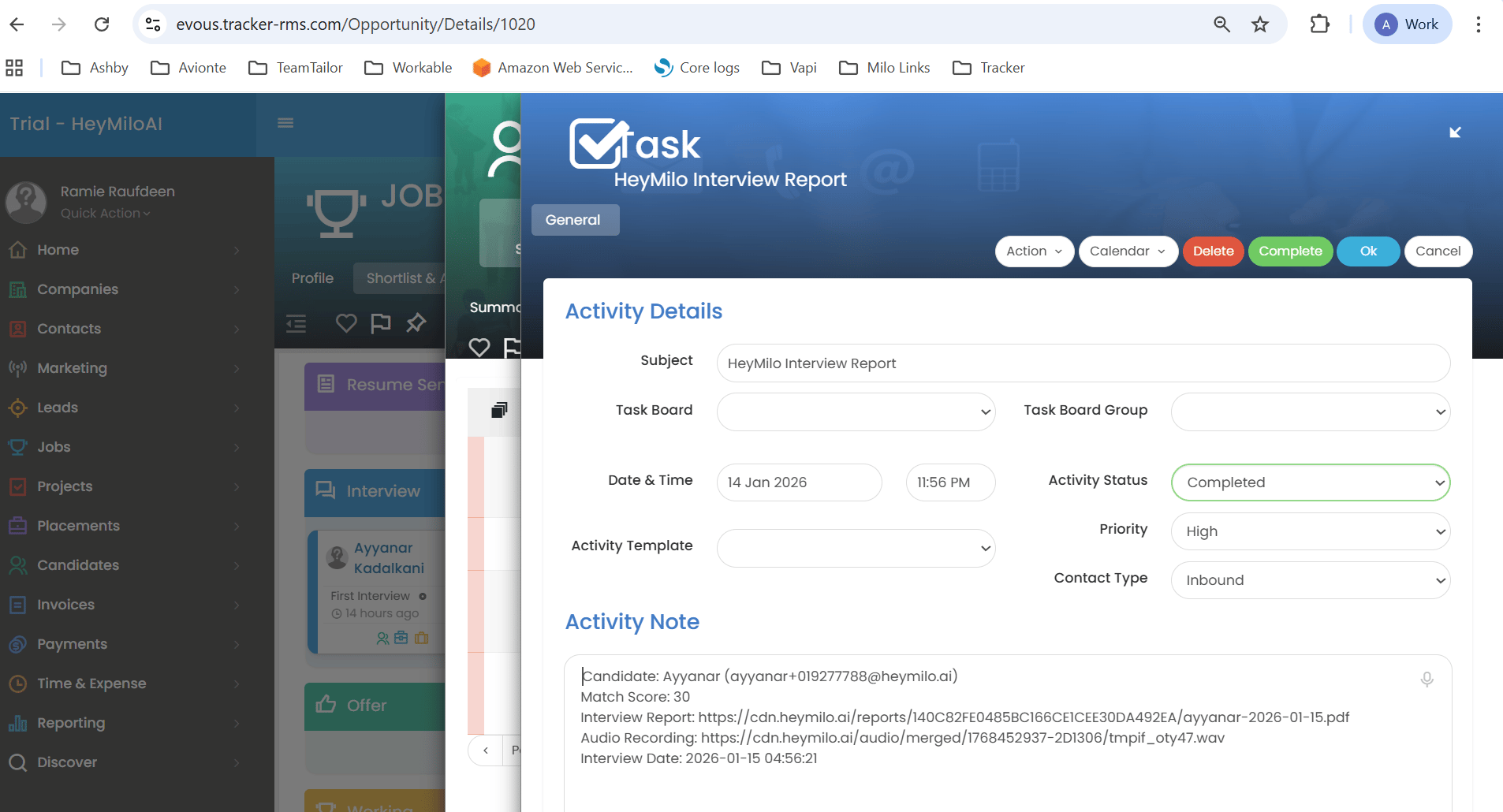
- Candidate match score (overall score)
- Interview PDF report with comprehensive summaries & evaluation details
- Audio/video links
- Timestamp
Option 2: 📥 Import Jobs from Tracker (Auto-Create Agents)
Skip the manual setup. You can import jobs directly from Tracker and HeyMilo will automatically create an agent for each one — ready to start screening as soon as candidates apply.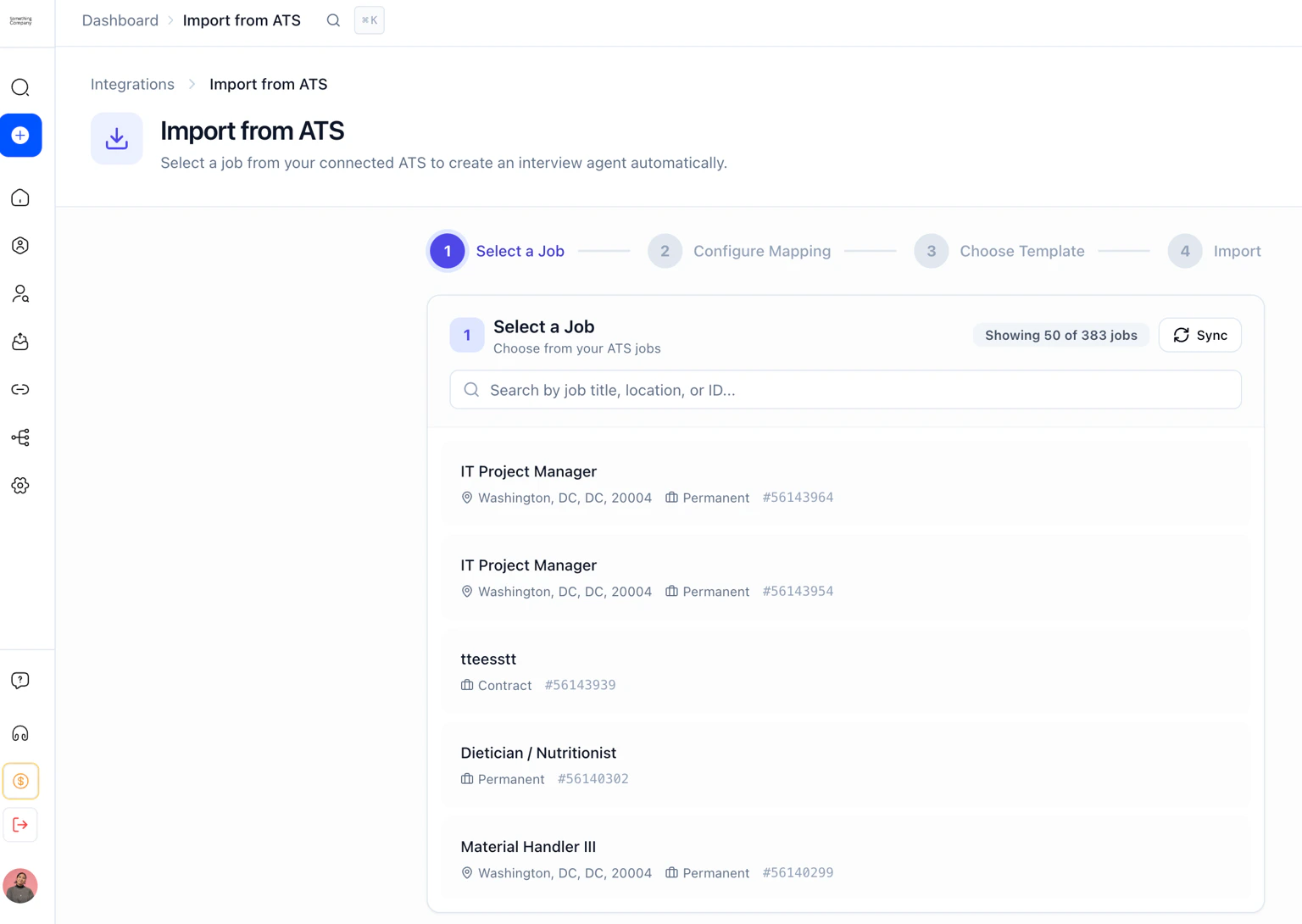
Tracker stopped syncing or won’t pull candidates
If candidates aren’t syncing into interviewers and refreshing the connection fails, work through this list before disconnecting anything in HeyMilo.1
Check whether the API token was regenerated
Ask whoever manages Tracker security if anyone clicked Generate or Regenerate under Tools & Settings → Security → Security Settings → API recently. That revokes the token HeyMilo was using.
2
Copy the current token (don't create a new one)
In Tracker, open Tools & Settings → Security → Security Settings → API and copy the token shown. Do not generate a new token unless support asks you to.
3
Send the token to HeyMilo support securely
Email support@heymilo.ai and ask for a secure one-time link to submit the token. Don’t paste the token into email, chat, or Slack.
4
Do not disconnect Tracker in HeyMilo
Disconnecting removes your job mappings and candidate links. Updating the token through support keeps your existing setup intact.
Reminder
- HeyMilo only screens candidates once they reach the selected stage
- Tracker’s internal stage structure is simplified in HeyMilo’s dropdown
- Multiple jobs can be mapped to multiple HeyMilo agents
- You can remap or remove job mappings at any time