

Agents Supported in Greenhouse
Enable The Integration
To configure the integration, you’ll need to create a Harvest API key. Follow the steps in this article to create the key, and verify that the permissions below are selected when configuring the HeyMilo integration.Credentials
- API Type: Harvest
- Partner: HeyMilo or Unlisted Vendor
- Description: HeyMilo Harvest API Key
Permissions
- Activity Feed
- Post: Add Note to Activity Feed
- Applications
- Get: Retrieve Application
- Get: List Applications
- Patch: Update Application
- Candidates
- Get: Retrieve Candidate
- Get: List Candidates
- Patch: Edit Candidate
- Jobs
- Get: Retrieve Job
- Get: List Jobs
- Users
- Get: List Users
Connect Greenhouse to HeyMilo
- When you access your HeyMilo Dashboard. From the side panel you can go to Integrations
After that if you scroll down, you can see Greenhouse under Available Integrations
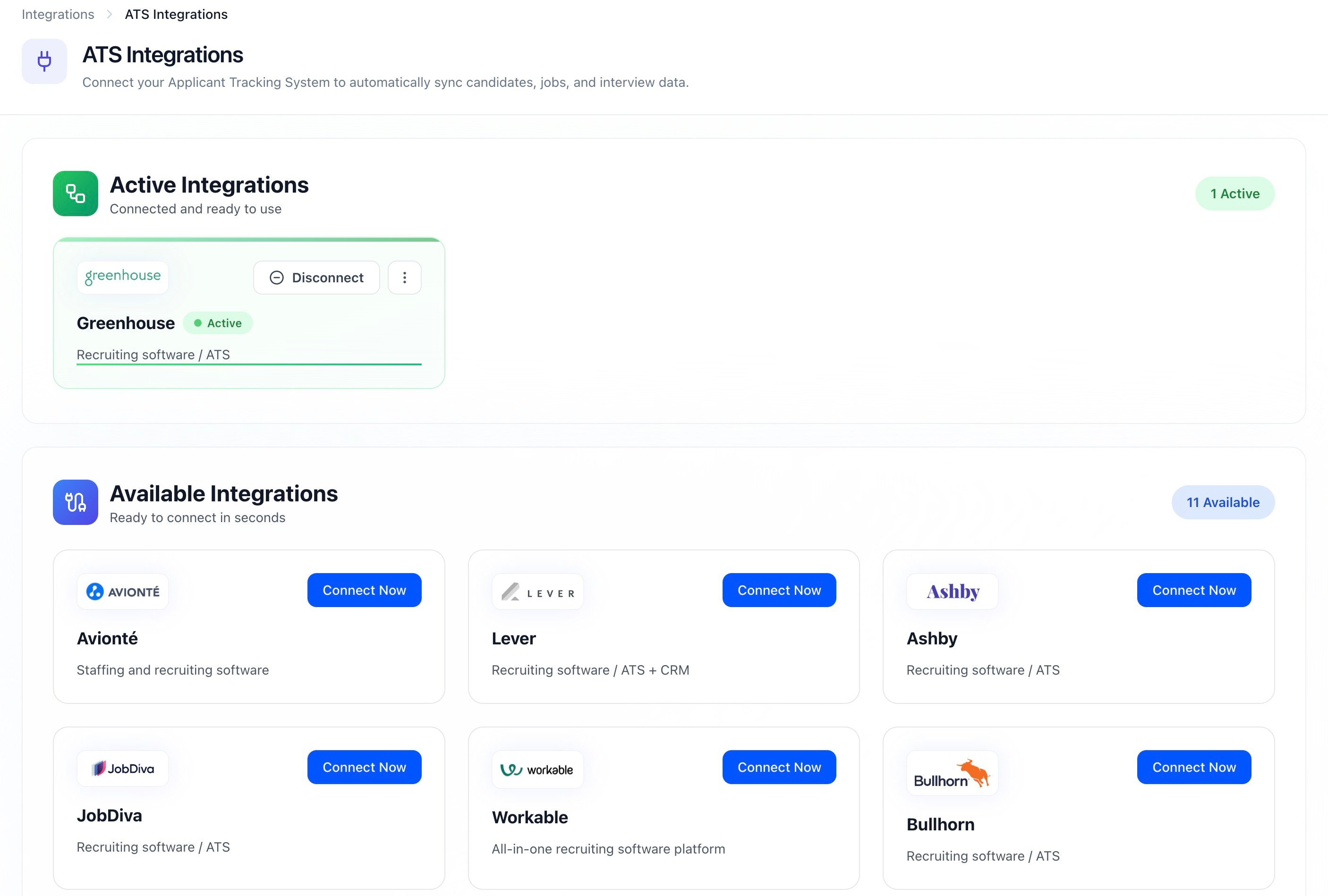
Integrations in HeyMilo
Once you click on “Connect Now” you will be directed to the Greenhouse Integration page
- In which, there is an input field to put your Harvest API Key
When you input a valid API Key and Connect, we will validate the API Key, and if it is successful, you will see a toast with “Greenhouse Integration Successful”
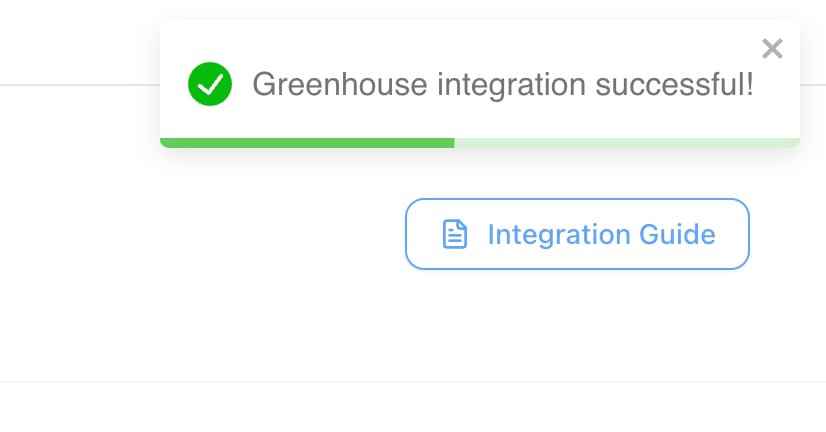
Integration successful
Once you complete the integration, HeyMilo will automatically generate an Assessment API Key for your workspace
- Follow the steps in this article to provide that API Key to the Greenhouse technical support team and add the assessment stage in your interview plans
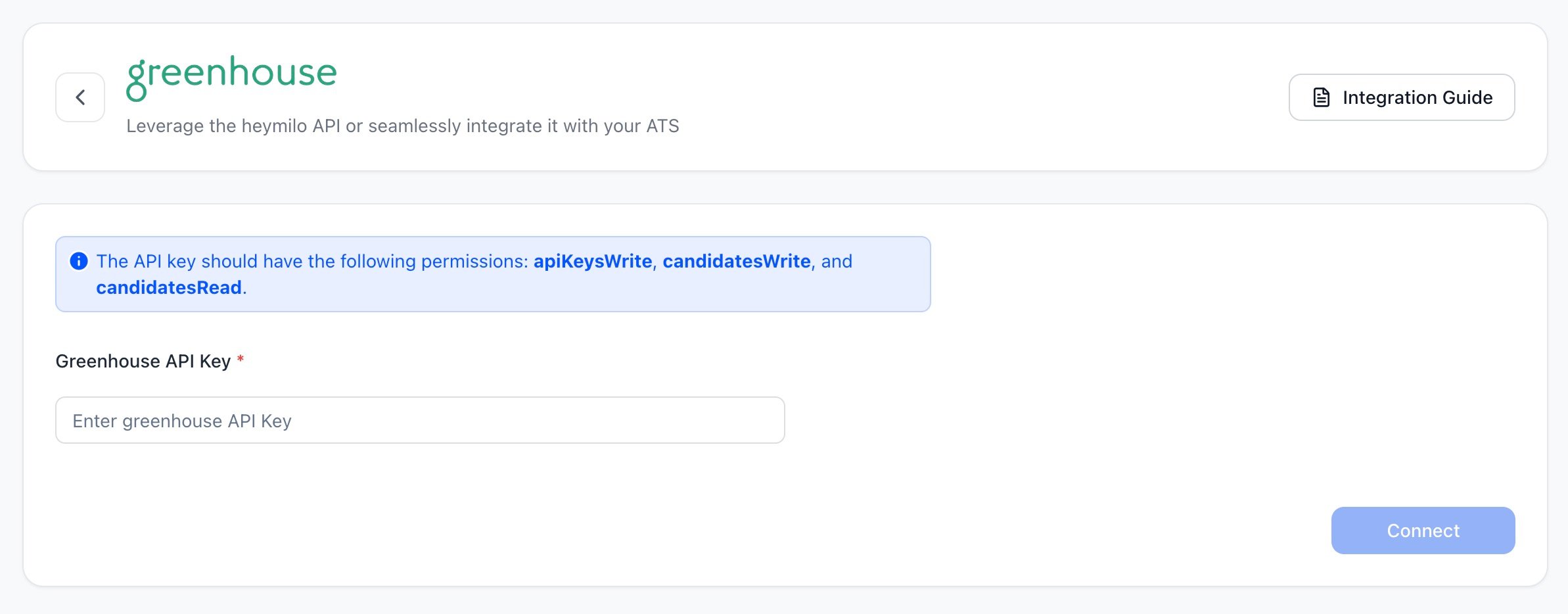
Integration connected
Use the Integration With Greenhouse Recruiting
Once the HeyMilo integration is enabled for your organization, you will be able to link a HeyMilo agent to a job in GreenhouseSimply copy the Job ID from Greenhouse into the HeyMilo agent configuration
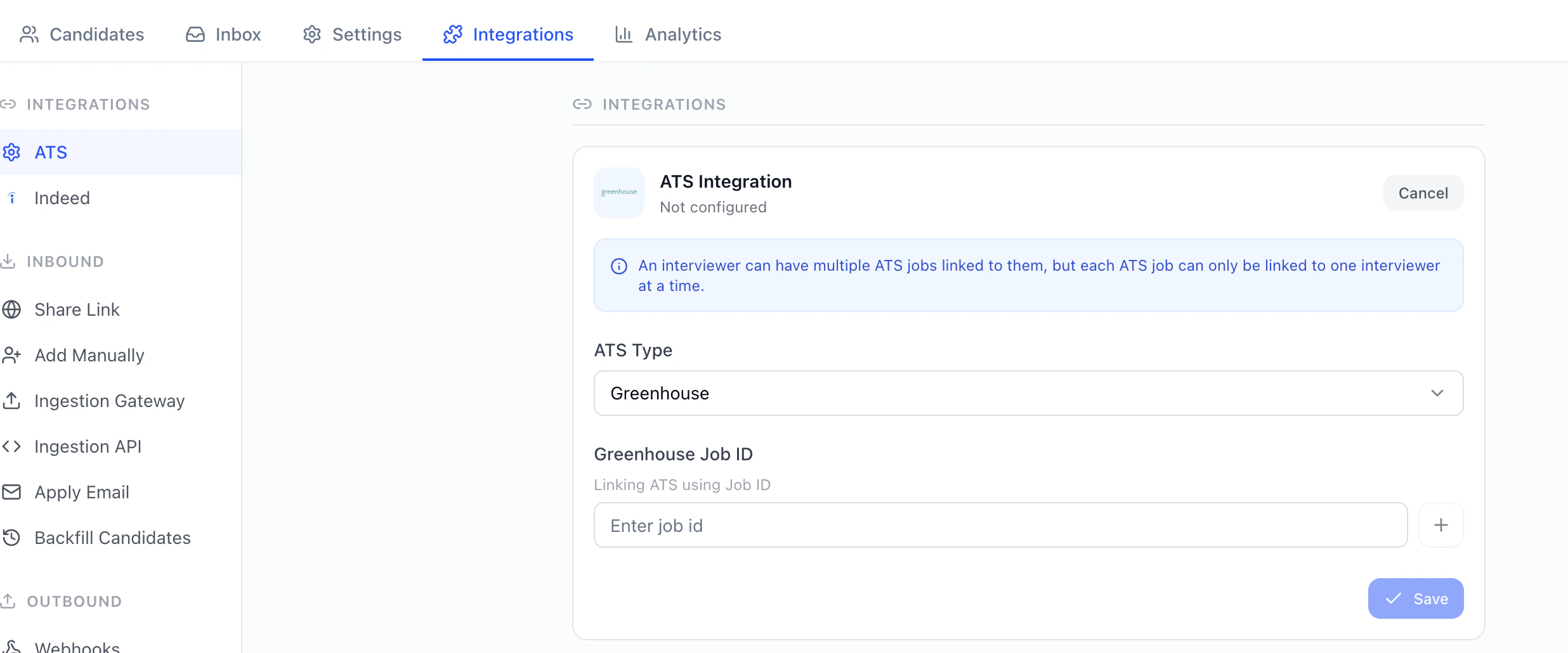
You will be able to add the HeyMilo assessment as an interview stage for the job
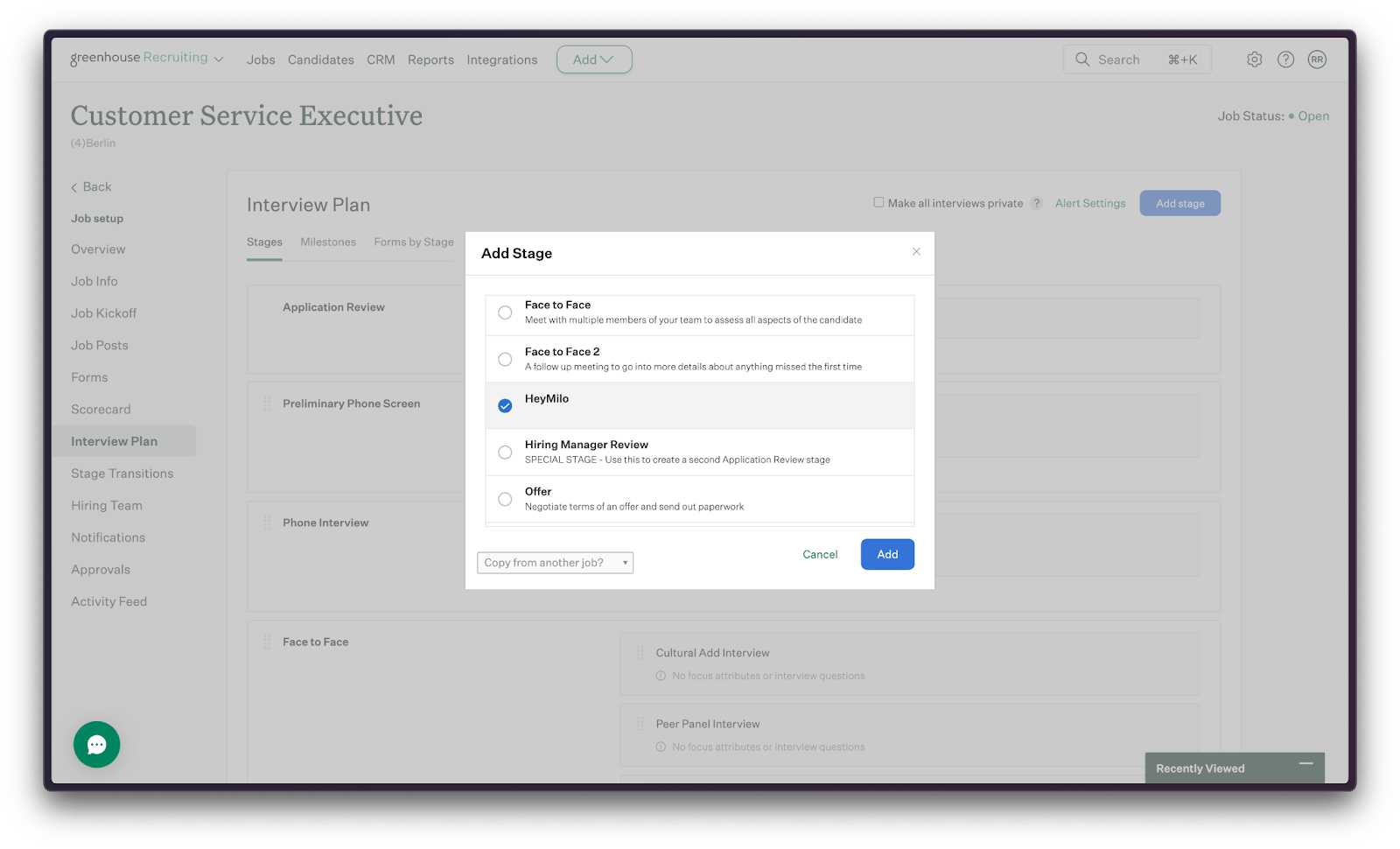
Add Stage
You can send an assessment to a candidate by selecting the Send Test button next to the interview stage for each candidate. Alternatively this can be automated, so that each time a candidate is moved to the HeyMilo stage, they are sent the HeyMilo assessment
- When the test is sent to candidates, an email with the screening link will be sent by HeyMilo
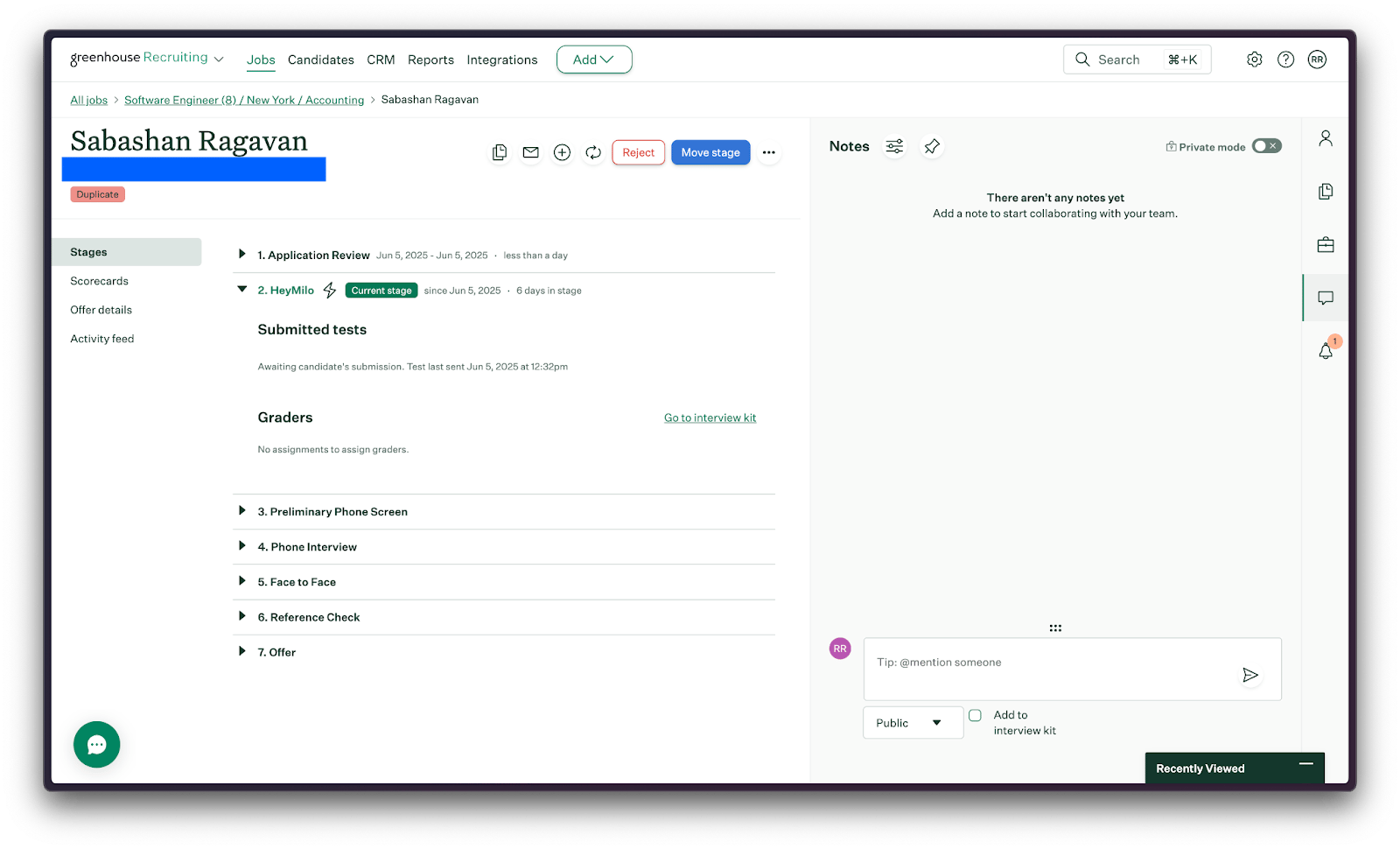
Candidate notes
Once the candidate has finished the HeyMilo screening, the Candidate notes will contain a link to view the candidate’s screening results
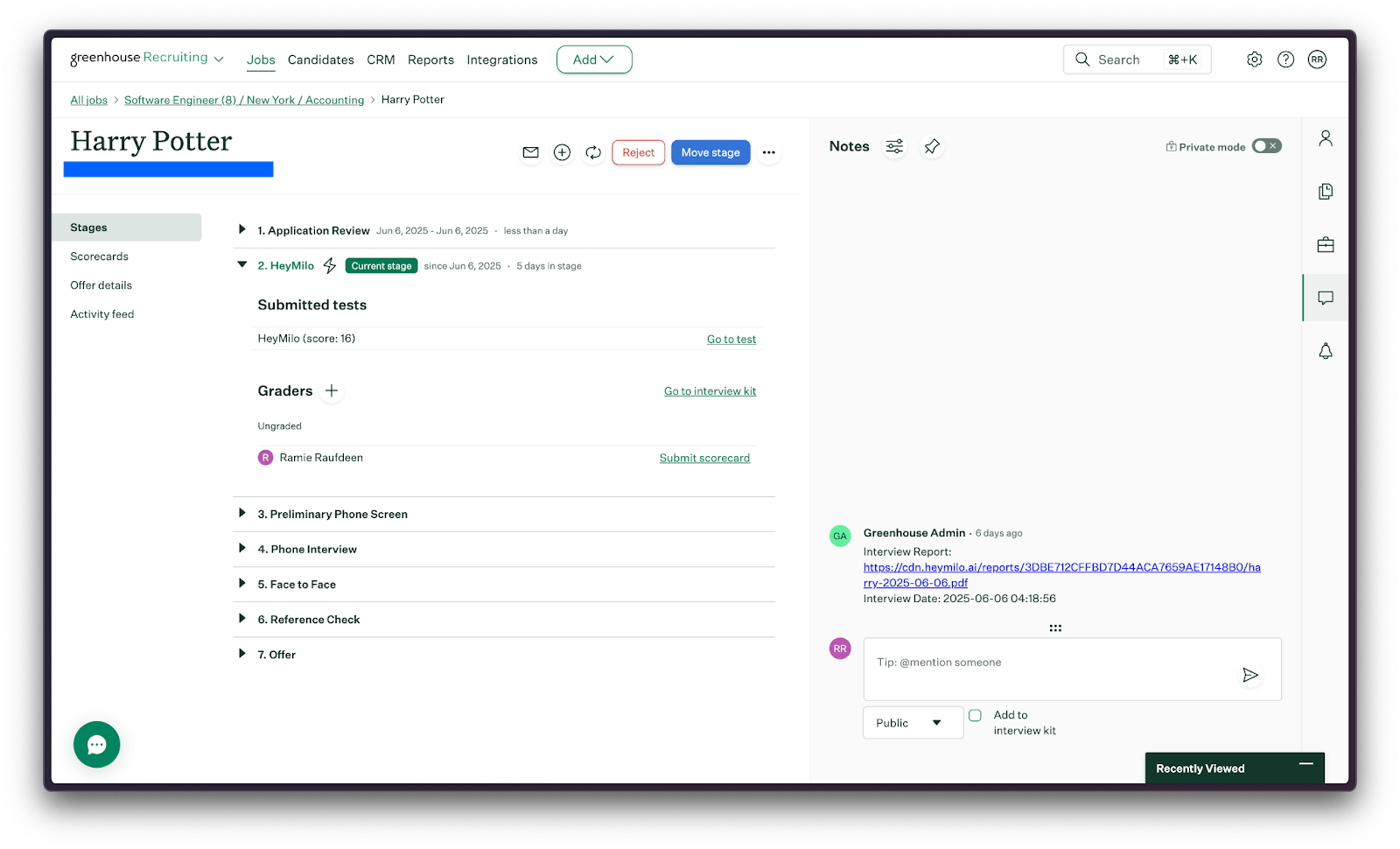
View candidate PDF report
Clicking View Report will show a detailed summary of the candidate’s screening results
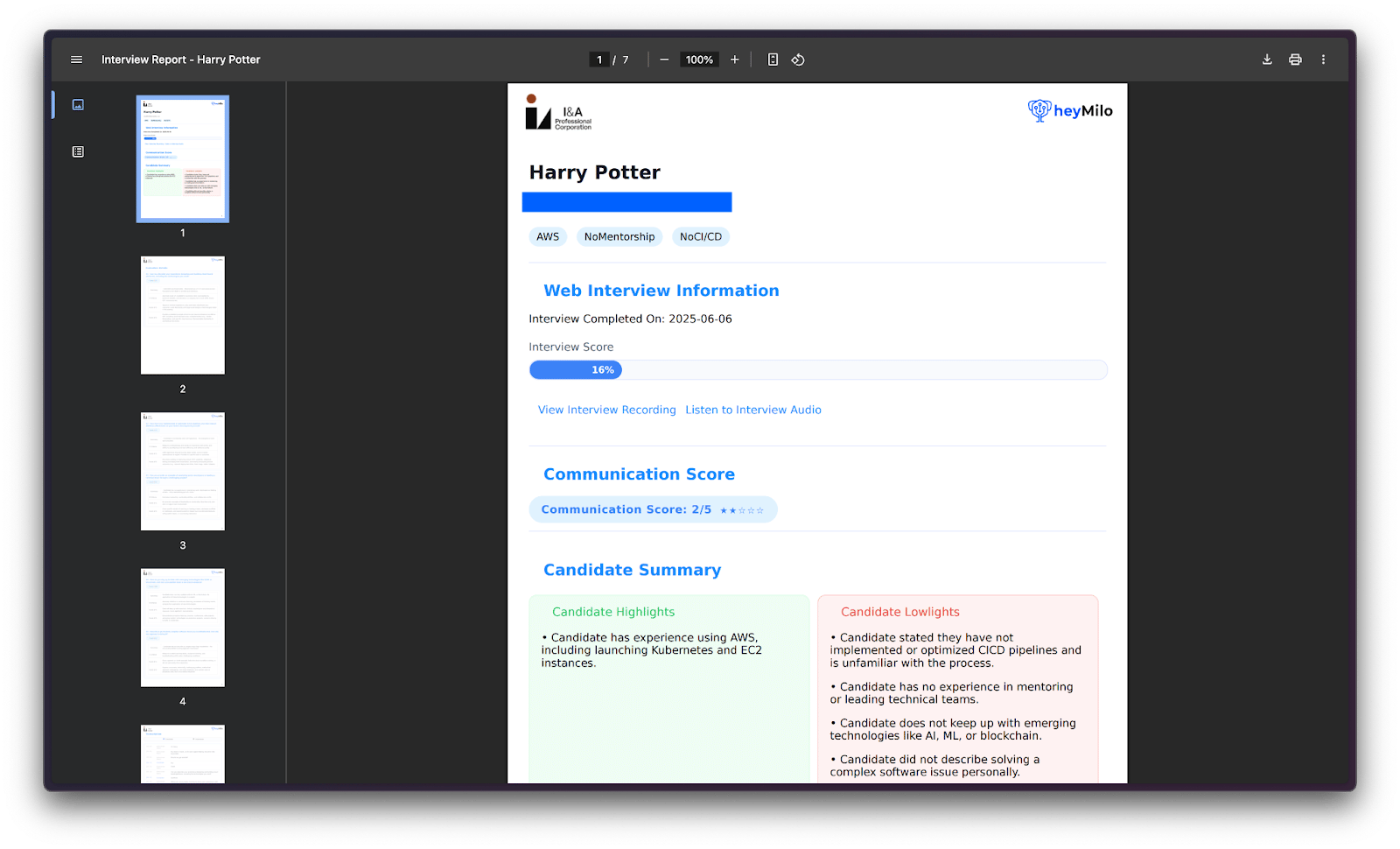
Candidate PDF report
Assessment scores, retakes, and Greenhouse limits
After an interview is evaluated, HeyMilo can write results into Greenhouse in several ways, depending on how your workspace is set up:- Assessment block — score and report for the HeyMilo assessment stage on the candidate’s application (assessment partner flow).
- Custom fields — mapped fields your team configures for Greenhouse.
- Notes, tags, and attachments — for example activity notes (often with a report link), tags saved from the interview, or an attached interview report.
- Stage moves — advancing the candidate to another stage after evaluation (workflow automation, not a score field).
- Open the candidate in HeyMilo for the current report and scores.
- In Greenhouse, check custom fields, activity notes, tags, and attachments your integration writes — not only the assessment block.