

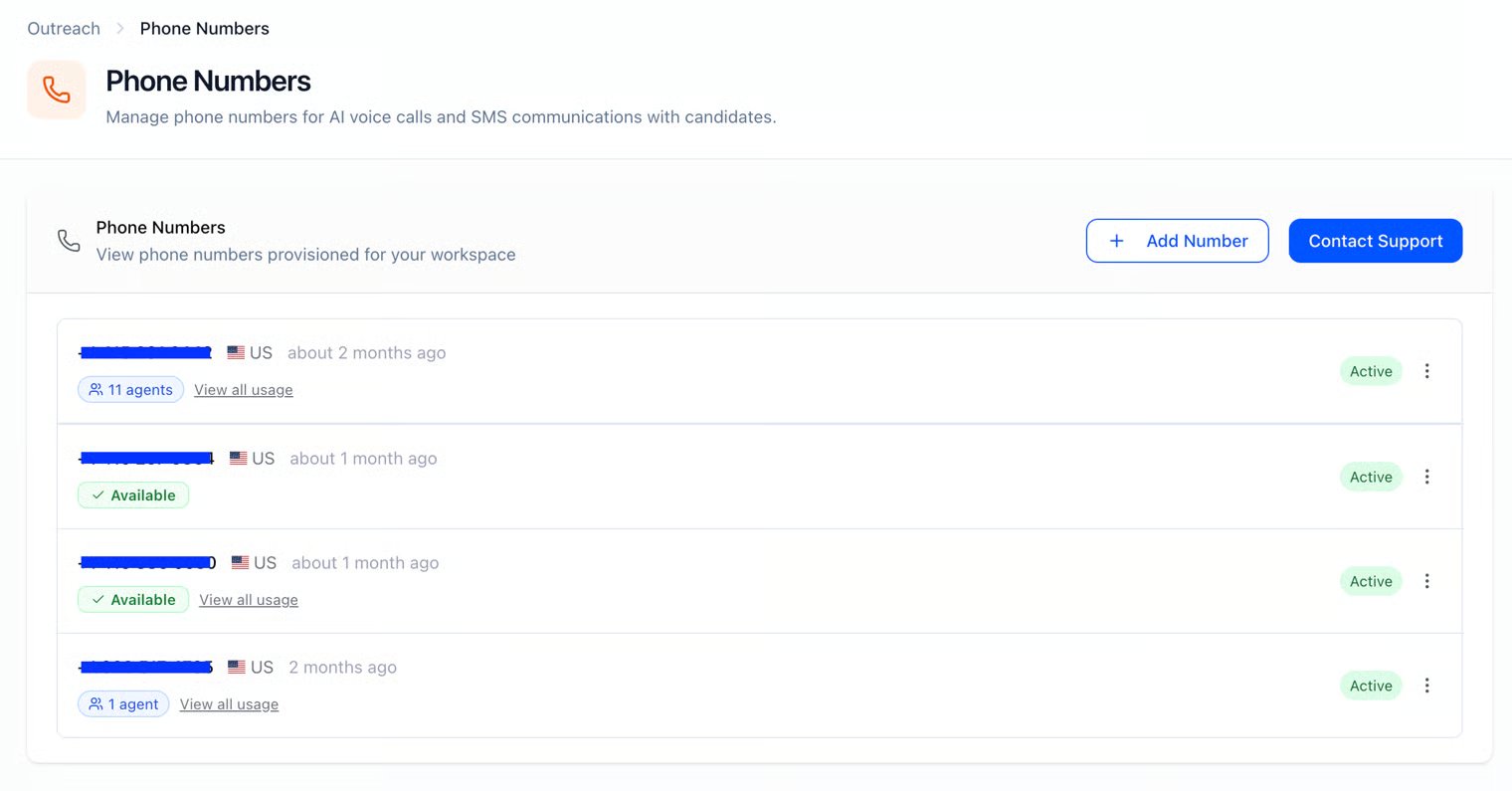
Why it matters
- Answer rates: Local or recognizable numbers get more pickups than random long-distance codes.
- SMS delivery: You need a workspace number (and compliance setup) before high-volume text works reliably.
- Visibility: You can see which interviewers or qualifiers use each number so you don’t double-book or delete something still in use.
How it works
- Provision a number through HeyMilo / support (the product expects you to get a valid number from the team first - usually your dedicated CS Manager).
- Register it in the app in E.164 format (e.g.
+12062088075). - Attach numbers when you configure SMS or phone interview steps (and related flows)—exact pickers live on the interviewer / posting side.
- Monitor usage badges on this page; deactivate or delete when safe.
Add / register a number
- Open Outreach → Phone Numbers.
- Add Number.
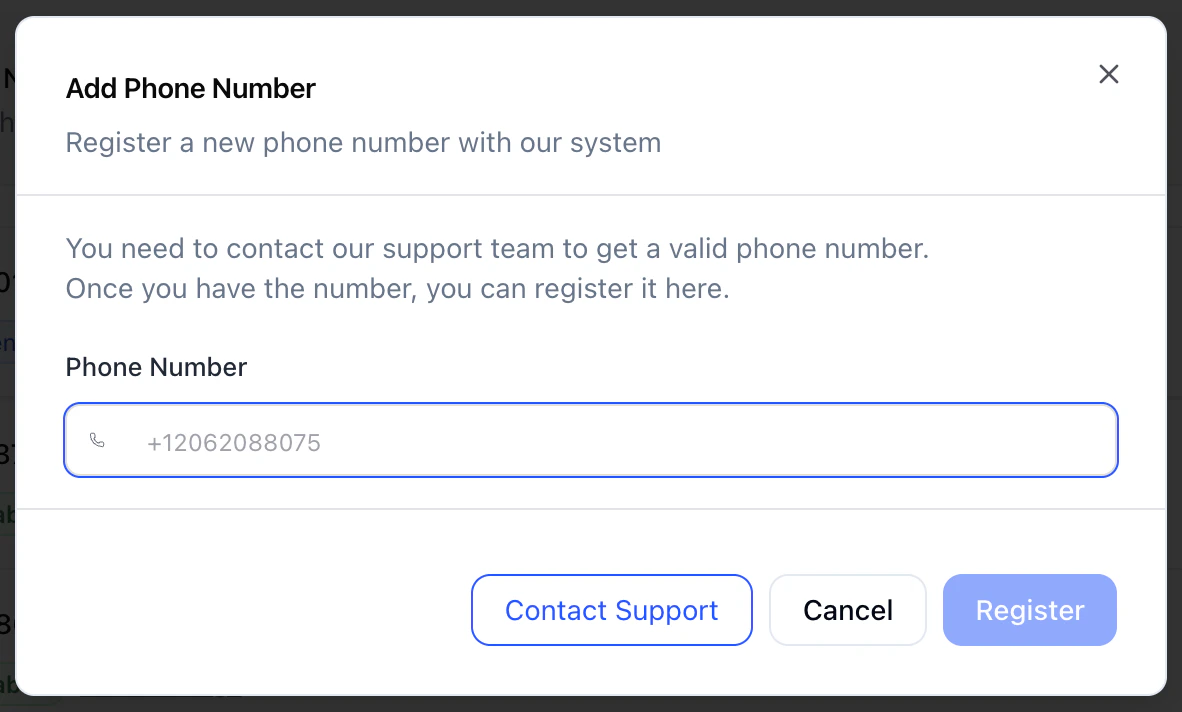
- Read the prompt: you typically contact support to obtain a provisioned number, then register it here.
- Enter the number in E.164: leading
+, country code, then digits (no spaces or dashes in the stored value unless the UI strips them—use the format the field validates). - Register.
What you see on the list
For each number you’ll typically see:- Formatted display (easier to read than raw E.164)
- Country (when available)
- Created / provisioned timing
- Status, Active or Inactive
- Usage, for example:
- Available: Not tied to active consumers (or no usage recorded)
- Agents: In use by one or more interviewers/postings (count shown; click through for detail)
- Reserved / Qualifier: Held for an inbound qualifier (or similar) so it’s not free for other use
Manage a number (⋮ menu)
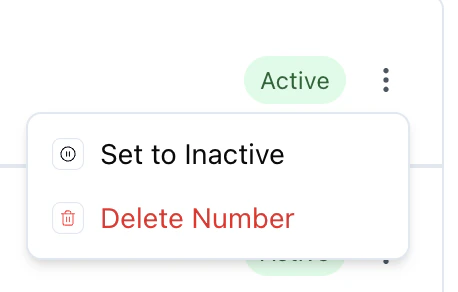
- Set to Inactive: Stops using it as an active line while keeping the record (confirm what this does for in-flight campaigns in your workspace).
- Activate: Turn an inactive number back on.
- Delete: Remove the number from the workspace. You usually cannot delete a number that still has active usage on postings or qualifiers; reassign or deactivate those first.
Best practices
- Ask support for the right region when you care about local presence for your candidate pool.
- One number per high-volume brand if you white-label or run multiple clients—avoids cross-client confusion.
- Before deleting, open usage and clear or reassign every agent and qualifier reference.
Troubleshooting
Next steps
- Contact Blasts — Bulk SMS (and related limits)
- Email Templates — Parallel track for automated email
- Outreach — Sender domains, custom domains, branding
- Interview types — Voice vs SMS in the workflow