> ## Documentation Index
> Fetch the complete documentation index at: https://docs.heymilo.ai/llms.txt
> Use this file to discover all available pages before exploring further.
> When you log in, the dashboard is your home base. This is where you see all your roles (interviewers), open candidates to review, and get to the rest of HeyMilo.
# Your Dashboard
## What you see when you open the dashboard
 **Top bar (your daily shortcuts)**
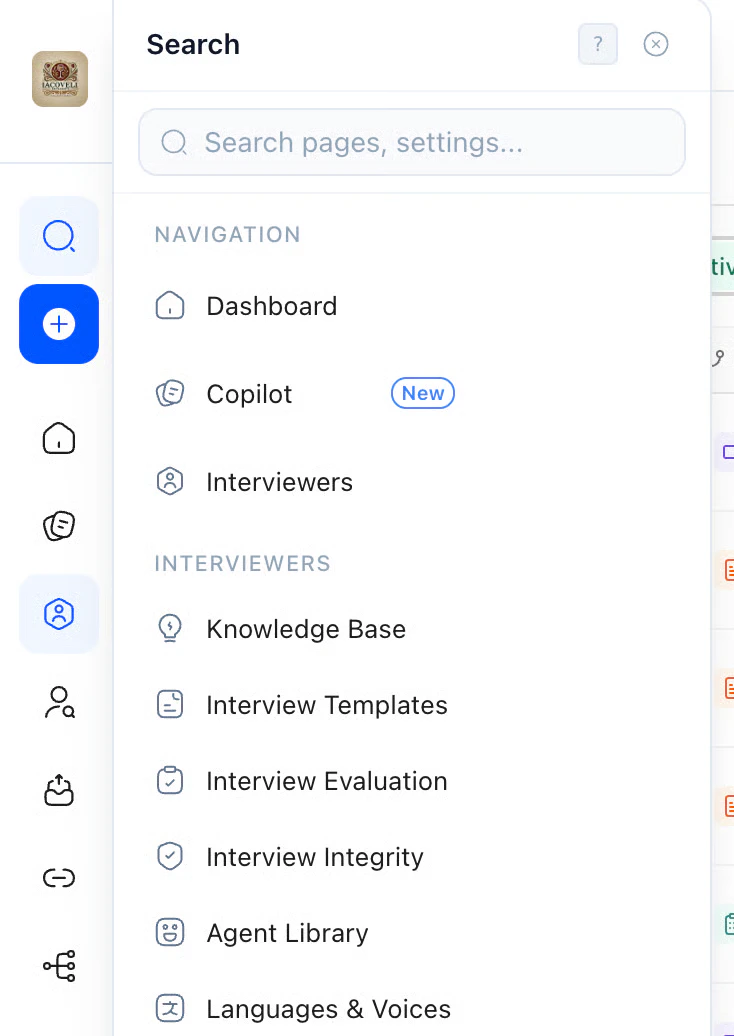
* **Search**: Looking for a specific candidate or role? Type their name here instead of opening each interviewer. Searches across your whole workspace.
**Top bar (your daily shortcuts)**
* **Search**: Looking for a specific candidate or role? Type their name here instead of opening each interviewer. Searches across your whole workspace.
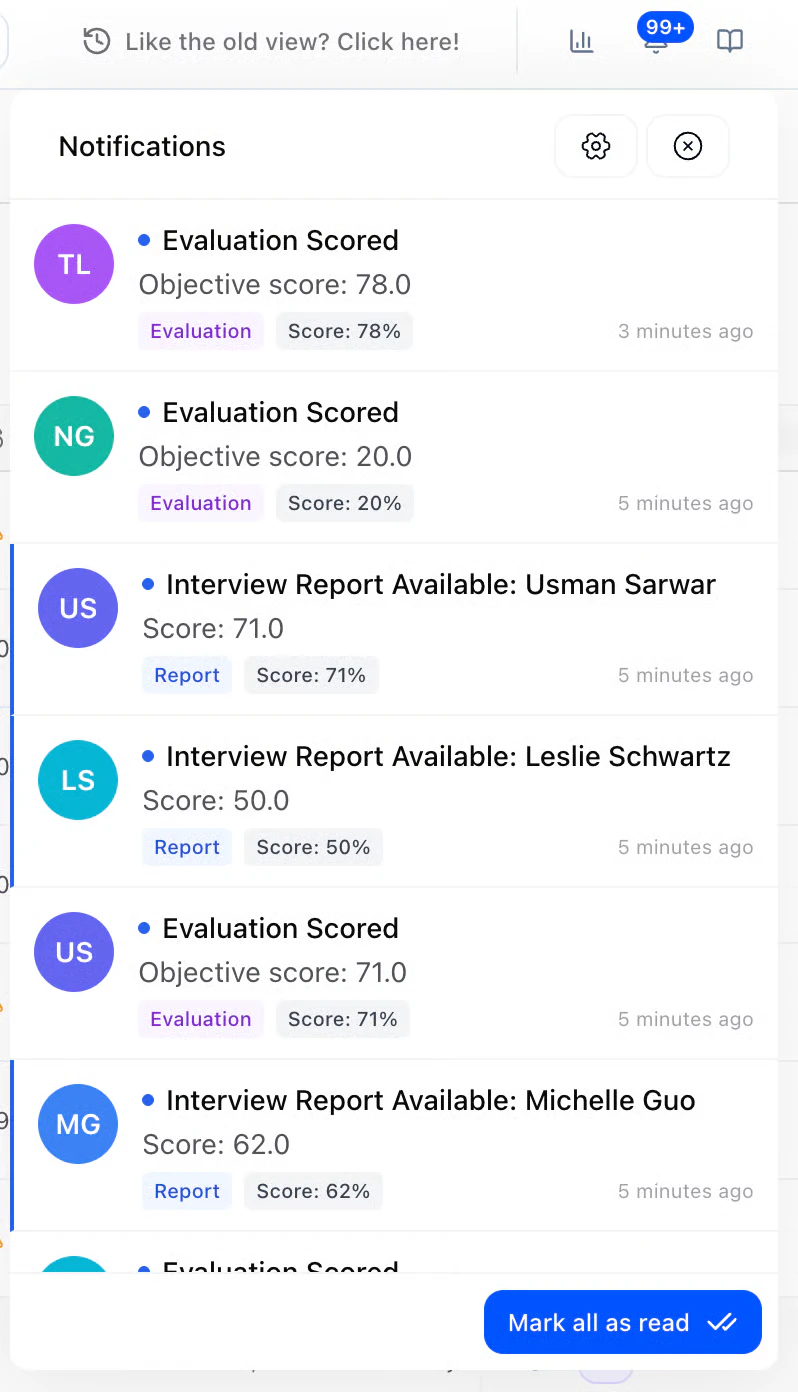
 **Notifications**: **Check this first.** Alerts show up **almost immediately** in the app, with **browser push** and a **sound** when something new arrives (for ex. a completion or a score). Open the **bell** for the list; **click an item** to jump to that **candidate** when the product takes you there.
* **Create Interviewer**: Ready to launch a new role? Same flow as [Create Interviewer](../getting-started/log-in/creating-an-interviewer).
* **Analytics**: When you want the big picture: how many candidates, how many interviews, spend over time. See [Analytics (global vs per role)](dashboard#analytics-global-vs-per-role) on this page.
* **Credits**: How much you’ve used vs what’s left. **View Current Subscription** when you need to manage your plan.
**Sidebar (where to go for what)**
The left sidebar is how you jump to different parts of HeyMilo. **Interviewers** (the list you see when a section is expanded) is where you’ll live most of the time. Use the rest when you have a specific task:
| Section | When you’ll use it |
| ----------------------- | --------------------------------------------------------------------------------------------------------------------------------------------------------------------------------- |
| **Interviewers** | **Your main list.** Click a role name to open its candidates, settings, and analytics. **Archived Interviewers** at the bottom = roles you’re not actively hiring for. |
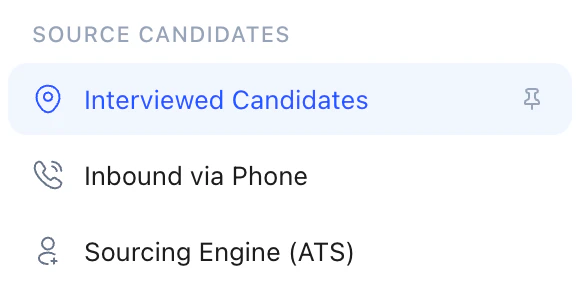
| **Source Candidates** | When you need to **add or find candidates** to send into an interview (Interviewed Candidates, Inbound via Phone, Sourcing Engine (ATS)). See [Sourcing](../sourcing/sourcing). |
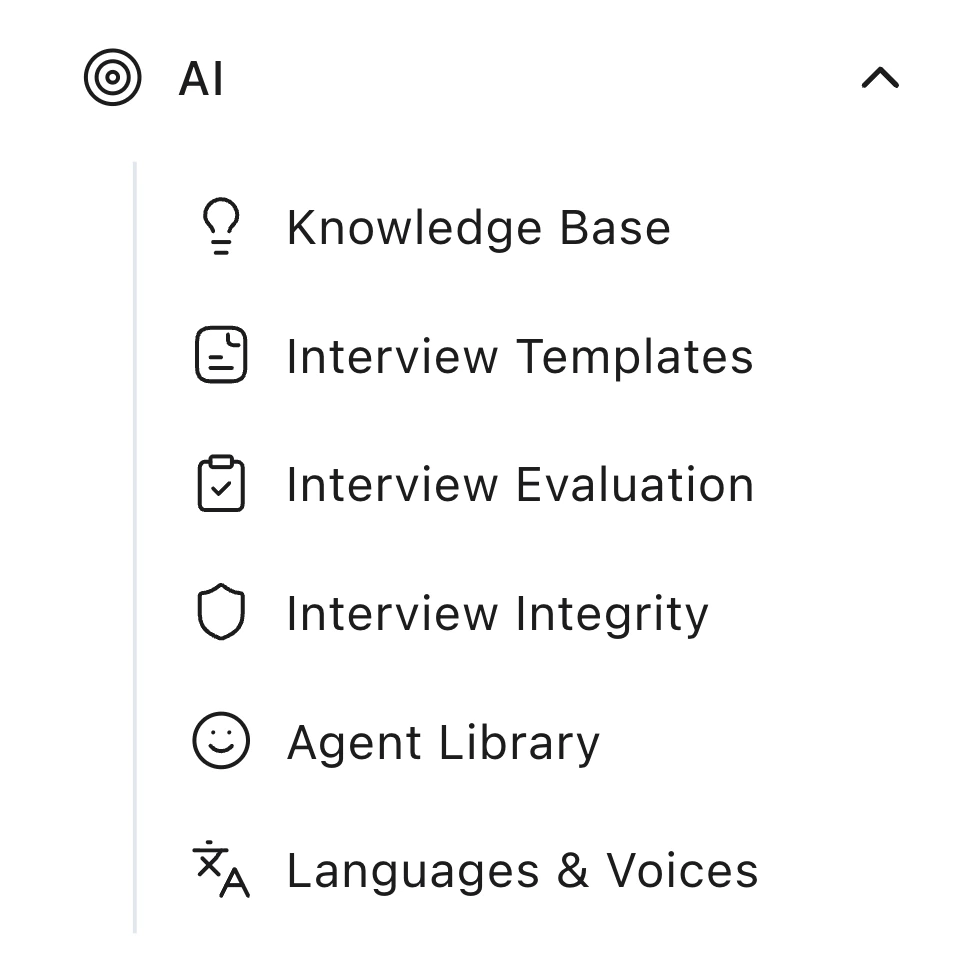
| **AI** | When you want to **set defaults** for all interviewers (questions, scoring, voice, etc.) so you don’t configure every role from scratch. See [AI Settings](../tools/ai-settings). |
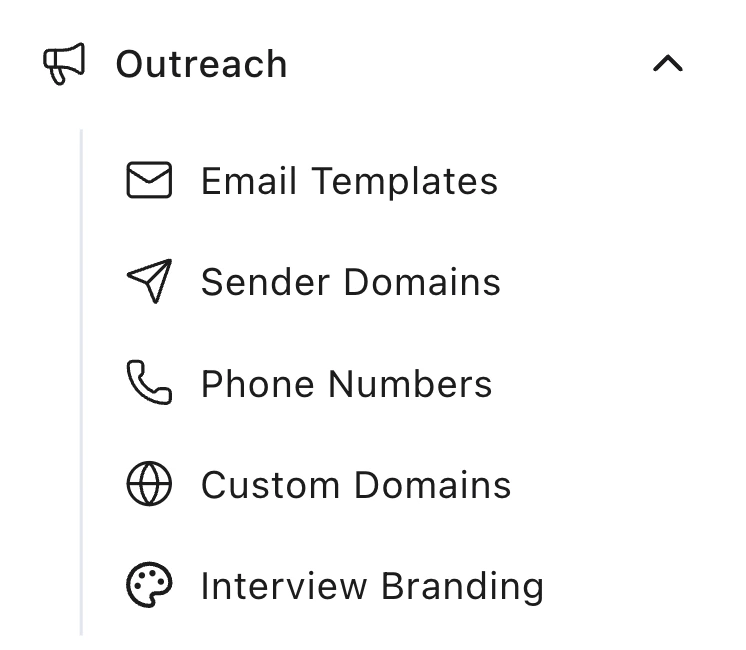
| **Outreach** | When you’re **setting up or editing** emails, sender domains, phone numbers, or how the interview looks to candidates. See [Outreach](../outreach/outreach). |
| **Integrations** | When you’re **connecting your ATS** or (for devs) using API keys. See [Integrations](../integrations). |
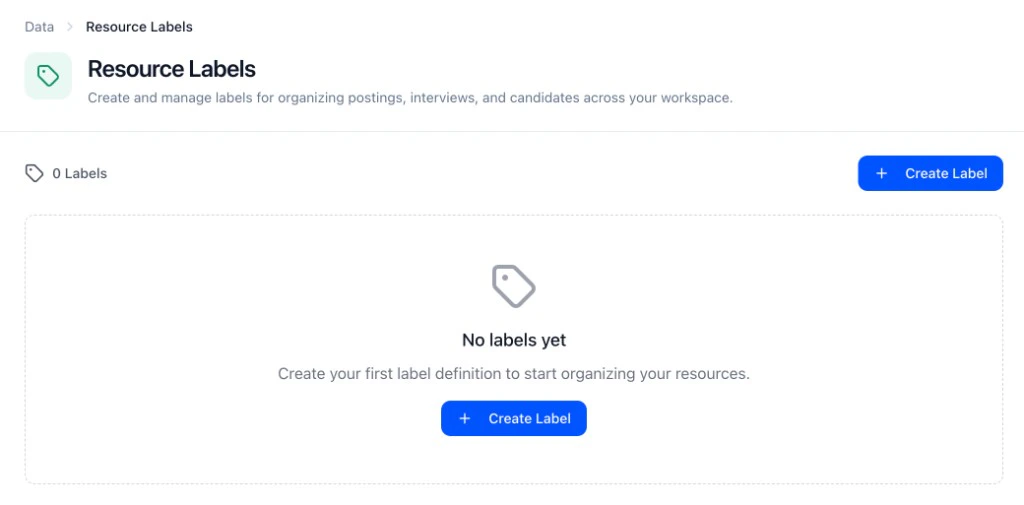
| **Data** | When you want to **tag interviewers** (e.g. by department) or fix search if it’s not finding candidates. See [Data](../data/data). |
| **Settings** | **Account, team, billing, compliance.** Invite teammates, update payment, or manage privacy. See [Settings & Admin](../settings-and-admin/admin). |
| **Resources & Support** | **Need help?** Wiki (this docs), Status, Trust Center, or Book a Call. |
## The Interviewers table (main area)
The big table in the center is **all your interviewers** (roles). This is where you’ll spend most of your time.
**Typical flow:** Stay on **Active** (so you only see live roles) → find the role you’re hiring for → **click the row** to open it. You’ll land on that interviewer’s **Candidates** tab, where you can review scores, shortlist, dismiss, or send to ATS. If you’re not sure which role to open, check **Notifications** first — it’ll show you who just completed.
**Filters and controls**
* **Active / Expired / Archived**: Tabs show counts (e.g. Active (15), Expired (219), Archived (63)). Start with **Active** for day-to-day work.
* **Search**: Type an interviewer name to narrow the list.
* **Sort**: Change sort order (e.g. most recent, most candidates).
* **Templates** / **Create Interviewer** (above the table): Add a new interviewer or start from a template.
**What the columns mean** (so you know what to watch)
| Column | What to look at |
| ------------------------ | ------------------------------------------------------------------------------------------------------------------------------------------------------------- |
| **Interviewer** | The role name. **Click the row** to open candidates and actions. |
| **Workflow** | The stages (e.g. Resume → Voice). Quick way to see how long the flow is. |
| **Stats** | **Candidate count + completion %.** Low completion? Candidates might be dropping off — see [Inviting Candidates](../inviting-candidates/inviting-candidates). |
| **ATS** | Whether this role is syncing with your ATS. |
| **CSAT** | How happy candidates were (when we have feedback). |
| **Spend** | What you’ve spent vs budget. Hover and use the pencil to change the budget. |
| **Labels** | Tags (e.g. department, client) so you can filter the table. See [Resource Labels](../data/data/resource-labels). |
| **Subs** | Who’s getting email alerts for this interviewer. |
| **Deadline** | **Watch this.** “4d left” means the interviewer stops accepting new candidates soon. Extend or clone if you still need the role. |
| **Created** / **Active** | When it was created and how long it’s been running. |
**What to do from here**
* **Open a row**: Click an interviewer to see its candidates, run actions (Shortlist, Dismiss, Send to ATS), and check score reports. See [Reviewing Candidates](../getting-started/log-in/reviewing-candidates).
* **Check completion %**: Low % often means the interview is too long or the invite isn’t clear. See [Inviting Candidates & Driving Completion](../inviting-candidates/inviting-candidates).
* **Watch deadlines**: Interviewers with “X days left” will stop accepting new candidates when they expire. Extend or clone if you still need the role.
### When you’re inside an interviewer (Candidates tab)
Once you click an interviewer, you land on the **Candidates** tab. Use the filter bar to narrow the list: **All Candidates**, **Resume Agent**, **Web Interview** (or Voice), **Status**, **Notes**. For example, click **Status** to see only shortlisted or dismissed candidates, or **Web Interview** to see who’s done that stage.
**Notifications**: **Check this first.** Alerts show up **almost immediately** in the app, with **browser push** and a **sound** when something new arrives (for ex. a completion or a score). Open the **bell** for the list; **click an item** to jump to that **candidate** when the product takes you there.
* **Create Interviewer**: Ready to launch a new role? Same flow as [Create Interviewer](../getting-started/log-in/creating-an-interviewer).
* **Analytics**: When you want the big picture: how many candidates, how many interviews, spend over time. See [Analytics (global vs per role)](dashboard#analytics-global-vs-per-role) on this page.
* **Credits**: How much you’ve used vs what’s left. **View Current Subscription** when you need to manage your plan.
**Sidebar (where to go for what)**
The left sidebar is how you jump to different parts of HeyMilo. **Interviewers** (the list you see when a section is expanded) is where you’ll live most of the time. Use the rest when you have a specific task:
| Section | When you’ll use it |
| ----------------------- | --------------------------------------------------------------------------------------------------------------------------------------------------------------------------------- |
| **Interviewers** | **Your main list.** Click a role name to open its candidates, settings, and analytics. **Archived Interviewers** at the bottom = roles you’re not actively hiring for. |
| **Source Candidates** | When you need to **add or find candidates** to send into an interview (Interviewed Candidates, Inbound via Phone, Sourcing Engine (ATS)). See [Sourcing](../sourcing/sourcing). |
| **AI** | When you want to **set defaults** for all interviewers (questions, scoring, voice, etc.) so you don’t configure every role from scratch. See [AI Settings](../tools/ai-settings). |
| **Outreach** | When you’re **setting up or editing** emails, sender domains, phone numbers, or how the interview looks to candidates. See [Outreach](../outreach/outreach). |
| **Integrations** | When you’re **connecting your ATS** or (for devs) using API keys. See [Integrations](../integrations). |
| **Data** | When you want to **tag interviewers** (e.g. by department) or fix search if it’s not finding candidates. See [Data](../data/data). |
| **Settings** | **Account, team, billing, compliance.** Invite teammates, update payment, or manage privacy. See [Settings & Admin](../settings-and-admin/admin). |
| **Resources & Support** | **Need help?** Wiki (this docs), Status, Trust Center, or Book a Call. |
## The Interviewers table (main area)
The big table in the center is **all your interviewers** (roles). This is where you’ll spend most of your time.
**Typical flow:** Stay on **Active** (so you only see live roles) → find the role you’re hiring for → **click the row** to open it. You’ll land on that interviewer’s **Candidates** tab, where you can review scores, shortlist, dismiss, or send to ATS. If you’re not sure which role to open, check **Notifications** first — it’ll show you who just completed.
**Filters and controls**
* **Active / Expired / Archived**: Tabs show counts (e.g. Active (15), Expired (219), Archived (63)). Start with **Active** for day-to-day work.
* **Search**: Type an interviewer name to narrow the list.
* **Sort**: Change sort order (e.g. most recent, most candidates).
* **Templates** / **Create Interviewer** (above the table): Add a new interviewer or start from a template.
**What the columns mean** (so you know what to watch)
| Column | What to look at |
| ------------------------ | ------------------------------------------------------------------------------------------------------------------------------------------------------------- |
| **Interviewer** | The role name. **Click the row** to open candidates and actions. |
| **Workflow** | The stages (e.g. Resume → Voice). Quick way to see how long the flow is. |
| **Stats** | **Candidate count + completion %.** Low completion? Candidates might be dropping off — see [Inviting Candidates](../inviting-candidates/inviting-candidates). |
| **ATS** | Whether this role is syncing with your ATS. |
| **CSAT** | How happy candidates were (when we have feedback). |
| **Spend** | What you’ve spent vs budget. Hover and use the pencil to change the budget. |
| **Labels** | Tags (e.g. department, client) so you can filter the table. See [Resource Labels](../data/data/resource-labels). |
| **Subs** | Who’s getting email alerts for this interviewer. |
| **Deadline** | **Watch this.** “4d left” means the interviewer stops accepting new candidates soon. Extend or clone if you still need the role. |
| **Created** / **Active** | When it was created and how long it’s been running. |
**What to do from here**
* **Open a row**: Click an interviewer to see its candidates, run actions (Shortlist, Dismiss, Send to ATS), and check score reports. See [Reviewing Candidates](../getting-started/log-in/reviewing-candidates).
* **Check completion %**: Low % often means the interview is too long or the invite isn’t clear. See [Inviting Candidates & Driving Completion](../inviting-candidates/inviting-candidates).
* **Watch deadlines**: Interviewers with “X days left” will stop accepting new candidates when they expire. Extend or clone if you still need the role.
### When you’re inside an interviewer (Candidates tab)
Once you click an interviewer, you land on the **Candidates** tab. Use the filter bar to narrow the list: **All Candidates**, **Resume Agent**, **Web Interview** (or Voice), **Status**, **Notes**. For example, click **Status** to see only shortlisted or dismissed candidates, or **Web Interview** to see who’s done that stage.
 ## Notifications
**Why check here:** The **bell** updates **fast**, with **browser push** and a **sound** for new items. **Click a notification** to open that **candidate**. **Mark all as read** when you’re done.
To change **who gets alerts** (for example email subscribers on an interviewer), use [Settings & Admin](/broken/pages/h2FoZtVpOx05KsBeV4EE) paths your workspace uses for notifications and subscribers.
## Notifications
**Why check here:** The **bell** updates **fast**, with **browser push** and a **sound** for new items. **Click a notification** to open that **candidate**. **Mark all as read** when you’re done.
To change **who gets alerts** (for example email subscribers on an interviewer), use [Settings & Admin](/broken/pages/h2FoZtVpOx05KsBeV4EE) paths your workspace uses for notifications and subscribers.
 ## Analytics (global vs per role)
**When to use which:** Use **global** analytics when you want the big picture (how many candidates, how much spend). Use **per-agent** analytics when one role isn’t converting and you need to see *where* candidates drop off so you can fix that step.
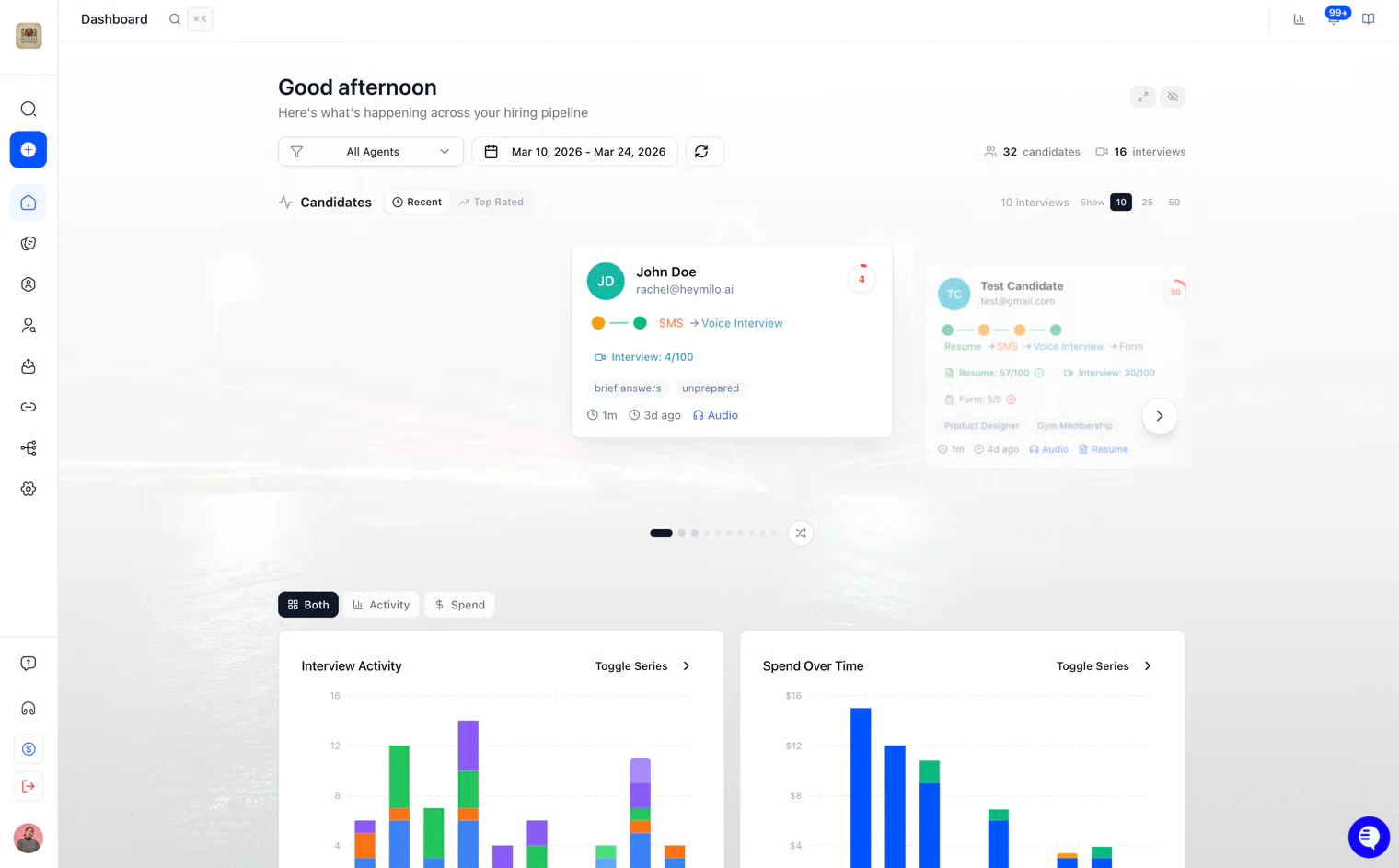
**Global analytics**: Click Dashboard or **Analytics**. You’ll see summary stats (e.g. 27 candidates, 14 interviews), a **candidate feed** (recent completions with scores), and charts for **Interview Activity** and **Spend Over Time**. Use **All Agents** and **date range** to narrow it down.
## Analytics (global vs per role)
**When to use which:** Use **global** analytics when you want the big picture (how many candidates, how much spend). Use **per-agent** analytics when one role isn’t converting and you need to see *where* candidates drop off so you can fix that step.
**Global analytics**: Click Dashboard or **Analytics**. You’ll see summary stats (e.g. 27 candidates, 14 interviews), a **candidate feed** (recent completions with scores), and charts for **Interview Activity** and **Spend Over Time**. Use **All Agents** and **date range** to narrow it down.
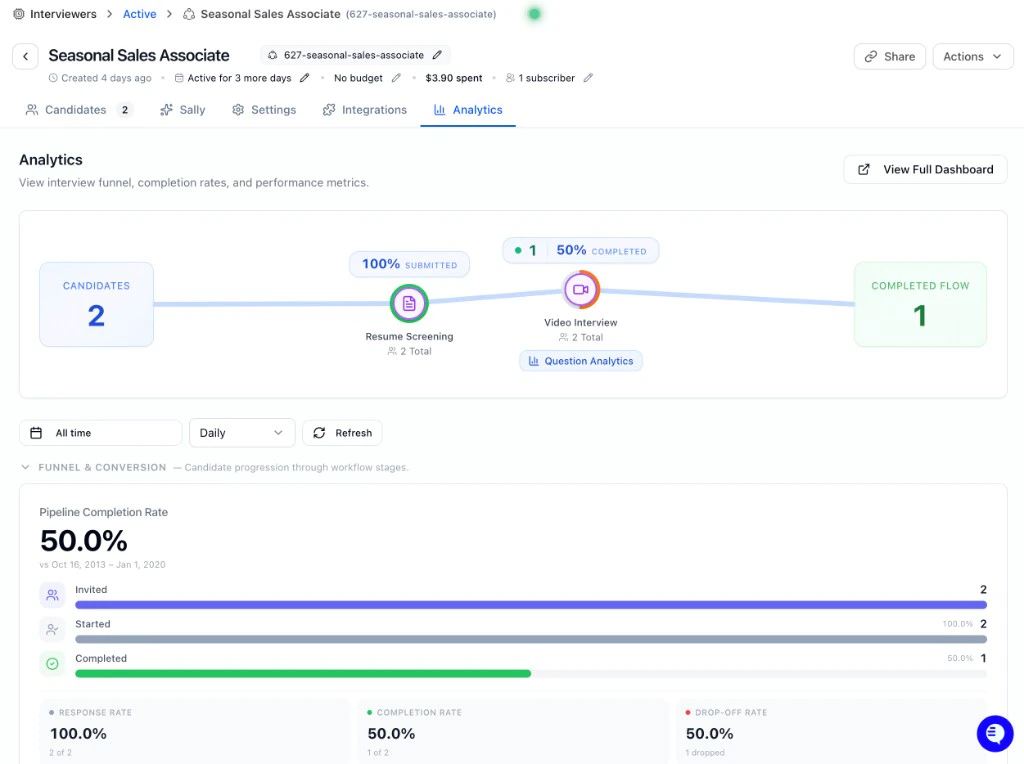
 **Per-agent analytics**: Click an **interviewer** in the table, then open the **Analytics** tab for that role. You’ll see its **funnel** (e.g. Resume Screening → Video Interview → Completed Flow), **Pipeline Completion Rate**, and **Funnel & Conversion** (Invited, Started, Completed, Response Rate, Completion Rate, **Drop-off Rate**). If drop-off is high at one stage, that’s where to improve the experience or shorten the flow.
 See [Analytics (global vs per role)](dashboard#analytics-global-vs-per-role) on this page for both global analytics and per-interviewer (posting) funnels.
## Integrations, Data, and Settings
You don’t need these every day. Use them when you have a specific task (connect ATS, tag roles, add a teammate, or get help).
**Integrations:** You’re connecting your ATS or (for developers) building something with our API. Sidebar → **Integrations** → **ATS Integrations** or **API Keys**.
See [Analytics (global vs per role)](dashboard#analytics-global-vs-per-role) on this page for both global analytics and per-interviewer (posting) funnels.
## Integrations, Data, and Settings
You don’t need these every day. Use them when you have a specific task (connect ATS, tag roles, add a teammate, or get help).
**Integrations:** You’re connecting your ATS or (for developers) building something with our API. Sidebar → **Integrations** → **ATS Integrations** or **API Keys**.
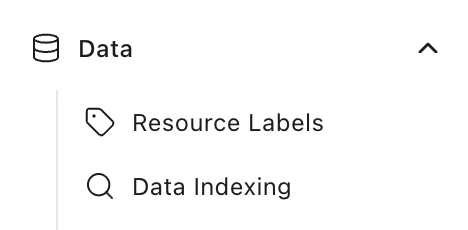
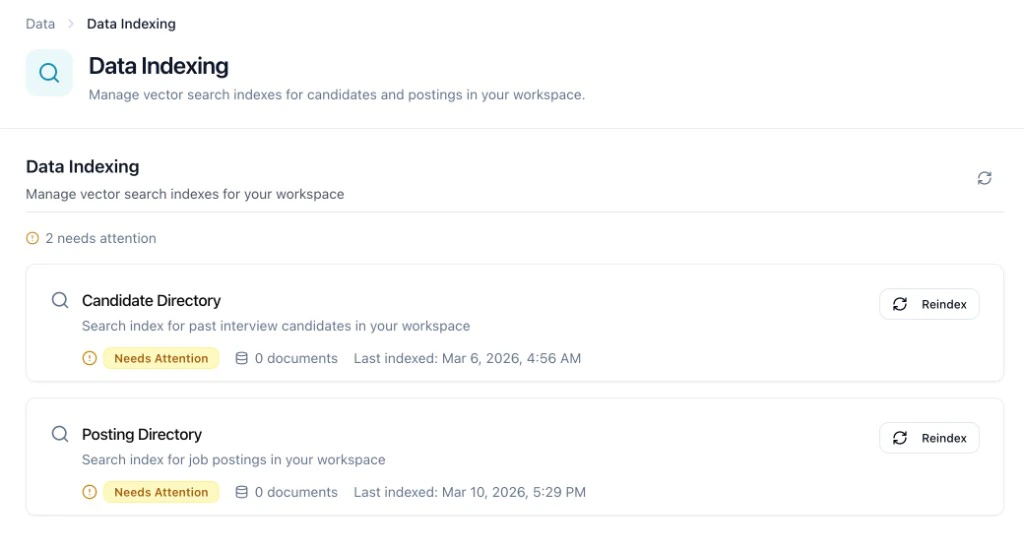
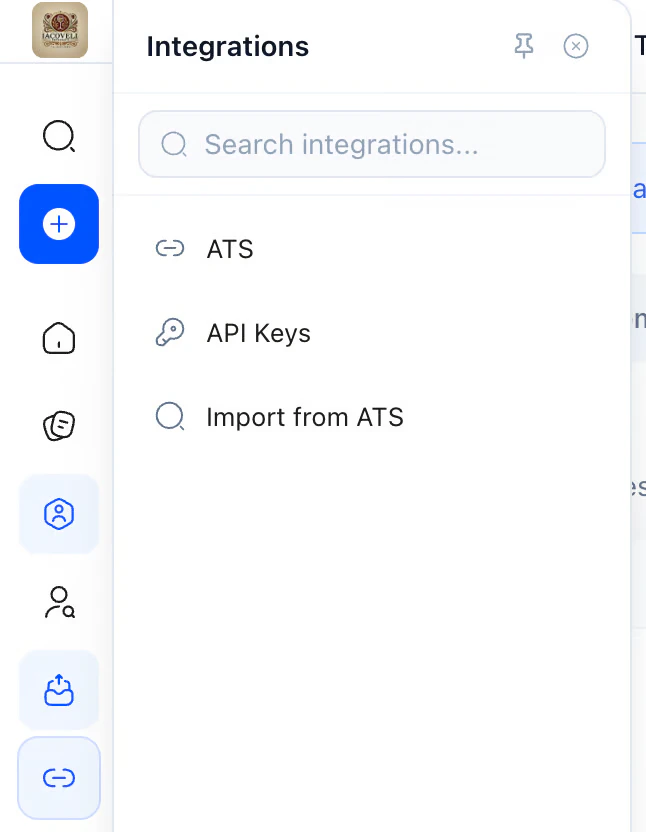 **Data:** You want to **tag interviewers** (e.g. by department) so you can filter the table, or **search isn’t finding candidates** and you need to reindex. Sidebar → **Data** → **Resource Labels** or **Data Indexing**.
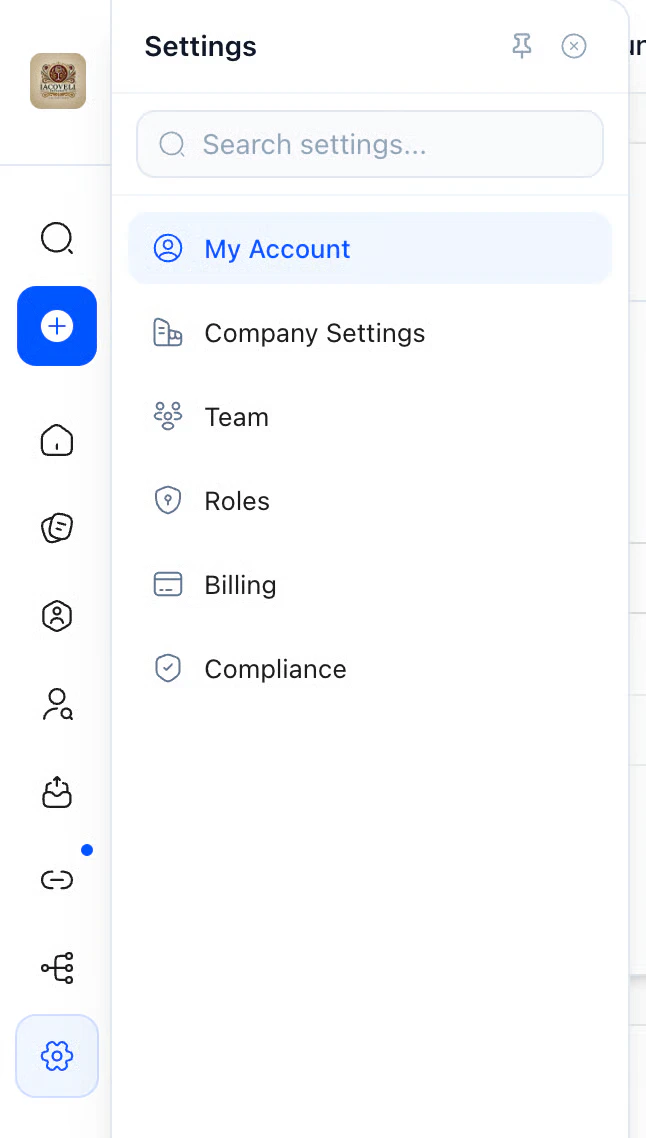
 **Settings:** You need to update your profile, billing, invite teammates, or manage compliance. Sidebar → **Settings** → **My Account**, **Billing**, **Teammates**, or **Privacy & Compliance**.
 **Resources & Support:** Wiki (this documentation), **Status** (is HeyMilo up?), **Trust Center**, or **Book a Call**.
## Next steps
* [Reviewing Candidates](../getting-started/log-in/reviewing-candidates) — Open an interviewer and review score reports
* [Create Interviewer](../getting-started/log-in/creating-an-interviewer) — Add a new role
* [Analytics (global vs per role)](dashboard#analytics-global-vs-per-role) — Funnels, scores, and trends
* [Inviting Candidates & Driving Completion](../inviting-candidates/inviting-candidates) — Improve completion rates
**Resources & Support:** Wiki (this documentation), **Status** (is HeyMilo up?), **Trust Center**, or **Book a Call**.
## Next steps
* [Reviewing Candidates](../getting-started/log-in/reviewing-candidates) — Open an interviewer and review score reports
* [Create Interviewer](../getting-started/log-in/creating-an-interviewer) — Add a new role
* [Analytics (global vs per role)](dashboard#analytics-global-vs-per-role) — Funnels, scores, and trends
* [Inviting Candidates & Driving Completion](../inviting-candidates/inviting-candidates) — Improve completion rates