> ## Documentation Index
> Fetch the complete documentation index at: https://docs.heymilo.ai/llms.txt
> Use this file to discover all available pages before exploring further.
> Use Languages & Voices to see which languages and TTS voices HeyMilo supports, hear previews, and add voices to your workspace so they show up when you configure interviewers.
# Languages & Voices
**Note:** The in-app page title may show **Locale Support** or **Available Languages and Voices** — same place as **Sidebar → Interviewers → Languages & Voices**.
### What’s on the page
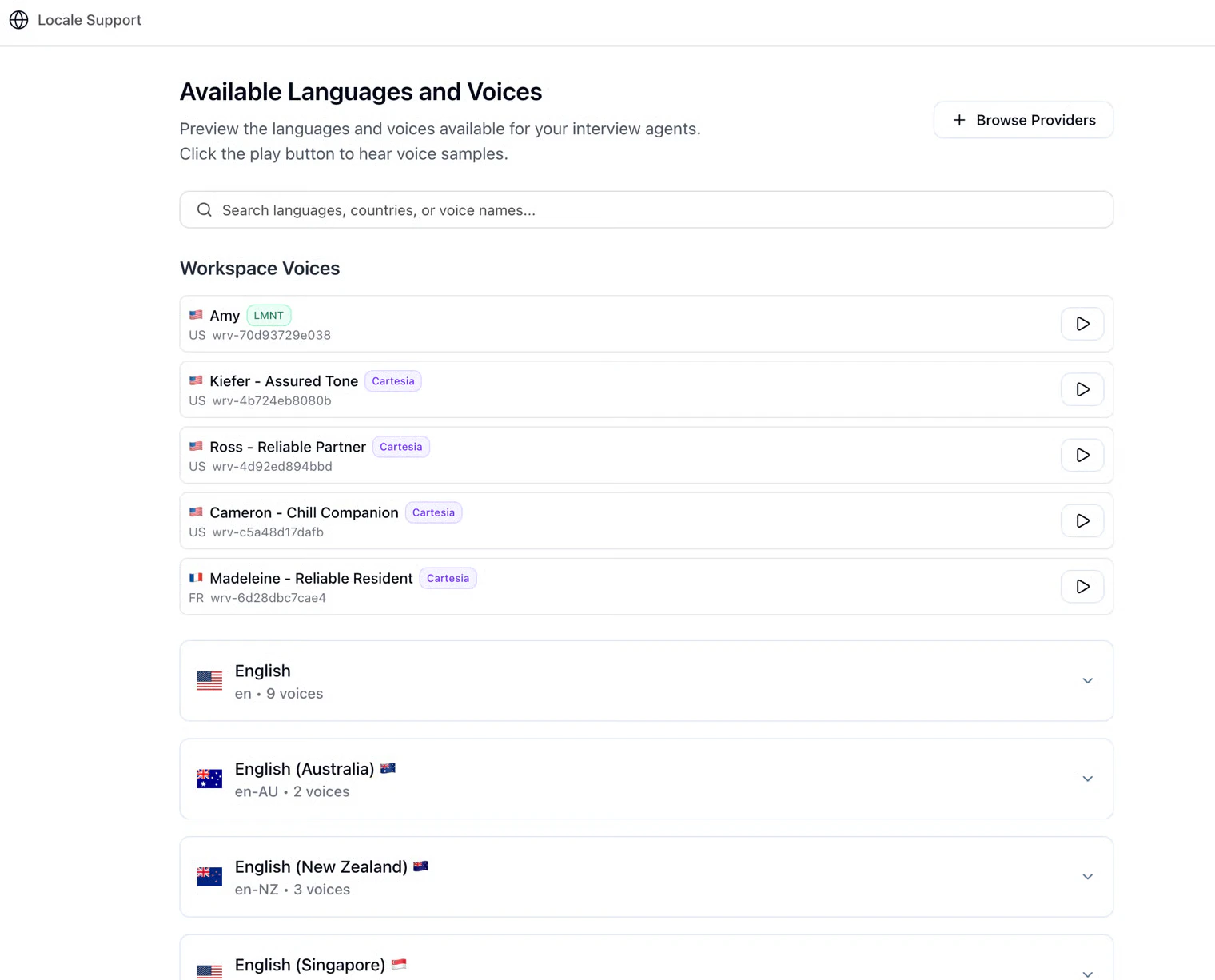 * **Search**: Filter by language name, code, country, or voice name.
* **Workspace Voices**: Voices your team has **added** from providers; these are the ones you’ve explicitly pulled into the workspace.
* **Languages (accordion)**: Each language expands to show **built-in / default** voice options for that locale.
* **Play**: Preview a voice (some registry voices generate a sample on demand).
### Browse Providers (LMNT & Cartesia)
* **Search**: Filter by language name, code, country, or voice name.
* **Workspace Voices**: Voices your team has **added** from providers; these are the ones you’ve explicitly pulled into the workspace.
* **Languages (accordion)**: Each language expands to show **built-in / default** voice options for that locale.
* **Play**: Preview a voice (some registry voices generate a sample on demand).
### Browse Providers (LMNT & Cartesia)
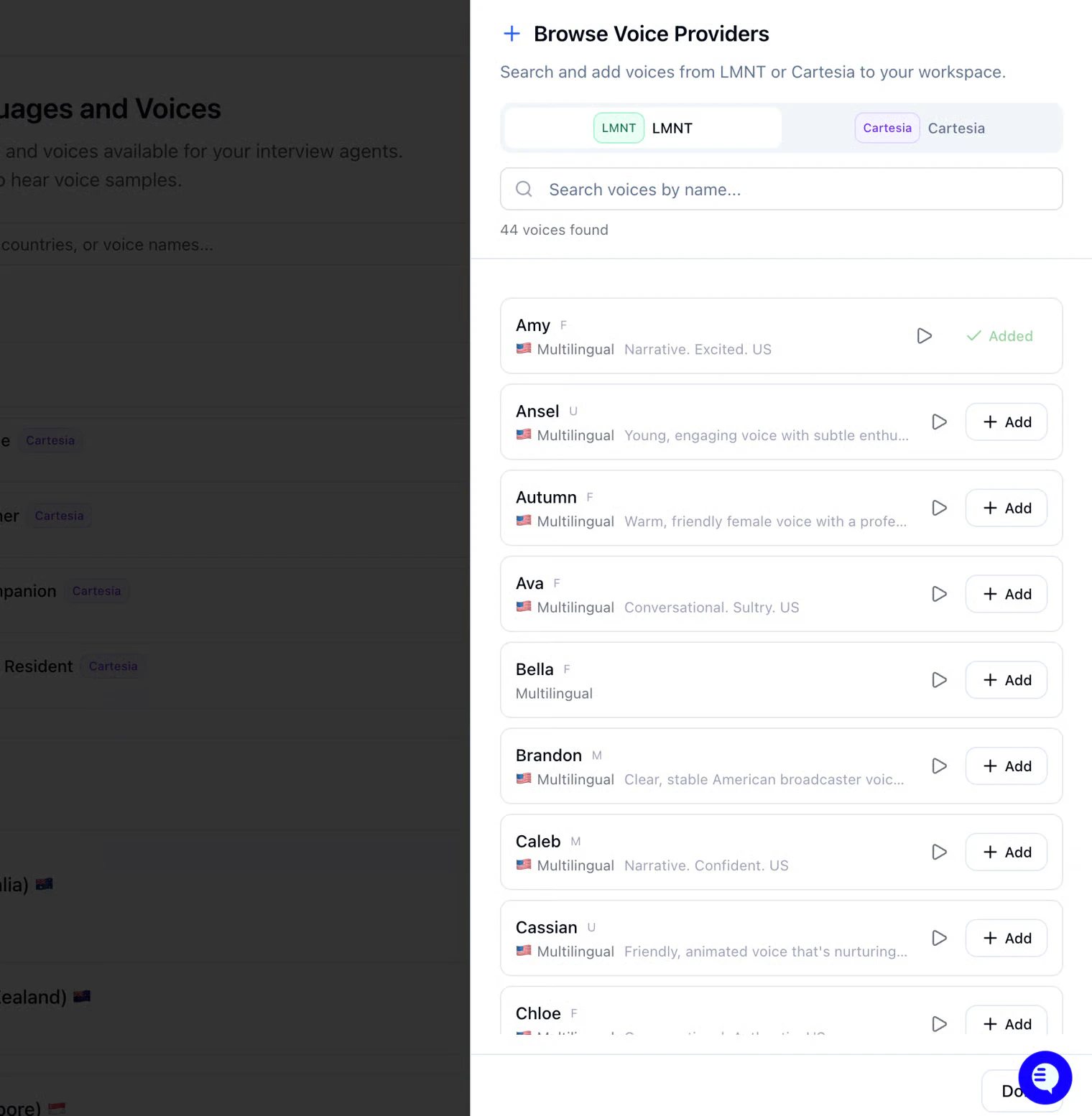 Click **Browse Providers** to open the provider browser:
* Switch between providers (**LMNT** and **Cartesia** in the product).
* **Search** and **filter** to find a voice you like.
* **Preview** with play.
* **Add** a voice to your workspace. Under **Workspace Voices** and in **voice dropdowns** when you create or edit an interviewer.
Already-added voices are marked so you don’t duplicate them.
### How this ties to interviews
* **Interview language**: Set when you **configure the interviewer / posting** (e.g. voice or video step). The AI runs the conversation in the language you select there.
* **Voice**: Pick a voice that fits your brand; options include defaults per language plus any voices you added under **Workspace Voices**.
* **This page** is mainly **discovery + workspace voice inventory**, not the full interviewer builder.
For **PDF / report language**, multilingual exports, and candidate-facing detail, see [**Multilingual Support**](../../interviews/interviews/multilingual-support).
### When to use it
* Hiring in **non-English** locales or testing **accent / locale** fit.
* Standardizing on a **specific voice** across roles after previews.
* Expanding voice choice beyond defaults by **adding** LMNT/Cartesia voices.
### Next steps
* [Multilingual Support](../../interviews/interviews/multilingual-support) — Reports, downloads, and candidate experience
* [Configuring Your AI Interviewer ](../../getting-started/log-in/configuring-your-ai-interviewer)— Where language and voice are set per posting
* [Interview Evaluation](interview-evaluation) — Language **proficiency rubrics** (workspace templates)
* [AI Settings](.) — Other AI defaults
Click **Browse Providers** to open the provider browser:
* Switch between providers (**LMNT** and **Cartesia** in the product).
* **Search** and **filter** to find a voice you like.
* **Preview** with play.
* **Add** a voice to your workspace. Under **Workspace Voices** and in **voice dropdowns** when you create or edit an interviewer.
Already-added voices are marked so you don’t duplicate them.
### How this ties to interviews
* **Interview language**: Set when you **configure the interviewer / posting** (e.g. voice or video step). The AI runs the conversation in the language you select there.
* **Voice**: Pick a voice that fits your brand; options include defaults per language plus any voices you added under **Workspace Voices**.
* **This page** is mainly **discovery + workspace voice inventory**, not the full interviewer builder.
For **PDF / report language**, multilingual exports, and candidate-facing detail, see [**Multilingual Support**](../../interviews/interviews/multilingual-support).
### When to use it
* Hiring in **non-English** locales or testing **accent / locale** fit.
* Standardizing on a **specific voice** across roles after previews.
* Expanding voice choice beyond defaults by **adding** LMNT/Cartesia voices.
### Next steps
* [Multilingual Support](../../interviews/interviews/multilingual-support) — Reports, downloads, and candidate experience
* [Configuring Your AI Interviewer ](../../getting-started/log-in/configuring-your-ai-interviewer)— Where language and voice are set per posting
* [Interview Evaluation](interview-evaluation) — Language **proficiency rubrics** (workspace templates)
* [AI Settings](.) — Other AI defaults