> ## Documentation Index
> Fetch the complete documentation index at: https://docs.heymilo.ai/llms.txt
> Use this file to discover all available pages before exploring further.
# How to Set Up Grading Criteria
> Attach named criteria to a voice or video interviewer and HeyMilo automatically scores each candidate against them after the interview, with a rationale and timestamped quotes from the recording.
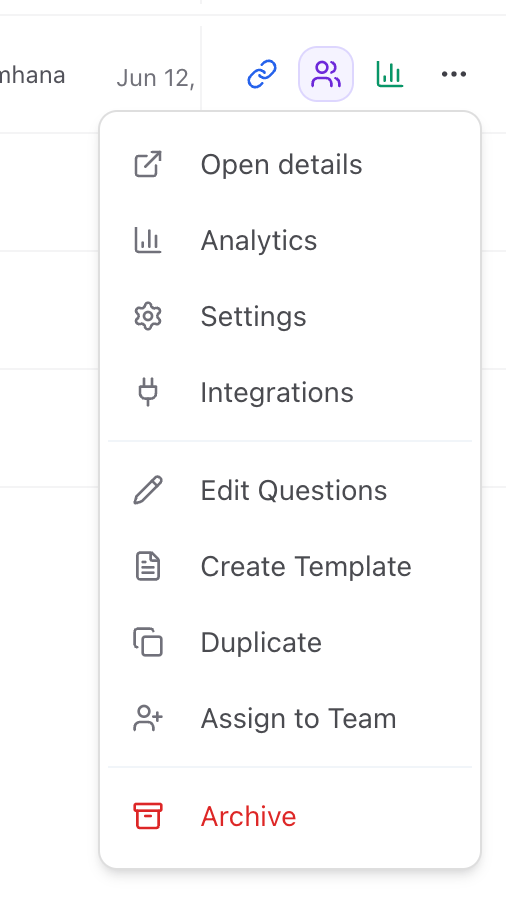
**Where to find it:** Interviewer editor → Questions & Scoring → Grading Criteria section
 ## What it does
Grading Criteria lets you define what you want to evaluate beyond the standard question scores. Unlike individual question scores, Grading Criteria evaluates concepts across the entire interview.
## What it does
Grading Criteria lets you define what you want to evaluate beyond the standard question scores. Unlike individual question scores, Grading Criteria evaluates concepts across the entire interview.
 For each criterion you add, the AI scores the candidate 0–100 after the interview and writes a short rationale with supporting quotes pulled directly from the recording.
Each quote is timestamped, and clicking it jumps the video or audio player to that exact moment.
This only applies to voice and video interviews. Jobs with no criteria behave exactly as before.
## Priority levels
Each criterion has a priority that signals how much weight it should carry in your review.
| **Priority** | **Meaning** |
| --------------- | ----------------------------------- |
| **High** | Most important — weigh this heavily |
| **Medium** | Important, secondary to High |
| **Low** | Nice-to-have signal |
| **No Priority** | Tracked but not ranked |
Higher-priority criteria appear first on the candidate's score card.
## Setting up criteria
1. Open an interviewer and go to **Questions & Scoring**
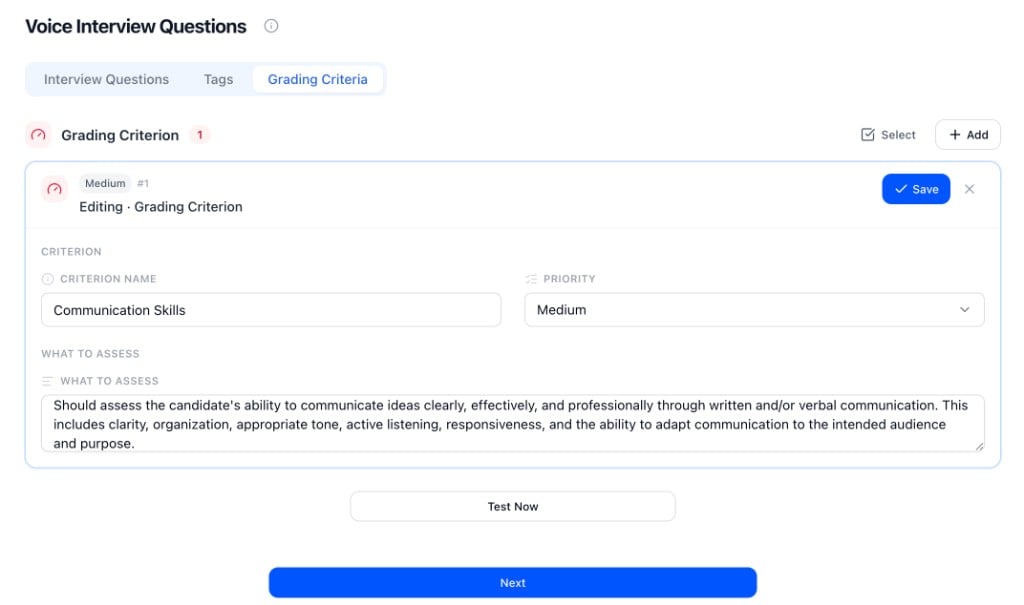
2. Find the **Grading Criteria** section and click **Add**
3. Enter a **name** (e.g. "Communication Skills") and a **guidance** note to help your team understand what this criterion is for
4. Once you enter a name, **Priority** and **What to Assess** populate automatically — review and edit them to match what you actually want scored
5. Save
You can add as many criteria as you need. The **Composer Agent** can also suggest criteria automatically when creating a new interviewer — you can edit or remove them like any other criterion.
## Viewing scores
After a candidate completes their interview, open their profile and go to the **Grading Criteria** tab.
For each criterion you add, the AI scores the candidate 0–100 after the interview and writes a short rationale with supporting quotes pulled directly from the recording.
Each quote is timestamped, and clicking it jumps the video or audio player to that exact moment.
This only applies to voice and video interviews. Jobs with no criteria behave exactly as before.
## Priority levels
Each criterion has a priority that signals how much weight it should carry in your review.
| **Priority** | **Meaning** |
| --------------- | ----------------------------------- |
| **High** | Most important — weigh this heavily |
| **Medium** | Important, secondary to High |
| **Low** | Nice-to-have signal |
| **No Priority** | Tracked but not ranked |
Higher-priority criteria appear first on the candidate's score card.
## Setting up criteria
1. Open an interviewer and go to **Questions & Scoring**
2. Find the **Grading Criteria** section and click **Add**
3. Enter a **name** (e.g. "Communication Skills") and a **guidance** note to help your team understand what this criterion is for
4. Once you enter a name, **Priority** and **What to Assess** populate automatically — review and edit them to match what you actually want scored
5. Save
You can add as many criteria as you need. The **Composer Agent** can also suggest criteria automatically when creating a new interviewer — you can edit or remove them like any other criterion.
## Viewing scores
After a candidate completes their interview, open their profile and go to the **Grading Criteria** tab.
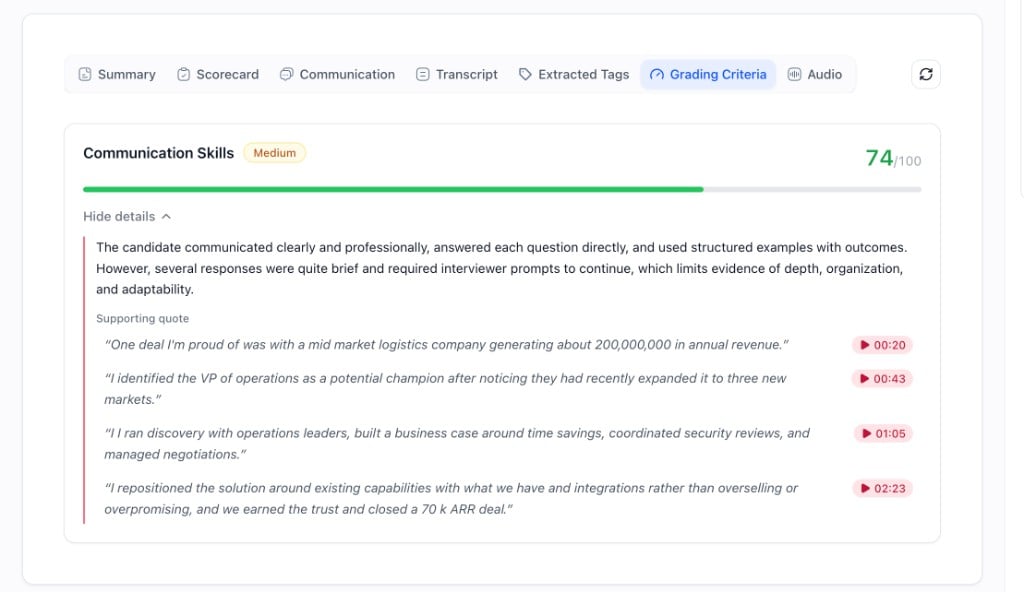 You'll see one score card per criterion showing:
* Criterion name and priority badge
* Score out of 100
* Written rationale
* Supporting quotes with clickable timestamps
If the interview didn't give the AI enough evidence to score a criterion, the card shows **Not enough data** instead of a number. This is expected behavior — the AI will not invent a score.
Grading only runs for completed interviews. If an interview wasn't finished, no score cards are produced.
## Re-running grading
If scores aren't showing yet or you want to refresh them, click the **Re-analyze** button (circular refresh icon near the top of the Grading Criteria tab). Grading can take a minute to process after an interview completes.
## Tips
* Write specific "what to assess" descriptions. The more precise you are, the more accurate the scores.
* Give the AI something to work with. Short or one-word interview answers will produce low scores or "Not enough data."
* Use Re-analyze after adding new criteria to an interviewer — existing completed interviews can be re-graded against the updated set.
You'll see one score card per criterion showing:
* Criterion name and priority badge
* Score out of 100
* Written rationale
* Supporting quotes with clickable timestamps
If the interview didn't give the AI enough evidence to score a criterion, the card shows **Not enough data** instead of a number. This is expected behavior — the AI will not invent a score.
Grading only runs for completed interviews. If an interview wasn't finished, no score cards are produced.
## Re-running grading
If scores aren't showing yet or you want to refresh them, click the **Re-analyze** button (circular refresh icon near the top of the Grading Criteria tab). Grading can take a minute to process after an interview completes.
## Tips
* Write specific "what to assess" descriptions. The more precise you are, the more accurate the scores.
* Give the AI something to work with. Short or one-word interview answers will produce low scores or "Not enough data."
* Use Re-analyze after adding new criteria to an interviewer — existing completed interviews can be re-graded against the updated set.