> ## Documentation Index
> Fetch the complete documentation index at: https://docs.heymilo.ai/llms.txt
> Use this file to discover all available pages before exploring further.
> Clone an interviewer for a new role, edit a live one, or archive when you're done. When to clone vs edit for consistent scoring.
# Cloning, Editing & Archiving
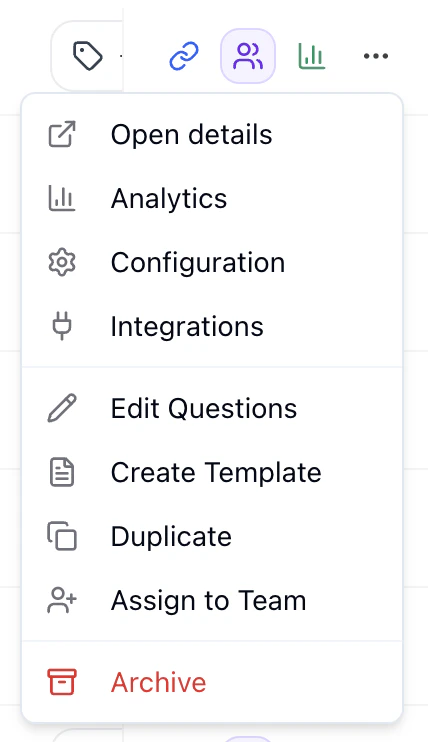
**Clone** = copy an interviewer for a similar role. **Edit** = change a live interviewer (questions, settings). **Archive** = close it out and keep it in Archived. All three: open **Interviewers** → pick the row or open it → **Actions** (⋯).
## Clone an interviewer
**When:** Same role elsewhere, similar role with tweaks, or you want a template. You get a full copy; change the title and anything else, then share the new link.
**How:** Interviewers → find the one → **⋯** (or open it → **Actions**) → **Clone** / **Duplicate** → name it and adjust → share when ready.
 **Tip:** Keep one "template" per common role and clone from it each time.
## Edit a live interviewer
You **can** edit questions and settings on a live interviewer. Changes apply to **new** candidates only; past candidates keep their original experience and scores.
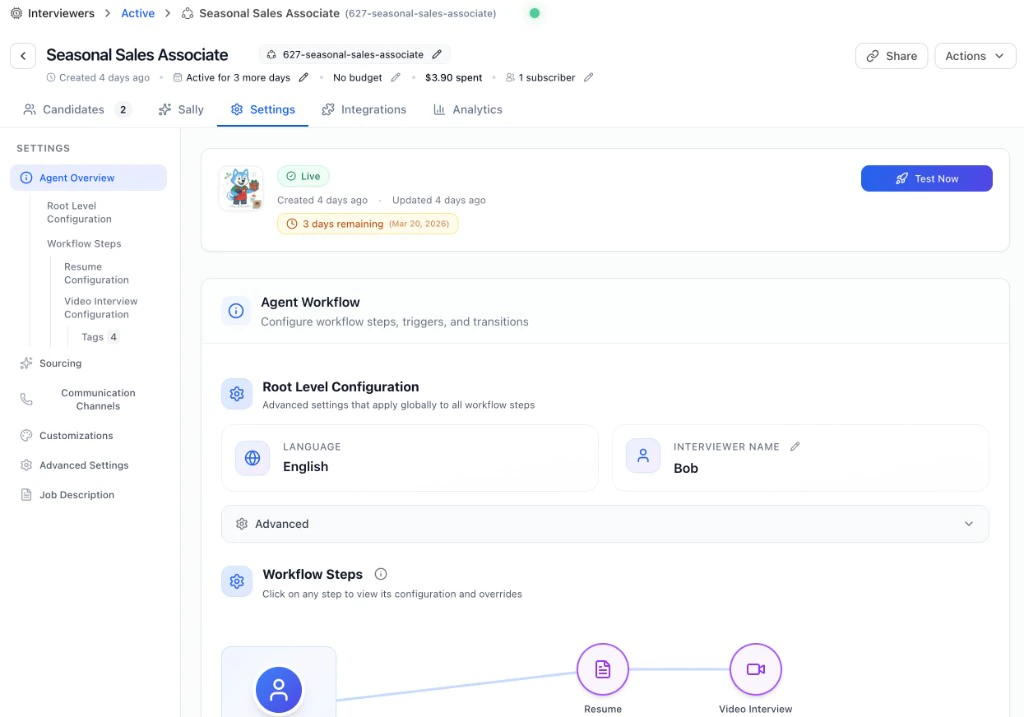
**Where:** Open the interviewer → **Settings** tab. Use the left panel (Agent Overview, Root Level Configuration, Workflow Steps, etc.) or open a stage to edit its questions and config.
**Tip:** Keep one "template" per common role and clone from it each time.
## Edit a live interviewer
You **can** edit questions and settings on a live interviewer. Changes apply to **new** candidates only; past candidates keep their original experience and scores.
**Where:** Open the interviewer → **Settings** tab. Use the left panel (Agent Overview, Root Level Configuration, Workflow Steps, etc.) or open a stage to edit its questions and config.
 #### Tweak a question's wording
Sometimes a candidate or hiring manager points out that a question is **too narrow or unclear**. Good news, you don't need to clone the whole agent for a copy fix.
**How:**
1. Open the interviewer → **Settings** → open the stage (e.g. **Voice Interview**).
2. Click into the question you want to edit.
3. Update the wording the same way you would when first creating it, then **Save**.
Updates apply to **new candidates only** — anyone who already interviewed keeps the original question and score.
**Clone vs edit?**
| If you want… | Do this |
| ------------------------------------------------------------------------------------------- | --------------------------------------------------------------------------------------------------------------------- |
| **Consistent scoring**: every candidate evaluated the same way, easy to compare | **Clone.** Use the new interviewer going forward. Past candidates stay on the original; new ones get the new version. |
| **Change questions or scoring on the fly**: okay if some candidates had different questions | **Edit live.** Change in Settings; only future candidates see the updates. |
If you clone and change the job description, the interview content doesn't auto-update — adjust questions and messaging in the new interviewer yourself.
## Archive an interviewer
**When:** Role is filled or you don't need it anymore.
**What happens:** It moves to the **Archived** tab, the link stops working for new candidates, and all data (scores, transcripts, candidates) stays so you can open it from Archived anytime.
**How:** Interviewers → **⋯** (or open → **Actions**) → **Archive** → confirm.
**Unarchive:** Archived tab → find it → **⋯** → **Unarchive**. Link works again; it's back under Active.
## Quick tips
* **Name clearly**: e.g. role + location + date so you can find it in the table.
* **Reconnect ATS after cloning**: If the old interviewer was linked to your ATS, link the new one and unlink the old so new candidates go to the right place.
* [Your Dashboard](../your-dashboard/dashboard): See all interviewers and analytics.
## Next steps
* [Configuring Your AI Interviewer](../getting-started/log-in/configuring-your-ai-interviewer)
* [Your Dashboard](../your-dashboard/dashboard)
#### Tweak a question's wording
Sometimes a candidate or hiring manager points out that a question is **too narrow or unclear**. Good news, you don't need to clone the whole agent for a copy fix.
**How:**
1. Open the interviewer → **Settings** → open the stage (e.g. **Voice Interview**).
2. Click into the question you want to edit.
3. Update the wording the same way you would when first creating it, then **Save**.
Updates apply to **new candidates only** — anyone who already interviewed keeps the original question and score.
**Clone vs edit?**
| If you want… | Do this |
| ------------------------------------------------------------------------------------------- | --------------------------------------------------------------------------------------------------------------------- |
| **Consistent scoring**: every candidate evaluated the same way, easy to compare | **Clone.** Use the new interviewer going forward. Past candidates stay on the original; new ones get the new version. |
| **Change questions or scoring on the fly**: okay if some candidates had different questions | **Edit live.** Change in Settings; only future candidates see the updates. |
If you clone and change the job description, the interview content doesn't auto-update — adjust questions and messaging in the new interviewer yourself.
## Archive an interviewer
**When:** Role is filled or you don't need it anymore.
**What happens:** It moves to the **Archived** tab, the link stops working for new candidates, and all data (scores, transcripts, candidates) stays so you can open it from Archived anytime.
**How:** Interviewers → **⋯** (or open → **Actions**) → **Archive** → confirm.
**Unarchive:** Archived tab → find it → **⋯** → **Unarchive**. Link works again; it's back under Active.
## Quick tips
* **Name clearly**: e.g. role + location + date so you can find it in the table.
* **Reconnect ATS after cloning**: If the old interviewer was linked to your ATS, link the new one and unlink the old so new candidates go to the right place.
* [Your Dashboard](../your-dashboard/dashboard): See all interviewers and analytics.
## Next steps
* [Configuring Your AI Interviewer](../getting-started/log-in/configuring-your-ai-interviewer)
* [Your Dashboard](../your-dashboard/dashboard)