> ## Documentation Index
> Fetch the complete documentation index at: https://docs.heymilo.ai/llms.txt
> Use this file to discover all available pages before exploring further.
# Workday
> Integrating HeyMilo with Workday unlocks seamless end-to-end AI candidate screening directly inside your hiring workflow, from automated interview invites to instant write-backs of reports, scores, transcripts, and insights into Workday candidate records.
## **Prerequisites**
Before you start, make sure you have:
* Workday integration system user (ISU) credentials with permission to read jobs, candidates, and applications, and to write notes/attachments back to candidate records.
* Workday admin access to add HeyMilo as an Assessment Vendor in your tenant (your Workday admin will be prompted during the OAuth flow).
* HeyMilo workspace owner or admin role to enable integrations.
## **Enable The Integration**
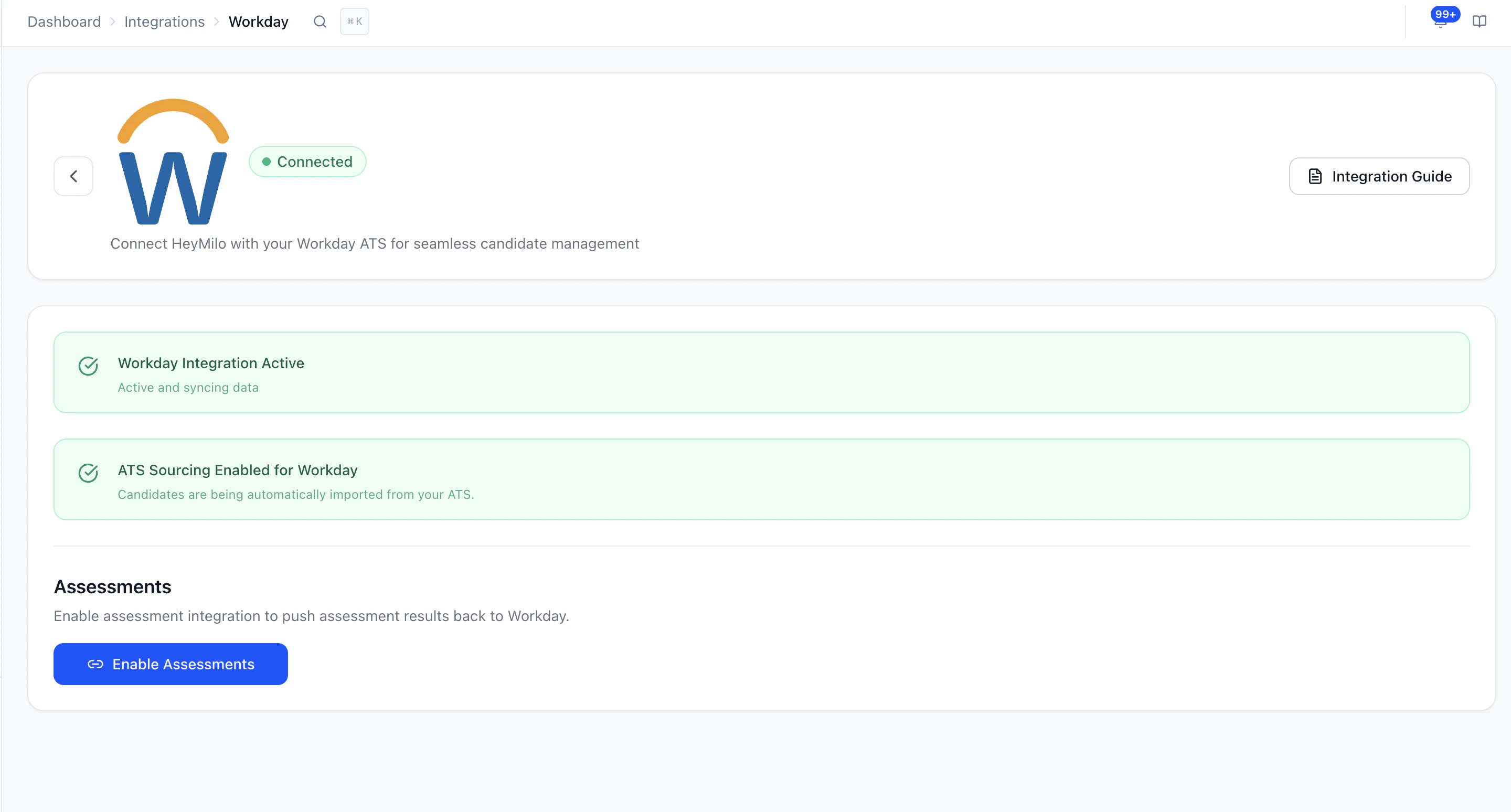
You only need to do this once per workspace. After this, every req you want to use HeyMilo on just needs to be linked to a HeyMilo agent (covered in the next section).
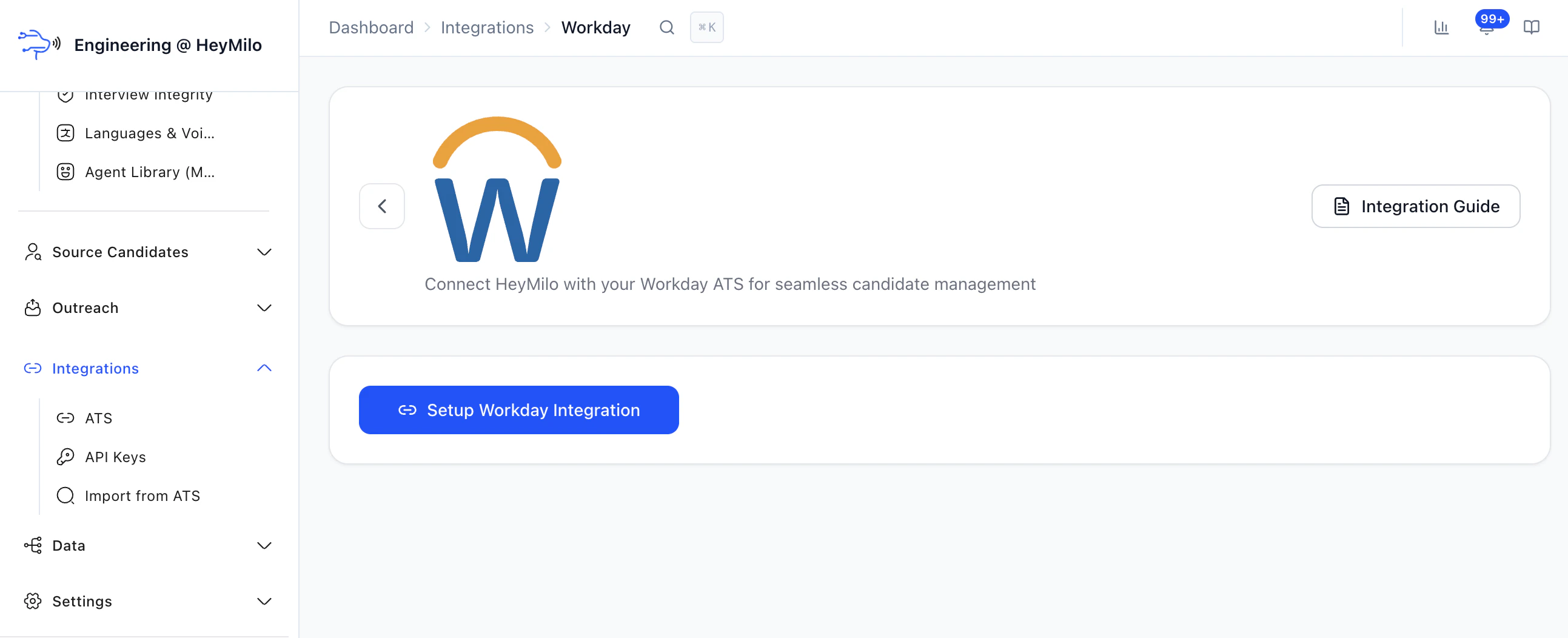
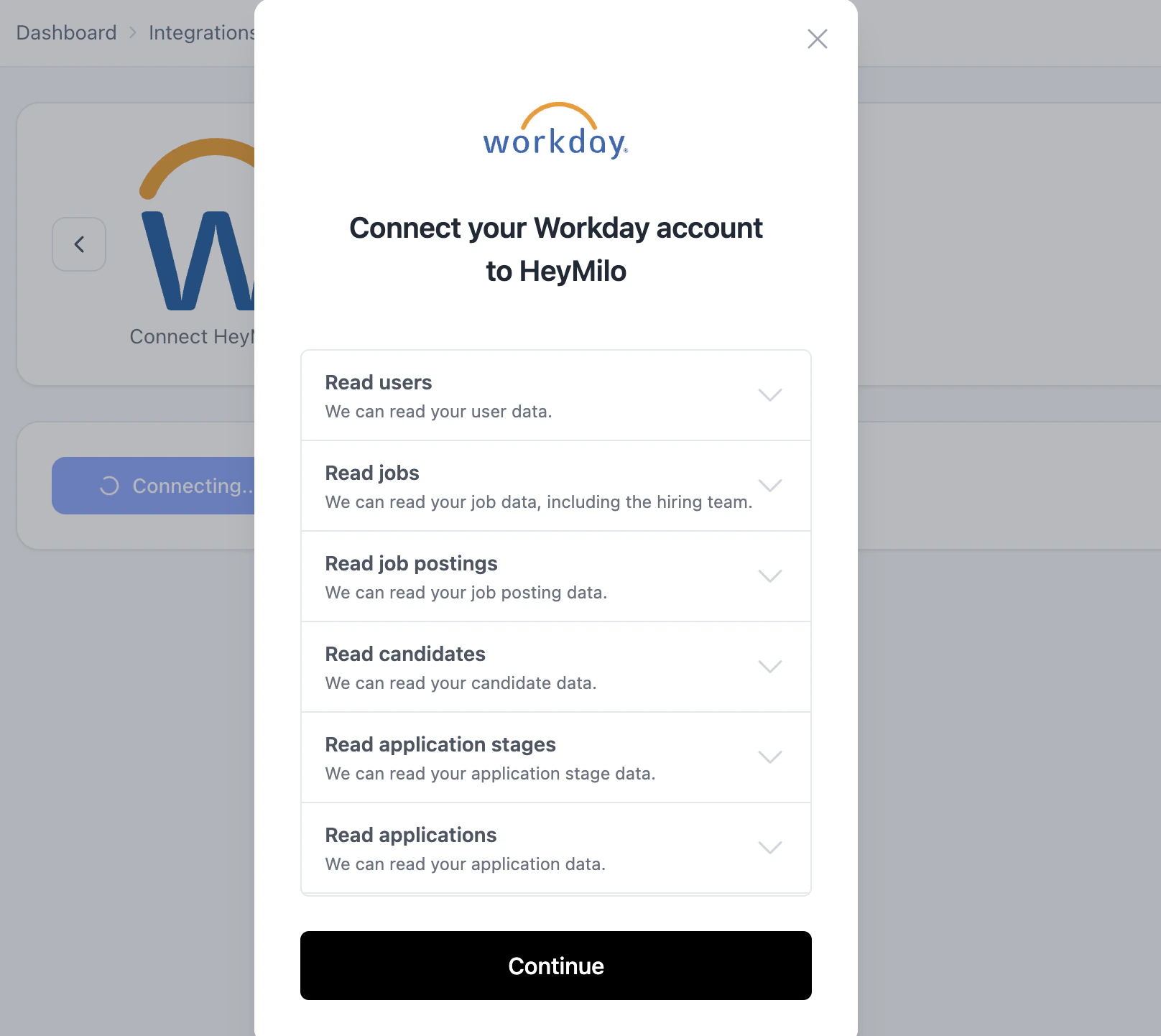 * Approve HeyMilo's requested permissions (read access to jobs, candidates, and applications; write access for notes, attachments, and stage updates).
* Go through the steps as prompted.
* Confirm to complete the connection.
* Approve HeyMilo's requested permissions (read access to jobs, candidates, and applications; write access for notes, attachments, and stage updates).
* Go through the steps as prompted.
* Confirm to complete the connection.
 ## Use the Integration With Workday
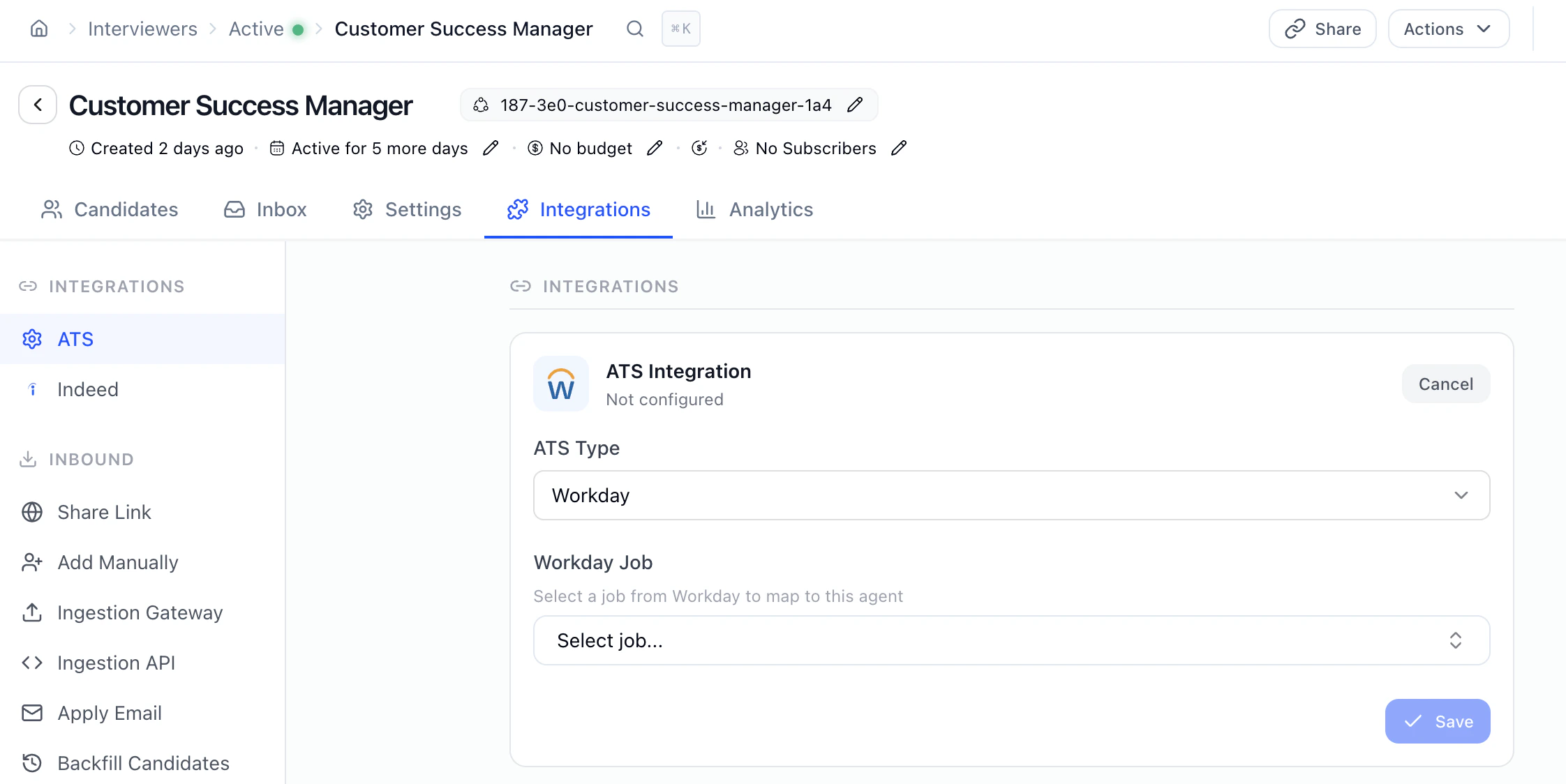
Once the integration is enabled, the only setup remaining is linking each Workday requisition to the HeyMilo agent that should screen for it. After that, everything for that role happens in Workday.
* Select Workday from the integration dropdown.
* Pick the Workday requisition you want to link from the list of jobs.
* Save the mapping.
This is a one-time step per requisition — once it's saved, every candidate who reaches the HeyMilo assessment stage on this Workday req will automatically be screened by this agent.
## Use the Integration With Workday
Once the integration is enabled, the only setup remaining is linking each Workday requisition to the HeyMilo agent that should screen for it. After that, everything for that role happens in Workday.
* Select Workday from the integration dropdown.
* Pick the Workday requisition you want to link from the list of jobs.
* Save the mapping.
This is a one-time step per requisition — once it's saved, every candidate who reaches the HeyMilo assessment stage on this Workday req will automatically be screened by this agent.
 * The candidate clicks the link and completes the AI screening flow.
* Recruiters can monitor progress in Workday; HeyMilo updates the candidate record as the screening progresses.
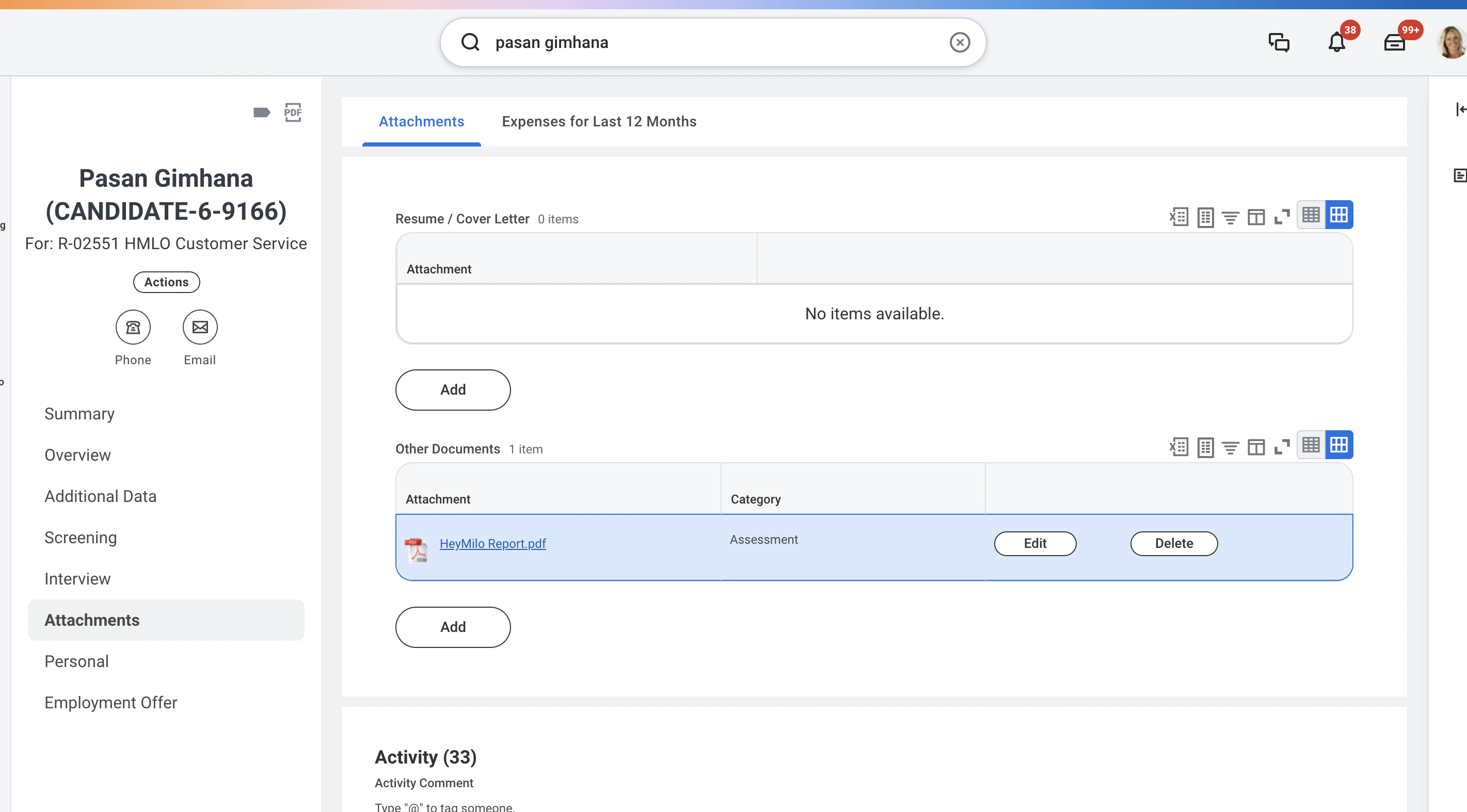
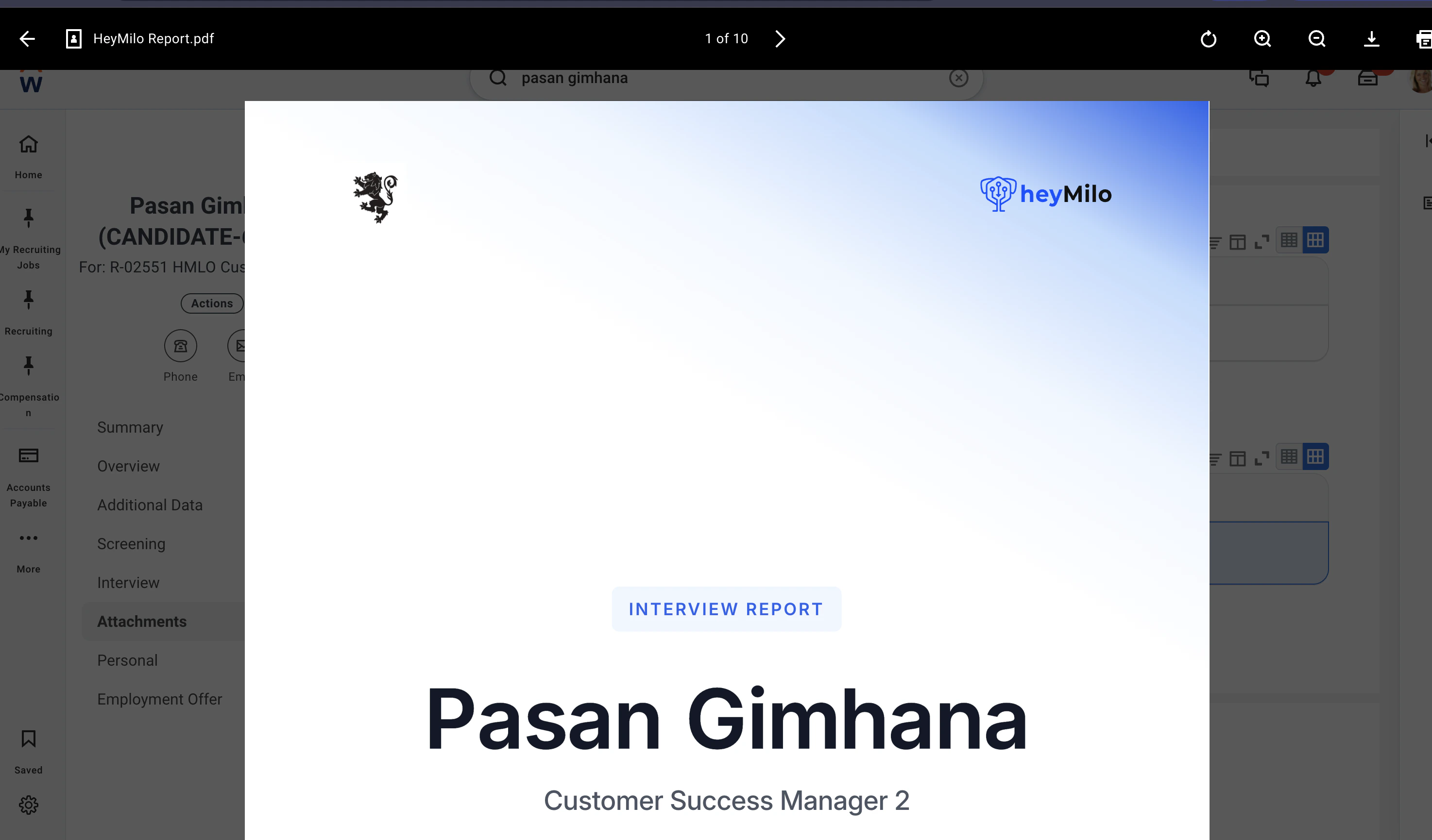
* A note on the candidate with their HeyMilo pdf report in attachments and additional data
* The candidate clicks the link and completes the AI screening flow.
* Recruiters can monitor progress in Workday; HeyMilo updates the candidate record as the screening progresses.
* A note on the candidate with their HeyMilo pdf report in attachments and additional data
 ## Additional Resources
For additional information not covered here, reach out to [support@heymilo.ai](mailto:support@heymilo.ai).
## Additional Resources
For additional information not covered here, reach out to [support@heymilo.ai](mailto:support@heymilo.ai).