> ## Documentation Index
> Fetch the complete documentation index at: https://docs.heymilo.ai/llms.txt
> Use this file to discover all available pages before exploring further.

# Lever

> HeyMilo’s AI-powered end-to-end interviews plug directly into Lever so every applicant is screened instantly, schedules stay open, and your recruitment pipeline will never be blocked.

### **Agents Supported in Lever**

| **SMS Agent**                                                                                                                                                                                                                                              | **Resume Agent**                                                                                                                                                                                                                                                                                                 | **Voice/Video Agent**                                                                                                                                                                                                                                                                                                                                                                                   |
| :--------------------------------------------------------------------------------------------------------------------------------------------------------------------------------------------------------------------------------------------------------- | :--------------------------------------------------------------------------------------------------------------------------------------------------------------------------------------------------------------------------------------------------------------------------------------------------------------- | :------------------------------------------------------------------------------------------------------------------------------------------------------------------------------------------------------------------------------------------------------------------------------------------------------------------------------------------------------------------------------------------------------ |
| ✅                                                                                                                                                                                                                                                          | ✅                                                                                                                                                                                                                                                                                                                | ✅                                                                                                                                                                                                                                                                                                                                                                                                       |
| **How does it work?** As soon as candidates apply, they get a text from Milo with your questions. They respond directly in the thread, just like a real conversation. Once they finish, Milo sends over the voice or video interview invite automatically. | **How does it work?**<br />Please be advised that the data is not automatically pulled from ATS. You can add resume screening to your agent workflow once the integration is live and your job is connected. Candidates will then be asked to upload their resume to get screened for fit before moving forward. | **How does it work?** After integration and job posting mapping, when a candidate applies to your Lever job posting, the candidate's email address is pulled from the application form and the candidate is engaged through email to take the voice/video assessment. Once the candidate has completed it, the candidate's detailed assessment report is attached to their profile in the Lever portal. |

<Info>
  💡**HeyMilo supports SMS screening across all ATS platforms—as long as a valid phone number (with country code) is provided.** Since most ATSs don’t collect phone numbers by default, be sure to make the mobile number a required field in your job post.

  Alternatively, you can enable both resume and SMS screening on your HeyMilo job, ensuring candidates are screened even if their phone number or resume isn’t accessible via your ATS.
</Info>

### Setting Up the Integration

#### 🛠 What You’ll Need to Get Started

Before connecting Lever with HeyMilo, you'll need:

* ✅ A HeyMilo workspace where you have administrator privileges - this lets you manage integrations and settings
* ✅ Administrator access to your company's Lever account - required to enable the webhooks and post jobs.
* ✅ Webhooks enabled in your Lever account - required for real-time communication between Lever and HeyMilo

### Enable Lever Webhooks

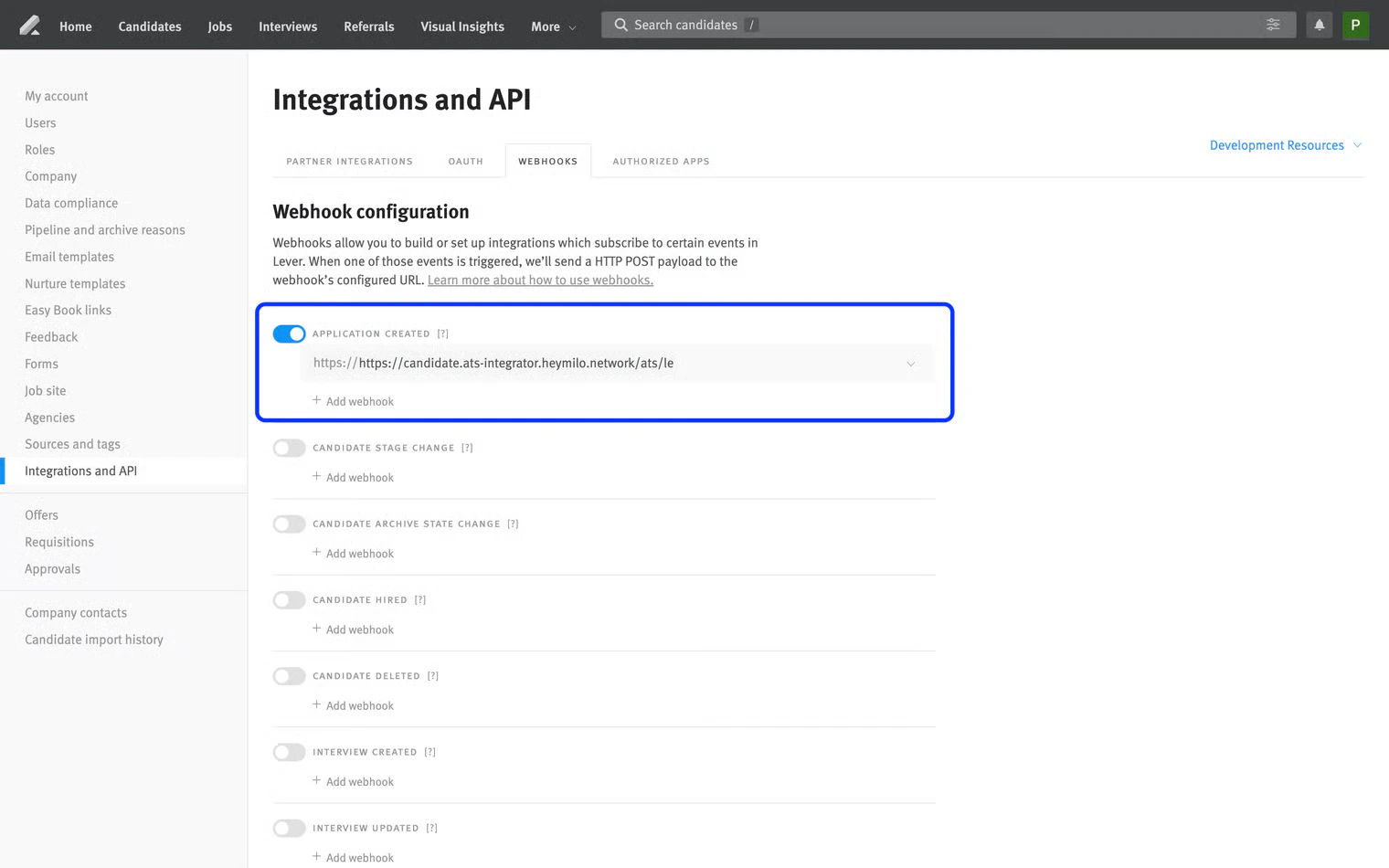
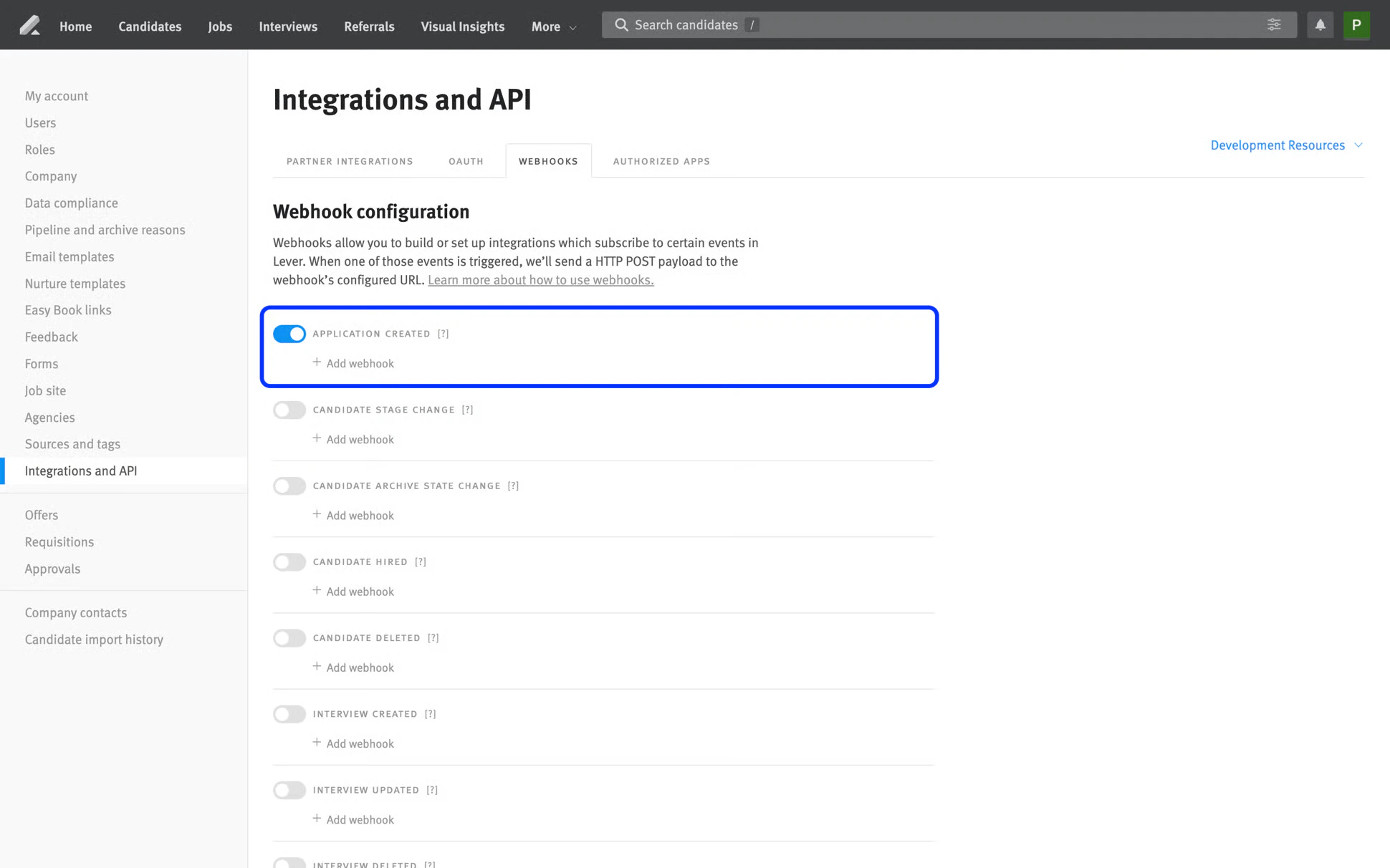
Enable webhooks to allow Lever to notify HeyMilo whenever an "Application Created" event occurs. This enables automatic processing of new candidate applications.
<Steps>
  <Step title="Log into your Lever admin dashboard" />

  <Step title="Navigate to Settings > Integrations and API > Webhooks" />

  <Step title="Enable the Application Created webhook.">
    <Frame>
      <img src="https://mintcdn.com/heymilo/p45b3upg2av896bl/images/image-106.png?fit=max&auto=format&n=p45b3upg2av896bl&q=85&s=9aece3d8bcba7a7e727233db81d5691f" alt="Image" width="1940" height="1212" data-path="images/image-106.png" />
    </Frame>
  </Step>
</Steps>

### Integrate Lever With HeyMilo

<Steps>
  <Step title="Log in to HeyMilo Admin (https://admin.heymilo.ai)" />

  <Step title="Navigate to https://admin.heymilo.ai/w/{WORKSPACE_ID}/integrations to access the integrations page" />

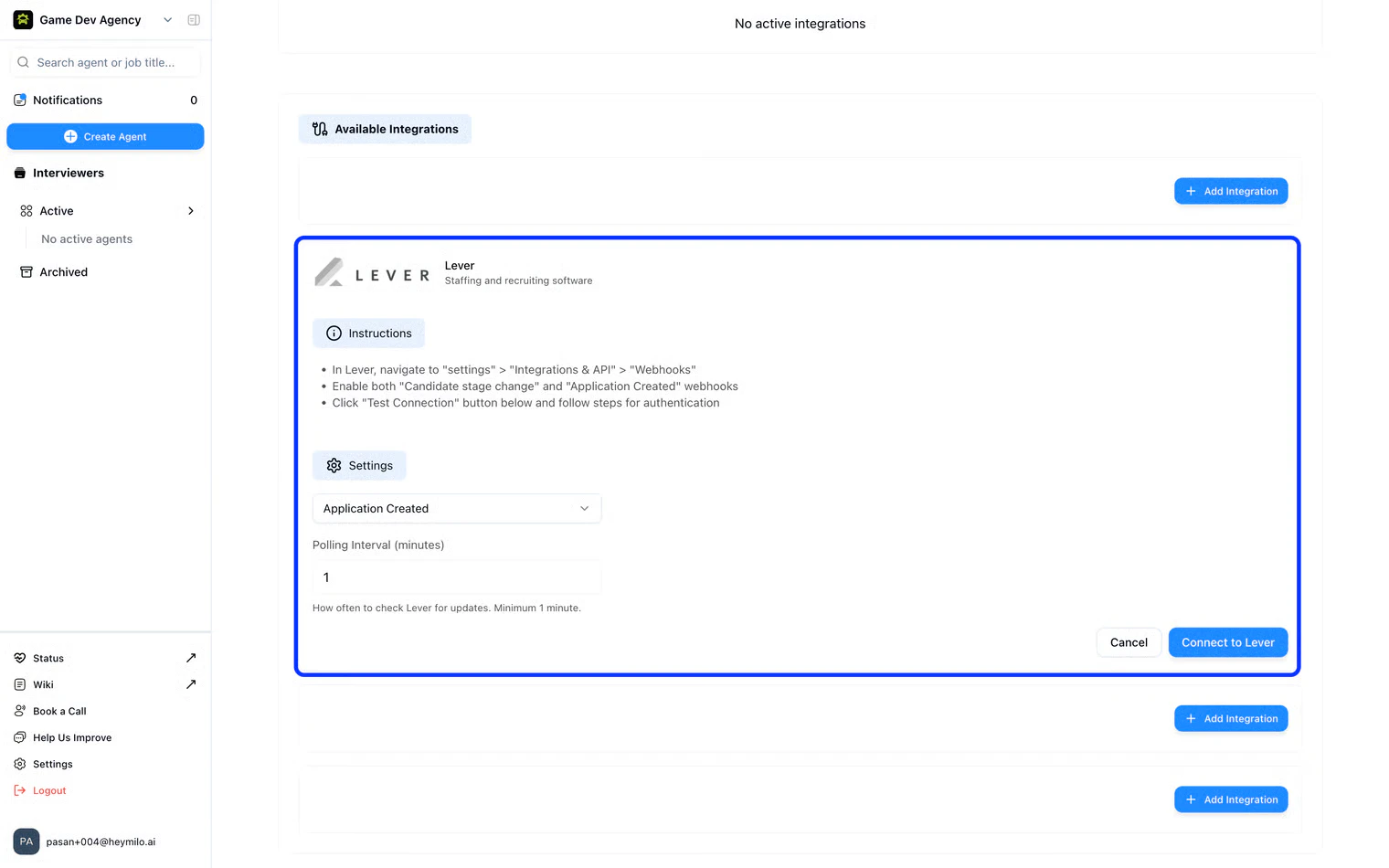
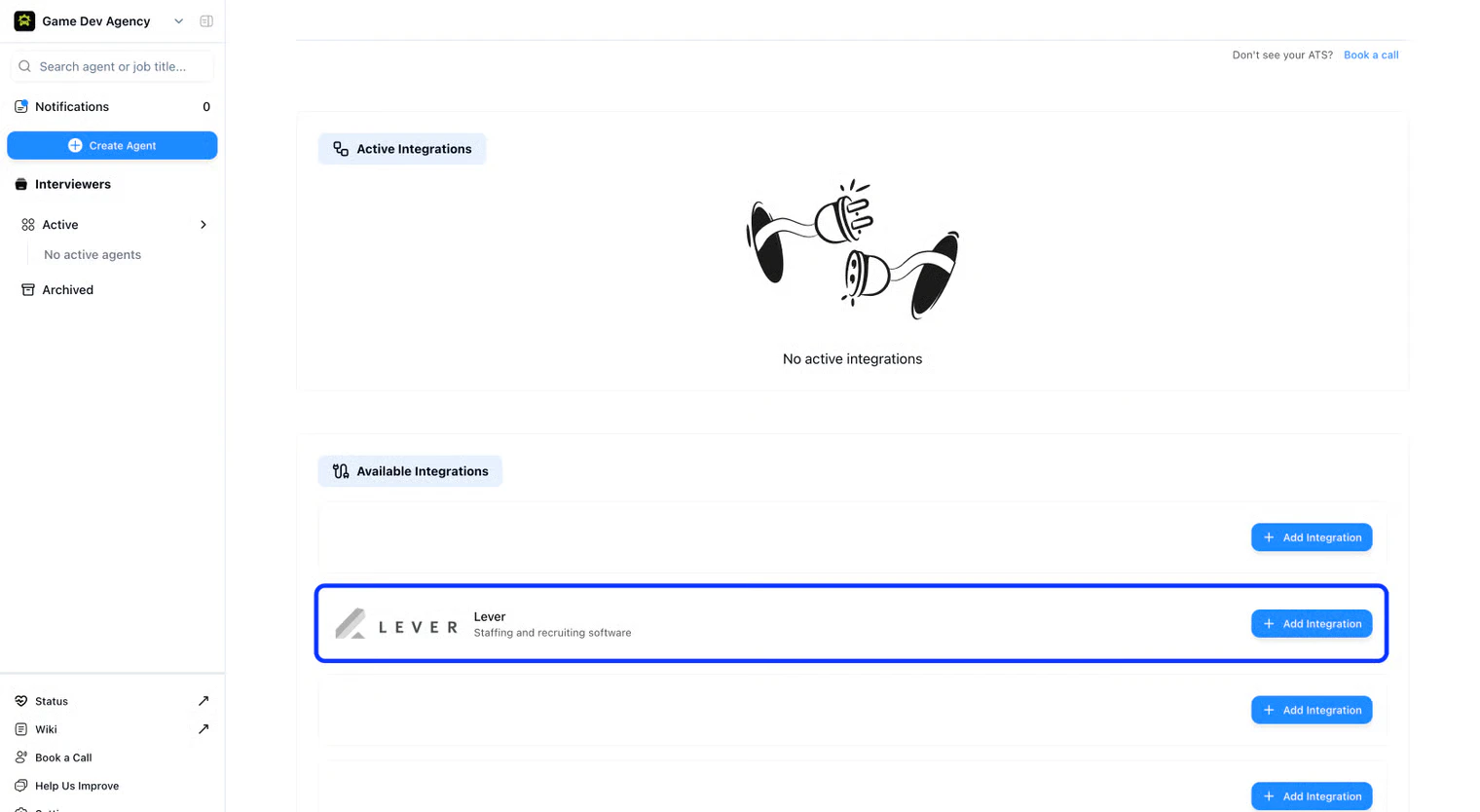
  <Step title="Find the Lever integration card and click &#x22;Add Integration&#x22;">
    * This will create a expanded section with additional information and instructions about the integration.
          <Frame>
            <img src="https://mintcdn.com/heymilo/p45b3upg2av896bl/images/image-108.png?fit=max&auto=format&n=p45b3upg2av896bl&q=85&s=7f1cd2ff228a70a2b6db9d328cf6f43c" alt="Image" width="1520" height="834" data-path="images/image-108.png" />
          </Frame>
  </Step>

  <Step title="In the dialog, select Application Created as the trigger. Select an interval you prefer HeyMilo to check Lever for new jobs.">
    <Frame>
      <img src="https://mintcdn.com/heymilo/p45b3upg2av896bl/images/image-109.png?fit=max&auto=format&n=p45b3upg2av896bl&q=85&s=cecd1450fac00847debe0f6a03cd2dab" alt="Image" width="1520" height="950" data-path="images/image-109.png" />
    </Frame>
  </Step>

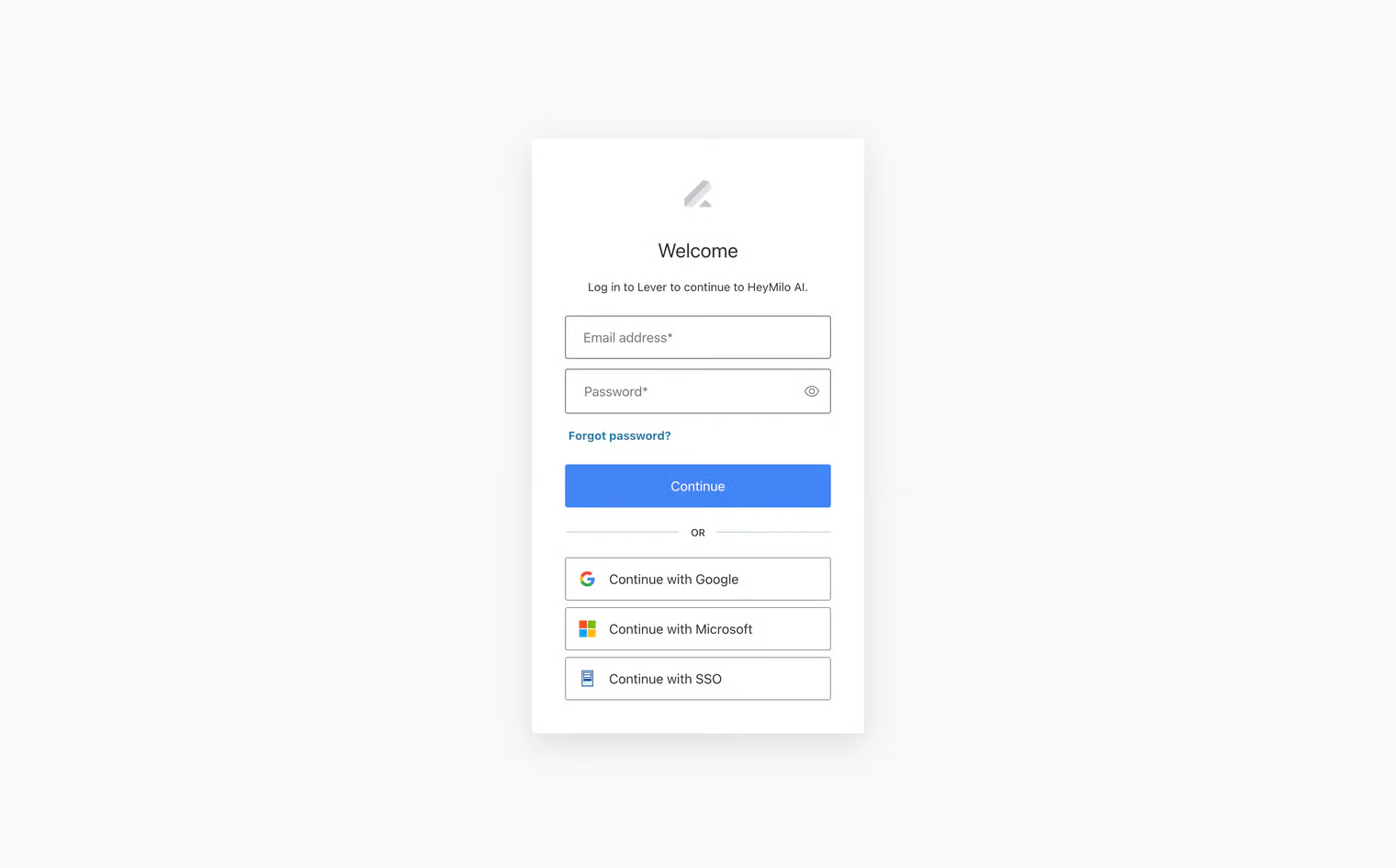
  <Step title="Next, authenticate with Lever.">
    <Frame>
      <img src="https://mintcdn.com/heymilo/p45b3upg2av896bl/images/image-110.png?fit=max&auto=format&n=p45b3upg2av896bl&q=85&s=0acf50bb949c04701d5a57763ff4dbf5" alt="Image" width="1520" height="945" data-path="images/image-110.png" />
    </Frame>
  </Step>

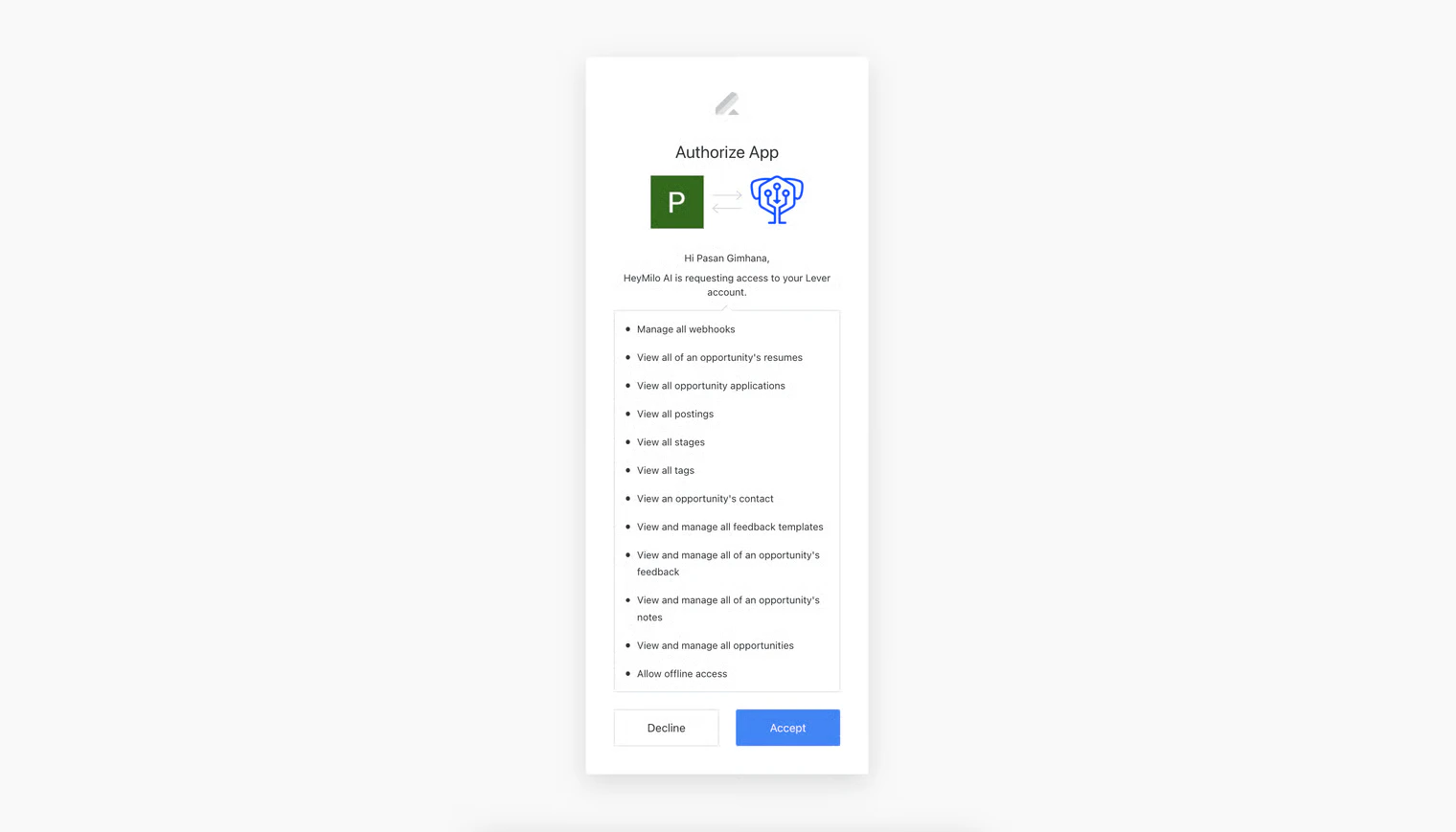
  <Step title="You will then be prompted to grant necessary permissions">
    <Frame>
      <img src="https://mintcdn.com/heymilo/p45b3upg2av896bl/images/image-111.png?fit=max&auto=format&n=p45b3upg2av896bl&q=85&s=11ae9e890f08d738a6465183a976528b" alt="Image" width="1520" height="869" data-path="images/image-111.png" />
    </Frame>
  </Step>

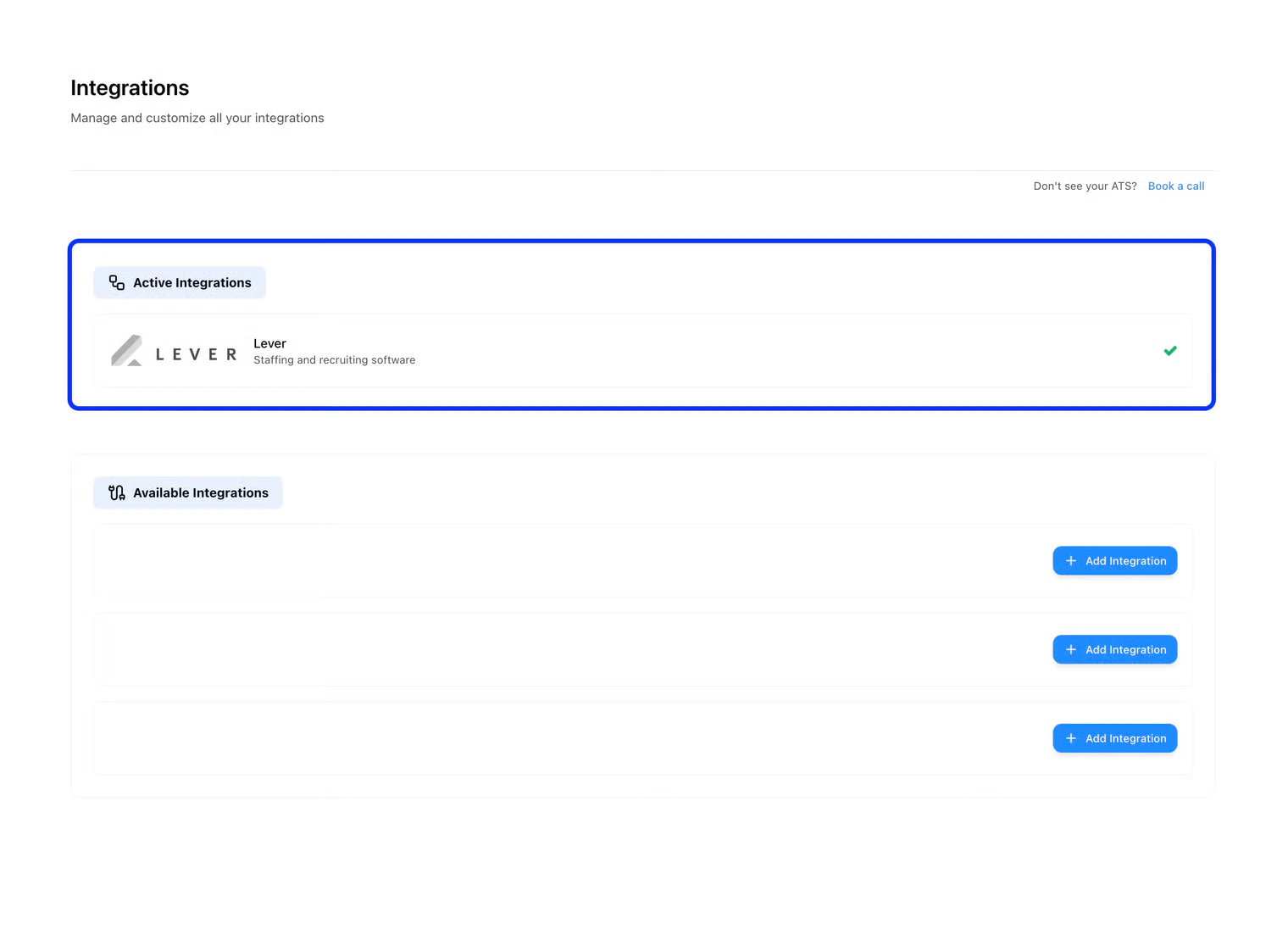
  <Step title="Upon successful connection, the page will automatically refresh and you'll see a green checkmark (✓) on the Lever integration card, confirming the setup is complete.">
    <Frame>
      <img src="https://mintcdn.com/heymilo/p45b3upg2av896bl/images/image-112.png?fit=max&auto=format&n=p45b3upg2av896bl&q=85&s=6af3b6bb5ff6e80a13ae4a0016168003" alt="Image" width="1520" height="1122" data-path="images/image-112.png" />
    </Frame>
  </Step>

  <Step title="(Optional) You can confirm the webhook in Lever if you like—but if you saw the ✓ in the Integrations page in HeyMilo, everything is working perfectly.">
    <Frame>
      <img src="https://mintcdn.com/heymilo/p45b3upg2av896bl/images/image-113.png?fit=max&auto=format&n=p45b3upg2av896bl&q=85&s=1ffd003d6d563d5ba5336c04a92ad44d" alt="Image" width="1520" height="950" data-path="images/image-113.png" />
    </Frame>
  </Step>
</Steps>

### Additional resources

For additional information not covered here, reach out to [support@heymilo.ai](mailto:support@heymilo.ai) or contact your Customer Success Manager.