> ## Documentation Index
> Fetch the complete documentation index at: https://docs.heymilo.ai/llms.txt
> Use this file to discover all available pages before exploring further.
> Pull jobs from your connected ATS, generate a HeyMilo interview agent in a few clicks, and control exactly which questions carry over from a template vs get generated fresh from the job description.
# Import From ATS
Use this when you want to screen existing ATS candidates through a HeyMilo interview or run a one-off batch without changing your normal ATS flow.
### Step-by-step
Follow the steps below to turn jobs from your ATS into interview agents automatically.
#### How to create an interview agent from an ATS job
Click **Integrations** in the sidebar, then select **Import from ATS**.
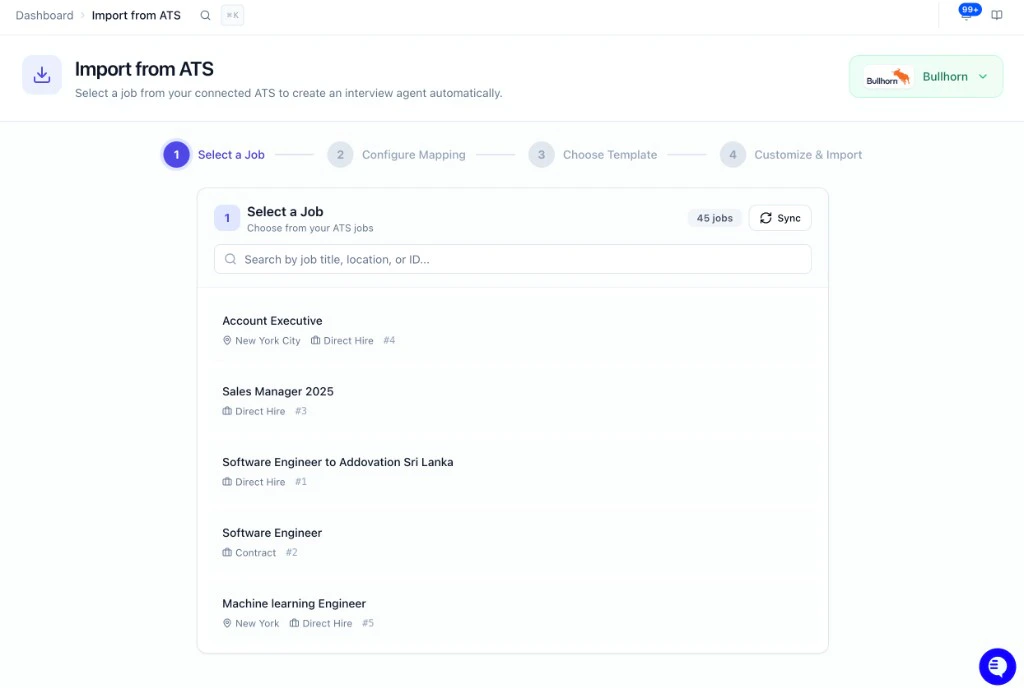 At the top you'll see your connected ATS (e.g. **Avionté Connected**). If nothing appears or it says disconnected, connect your ATS first under Integrations before using Import from ATS.
Click the job you want to use. Use **Sync** to refresh the list from your ATS, or **search by title, location, or ID**. Once selected, save and move to the next step.
Confirm this is the right job before creating the agent.
Choose how to set up the new agent:
**Option A - Generate from job description:** HeyMilo analyzes the job and generates custom questions automatically. Good for roles where you want a fresh set of questions every time.
**Option B - Use a template (recommended):** Select a pre-built template. Your template's questions and settings load in. From here, you have question-level control:
* **Keep a question:** leave it checked. It carries over exactly as set in the template.
* **Replace a question:** uncheck it. HeyMilo will generate a new question for that slot based on the job description instead.
**Example:** Keep your first two questions the same across every role (e.g. work authorization, availability), and let HeyMilo generate role-specific questions for the rest by unchecking them.
You can also mix both — keep some template questions and generate others — in the same import.
Once you've made your selections, click **Customize and Import**, review the setup, then hit **Create Agent**.

After the agent is created, the ATS sync is **not active by default.** This is intentional — it prevents candidates from flowing in before you're ready.
To activate it:
1. Open the new agent from your dashboard.
2. Go to the **Integrations** tab.
3. Turn on the **ATS sync** for that agent.
To pause the sync at any time, return to the same tab and toggle it off.
If candidates applied to this job in your ATS before you created the HeyMilo agent, they won't be pulled in automatically. To backfill them:
1. Open the agent → **Integrations** tab.
2. Click **Import**.
This pulls in candidates who were already in the ATS job before the sync was active.
#### When to use Import from ATS
* You have jobs in your ATS and want a HeyMilo interview agent for each without building them manually.
* You want AI to draft interview questions from the job description so you don't start from a blank page.
* You want new agents to stay aligned with the job title, location, and ID in your ATS.
* You want to mix template questions with job-description-generated questions — keeping consistent questions across roles while tailoring others per req.
**Tip:** Use the search box to find jobs by title, location, or ID. If you don't see the job you need, click **Sync** to refresh the list from your ATS, or check that your ATS connection is healthy in Integrations.
At the top you'll see your connected ATS (e.g. **Avionté Connected**). If nothing appears or it says disconnected, connect your ATS first under Integrations before using Import from ATS.
Click the job you want to use. Use **Sync** to refresh the list from your ATS, or **search by title, location, or ID**. Once selected, save and move to the next step.
Confirm this is the right job before creating the agent.
Choose how to set up the new agent:
**Option A - Generate from job description:** HeyMilo analyzes the job and generates custom questions automatically. Good for roles where you want a fresh set of questions every time.
**Option B - Use a template (recommended):** Select a pre-built template. Your template's questions and settings load in. From here, you have question-level control:
* **Keep a question:** leave it checked. It carries over exactly as set in the template.
* **Replace a question:** uncheck it. HeyMilo will generate a new question for that slot based on the job description instead.
**Example:** Keep your first two questions the same across every role (e.g. work authorization, availability), and let HeyMilo generate role-specific questions for the rest by unchecking them.
You can also mix both — keep some template questions and generate others — in the same import.
Once you've made your selections, click **Customize and Import**, review the setup, then hit **Create Agent**.

After the agent is created, the ATS sync is **not active by default.** This is intentional — it prevents candidates from flowing in before you're ready.
To activate it:
1. Open the new agent from your dashboard.
2. Go to the **Integrations** tab.
3. Turn on the **ATS sync** for that agent.
To pause the sync at any time, return to the same tab and toggle it off.
If candidates applied to this job in your ATS before you created the HeyMilo agent, they won't be pulled in automatically. To backfill them:
1. Open the agent → **Integrations** tab.
2. Click **Import**.
This pulls in candidates who were already in the ATS job before the sync was active.
#### When to use Import from ATS
* You have jobs in your ATS and want a HeyMilo interview agent for each without building them manually.
* You want AI to draft interview questions from the job description so you don't start from a blank page.
* You want new agents to stay aligned with the job title, location, and ID in your ATS.
* You want to mix template questions with job-description-generated questions — keeping consistent questions across roles while tailoring others per req.
**Tip:** Use the search box to find jobs by title, location, or ID. If you don't see the job you need, click **Sync** to refresh the list from your ATS, or check that your ATS connection is healthy in Integrations.