> ## Documentation Index
> Fetch the complete documentation index at: https://docs.heymilo.ai/llms.txt
> Use this file to discover all available pages before exploring further.
> Create scheduling templates so candidates can book interview times with you directly in HeyMilo after they finish asynchronous screening flows.
# Candidate Self-Scheduling
## Before you start
**Sidebar → Scheduling**
Setup order:
1. Sidebar → Scheduling → **Your Calendar**
2. Sidebar → Scheduling → **Availability**
3. Sidebar → Scheduling → **Templates**
4. Assign a template when creating an interview agent
Scheduling runs at the end of the agent workflow. The candidate finishes their interview and is taken to a scheduling page with available times (in their timezone).
## Your Calendar
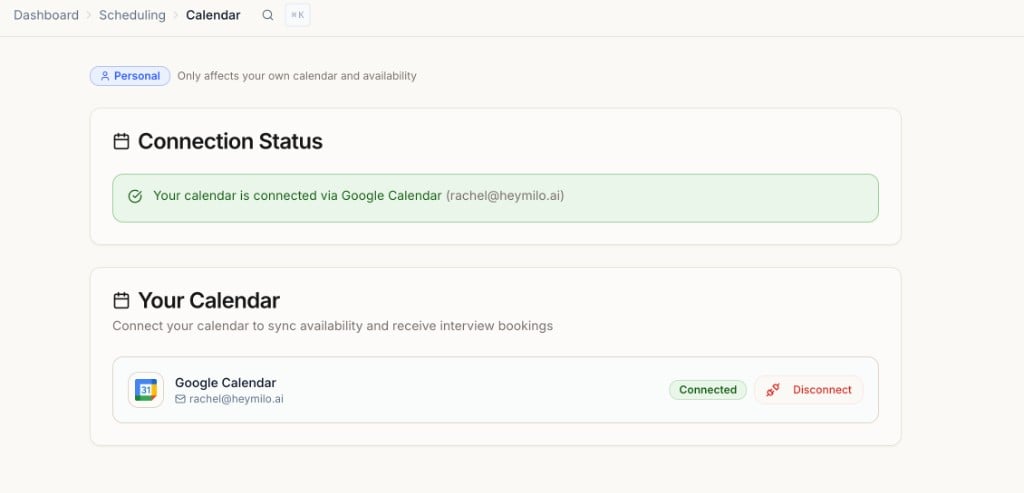 **Personal**: only affects your own calendar and availability.
* Connect your calendar to sync availability and receive interview bookings
* Supported providers: Google, iCloud, Office 365, Exchange, Outlook.com
* Connection status shows at the top of the page once connected
You must connect a calendar before you can set availability or be added to interviews.
## Availability
**Personal**: only affects your own calendar and availability.
* Connect your calendar to sync availability and receive interview bookings
* Supported providers: Google, iCloud, Office 365, Exchange, Outlook.com
* Connection status shows at the top of the page once connected
You must connect a calendar before you can set availability or be added to interviews.
## Availability
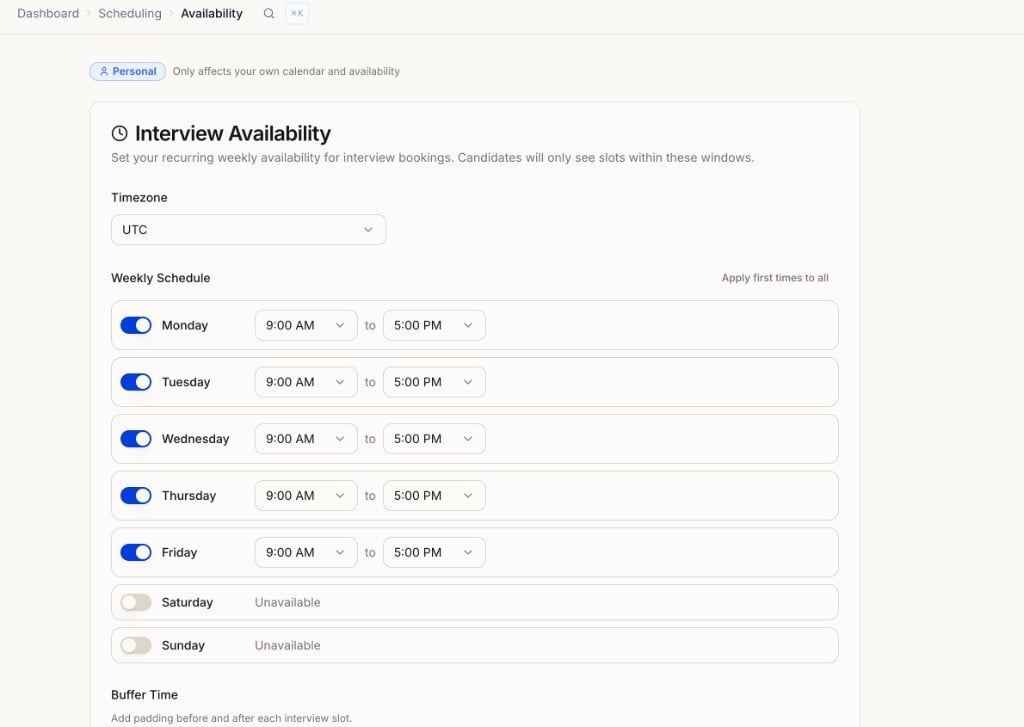 **Personal**: only affects your own calendar and availability.
* Set your **timezone** (used to convert slots to the candidate's timezone)
* Set your **weekly schedule** (recurring windows when candidates can book, e.g. Mon to Fri, 9:00 AM to 5:00 PM). Use **Apply first times to all** to fill the week quickly
* Mark days unavailable (e.g. weekends)
* Add **buffer time** before and after each interview slot
* Click **Save Availability**
Candidates only see slots within these windows, checked against your live calendar.
## Team Calendars
**Personal**: only affects your own calendar and availability.
* Set your **timezone** (used to convert slots to the candidate's timezone)
* Set your **weekly schedule** (recurring windows when candidates can book, e.g. Mon to Fri, 9:00 AM to 5:00 PM). Use **Apply first times to all** to fill the week quickly
* Mark days unavailable (e.g. weekends)
* Add **buffer time** before and after each interview slot
* Click **Save Availability**
Candidates only see slots within these windows, checked against your live calendar.
## Team Calendars
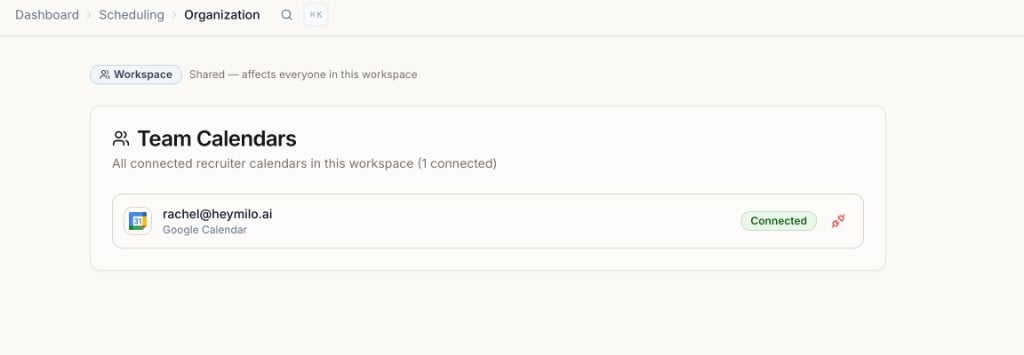 **Workspace**: shared, affects everyone in this workspace.
* Shows all connected recruiter calendars in the workspace
* Use this to confirm who on the team has connected before adding them to a scheduling template
## Templates
**Workspace**: shared, affects everyone in this workspace.
* Shows all connected recruiter calendars in the workspace
* Use this to confirm who on the team has connected before adding them to a scheduling template
## Templates
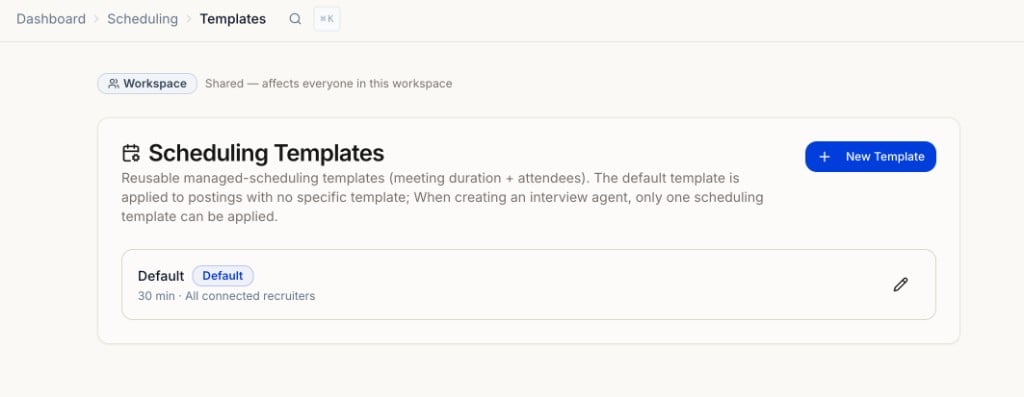 **Workspace**: shared, affects everyone in this workspace.
Reusable scheduling templates that define **meeting duration + attendees**.
* **Default template:** 30 min, all connected recruiters. Applied to postings with no specific template
* **New Template:** opens a side drawer. Set a name, meeting duration (15 / 30 / 45 / 60 min), and who joins the call
* The person creating the template is selected by default. Everyone else is optional
* Only recruiters with the right permissions can add others to a template
* One scheduling template per interview agent
* Templates are reusable across multiple postings
If multiple recruiters are on a template, HeyMilo checks availability across all of them and only shows slots where everyone required is free.
## Candidate experience
**Workspace**: shared, affects everyone in this workspace.
Reusable scheduling templates that define **meeting duration + attendees**.
* **Default template:** 30 min, all connected recruiters. Applied to postings with no specific template
* **New Template:** opens a side drawer. Set a name, meeting duration (15 / 30 / 45 / 60 min), and who joins the call
* The person creating the template is selected by default. Everyone else is optional
* Only recruiters with the right permissions can add others to a template
* One scheduling template per interview agent
* Templates are reusable across multiple postings
If multiple recruiters are on a template, HeyMilo checks availability across all of them and only shows slots where everyone required is free.
## Candidate experience
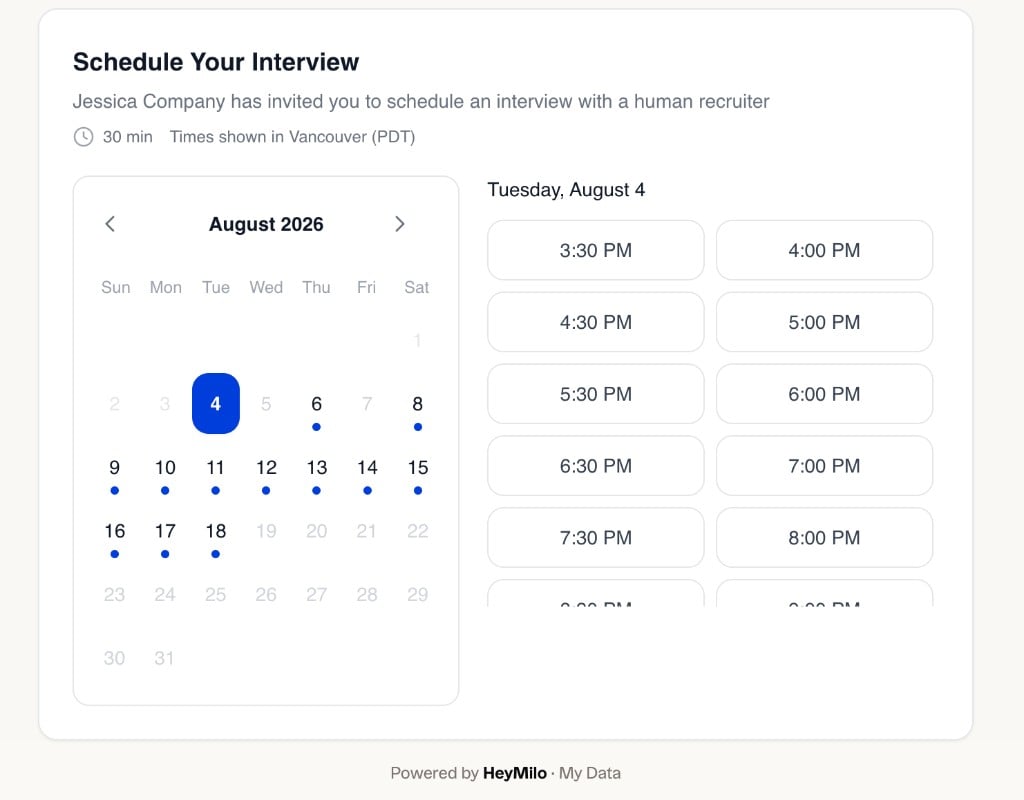 1. Candidate finishes their interview and sees a **scheduling page** with available times (in their timezone)
2. They pick a time and confirm
3. They get a **confirmation email** where they can manage, reschedule, or cancel the booking
4. The booking lands on the recruiter's calendar
## Recruiter experience
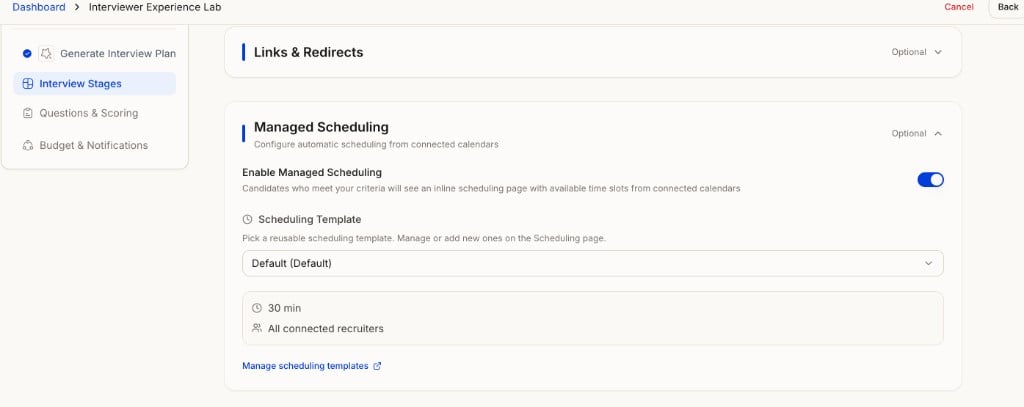
When creating a new interviewer agent, scroll down to **Managed Scheduling** and enable it:
1. Candidate finishes their interview and sees a **scheduling page** with available times (in their timezone)
2. They pick a time and confirm
3. They get a **confirmation email** where they can manage, reschedule, or cancel the booking
4. The booking lands on the recruiter's calendar
## Recruiter experience
When creating a new interviewer agent, scroll down to **Managed Scheduling** and enable it:
 ### Notifications and emails
When a candidate books, reschedules, or cancels:
* **In-app notification:** recruiters on the interview see it in their HeyMilo notifications
* **Email:** the same recruiters get an email with the booking details
* Only the people invited to that meeting are notified, not the whole workspace
* **Calendar:** the booking is automatically added, updated, or removed on your connected calendar
Candidates get their own emails too: a confirmation email when they book (with manage, reschedule, and cancel options) and an email to pick a new time if you request a reschedule. Candidate emails use your workspace brand color and logo if set, otherwise HeyMilo branding.
### Scheduling tab on the candidate profile
Every candidate with a booking has a **Scheduling tab** on their profile:
### Notifications and emails
When a candidate books, reschedules, or cancels:
* **In-app notification:** recruiters on the interview see it in their HeyMilo notifications
* **Email:** the same recruiters get an email with the booking details
* Only the people invited to that meeting are notified, not the whole workspace
* **Calendar:** the booking is automatically added, updated, or removed on your connected calendar
Candidates get their own emails too: a confirmation email when they book (with manage, reschedule, and cancel options) and an email to pick a new time if you request a reschedule. Candidate emails use your workspace brand color and logo if set, otherwise HeyMilo branding.
### Scheduling tab on the candidate profile
Every candidate with a booking has a **Scheduling tab** on their profile:
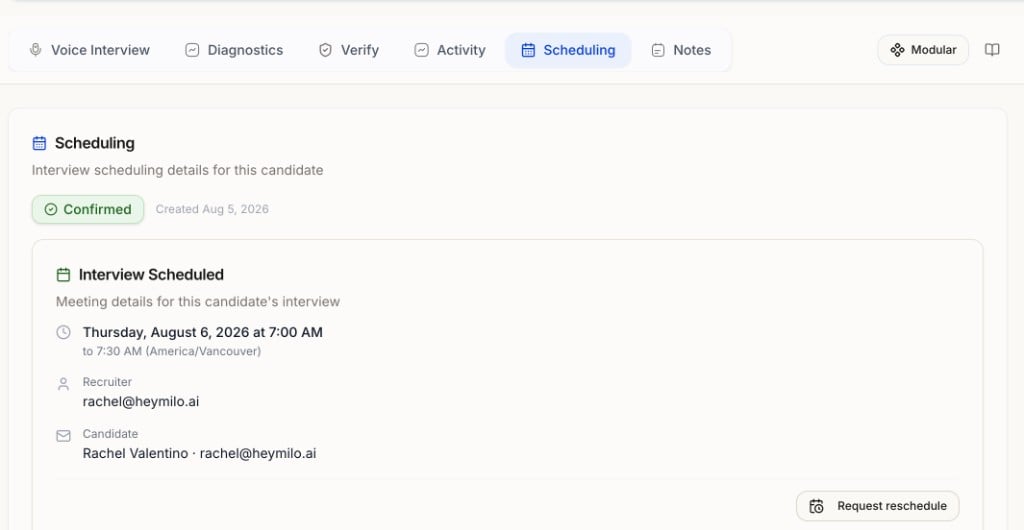 * See the booked time and its status (confirmed, rescheduled, cancelled)
* See who on the team is on the interview
### Request a reschedule
If the booked time does not work for you:
1. Open the candidate profile → **Scheduling tab**
2. Click **Request reschedule**
3. The candidate gets an email to pick a new time
4. The original booking stays until they confirm the new time
## FAQs
Yes. Calendars and availability are personal. Templates and team calendars are workspace level.
Yes. One recruiter can use Google while another uses Office 365.
Yes. When creating a template, choose who joins the call. You do not need to include your own calendar.
Candidates only see slots where all required attendees are free. Keep calendars up to date so slots appear.
Only the recruiters invited to that meeting.
Yes. Their confirmation email includes manage, reschedule, and cancel options.
Yes. Use **Request reschedule** on the candidate profile. The old time holds until the candidate confirms a new one.
At the end, after all interview steps are complete.
* See the booked time and its status (confirmed, rescheduled, cancelled)
* See who on the team is on the interview
### Request a reschedule
If the booked time does not work for you:
1. Open the candidate profile → **Scheduling tab**
2. Click **Request reschedule**
3. The candidate gets an email to pick a new time
4. The original booking stays until they confirm the new time
## FAQs
Yes. Calendars and availability are personal. Templates and team calendars are workspace level.
Yes. One recruiter can use Google while another uses Office 365.
Yes. When creating a template, choose who joins the call. You do not need to include your own calendar.
Candidates only see slots where all required attendees are free. Keep calendars up to date so slots appear.
Only the recruiters invited to that meeting.
Yes. Their confirmation email includes manage, reschedule, and cancel options.
Yes. Use **Request reschedule** on the candidate profile. The old time holds until the candidate confirms a new one.
At the end, after all interview steps are complete.