> ## Documentation Index
> Fetch the complete documentation index at: https://docs.heymilo.ai/llms.txt
> Use this file to discover all available pages before exploring further.
> View, download, and share candidate reports (score reports and PDFs). Review candidates from the interviewer list, check interview URLs, and run actions.
# Reviewing Candidates
### 1. Open an interviewer (agent)
You’ll see the interviewer’s header: job title and ID (e.g. `627-seasonal-sales-associate`), status (Active), timeline (created, active for X more days), budget/spend, subscribers, and **Share** / **Actions**.
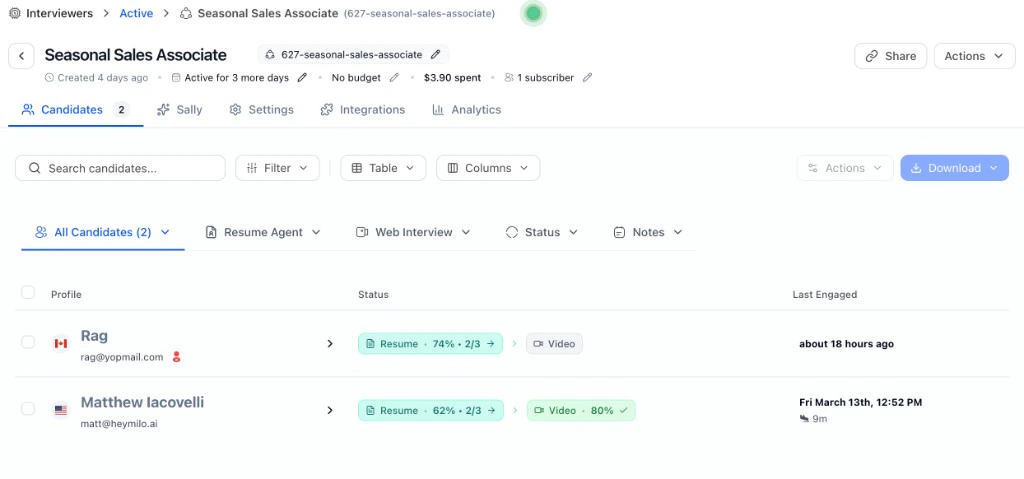 Tabs under the header: **Candidates**, **Sally** (or agent name), **Settings**, **Integrations**, **Analytics**. Stay on **Candidates** to review.
### 2. The candidate list
The list shows everyone in that interviewer’s pipeline:
* **Profile**: Name, email, and (if shown) location/flag.
* **Status**: Per stage: e.g. **Resume** (score or progress like 74% • 2/3), **Video** (score like 80% or “Video” if completed), or pending.
* **Last Engaged**: When the candidate last interacted.
Use **Search** to find by name or email. Use **Filter** and **Columns** to narrow by status, stage, or custom columns. **All Candidates (X)** lets you switch views (e.g. all vs completed).
### 3. Actions (list or after selecting candidates)
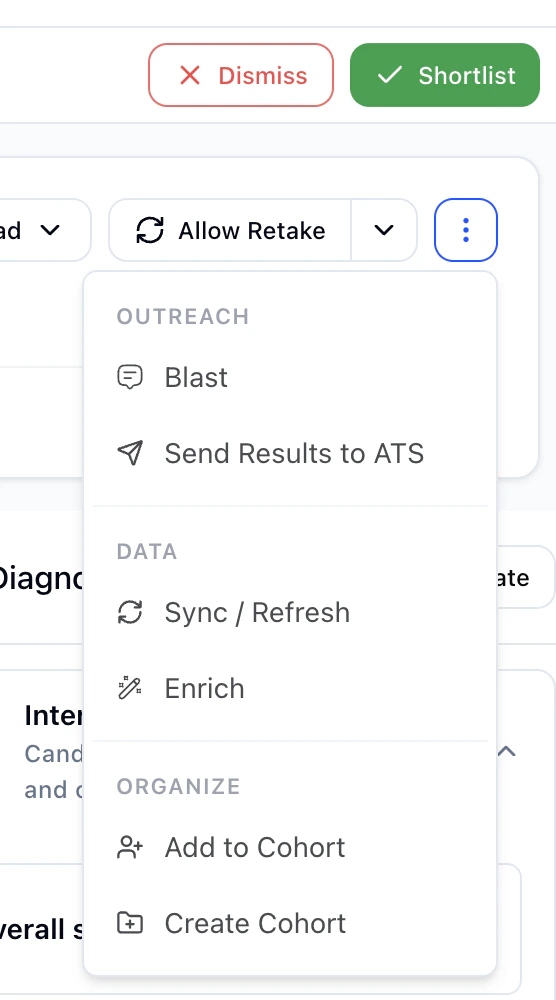
Click **Actions** to run bulk or single actions:
| Action | Use |
| ------------------------------------- | ----------------------------------------------------------------------------------------------------------------- |
| **Shortlist** | Move candidate(s) forward — they’re in. |
| **Dismiss** | Reject or remove from consideration. |
| **Nudge** | Send a reminder (e.g. to complete a step). |
| **Blast** | Send a bulk message to selected candidates. |
| Sync/Refresh | Refresh this candidate's profile so the latest data, statuses, and evaluations are reflected. |
| **Send Results to ATS** | Push scores and notes to your ATS. See [Integrations](../../integrations/ats-quickstarts) (ATS sync & writeback). |
| **Enrich** | Add or refresh data on the candidate profile. |
| **Create Cohort** / **Add to Cohort** | Group candidates for a role or talent pool. |
Tabs under the header: **Candidates**, **Sally** (or agent name), **Settings**, **Integrations**, **Analytics**. Stay on **Candidates** to review.
### 2. The candidate list
The list shows everyone in that interviewer’s pipeline:
* **Profile**: Name, email, and (if shown) location/flag.
* **Status**: Per stage: e.g. **Resume** (score or progress like 74% • 2/3), **Video** (score like 80% or “Video” if completed), or pending.
* **Last Engaged**: When the candidate last interacted.
Use **Search** to find by name or email. Use **Filter** and **Columns** to narrow by status, stage, or custom columns. **All Candidates (X)** lets you switch views (e.g. all vs completed).
### 3. Actions (list or after selecting candidates)
Click **Actions** to run bulk or single actions:
| Action | Use |
| ------------------------------------- | ----------------------------------------------------------------------------------------------------------------- |
| **Shortlist** | Move candidate(s) forward — they’re in. |
| **Dismiss** | Reject or remove from consideration. |
| **Nudge** | Send a reminder (e.g. to complete a step). |
| **Blast** | Send a bulk message to selected candidates. |
| Sync/Refresh | Refresh this candidate's profile so the latest data, statuses, and evaluations are reflected. |
| **Send Results to ATS** | Push scores and notes to your ATS. See [Integrations](../../integrations/ats-quickstarts) (ATS sync & writeback). |
| **Enrich** | Add or refresh data on the candidate profile. |
| **Create Cohort** / **Add to Cohort** | Group candidates for a role or talent pool. |
 ### 4. Candidate reports
After candidates finish their interviews, use the options below to **view**, **download**, or **share the candidate report** (also called the score report or PDF report).
HeyMilo uses **two different Download menus**: on the **Candidates list** and on a **single candidate profile**.
#### All candidates (list)
On **Candidates**, click **Download**:
### 4. Candidate reports
After candidates finish their interviews, use the options below to **view**, **download**, or **share the candidate report** (also called the score report or PDF report).
HeyMilo uses **two different Download menus**: on the **Candidates list** and on a **single candidate profile**.
#### All candidates (list)
On **Candidates**, click **Download**:
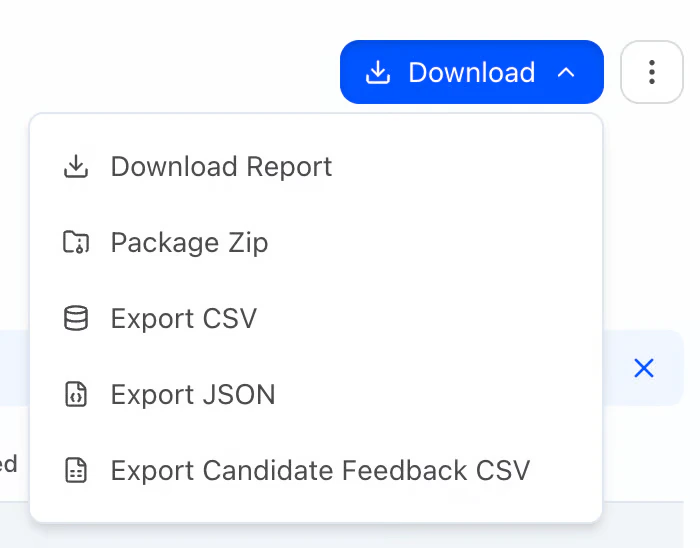 * **Download Report**: General report.
* **Package Zip**: Opens **Download Candidate Files Zip**. Choose what to include (e.g. **Include PDF Report**, resume, video, audio). For the PDF: set **Report style** (**Modern** for multilingual, **Classic** for English only) and **Language**, and toggles such as chips, highlights, lowlights, transcript when shown. The zip is **emailed** to you.
* **Export CSV**: Candidates and scores (spreadsheet).
* **Export JSON**: For integrations or tools.
* **Export Candidate Feedback CSV**: Feedback / evaluation export.
**Bulk:** Select multiple rows, then **Download** — same style of options; delivery is usually **email** (ZIP).
#### One candidate (profile)
Open a candidate, then click **Download**:
* **Download Report**: General report.
* **Package Zip**: Opens **Download Candidate Files Zip**. Choose what to include (e.g. **Include PDF Report**, resume, video, audio). For the PDF: set **Report style** (**Modern** for multilingual, **Classic** for English only) and **Language**, and toggles such as chips, highlights, lowlights, transcript when shown. The zip is **emailed** to you.
* **Export CSV**: Candidates and scores (spreadsheet).
* **Export JSON**: For integrations or tools.
* **Export Candidate Feedback CSV**: Feedback / evaluation export.
**Bulk:** Select multiple rows, then **Download** — same style of options; delivery is usually **email** (ZIP).
#### One candidate (profile)
Open a candidate, then click **Download**:
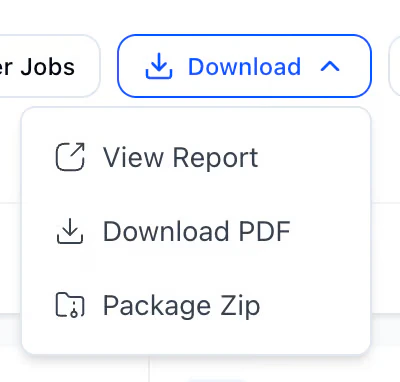 * **View Report**: Opens the report in the **browser** (preview).
* **Download PDF**: Saves a PDF of the report. Set **Report version** and **Language** as needed; adjust chips, highlights, lowlights, and transcript. **Transcript** stays in the **original interview language** (not translated).
* **View Report**: Opens the report in the **browser** (preview).
* **Download PDF**: Saves a PDF of the report. Set **Report version** and **Language** as needed; adjust chips, highlights, lowlights, and transcript. **Transcript** stays in the **original interview language** (not translated).
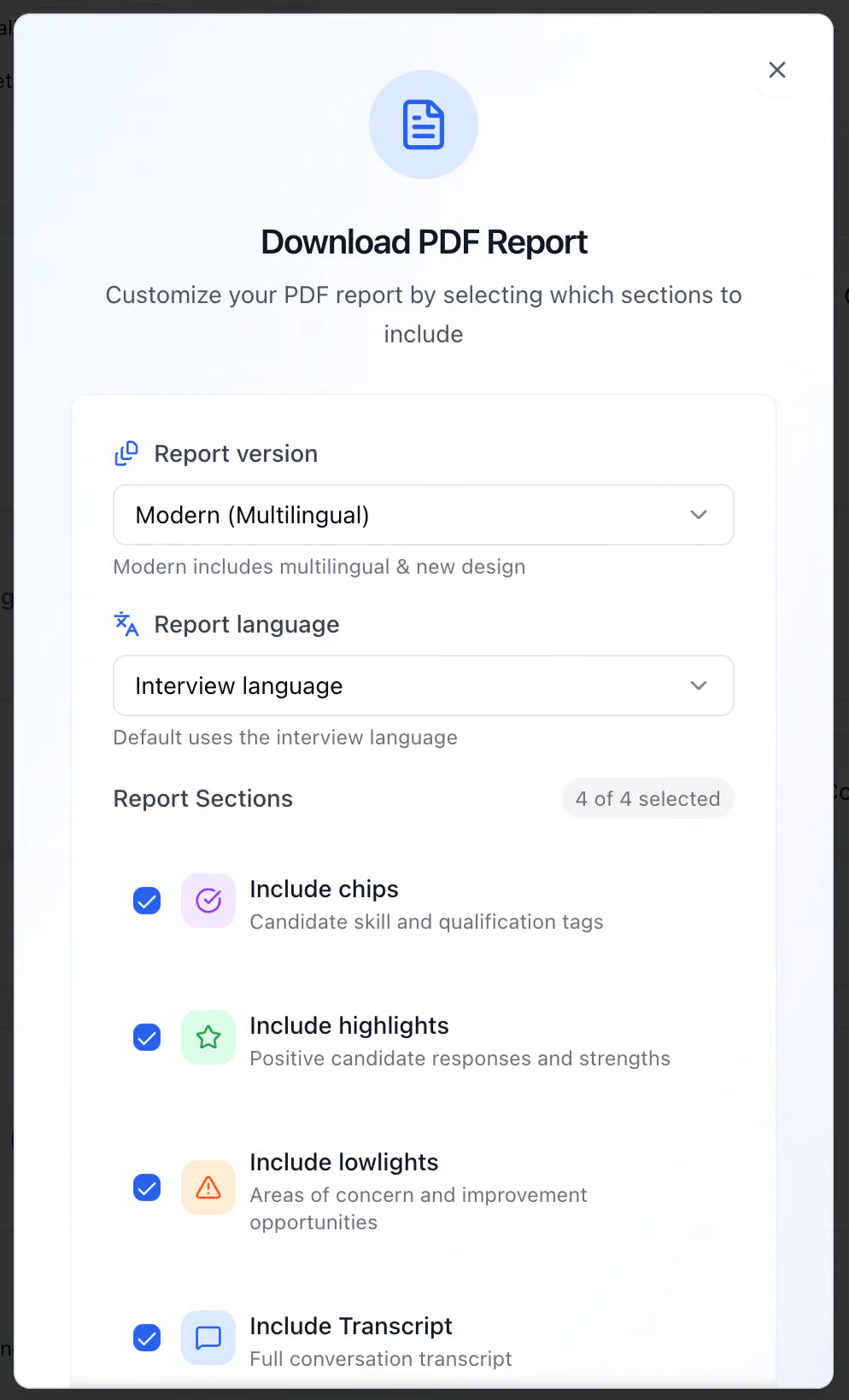 * **Package Zip**: Same **Download Candidate Files Zip** flow: optional PDF (same options as **Download PDF**), plus resume, video, audio; **emailed** ZIP.
**Note:** Multilingual PDFs use **Modern**; **Classic** is English-only.
More detail: [Scorecards & Analysis — Downloading & translating reports](https://docs.admin.heymilo.ai/wILbmLp94QU0dFy3Z6wB/reviewing-candidate-data/dashboard/scorecards#downloading-and-translating-reports). In-repo: Multilingual Support. API: **Export Interviews** in Public API documentation.
### 5. Click into a candidate
Click a row to open that candidate’s full review.
* **Package Zip**: Same **Download Candidate Files Zip** flow: optional PDF (same options as **Download PDF**), plus resume, video, audio; **emailed** ZIP.
**Note:** Multilingual PDFs use **Modern**; **Classic** is English-only.
More detail: [Scorecards & Analysis — Downloading & translating reports](https://docs.admin.heymilo.ai/wILbmLp94QU0dFy3Z6wB/reviewing-candidate-data/dashboard/scorecards#downloading-and-translating-reports). In-repo: Multilingual Support. API: **Export Interviews** in Public API documentation.
### 5. Click into a candidate
Click a row to open that candidate’s full review.
 **Candidate card**: Name, email, Interview URL, Last Interaction. **Extracted tags** (e.g. Customer-focused, Balanced approach, Resourceful). Toolbar includes **Share**, **Find Other Jobs**, **Download**, **Allow Retake** (another attempt; can override posting retake policy), and **Modular** (layout toggle) where your workspace shows them.
Across the top of the profile you'll find these tabs: **Voice Interview**, **Diagnostics**, **Verify**, **Activity**, **Notes**, and **Ask Milo**.
**Candidate card**: Name, email, Interview URL, Last Interaction. **Extracted tags** (e.g. Customer-focused, Balanced approach, Resourceful). Toolbar includes **Share**, **Find Other Jobs**, **Download**, **Allow Retake** (another attempt; can override posting retake policy), and **Modular** (layout toggle) where your workspace shows them.
Across the top of the profile you'll find these tabs: **Voice Interview**, **Diagnostics**, **Verify**, **Activity**, **Notes**, and **Ask Milo**.
 #### Interview URL
The **Interview URL** on the candidate card is that person's unique link — **click to copy** it. To get the public apply link shared by all candidates on an interviewer, open the interviewer → **Integrations → Inbound → Share Link**. To set or change the URL slug when you create an interviewer, see [Creating an Interviewer](creating-an-interviewer). For a custom domain on interview links, see [Custom Domains](../../outreach/outreach/custom-domains).
#### Classic vs Modular
HeyMilo has two candidate review layouts: **Classic** and **Modular**. Use **Modular** on the candidate toolbar to switch.
**What only changes in Modular**
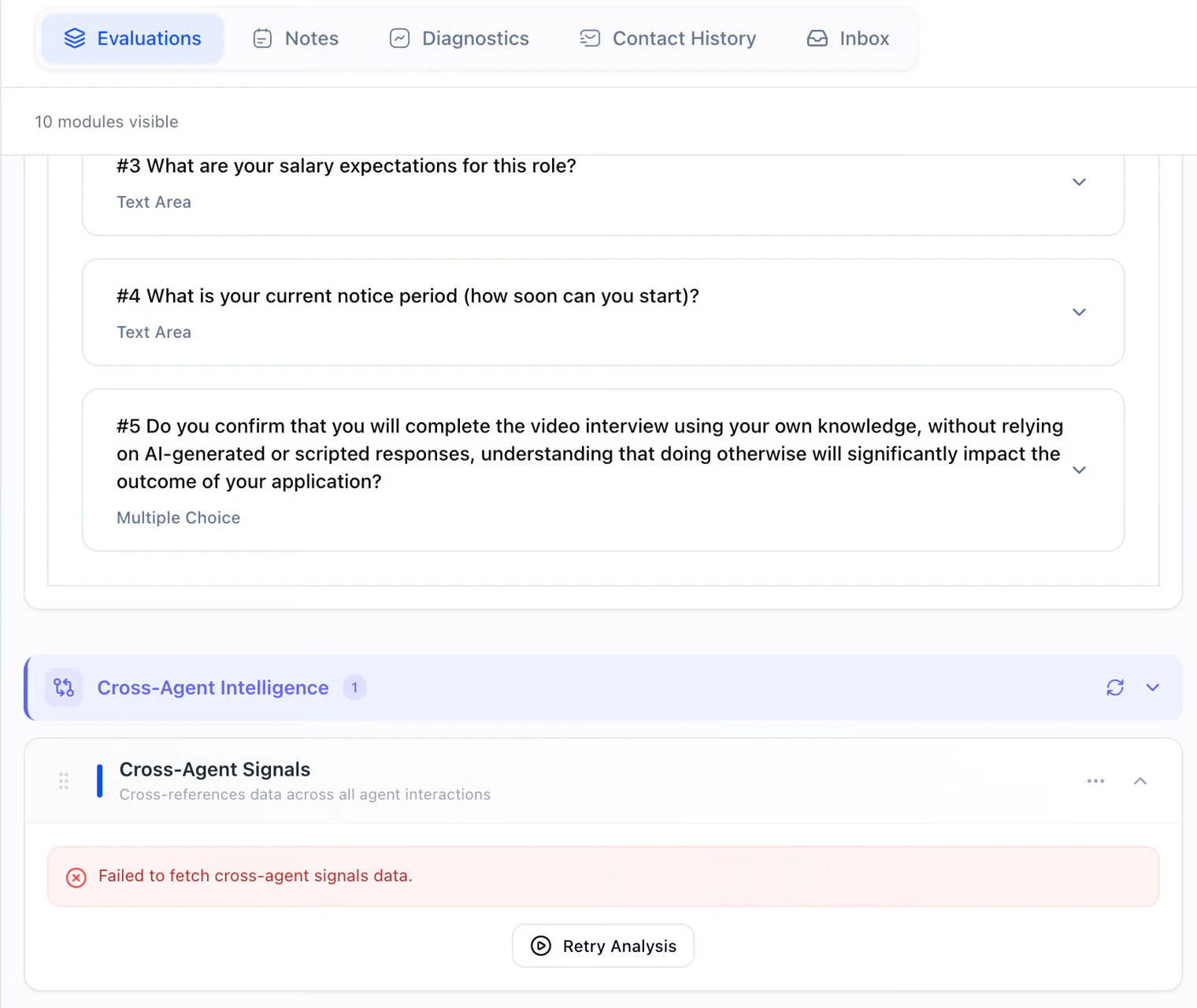
* **Evaluations** tab: Structured modules (e.g. salary, notice period, integrity confirmations).
* **When the story doesn’t match**: Sometimes a résumé says one thing and the **voice or video interview** says another. **Cross-Agent Intelligence** (**Evaluations** tab) is HeyMilo’s way of **flagging those gaps** so you’re not the one playing detective across tabs. It’s there for **trust and accuracy**: dates, titles, skills, or claims that **don’t line up** between what they **submitted** and what they **said live**.
* If the panel is empty or errors out, use **Retry Analysis** (and **Refresh** or collapse if that’s what you see). **Nothing here auto-rejects anyone. I**t’s a **heads-up for your team** before you shortlist, pass, or follow up.
#### Interview URL
The **Interview URL** on the candidate card is that person's unique link — **click to copy** it. To get the public apply link shared by all candidates on an interviewer, open the interviewer → **Integrations → Inbound → Share Link**. To set or change the URL slug when you create an interviewer, see [Creating an Interviewer](creating-an-interviewer). For a custom domain on interview links, see [Custom Domains](../../outreach/outreach/custom-domains).
#### Classic vs Modular
HeyMilo has two candidate review layouts: **Classic** and **Modular**. Use **Modular** on the candidate toolbar to switch.
**What only changes in Modular**
* **Evaluations** tab: Structured modules (e.g. salary, notice period, integrity confirmations).
* **When the story doesn’t match**: Sometimes a résumé says one thing and the **voice or video interview** says another. **Cross-Agent Intelligence** (**Evaluations** tab) is HeyMilo’s way of **flagging those gaps** so you’re not the one playing detective across tabs. It’s there for **trust and accuracy**: dates, titles, skills, or claims that **don’t line up** between what they **submitted** and what they **said live**.
* If the panel is empty or errors out, use **Retry Analysis** (and **Refresh** or collapse if that’s what you see). **Nothing here auto-rejects anyone. I**t’s a **heads-up for your team** before you shortlist, pass, or follow up.
 **Classic and Modular**
* **Find Other Jobs**: HeyMilo runs an **agent process** to match this person to other open roles. Use this action in the same row as **Share**, **Download**, and **Allow Retake.**
**Classic and Modular**
* **Find Other Jobs**: HeyMilo runs an **agent process** to match this person to other open roles. Use this action in the same row as **Share**, **Download**, and **Allow Retake.**
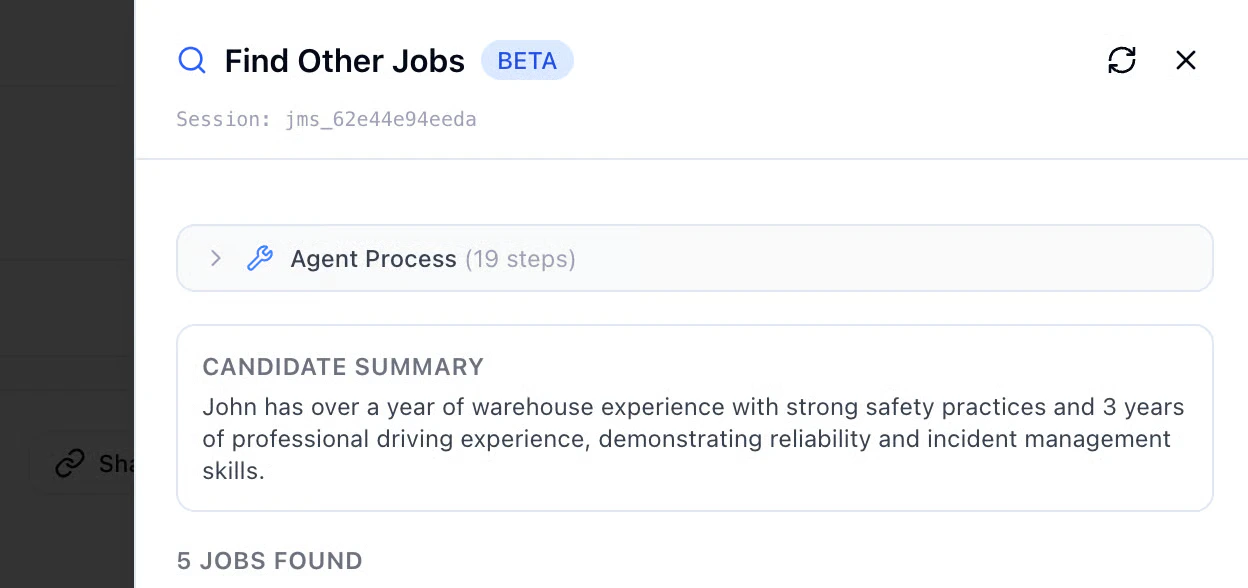 **Note:** Needs a working **ATS** connection and relevant jobs/postings for meaningful matches.
#### Candidate vs. Average
On the **Scorecard**, HeyMilo compares this candidate to other people who **completed the same interviewer**.
**Note:** Needs a working **ATS** connection and relevant jobs/postings for meaningful matches.
#### Candidate vs. Average
On the **Scorecard**, HeyMilo compares this candidate to other people who **completed the same interviewer**.
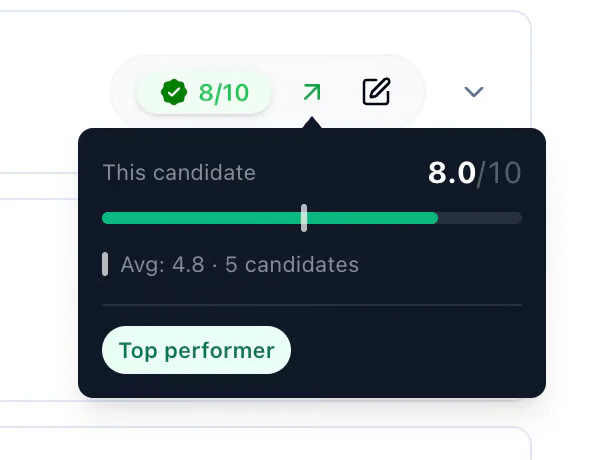 The diagram on the side shows live **Candidate vs Average**; hover a point for **Candidate %**, **Avg %**, and how far above or below (e.g. **32% above average**). Use it for a fast read on who’s **stronger than typical** for this role. If **N** is small, treat it as a **rough guide**.
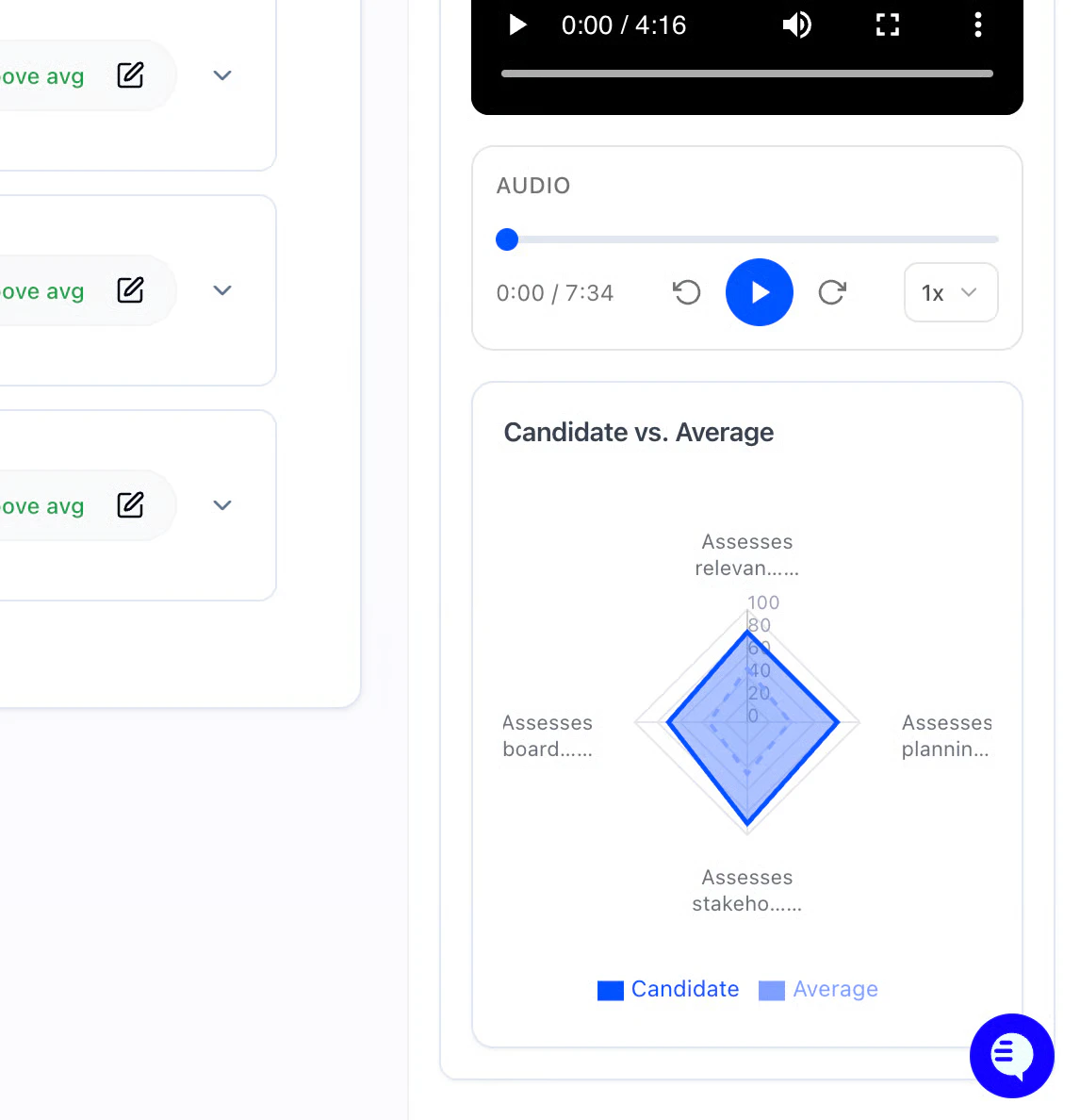 **Right Sidebar**: **Nudge Candidate**, processed checkmarks, **Overall score**, **Communication Score**, video where shown.
#### Résumé-based questions on the call
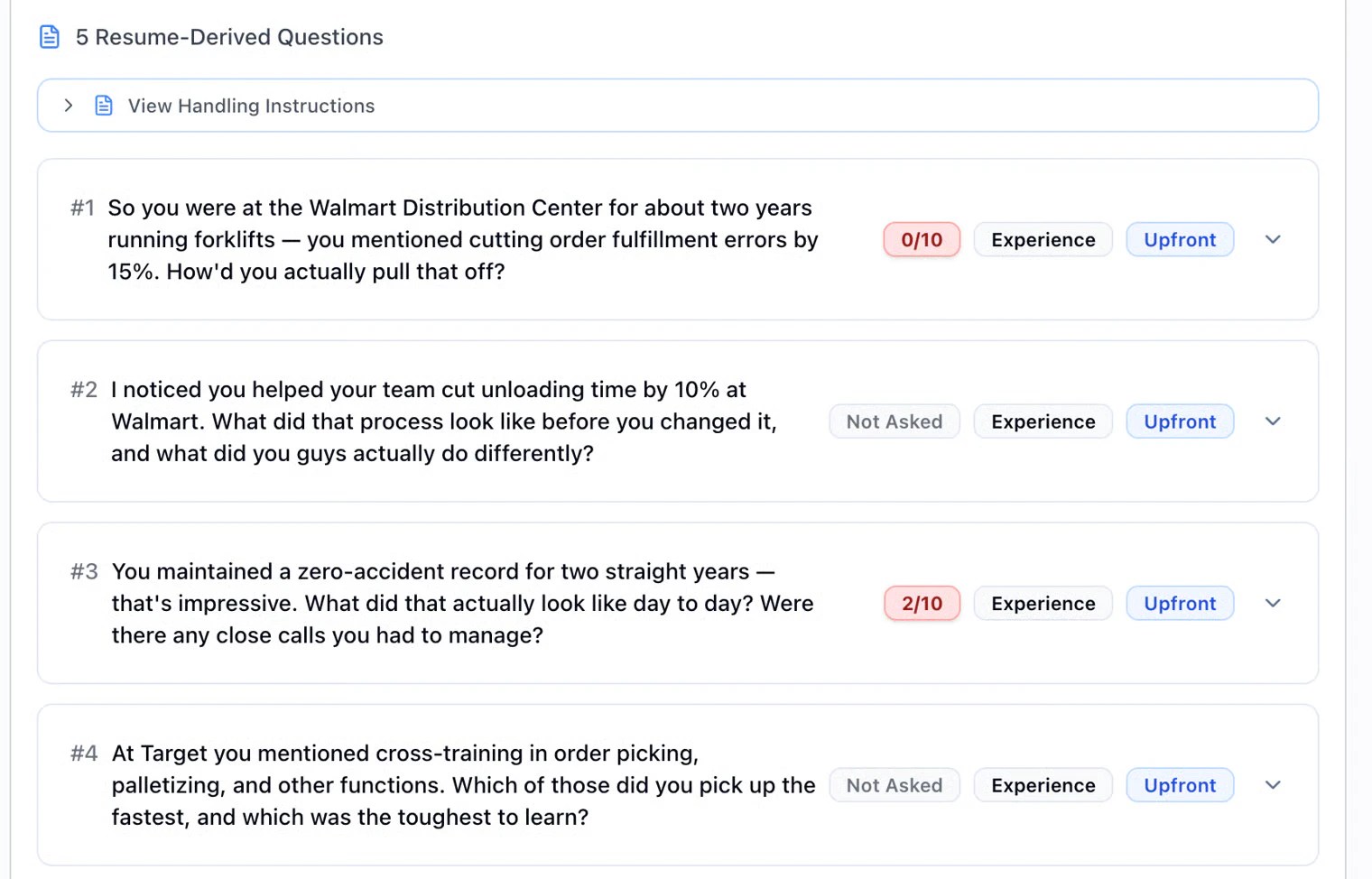
Want the AI to **dig into their résumé** during a voice or video interview? When you build the interviewer, open the **Voice Interview** step and use **Tools.** Turn on the toggle **Resume Questions**. Keep a **résumé step before voice** in the workflow so there’s something to pull from.
So, when you **review** someone: **Voice Interview** → **Resume-Derived Questions**.
* **Upfront** = meant early,
* **Deferred** = meant later.
* **Not Asked** means the **AI didn’t get to that prompt**
**Right Sidebar**: **Nudge Candidate**, processed checkmarks, **Overall score**, **Communication Score**, video where shown.
#### Résumé-based questions on the call
Want the AI to **dig into their résumé** during a voice or video interview? When you build the interviewer, open the **Voice Interview** step and use **Tools.** Turn on the toggle **Resume Questions**. Keep a **résumé step before voice** in the workflow so there’s something to pull from.
So, when you **review** someone: **Voice Interview** → **Resume-Derived Questions**.
* **Upfront** = meant early,
* **Deferred** = meant later.
* **Not Asked** means the **AI didn’t get to that prompt**
 ### 6. Diagnostics
The Diagnostics tab shows how a candidate completed the interview — use it when a score surprises you, someone didn’t finish, or you want more context before shortlisting.
Where: Open a candidate → **Diagnostics**.
### 6. Diagnostics
The Diagnostics tab shows how a candidate completed the interview — use it when a score surprises you, someone didn’t finish, or you want more context before shortlisting.
Where: Open a candidate → **Diagnostics**.
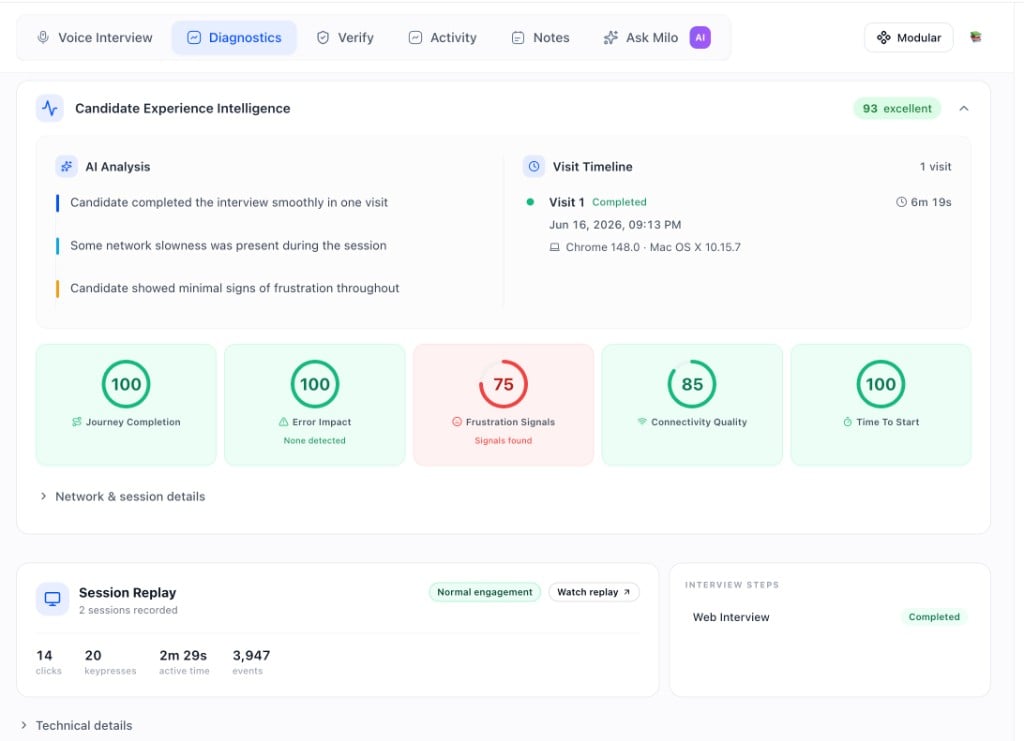 What you’ll find:
* Candidate Experience Intelligence: Overall experience score (e.g. *88 · excellent*) plus AI Analysis bullets summarizing the session (e.g. *“completed on first attempt,” “media permission errors but candidate persisted,” “slower internet detected”*).
* Visit Timeline: Each visit with status (Completed / in progress), duration, timestamp, and browser / OS (e.g. *Chrome 148 · Mac OS X*).
* Experience metrics: Scores for Journey Completion, Error Impact, Frustration Signals, Connectivity Quality, and Time to Start. Helps separate fit issues from experience issues.
* Network & session details: Connectivity chart (Avg RTT, Jitter, Packet Loss), Frustration Signals (rage click count and locations), and Candidate Rating.
* Session Replay: Play back the candidate’s screen interactions. Can take a moment to load, sensitive info is filtered, intended for internal review.
* Interview Steps: Completion status for each stage in the workflow (e.g. *Web Interview · Completed*).
* Technical details: IP Address and Evaluator Processing Times (e.g. Scorecard, English Proficiency, Highlights, Tags Extraction) for troubleshooting.
TL;DR: Scorecard answers *how did they do?* Diagnostics answers *what happened?*
### 7. Verify tab
The **Verify** tab surfaces identity checks and cheat detection signals in one place. Open it from the candidate profile alongside Diagnostics, Notes, and Activity.
Where: Open a candidate → **Verify**.
What you’ll find:
* Candidate Experience Intelligence: Overall experience score (e.g. *88 · excellent*) plus AI Analysis bullets summarizing the session (e.g. *“completed on first attempt,” “media permission errors but candidate persisted,” “slower internet detected”*).
* Visit Timeline: Each visit with status (Completed / in progress), duration, timestamp, and browser / OS (e.g. *Chrome 148 · Mac OS X*).
* Experience metrics: Scores for Journey Completion, Error Impact, Frustration Signals, Connectivity Quality, and Time to Start. Helps separate fit issues from experience issues.
* Network & session details: Connectivity chart (Avg RTT, Jitter, Packet Loss), Frustration Signals (rage click count and locations), and Candidate Rating.
* Session Replay: Play back the candidate’s screen interactions. Can take a moment to load, sensitive info is filtered, intended for internal review.
* Interview Steps: Completion status for each stage in the workflow (e.g. *Web Interview · Completed*).
* Technical details: IP Address and Evaluator Processing Times (e.g. Scorecard, English Proficiency, Highlights, Tags Extraction) for troubleshooting.
TL;DR: Scorecard answers *how did they do?* Diagnostics answers *what happened?*
### 7. Verify tab
The **Verify** tab surfaces identity checks and cheat detection signals in one place. Open it from the candidate profile alongside Diagnostics, Notes, and Activity.
Where: Open a candidate → **Verify**.
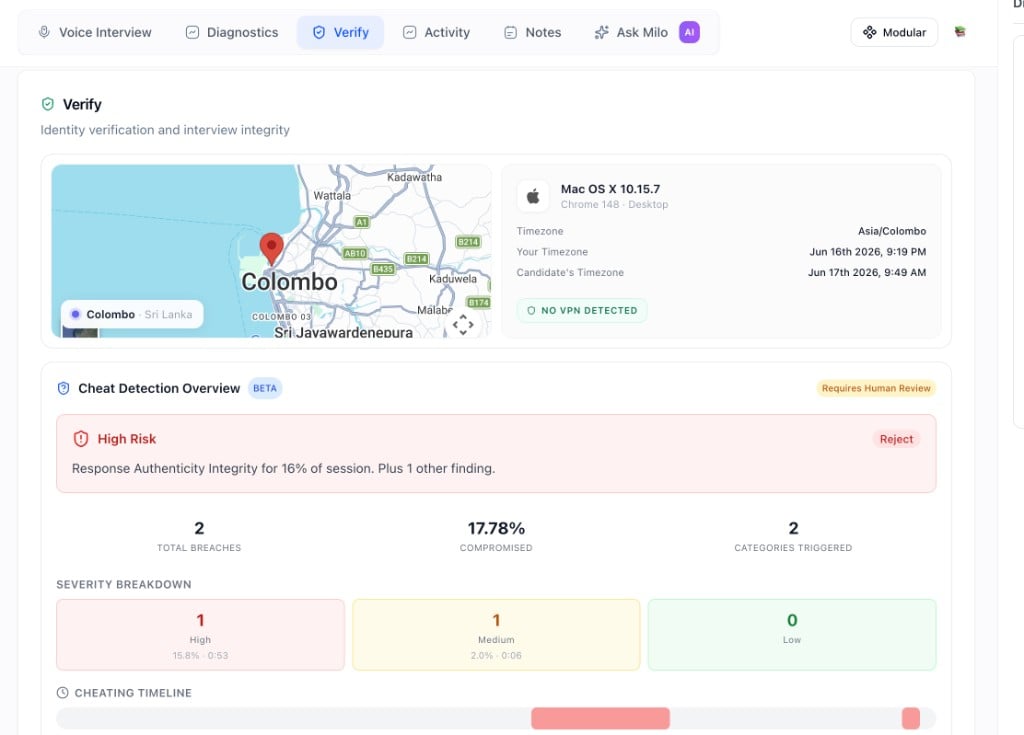 At the top of the Verify tab you will see the candidate’s location, device (OS and browser), timezone compared to yours, and VPN status.
#### Identity Verification (Beta)
Checks the candidate's email and phone to confirm their identity.
* **Email Verification**: Confirms the email address is valid and deliverable.
* **Phone Verification**: Confirms the phone number is valid and reachable.
When everything looks clean, you will see **All Checks Passed**.
#### Cheat Detection Overview (Beta)
Surfaces behavioral and environmental signals from the interview session. Flags are for human review only. Nothing here auto-rejects candidates or changes their score.
**What you will see:**
* **Risk level**: Overall assessment with a recommended action (Reject or Further Review).
* **Total Breaches**: Number of flagged events in the session.
* **% Compromised**: Share of the session where signals were detected.
* **Categories Triggered**: Which detection types were activated.
* **Severity Breakdown**: High, medium, and low signal counts with percentage of session for each.
* **Cheating Timeline**: A visual timeline of when flags occurred across the interview.
* **By Category**: A table showing category name, severity, breach count, percentage of session, and duration.
* **Breach Details**: Timestamp range, severity, confidence percentage, recommended action, the candidate's original response, and sentence-level analysis.
Flags are informational, not confirmed violations. Always review the transcript, answers, and video alongside any flags before drawing conclusions.
### Notifications
Configure alerts for completions, high scores, or expirations in Settings & Admin. For the in-app **bell** (push, sound, click-through to candidates), see [Your Dashboard](/broken/pages/ohFtbzfnPXqAQ195sfvg).
### Next steps
* [How Scoring Works](how-scoring-works) — How scores are built and how to read the report
* [Integrations](../../integrations) — ATS sync and sending results to your ATS
At the top of the Verify tab you will see the candidate’s location, device (OS and browser), timezone compared to yours, and VPN status.
#### Identity Verification (Beta)
Checks the candidate's email and phone to confirm their identity.
* **Email Verification**: Confirms the email address is valid and deliverable.
* **Phone Verification**: Confirms the phone number is valid and reachable.
When everything looks clean, you will see **All Checks Passed**.
#### Cheat Detection Overview (Beta)
Surfaces behavioral and environmental signals from the interview session. Flags are for human review only. Nothing here auto-rejects candidates or changes their score.
**What you will see:**
* **Risk level**: Overall assessment with a recommended action (Reject or Further Review).
* **Total Breaches**: Number of flagged events in the session.
* **% Compromised**: Share of the session where signals were detected.
* **Categories Triggered**: Which detection types were activated.
* **Severity Breakdown**: High, medium, and low signal counts with percentage of session for each.
* **Cheating Timeline**: A visual timeline of when flags occurred across the interview.
* **By Category**: A table showing category name, severity, breach count, percentage of session, and duration.
* **Breach Details**: Timestamp range, severity, confidence percentage, recommended action, the candidate's original response, and sentence-level analysis.
Flags are informational, not confirmed violations. Always review the transcript, answers, and video alongside any flags before drawing conclusions.
### Notifications
Configure alerts for completions, high scores, or expirations in Settings & Admin. For the in-app **bell** (push, sound, click-through to candidates), see [Your Dashboard](/broken/pages/ohFtbzfnPXqAQ195sfvg).
### Next steps
* [How Scoring Works](how-scoring-works) — How scores are built and how to read the report
* [Integrations](../../integrations) — ATS sync and sending results to your ATS