> ## Documentation Index
> Fetch the complete documentation index at: https://docs.heymilo.ai/llms.txt
> Use this file to discover all available pages before exploring further.
# Workspace Exports & Custom Reporting
> Pull every candidate across every posting in one export, then build the exact report you need with a spreadsheet or an AI tool like GPT, Gemini, or Copilot.
## When to use this
If you need reporting across your whole pipeline, do not download candidates posting by posting. A **workspace-wide export** pulls everyone, across every posting, into one file in a single run.
Common use cases:
* **Recurring ROI or adoption reporting**: one weekly file covering every active role
* **Custom reports**: your team needs fields combined in a way the standard report does not cover
* **Handoffs to IT or analysts**: give your internal team the complete dataset and let them build whatever reporting your org needs
* **Audits**: a point-in-time snapshot of all candidate data
Exporting just a handful of candidates from one posting? Use the **Download** button on the candidate list instead. See [Reviewing Candidates](reviewing-candidates#4-candidate-reports).
## Run a workspace-wide export
**Path:** Sidebar → **Compliance** → **Export log** → **New export**
Go to **Compliance → Export log** and click **New export**.
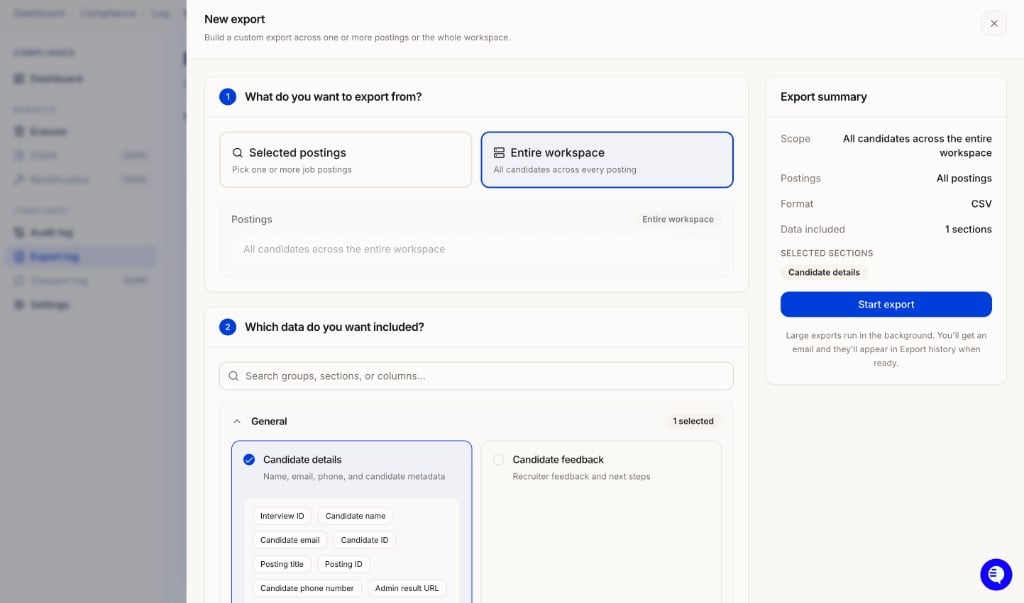 | Option | What it exports |
| --------------------- | -------------------------------------- |
| **Entire workspace** | All candidates across every posting |
| **Selected postings** | Pick one or more specific job postings |
Search or browse sections to add. See the section guide below for what to pick.
| Format | What you get |
| -------------------------- | ---------------------------------------------------------------------------------- |
| **CSV** | Flat spreadsheet, one row per candidate. Best for reporting and AI tools. |
| **Excel** | Formatted spreadsheet with section statuses. |
| **JSON** | Nested record export with the full data model. Best for IT teams and integrations. |
| **Candidate feedback CSV** | Feedback-only spreadsheet. |
| **Everything ZIP** | PDF, media, and data files bundled together. |
The **Export summary** panel on the right shows your scope, format, and selected sections, plus a **schema preview** of the exact columns your file will contain with sample data.
Click **Start export**. Large exports run in the background. You get an email when the file is ready, and it also lands in **Export History** where you can re-download it any time.
## Which sections to include
Pick sections based on what your report needs. A typical pipeline or ROI report maps like this:
| You want to report on | Include this section |
| --------------------------------------------------------- | -------------------------------------------------------------------- |
| Candidate name, email, phone, posting title, report links | **General → Candidate details** |
| Pipeline status (Shortlisted, Dismissed) | **General → Candidate feedback** (included as columns) |
| Candidate experience score and feedback notes | **General → Candidate feedback** |
| Overall match score and summary insights | **Voice agent → Scorecard summary** |
| Speech score and communication evaluations | **Voice agent → Communication** |
| Interview transcripts | **Voice agent → Voice transcript** or **SMS agent → SMS transcript** |
| Per-question scores | **Voice agent → Interview questions** |
| Form screening status and results | **Form agent → Form results** |
| Resume score and eligibility | **Resume agent → Resume screening** |
| SMS screening results | **SMS agent → SMS screening** |
| Cheat detection and verification data | **Diagnostics & integrity → Diagnostics** |
| Audio, video, resume, and PDF report files | **General → Media files** (ZIP exports only) |
**Posting-specific sections** (Interview questions, Form results) vary by posting. If you are exporting them across multiple postings, use **JSON** or **ZIP** format instead of CSV.
Re-running the same report every week? Select the same sections each time so your columns stay consistent and any downstream tooling (spreadsheets, scripts, AI prompts) keeps working without changes.
## Build custom reports with GPT, Gemini, or Copilot
The export gives you all the raw data. From there, your team or your IT department can shape it into any report format, and AI tools make this fast: upload the CSV and describe the report you want.
Example prompts that work well with a workspace export:
* "Build a weekly pipeline report with one row per candidate: name, email, posting title, status, date created, form completion date, video interview completion date, match score, and candidate experience score."
* "Summarize adoption by posting: candidates invited, completed, shortlisted, and dismissed, with completion rate per role."
* "Compare average match score and candidate experience score across postings and flag roles below the workspace average."
This is the workflow most customer IT teams use for recurring reporting: pull the full dataset on a schedule, then run a saved GPT, Gemini, or Copilot prompt against it to regenerate the report.
Exports contain candidate personal data. Before uploading them to any external AI tool, check your organization's data handling policy, and prefer enterprise instances of these tools where your data is not used for training.
## Automate recurring pulls with the API
Exports from the app are run on demand. If you want fully hands-off recurring reporting, your IT team can pull the same data programmatically through the [HeyMilo Public API](/api-reference/public-api/documentation) on whatever schedule you need, then feed it into the same AI prompts or BI tooling.
## Export history and governance
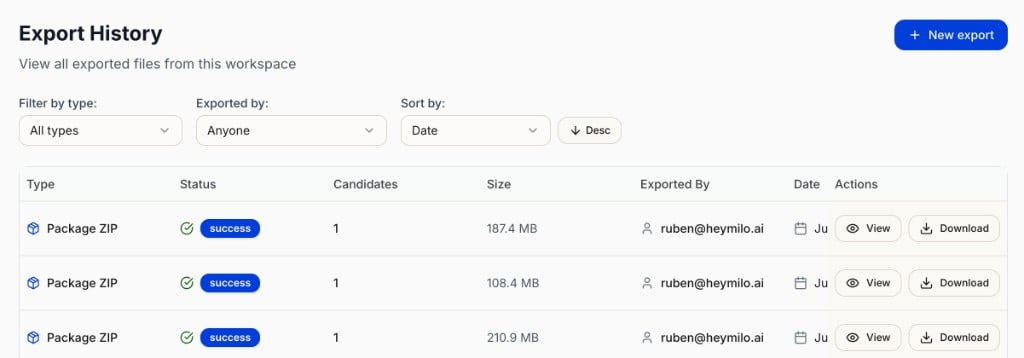
Every export is logged under **Compliance → Export log** with type, status, candidate count, file size, who ran it, and the date. Use **View** for the export's scope and sections, or **Download** to grab the file again.
| Option | What it exports |
| --------------------- | -------------------------------------- |
| **Entire workspace** | All candidates across every posting |
| **Selected postings** | Pick one or more specific job postings |
Search or browse sections to add. See the section guide below for what to pick.
| Format | What you get |
| -------------------------- | ---------------------------------------------------------------------------------- |
| **CSV** | Flat spreadsheet, one row per candidate. Best for reporting and AI tools. |
| **Excel** | Formatted spreadsheet with section statuses. |
| **JSON** | Nested record export with the full data model. Best for IT teams and integrations. |
| **Candidate feedback CSV** | Feedback-only spreadsheet. |
| **Everything ZIP** | PDF, media, and data files bundled together. |
The **Export summary** panel on the right shows your scope, format, and selected sections, plus a **schema preview** of the exact columns your file will contain with sample data.
Click **Start export**. Large exports run in the background. You get an email when the file is ready, and it also lands in **Export History** where you can re-download it any time.
## Which sections to include
Pick sections based on what your report needs. A typical pipeline or ROI report maps like this:
| You want to report on | Include this section |
| --------------------------------------------------------- | -------------------------------------------------------------------- |
| Candidate name, email, phone, posting title, report links | **General → Candidate details** |
| Pipeline status (Shortlisted, Dismissed) | **General → Candidate feedback** (included as columns) |
| Candidate experience score and feedback notes | **General → Candidate feedback** |
| Overall match score and summary insights | **Voice agent → Scorecard summary** |
| Speech score and communication evaluations | **Voice agent → Communication** |
| Interview transcripts | **Voice agent → Voice transcript** or **SMS agent → SMS transcript** |
| Per-question scores | **Voice agent → Interview questions** |
| Form screening status and results | **Form agent → Form results** |
| Resume score and eligibility | **Resume agent → Resume screening** |
| SMS screening results | **SMS agent → SMS screening** |
| Cheat detection and verification data | **Diagnostics & integrity → Diagnostics** |
| Audio, video, resume, and PDF report files | **General → Media files** (ZIP exports only) |
**Posting-specific sections** (Interview questions, Form results) vary by posting. If you are exporting them across multiple postings, use **JSON** or **ZIP** format instead of CSV.
Re-running the same report every week? Select the same sections each time so your columns stay consistent and any downstream tooling (spreadsheets, scripts, AI prompts) keeps working without changes.
## Build custom reports with GPT, Gemini, or Copilot
The export gives you all the raw data. From there, your team or your IT department can shape it into any report format, and AI tools make this fast: upload the CSV and describe the report you want.
Example prompts that work well with a workspace export:
* "Build a weekly pipeline report with one row per candidate: name, email, posting title, status, date created, form completion date, video interview completion date, match score, and candidate experience score."
* "Summarize adoption by posting: candidates invited, completed, shortlisted, and dismissed, with completion rate per role."
* "Compare average match score and candidate experience score across postings and flag roles below the workspace average."
This is the workflow most customer IT teams use for recurring reporting: pull the full dataset on a schedule, then run a saved GPT, Gemini, or Copilot prompt against it to regenerate the report.
Exports contain candidate personal data. Before uploading them to any external AI tool, check your organization's data handling policy, and prefer enterprise instances of these tools where your data is not used for training.
## Automate recurring pulls with the API
Exports from the app are run on demand. If you want fully hands-off recurring reporting, your IT team can pull the same data programmatically through the [HeyMilo Public API](/api-reference/public-api/documentation) on whatever schedule you need, then feed it into the same AI prompts or BI tooling.
## Export history and governance
Every export is logged under **Compliance → Export log** with type, status, candidate count, file size, who ran it, and the date. Use **View** for the export's scope and sections, or **Download** to grab the file again.
 **Help:** [**support@heymilo.ai**](mailto:support@heymilo.ai) or in-app chat.