> ## Documentation Index
> Fetch the complete documentation index at: https://docs.heymilo.ai/llms.txt
> Use this file to discover all available pages before exploring further.
# Data export
> Run workspace-wide or multi-posting candidate exports and pick up the files you asked for, all from Settings → Data export.
Open **Settings → Data export** under **Workspace**.
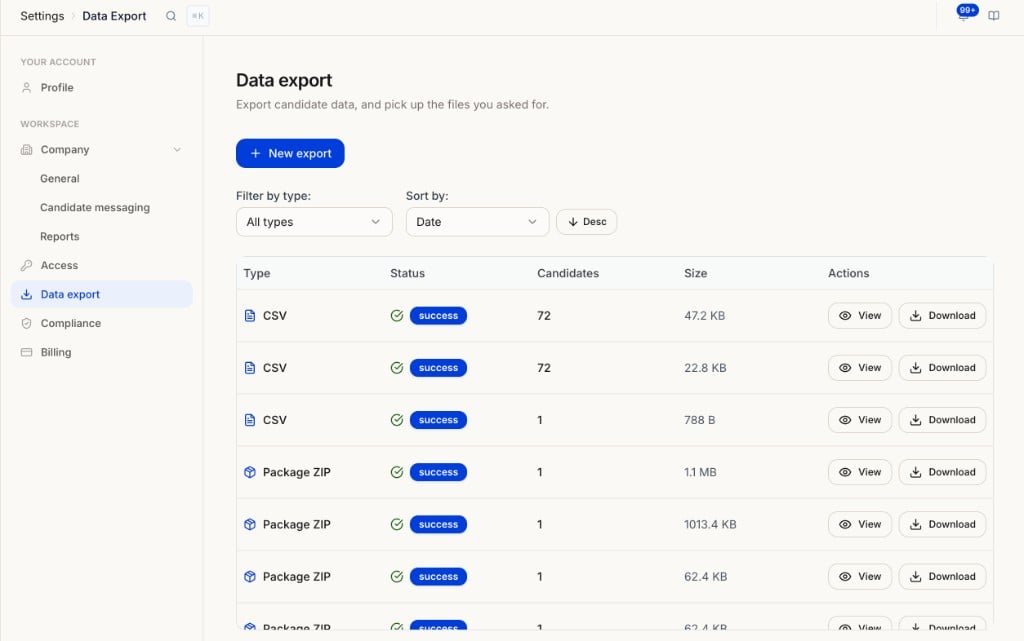 Export candidate data, and pick up the files you asked for. This is where every export in your workspace lands, whether you started it here or from a candidate list.
Exporting a few candidates from one posting? Select them on the candidate list and click **Download** instead. See [Reviewing Candidates](/guides/run-and-review/reviewing-candidates#4-candidate-reports).
## Start a new export
Click **+ New export** to build a custom export across one or more postings or the whole workspace.
Export candidate data, and pick up the files you asked for. This is where every export in your workspace lands, whether you started it here or from a candidate list.
Exporting a few candidates from one posting? Select them on the candidate list and click **Download** instead. See [Reviewing Candidates](/guides/run-and-review/reviewing-candidates#4-candidate-reports).
## Start a new export
Click **+ New export** to build a custom export across one or more postings or the whole workspace.
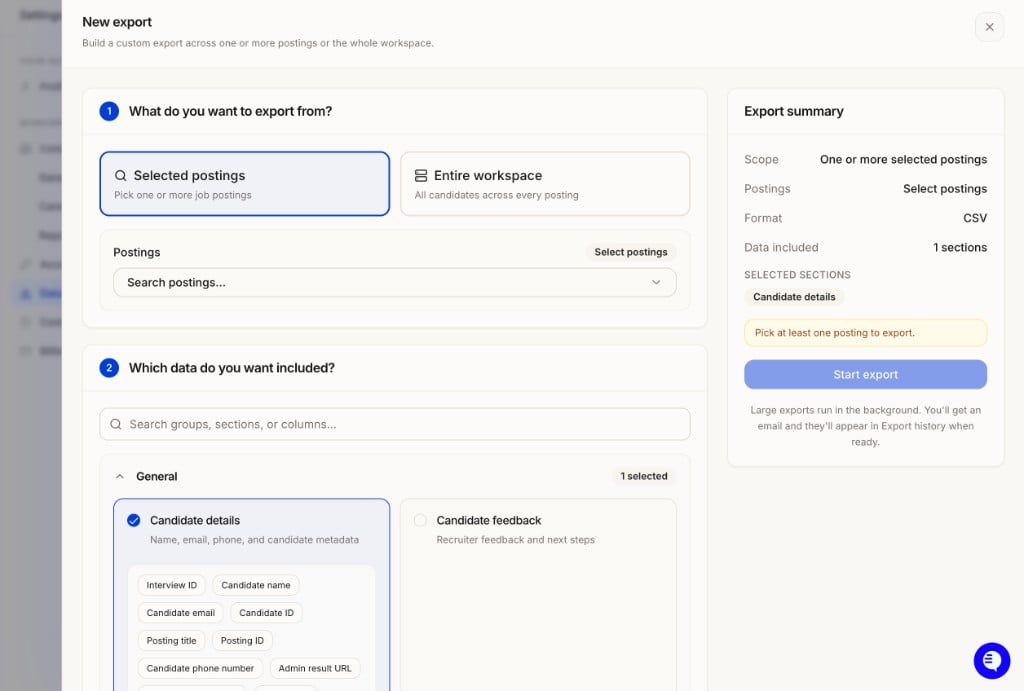 **Selected postings** (pick one or more) or **Entire workspace** (all candidates across every posting).
Search or browse sections, grouped by agent type (General, Voice agent, SMS agent, Resume agent, Form agent, Diagnostics & integrity). Each section lists the columns it adds.
The panel on the right shows scope, format, and selected sections. Fix anything it flags (for example, no postings picked yet).
Large exports run in the background. You get an email when the file is ready, and it appears in the list on this page.
For which sections to pick and how to turn the file into a report, see [Workspace Exports & Custom Reporting](/guides/run-and-review/exporting-workspace-data).
## Export history
The table lists every export from your workspace.
| Column | What it shows |
| -------------- | -------------------------------------------------------------------------------- |
| **Type** | CSV, Excel, JSON, Package ZIP, or PDF ZIP |
| **Status** | Whether the export finished (**success**) or is still running or failed |
| **Candidates** | How many candidates are in the file |
| **Size** | File size |
| **Actions** | **View** for the export's scope and sections, **Download** to get the file again |
Use **Filter by type** to show one format and **Sort by** date, ascending or descending.
### Related pages
* [Workspace Exports & Custom Reporting](/guides/run-and-review/exporting-workspace-data): the full guide, including section picks and AI reporting prompts
* [Compliance](compliance): retention settings and deletion requests
* [Reviewing Candidates](/guides/run-and-review/reviewing-candidates): per-candidate downloads
**Selected postings** (pick one or more) or **Entire workspace** (all candidates across every posting).
Search or browse sections, grouped by agent type (General, Voice agent, SMS agent, Resume agent, Form agent, Diagnostics & integrity). Each section lists the columns it adds.
The panel on the right shows scope, format, and selected sections. Fix anything it flags (for example, no postings picked yet).
Large exports run in the background. You get an email when the file is ready, and it appears in the list on this page.
For which sections to pick and how to turn the file into a report, see [Workspace Exports & Custom Reporting](/guides/run-and-review/exporting-workspace-data).
## Export history
The table lists every export from your workspace.
| Column | What it shows |
| -------------- | -------------------------------------------------------------------------------- |
| **Type** | CSV, Excel, JSON, Package ZIP, or PDF ZIP |
| **Status** | Whether the export finished (**success**) or is still running or failed |
| **Candidates** | How many candidates are in the file |
| **Size** | File size |
| **Actions** | **View** for the export's scope and sections, **Download** to get the file again |
Use **Filter by type** to show one format and **Sort by** date, ascending or descending.
### Related pages
* [Workspace Exports & Custom Reporting](/guides/run-and-review/exporting-workspace-data): the full guide, including section picks and AI reporting prompts
* [Compliance](compliance): retention settings and deletion requests
* [Reviewing Candidates](/guides/run-and-review/reviewing-candidates): per-candidate downloads